What Is a VMDK File? How to Open a VMDK File in Windows 10/11?
If you’ve ever worked with virtual machines, you may have come across a file ending in .vmdk and wondered what it does. Understanding what is a VMDK file is essential if you need to open, manage, or recover data from virtual environments.
This guide explains what a VMDK file is, how to open it in Windows 10/11, and what to do if something goes wrong.
What Is a VMDK File?
Virtualization has become a core technology for developers, IT professionals, and businesses. At the heart of many virtual machines lies a special type of file designed to act like a physical hard drive, that is the VMDK file.
So, what is a .VMDK file? A VMDK (Virtual Machine Disk) file is a disk image format developed by VMware. It functions as a virtual hard disk for a virtual machine, storing everything a physical disk would contain.
In simple terms, a .vmdk file includes:
- The operating system installed in the virtual machine
- User files and folders
- Installed applications and system settings
- File system structure and disk metadata
From the virtual machine’s perspective, the VMDK behaves exactly like a real hard drive. VMware products such as VMware Workstation, VMware Fusion, and VMware ESXi rely on VMDK files to run virtual systems.
How to Open a VMDK File in Windows 10/11?
Now that you know what is a VMDK file, let us learn how to open it. Opening a VMDK file on Windows is not as simple as double-clicking it. Since it represents a virtual disk, you need virtualization software to read or mount it properly.
How to Open a VMDK File Using VMware Workstation?
If you regularly work with VMware-based virtual machines, opening VMDK file using VMware Workstation is the most straightforward option. VMware Workstation is a professional virtualization tool that allows you to run multiple operating systems on a single Windows PC.
This method allows full interaction with the virtual OS stored inside the VMDK. And it works for users who want to run the entire virtual machine or access the disk in its native VMware environment.
Here is how to open a VMDK file in Windows 11 or 10 via VMware Workstation.
-
Open your VM client and click "Edit the virtual Machine Settings."
-
Click "Add" in the Wizard and choose "Hard Disk", then "SCSI", and click "Use an Existing Virtual Disk”. Now you need to open your VMDK and click "finish."
-
Open Windows Disk Management after the virtual disk state goes online, and give this drive a new letter for browsing its files.
How to Open a VMDK File Using VirtualBox?
VirtualBox is an open-source virtualization platform that supports multiple disk image formats, including VMDK, a popular free alternative that can also handle VMDK files with a few extra steps.
For those who want a free solution or prefer Oracle VirtualBox over VMware products, VirtualBox is preferred for opening a .VMDK file.
Learn how to open a VMDK file in Windows 10 and 11 using VirtualBox:
-
Install Oracle VirtualBox on your Windows 10/11 system. Open VirtualBox and click “New” to create a new virtual machine.
Set the name, OS, and RAM for this VM and click "Next."
-
Click “Use Existing Hard Disk” and go to the "Folder" icon and select "File System", then click "Add File" and select "Use an existing virtual hard disk file”.
Browse to the VMDK file and attach it.
-
Configure the OS type and system resources, finish the setup, and start the virtual machine.
How to Recover a VMDK File?
Sometimes, VMDK files become inaccessible, corrupted, or partially lost. The recovery approach depends on whether the entire virtual machine is affected or only specific files inside it.
Case 1: VMDK File Lost or Corrupted
If the whole virtual machine fails to start, or the VMDK file is damaged, backups are your first line of defense.
-
Open vCenter and right-click a cluster, then select "New Virtual Machine."
-
Select "Create a virtual machine" and click "Next", then give it a name, location, compute source storage, compatibility, and guest OS.
-
In "Customization Hardware," you will use the VMDK file and click "Add New Device," then select "Existing Hard Drive" to select the VMDK disk and click "OK."
-
Finally, review everything and click “Finish” to get your data back.
Case 2: Recovering Data from a VMDK File
In this scenario, the virtual machine exists, but important files inside it are missing or deleted.
1. How to Recover VMDK Data Using 4DDiG?
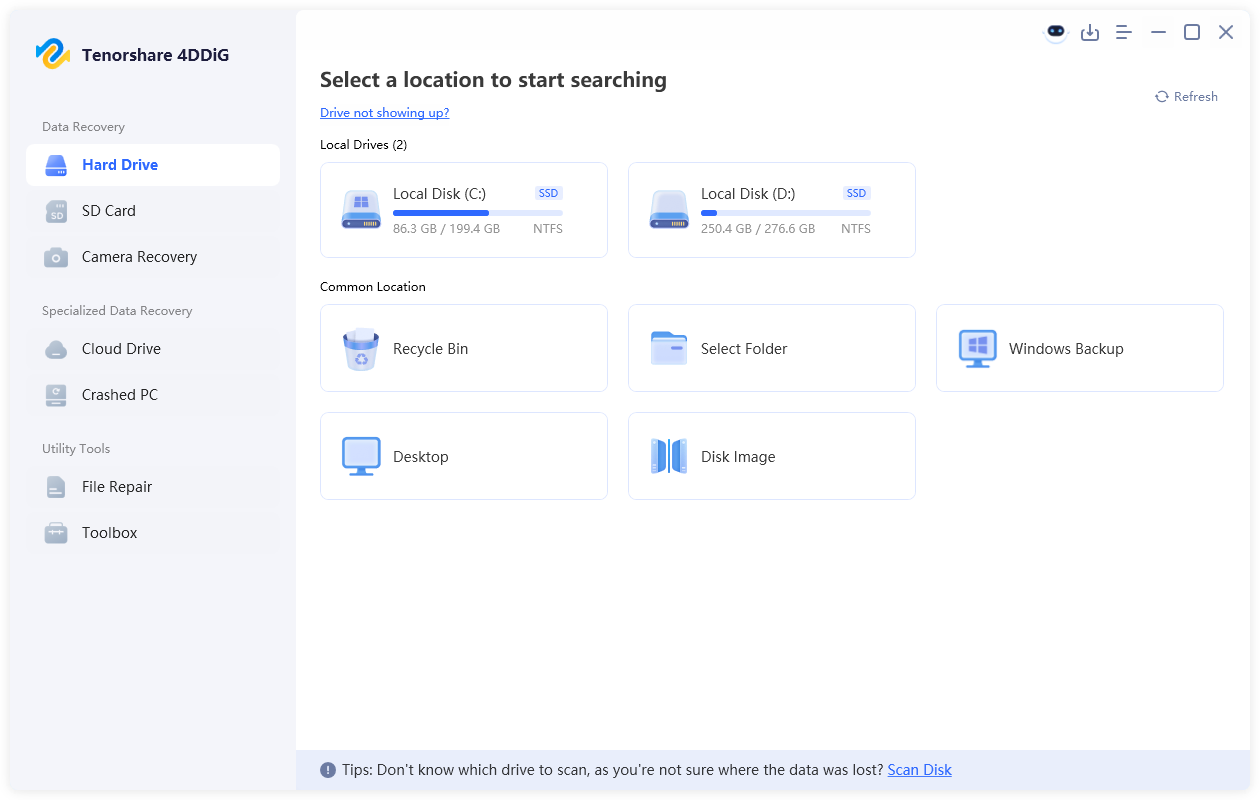
When files are missing or the VMDK cannot be accessed normally, specialized recovery software becomes essential. 4DDiG Windows Data Recovery is designed to recover data from complex storage scenarios, including virtual disks. Here’s how it works:
Secure Download
Secure Download
-
Launch 4DDiG on your computer after downloading and installing it, then go to the “Hard Drive" section and choose "Disk Image”.
-
Click “Recover Data from image” and select the VMDK file if 4DDiG does not import it automatically.
-
It will automatically scan the VMDK file after selecting it, and when the scan is complete, you can click the “Recover” button after checking the preview.
2. How to Recover a VMDK File by Mounting?
If the VMDK file is intact but inaccessible, mounting it manually can help extract files.
-
Open your VirtualBox and click "File" then choose "New Virtual Machine" and click "Typical."
-
Configure the OS by choosing “install the OS later”, “select the OS”, and "set the name and location of your VM."
-
In the Hardware Wizard, you need. To select "Hard Disk" and then select "SCSI" as its type, and click "Next", then select the "Add" option to choose "Hard Drive", and finally choose "Use an existing virtual disk”.
-
Click "Next," and you can browse your machine for the location of your VMDK file. Select it and follow the rest of the setup process like normal.
This method is effective for selective file recovery without repairing the entire virtual machine.
Advantages and Disadvantages of a VMDK File
Before deciding how to manage or migrate VMDK files, it helps to understand their strengths and limitations.
- Pros
- Cons
-
- Fully emulates a physical hard disk
- Supports snapshots and incremental backups
- Compatible with multiple virtualization platforms
- Ideal for testing, development, and server environments
-
- Not natively readable by Windows without virtualization tools
- Large file sizes consume significant storage
- Can become corrupted if improperly moved or powered off
- Requires specialized software for repair or recovery
VMDK vs Other Disk Images
Different disk image formats serve different purposes. Here’s how VMDK compares with other common formats:
VMDK stands out for virtualization but is less flexible outside of that ecosystem.
Conclusion
Understanding what is a VMDK file makes it much easier to open, manage, and recover data from virtual machines. Whether you’re using VMware or VirtualBox on Windows 10/11, the right tools simplify access.
When data loss happens, solutions like Tenorshare 4DDiG provide a reliable way to retrieve files from damaged or inaccessible VMDK files safely and efficiently.
Secure Download
Secure Download
💡 Summarize with AI:
You May Also Like
- Home >>
- Hard Drive >>
- What Is a VMDK File? How to Open a VMDK File in Windows 10/11?
ChatGPT
Perplexity
Grok