What Is a Disk Image? How to Create/Open a Disk Image File?

5 mins read

Updated on 2025-12-30 16:37:37 to Hard Drive

Have you ever backed up an entire hard drive or downloaded an ISO file? If yes, then you likely have used a disk image even without realizing what it is. Understanding what is a disk image and how it works can help you protect data, migrate systems, and recover files more efficiently.

In this guide, we’ll explain disk images in plain terms and show you how to create, open, and troubleshoot them on both Windows and Mac.

What Is a Disk Image?

Before diving into tools and steps, it’s important to understand the concept behind disk images and why they are so widely used. A disk image is more than just a large file, as it’s a complete snapshot of a storage device.

What Is a Disk Image File?

A disk image file is a single file that contains an exact, sector-by-sector copy of a disk or partition. This includes not only visible files and folders, but also:

  • File system structure
  • Boot records
  • Partition tables
  • Hidden and system files
  • Unallocated space (in some image types)

In other words, a disk image preserves the disk exactly as it exists at a specific moment. Common examples include system images, backup images, and ISO files used for operating system installation.

When people ask what is an ISO disk image, they’re usually referring to a disk image created from optical media like CDs or DVDs, packaged in the widely used .iso format.

What Are the Advantages of a Disk Image?

Disk images are essential because they offer benefits that regular file backups cannot.

  • You can restore an entire operating system, not just individual files.
  • If a drive fails or becomes corrupted, a disk image allows full restoration.
  • Disk images are commonly used when moving Windows or macOS to a new drive.
  • Data integrity is ensured because it’s an exact copy; permissions and system structures are preserved.
  • IT professionals use disk images to deploy identical systems quickly.

Simply put, disk images provide a reliable, all-in-one solution for backup, recovery, and system replication.

How to Create a Disk Image on Windows & Mac?

Once you understand the value of disk images, the next step is knowing how to create one using built-in tools. Both Windows and macOS offer native utilities that can get the job done without third-party software.

How to Create a Disk Image on Windows?

Windows includes a legacy but reliable tool called Backup and Restore (Windows 7) that can still create full system images on Windows 10 and Windows 11.

Before you begin, make sure the target drive (external hard drive or network location) has enough free space, usually equal to or larger than the used space of the disk being imaged.

Steps to create a disk image on Windows:

  • Open “Control Panel” and go to “Backup and Restore (Windows 7)” inside “All Control Panel Items”.

  • Click “Create a system image” and select the disk or volume where you want to save the disk image, and click “Next.

    create a system image on windows
  • Now, choose the drive/disk that you want to create the backup of and click "Start Backup."

  • Now, you just need to wait as the process completes, and your disk image will be ready.

Windows will create a system image that can later be used to restore your entire system in case of failure. This is one of the most practical answers to how to create a disk image on Windows without extra tools.

How to Create a Disk Image on Mac?

On macOS, disk images are created using the built-in Disk Utility, which is both powerful and flexible.

How to create a disk image on Mac:

  • Open the Disk Utility app from all Applications on your Mac and select the disk or volume you want to image from the sidebar.

  • Click “File" then "New Image" and choose "Blank Image."

    create a disk image on mac with disk utility
  • Choose a save location and name for the disk image. In the size field, you need to enter the size of the disk image.

  • Open the “Format” menu and click “Format for the disk”. Similarly, click the "Partition" menu and choose the desired partition layout as needed.

  • Finally, click "Save" and finish by clicking "Done."

Disk Utility will generate a .dmg file that represents your selected disk or volume. This image can later be mounted, restored, or transferred to another Mac.

How to Open Disk Image File on Windows & Mac?

Creating a disk image is only half the process. You also need to know how to open and access the contents when needed.

How to Open a Disk Image File on Windows?

Windows can open some disk image formats natively, but support varies depending on the file type. These steps take an "ISO" file as an example:

  • Right-click the .iso file and select “Mount”.

    open a disk image file on windows
  • The disk image will appear as a virtual drive in File Explorer.

Other formats like IMG and DMG may require third-party tools to open properly.

How to Open a Disk Image File on Mac?

macOS offers native support for most disk image formats. Here are the steps to open a disk image file on a Mac:

  • Find the .dmg (or other disk image) file in Finder where you saved or downloaded it.

  • macOS will automatically verify and mount the disk image as a virtual drive.

    open a disk image file on mac
  • Once mounted, a new Finder window or an icon on the Desktop will appear. Open it to see the files inside.

  • If you need to save them permanently, drag files from the mounted disk image to your Mac.

What to Do When You Can't Open the Disk Image?

Sometimes, even when a disk image file appears intact, macOS may fail to open it due to interrupted disk image creation, bad sectors on the source drive, or other file system errors.

In such cases, users may encounter messages like “The disk image is not initialized” or “The disk image file is corrupted.” When a disk image won’t mount or open, it’s important to have a reliable method to access your data safely.

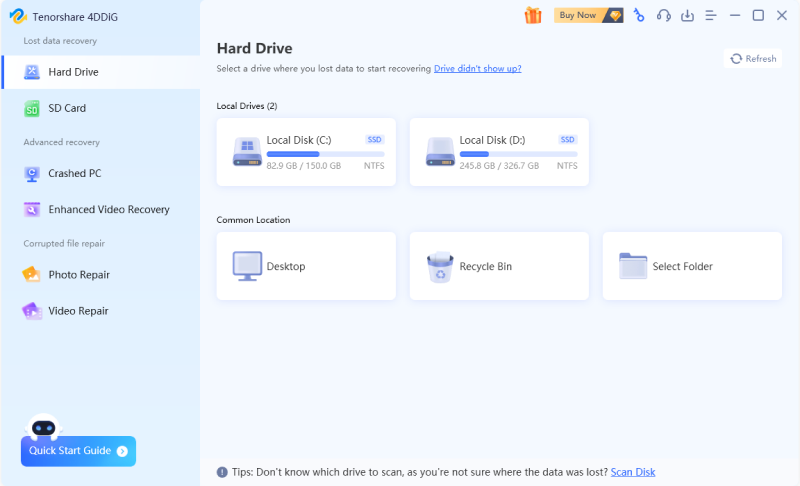
Tools like 4DDiG Windows Data Recovery can help: it allows you to create new disk images for backup purposes and recover data from inaccessible, corrupted, or uninitialized disk images, helping you retrieve files without risking further corruption.

FREE DOWNLOAD

Secure Download

FREE DOWNLOAD

Secure Download

Here are the steps on how to recover data from inaccessible disk image:

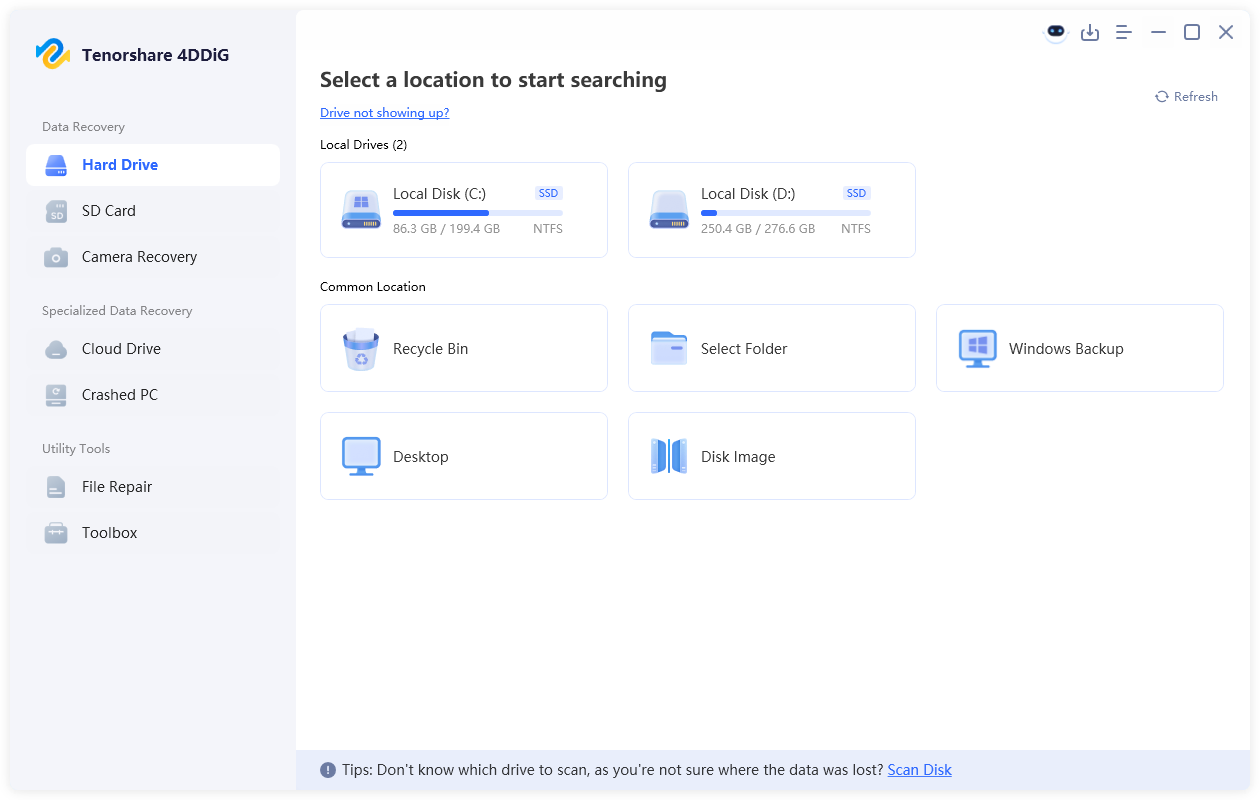
  • Download and install 4DDiG on your computer and then launch it. Go to "Hard Drive", then select "Disk Image”.

    choose disk image under common location
  • Now, you have the choice to use a disk image that you previously created or create a new one with 4DDiG.

    create image with 4ddig
  • Select the partition for creating its disk image, and when the image is created successfully, click "Scan Image Data."

    click scan image data
  • Now, go back to the recovery page and click "Recover Data from Image," and 4DDiG will automatically import the disk image of your corrupted partition for file recovery.

    recover data from image with 4ddig
  • When the scanning is complete, you may preview the files to check the results. Click the “Recover" button to save the recovered files, and the process is now complete.

    start to recover data from created image

What Are the Common Disk Image Formats?

Disk images come in many formats; each is designed for specific platforms or use cases. Here are the most common ones:

  • ISO: Standard optical disk image format used for OS installers.
  • DMG: macOS disk image format commonly used for app distribution.
  • IMG: Raw disk image format compatible with many tools.
  • VHD/VHDX: Microsoft virtual hard disk formats.
  • BIN/CUE: Often used for CD/DVD backups.
  • NRG: Nero disk image format.

Understanding the format helps determine how to open, mount, or recover data from a disk image.

Conclusion

Now that you understand what is a disk image, how it works, and how to create or open one on Windows and Mac, you’re better equipped to manage backups and system recovery.

Disk images are powerful tools, but when they become inaccessible or corrupted, professional solutions matter. In such cases, Tenorshare 4DDiG offers a reliable way to recover valuable data safely and efficiently.

FREE DOWNLOAD

Secure Download

FREE DOWNLOAD

Secure Download

William Bollson (senior editor)

William Bollson, the editor-in-chief of 4DDiG, devotes to providing the best solutions for Windows and Mac related issues, including data recovery, repair, error fixes.

(Click to rate this post)

You rated 4.5 ( participated)