How to Wipe SSD with 2 Proven Methods?

5 mins read

Updated on 2026-04-10 14:32:47 to Hard Drive

If you're looking for how to wipe SSD before it leaves your hands, or just want to clear your SSD drive for a clean reinstall, this guide walks you through every step. From quick preparation tips to multiple proven methods, we'll cover everything you need to clear SSD safely, thoroughly, and with confidence.

clear ssd

1. Difference Between Wiping & Formatting

Many users use the terms "wipe" and "format" interchangeably, but they mean very different things when it comes to SSD data removal.

  • Formatting removes the file system structure and makes the drive appear empty. However, a quick format only deletes the index of files, leaving the actual data intact on the drive. A full format goes a step further by scanning for bad sectors, but it still does not guarantee that all data is unrecoverable.
  • Wiping overwrites every sector of the drive with zeros, random data, or follows specific erasure standards. This ensures that previously stored files cannot be recovered by any data recovery software.

In short, formatting prepares a drive for use; wiping destroys data permanently. If privacy or security is a concern, always choose to wipe your solid state drive rather than simply formatting it.

2. Things to Do before You Secure Wipe SSD

A little preparation goes a long way. Before you wipe an SSD, run through this checklist to make sure the process goes smoothly and that you don't lose anything you actually need.

  • Back up your important data. This is the single most important step. Wiping is irreversible. Back up all files, photos, documents, and application data you want to keep to an external drive or cloud storage before you proceed.
  • Note down your product keys and licenses. Software like Windows, Microsoft Office, or Adobe products may require reactivation after a wipe. Record or screenshot any license keys you'll need.
  • Create a bootable recovery drive (if wiping the OS disk). If the SSD contains your operating system and you plan to reinstall it afterward, prepare a bootable USB drive with a Windows or macOS installer in advance.

⚡ 3. How to Erase SSD Step-by-Step?

There are multiple ways to erase an SSD drive. Below, we cover two of the most reliable methods. One using a dedicated tool for simplicity and safety, and one using built-in BIOS/UEFI functionality for more advanced users.

Method 1: Secure Wipe SSD via 4DDiG Partition Manager

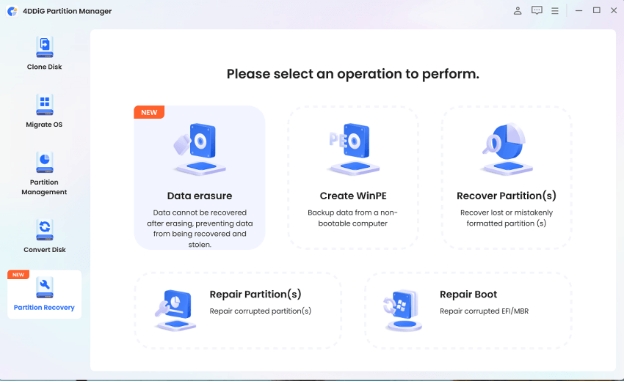
For most users, the easiest way to safely wipe SSD is with 4DDiG Partition Manager. This powerful disk management tool features a dedicated Wipe Disk function that overwrites every sector of your SSD. It supports multiple erasure standards, works on both internal and external SSDs, and requires no technical expertise to operate.

🎉 Why Choose 4DDiG Partition Manager?

It's a one-stop solution that handles wipe solid state drive tasks, partition management, disk cloning, and OS migration — all in a clean, intuitive interface. No command-line knowledge required.

  • Download and install 4DDiG Partition Manager. Launch the application and go to Toolkit > Data Erase.

    FREE DOWNLOAD

    Secure Download

    click data erase
  • Note:

    If the SSD you want to clear is an external drive, connect it via USB. If it is an internal secondary drive, ensure it is properly seated and recognized by Windows before proceeding.

  • Choose the disk or partition you want to erase, then click Continue.

    choose disk to erase
  • Once you’ve confirmed the correct disk or partition is selected, click Sure to proceed.

    click sure
  • The wiping process may take some time. To prevent damage, do not disconnect the disk or close the program during this process. After the disk has been successfully wiped, click Finish.

    finish wiping disk

Method 2: Clear SSD from BIOS

Many modern motherboards include a built-in Secure Erase feature within the BIOS/UEFI firmware. This method sends the ATA Secure Erase command directly to the SSD, which instructs the drive's own controller to erase solid state drive at the hardware level. This approach is best suited for users comfortable navigating BIOS settings.

  • Restart your computer. During startup, press the BIOS key for your motherboard, typically F2, F10, F12, or Delete, depending on your system manufacturer (check your manual if unsure). This will open the BIOS/UEFI setup interface.

  • Navigate to the Security or Advanced tab within the BIOS menu. Look for options labeled Secure Erase, Drive Wipe, or NVMe Secure Erase. The exact location varies by motherboard brand.

    secure erase
  • Next, select the specific SSD you want to wipe from the list of connected drives. Verify the drive name and capacity before proceeding.

  • Confirm the operation when prompted. This process typically completes in a few minutes for most SSDs.

Once the erase is complete, save and exit the BIOS. Restart your system. You can open Disk Management to confirm the SSD now appears as unallocated space.

More FAQs about Clearing SSD

1. Is it safe to wipe an SSD?

Yes, when done correctly, it is completely safe to wipe an SSD. However, it is important to use methods that are SSD-friendly. Avoid repeatedly running multi-pass overwrite tools designed for HDDs, as excessive write cycles can shorten SSD lifespan over time.

2. How to wipe SSD in Disk Management?

Windows Disk Management does not offer a true secure wipe SSD option. It only supports formatting. However, you can perform a basic clear SSD by right-clicking the SSD volume in Disk Management and selecting Format. Choose NTFS as the file system, uncheck Perform a quick format, and click OK.

3. How to reformat an SSD?

Reformatting an SSD is straightforward. Open Disk Management, right-click the SSD partition, and select Format. Choose your desired file system, assign a volume label, and click OK.

🎵 Related Article: How to Format SSD Step by Step?

Conclusion

Knowing how to wipe SSD properly is an essential skill for anyone who values data privacy. As we've covered, a standard format is not enough for sensitive data; a true secure wipe SSD is the only way to ensure your information is gone for good.

For the easiest, most reliable results, 4DDiG Partition Manager’s Wipe Disk function handles the entire erasing SSD drive process in just a few clicks, with no technical expertise required.

FREE DOWNLOAD

Secure Download

William Bollson (senior editor)

William Bollson, the editor-in-chief of 4DDiG, devotes to providing the best solutions for Windows and Mac related issues, including data recovery, repair, error fixes.

(Click to rate this post)

You rated 4.5 ( participated)