Accidental Deletion
Files deleted from a USB are often recoverable as long as they haven't been overwritten.
USB Data Recovery Recover Files from USB Flash Drive
Fast and reliable USB data recovery for deleted, formatted, and corrupted USB drives.
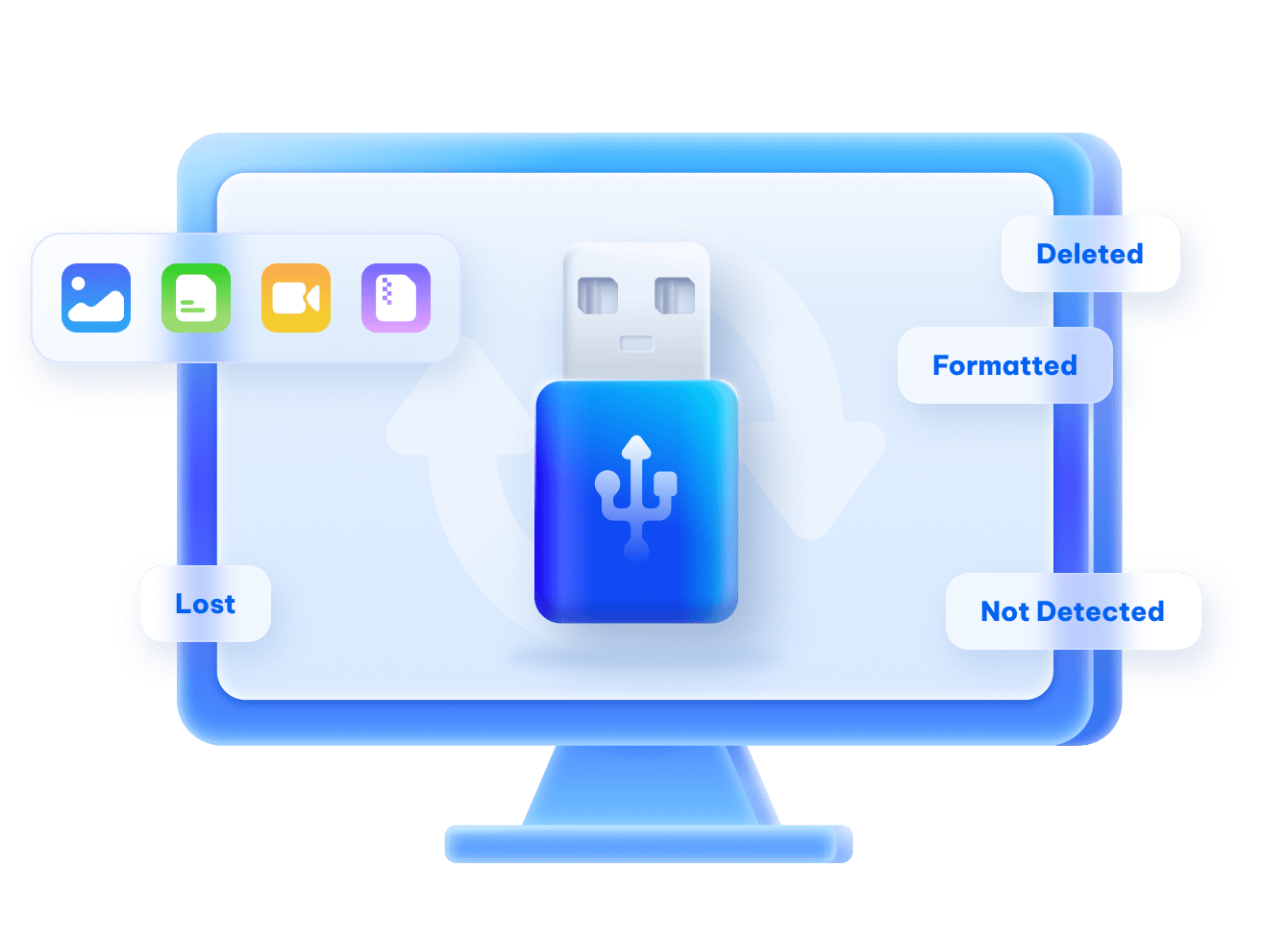
Common USB Data Loss Scenarios

Accidental Deletion
Files are deleted by mistake and not found in the Recycle Bin.
Accidental Deletion
Files are deleted by mistake and not found in the Recycle Bin.

Formatted by Mistake
The USB is formatted intentionally or accidentally, wiping all data.
Formatted by Mistake
The USB is formatted intentionally or accidentally, wiping all data.
File System Corruption
Improper ejection, power failure, or system crash causes the USB to become unreadable.
File System Corruption
Improper ejection, power failure, or system crash causes the USB to become unreadable.

Unsupported or RAW Format
The USB shows as RAW or asks to be formatted before use.
Unsupported or RAW Format
The USB shows as RAW or asks to be formatted before use.
Physical Damage
The USB is broken, bent, or has damaged connectors or chips.
Physical damage
The USB is broken, bent, or has damaged connectors or chips.

Partition Loss
USB partition becomes unallocated or disappears due to errors.
Partition Loss
USB partition becomes unallocated or disappears due to errors.
Bad Sectors
Aging or low-quality USB drives develop bad sectors, leading to data loss.
Bad Sectors
Aging or low-quality USB drives develop bad sectors, leading to data loss.

Incompatible Devices
Using the USB across different systems (Windows, macOS, Linux, cameras) causes format conflicts.
Incompatible Devices
Using the USB across different systems (Windows, macOS, Linux, cameras) causes format conflicts.
Is It Possible to Recover Data from a USB Drive?
Recoverable Scenarios
Key Factors
That Affect Recovery
Success
That Affect Recovery
Success
- Whether the data was overwritten
- Type of formatting(quick vs full)
- Physical condition of the USB
- Actions taken after data loss
- Time elapsed since data loss
Difficult to Recover
 Not sure if you can recover data from your USB drive? Try these three methods below.
USB Data Recovery Methods (Free & Professional)
Method 1: Use Free USB Data Recovery Software
Many tools offer limited free recovery.
Common limits:
-Data size cap (e.g., 500MB-2GB)
-Preview only
Best for: Small file recovery
Limit: Payment required once free limit reached.

Method 2: CMD / Windows Built-in Tools
Repairs file system errors and recovers readable file fragments.
Command:
chkdsk X: /f (Replace X with your USB drive letter)
Best for: File system corruption, RAW USB
Limit: May rename files as .chk


Method 3: Use File Explorer "Hidden Files" Option
Some viruses hide files instead of deleting them.
Steps:
1. Open File Explorer
2. Go to View → Show → Hidden items
3. Check if files reappear
Best for: Virus-hidden files
Limit: Hidden files only

Method 4: Use Windows File Recovery (Microsoft Official Tool)
A free command-line recovery tool from Microsoft.
Steps:
1. Open Command Prompt and Run as administrator.
2. Run command: "winfr c: e: /n" (replace USB drive letter with e).
Best for: Deleted or formatted files
Limit: Command-line only, no preview

 Up to 99% Success Rate
4DDiG USB Data Recovery
Best USB Data Recovery Software on Windows & Mac.
Recover Deleted Files from USB in 3 Steps
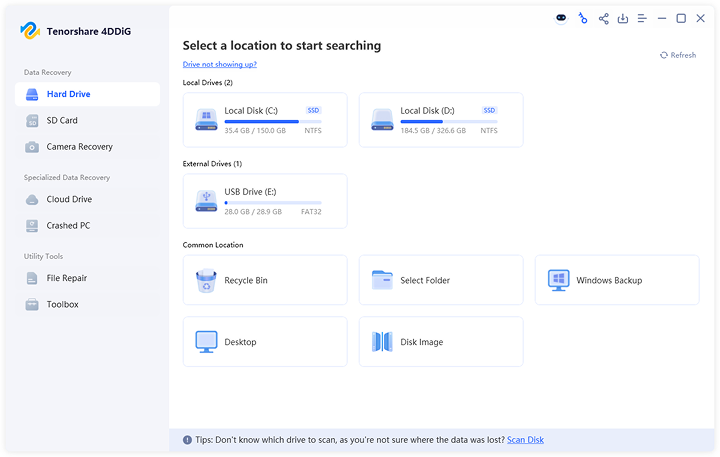
Step 1
Choose the USB and Scan Deleted Files from USB
Connect the USB to computer and 4DDiG will detect the USB automatically. Select the USB and start scanning.
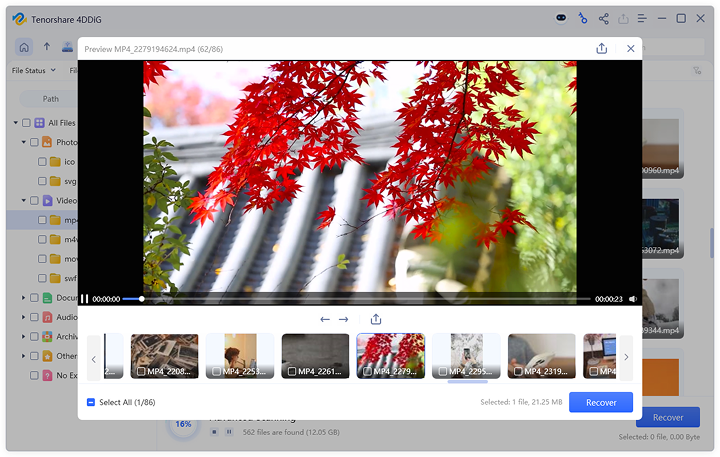
Step 2
Preview and Recover Your Data from USB
Once the scan is completed, you can preview any file to confirm its quality before recovering.
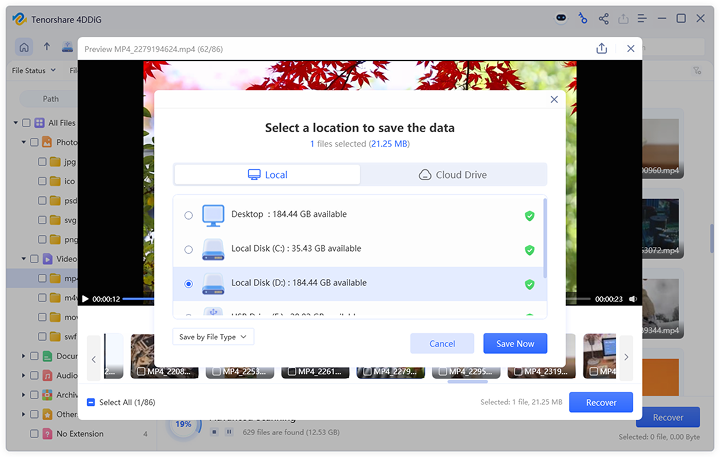
Step 3
Recover Data to a Different Location
To avoid overwriting and permanent data loss, never recover files to the same location they were lost from. Choose a different hard drive or partition for a safe and successful recovery.
Supported USB Drive Devices
Recover 1000+ File Formats from USB Drives









Reviews about 4DDiG Data Recovery
Blog
14, Aug, 2025
How to Recover Files from SanDisk SD Card: Step-by-Step Guide
Blog
15, July, 2024
3 Proven Ways to Recover Deleted Files From SD Card
Video
31, May, 2024
[100% Free] Easily Recover Lost Data from SD card & Hard Disk
News
19, Sep, 2025
6 Best SD Card Recovery Software For Free In 2025
Video
9, Aug, 2024
Recover Deleted Photos/Videos from Camera SD Card
USB Data Recovery FAQs
Yes, it is often possible to recover data from a formatted USB drive if the new data has not overwritten the original files. Data recovery software can perform a deep scan to locate and restore lost files from the formatted device.
The time required depends on the size of the USB drive, the amount of data, and the scanning mode used. A quick scan may take only a few minutes, while a deep scan may take longer to locate more recoverable files.
It depends on the recovery method and the software you use. Some data recovery tools offer a free version that allows you to scan a USB drive and recover a limited amount of data. However, recovering large amounts of files or using advanced recovery features may require a paid version. The good news is that most professional tools allow you to preview recoverable files before purchasing.
No, data recovery software does not damage your USB drive. Most professional recovery tools only scan the storage device to locate lost data without modifying the original files. However, you should avoid saving recovered files back to the same USB drive to prevent overwriting existing data.
It depends on the severity of the physical damage. If the USB drive has minor issues such as loose connections or logical errors, data recovery software may still be able to recover the files. However, if the USB chip or circuit board is seriously damaged, professional data recovery services may be required.
Stop using the USB drive immediately to prevent new data from overwriting the lost files. Avoid formatting the drive or copying new files to it. Then use reliable USB data recovery software to scan the device and recover your files as soon as possible.
When a USB drive shows as RAW or prompts you to format it, it usually means the file system has become corrupted. This can happen due to improper removal, virus attacks, file system errors, or sudden power interruptions. In this situation, you should avoid formatting the drive first and instead use data recovery software to recover the files before attempting any repairs.
A USB drive may not appear on your computer for several reasons, including driver issues, file system corruption, damaged USB ports, or partition errors. You can try reconnecting the device, changing USB ports, updating drivers, or checking Disk Management to see if the drive is detected.
Related USB Recovery Guides
- 1. 8 Ways to Fix USB Drive Showing No Media in Disk Management
- 2. How to Get Back Data with the Best Free USB Recovery Software?
- 3. How to Fix a USB Drive in Any Situation [Complete Guide]
- 4. How to Recover Deleted Files from USB Flash Drive?
- 5.How to Fix USB Not Showing Up but Makes Sound?
- 6. 5 Ways to Fix Unknown USB Device Set Address Failed?
- 7. The Best Free Flash Drive Recovery [2026]
- 8. Full Guide to Install macOS Sequoia from USB
- 9. How to Password Protect USB Flash Drive?
- 10. How to Recover Virus Infected Files from USB Flash Drive and Pen Drive?
- 11. 5 Ways to Fix Power Surge on the USB Port
- 12. How to Fix Windows Was Unable to Format USB?
How to Prevent USB Data Loss in the Future

Never rely on a USB drive as the only storage location.
Back up important files to a computer, cloud storage, or external hard drive
Follow the 3-2-1 backup rule (3 copies, 2 devices, 1 off-site)
Always safely eject the USB drive.
Improper removal can corrupt the file system.
-Use “Safely Remove Hardware” on Windows
-Use “Eject” on macOS
-Wait until the system confirms it’s safe to remove
Removing a USB during read/write operations can cause data corruption.
-Wait until file transfers are fully completed
-Avoid unplugging the USB while indicator lights are flashing