What Is a Jump Drive? Here's Everything You Need to Know!
If you've ever wondered what is a jump drive, you're not alone. These small devices have become essential in our daily lives, offering an easy way to store and move files wherever we go. Whether you're a student saving homework, a worker sharing presentations, or simply someone who needs portable storage, understanding jump drives can help you get the most from this handy tool.
This complete guide covers everything from basic use to care tips, ensuring you know how to pick and use the right jump drive for your needs.
What Is a Jump Drive?
Have you ever wondered what is a USB jump drive? It is a small storage device that stores your files using flash memory technology, which does not require internet connectivity or an external power source.
The jump drives have no moving parts, unlike traditional hard drives, which use machined disks; hence, they are highly durable and can be relied on in daily life.
The jump drive is like a digital pocket you can carry everywhere. These devices can be connected to your computer via a USB port and appear as a removable drive, like an external hard disk. The name of the jump drive originated as a brand name but is now a generic term for a small USB flash drive.
The majority of jump drives are no bigger than your thumb and weigh barely more than an ounce, so they are ideal to pack in your backpack or add to your keychain. They usually come in capacities ranging from 8GB to 2TB, and prices vary by speed and capacity.
What Is a Jump Drive Used For?
Jump drives serve countless purposes in both personal and professional settings, making them one of the most versatile storage solutions available today.
They are used to carry school-based computer homework and other projects to their home laptops. They are backup practices that photographers use when they go shooting. IT professionals have bootable operating systems on jump drives to troubleshoot computers.
Here are the most common uses:
- File transfer: The transfer of documents, photos, videos, and music that are not internet-based.
- Backup storage: Having a backup of essential files.
- Portable programs: Loading programs from the drive and invoking them.
- Media playback: This is used to store movies or music that can be played in smart TVs or the car stereo.
- Secure storage: Storing confidential documents that are encrypted.
The most crucial attribute of jump drives that makes them extremely valuable is their plug-and-play nature. All one has to do is plug in the device, wait a few seconds for your computer to recognize it, and then begin dragging files—no software needs to be installed.
How Does a Jump Drive Work?
Its technology is based on NAND flash memory, which stores data in cells that can be electrically reprogrammed and erased.
When you save a file to a jump drive, electrical charges are trapped in these cells, representing your data as binary code (ones and zeros). Unlike traditional hard drives with moving parts, flash memory has no mechanical components, making jump drives more durable and shock-resistant.
Here's the basic process:
The jump drive is inserted into a USB port.
Your computer powers via USB.
The drive's controller recognizes the operating system.
-
It is now possible to read or write to the flash memory chips.
Using a jump drive is not complicated. Once it is plugged in, you can find a new drive (e.g., E: or F:) in File Explorer. This drive then allows you to drag files onto it, as with moving items. The hardware should be safely removed before unplugging to prevent data corruption.
Pros & Cons of Jump Drive
As with any technology, there are positive and negative sides to jumping drives. Learning the two would guide you on when to use either one when it suits you.
- Pros:
- Cons:
-
- There is great portability and lightness.
- Internet access is not necessary when using files.
- Works with all the current devices.
- Inexpensive, costing less than ten dollars.
- Wear-resistant and does not have moving components to wear.
- Keeps your data physically separate from cloud services and networks.
-
- Easy to lose due to small size.
- Easy to be corrupted when it is not done correctly.
- Short life (usually 100,000 write cycles).
- Physically vulnerable and not water resistant.
- Minor compared to internal SSDs in moving large files.
Nonetheless, jump drives are very popular despite the disadvantages they pose to their users, which are not a concern for the majority of casual users. The trick is to use them only as temporary storage devices or tools for moving data, not as the sole backup method.
Jump Drive vs Flash Drive vs Thumb Drive
Many people wonder about the differences between these terms, so let's clarify their relationship.
A flash drive refers to any storage device that uses flash memory technology to store data electronically. Flash drives encompass a broad category that includes not only portable USB drives but also memory cards, SSDs, and other flash-based storage solutions. The term highlights the underlying technology rather than the physical form factor.
A thumb drive is named for its size, which is typically no larger than an adult's thumb, making it extremely portable and convenient to carry. The name emphasizes the compact physical design that has made these devices so popular for everyday use.
Comparing jump drive vs flash drive vs thumb drive is just a matter of choosing between brand names and marketing lingo. Pay more attention to the key specifications: storage capacity, read/write speed, USB version compatibility, and construction quality. Kingston DataTraveler and SanDisk Cruzer may be called differently, but they should be the same, as they will do the same thing.
How to Recover Files from a Jump Drive?
You accidentally deleted a file, formatted the wrong drive, or the equipment became corrupted. Fortunately, lost information can be recovered in many cases using specialized software.
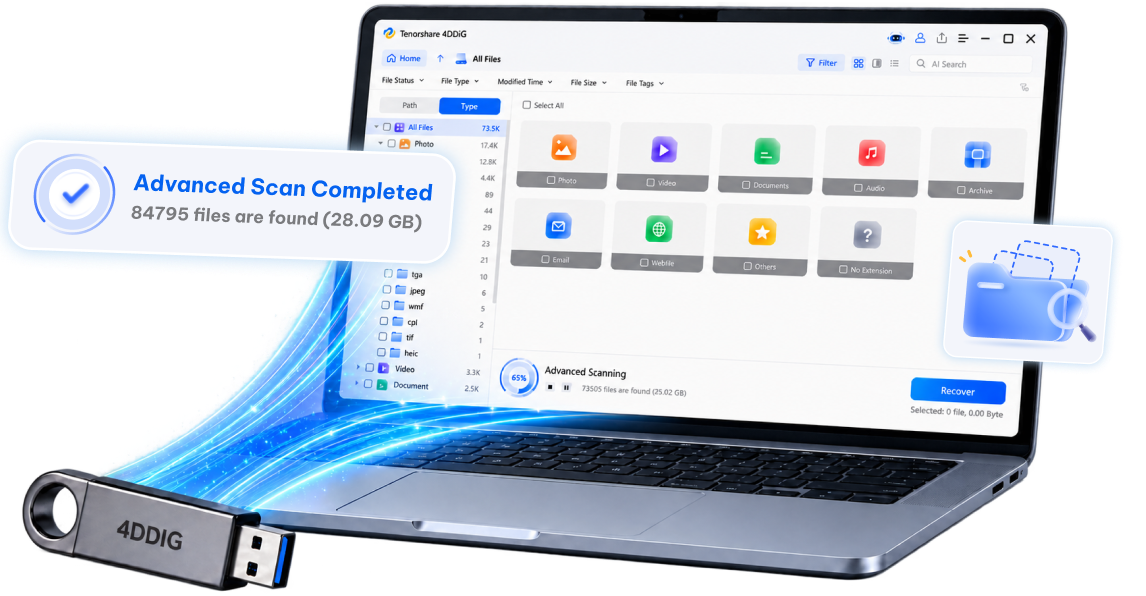
A great option for this job is 4DDiG Windows Data Recovery It works with all kinds of storage devices, jump drives, USB drives, SD cards, external hard drives, HDDs, and SSDs. With deep-scan technology that recognizes over 2,000 file types, it can recover almost anything you’ve lost.
Secure Download
Secure Download
4DDiG has a clean and intuitive interface that a beginner with no technical knowledge can navigate. The preview feature lets you verify file integrity before investing in the recovery process, saving time and frustration.
Steps to recover files from a jump drive u sing 4DDiG Windows Data Recovery:
-
Select Your Jump Drive
Launch 4DDiG and connect your jump drive. Select it from the drive list to begin.
-
Scan the Jump Drive
Wait for the scan to complete. Use filters to narrow results by file type or search for specific files by name.
-
Preview and Recover
Preview files to verify them, select what you need, and click "Recover" to proceed.
-
Choose Save Location
Select a safe location to save recovered files, use another storage device or cloud storage, not the same jump drive.
How to Choose the Right Jump Drive?
Selecting the appropriate jump drive requires considering several factors to ensure it meets your specific needs and budget.
It is as follows when you are shopping:
- Storage: Save size to your average file storage (16-32 GB of documents and 128 GB of media)
- Speed rate: Consider USB 3.0 or higher when users frequently transfer large files.
- Quality of construction: Plastic cannot compete with metal casing, and waterproof ones provide added defense.
- Brand reputation: Should stick with more established brands such as SanDisk, Samsung, Kingston, and Corsair.
- Warranty: Better manufacturers also offer 3-5 years of warranty, whereas budget manufacturers offer 1-2 years.
How to Properly Use and Maintain a Jump Drive?
Proper care and usage habits can significantly extend your jump drive's lifespan and prevent data loss.
- Always remove the device safely: You should remove the hardware module before switching off the power. This helps ensure that all data write errors are corrected and that the file system is closed and clean.
- When not in use, always keep your jump drive in a dry, cool place: Exposure to extreme temperatures and humidity may cause damage to the internal parts over time. Use protective cap drives or retractable USB connectors to prevent damage to ports.
- Scan for malware regularly: If you use your jump drive on multiple computers or public systems. run antivirus scans before accessing files to prevent spreading infections.
- Don't fill it to capacity: Leave 10-15% free space to maintain optimal performance and allow the drive's controller to manage wear-leveling effectively.
FAQs about Jump Drive
Q1: Which is the largest jump drive that you can find?
Nowadays, consumer USB flash drives have reached a capacity limit of 2 TB, but 1 TB is more cost-effective. Enterprise options are sometimes of higher capacities, albeit at high prices.
Q2: What is the best jump drive?
It is a matter of who needs the best. Samsung BAR Plus is a high-speed, high-performance product designed for power users. SanDisk Ultra is performance-based at low prices. Kingston DataTraveler is quite helpful for daily file changing.
Q3: My computer does not recognize my jump drive.
The most common are defective USB ports, obsolete drivers, or damaged file systems. Test the various ports, download your USB drivers, or run disk management software to see whether the drive shows up but lacks a drive letter.
Conclusion
The jump drive is a pocket-sized powerhouse that gives you control over your files wherever you are. The devices are unrivaled for transferring documents, storing photos, and sharing crucial information.
But accidents can happen, files are lost, drives are formatted, and equipment breaks without warning. Use Tenorshare 4DDiG if data loss occurs.
By understanding how they work, choosing the right capacity and features, and following proper maintenance practices, you can ensure your jump drive serves you well for years.
Secure Download
Secure Download
ChatGPT
Perplexity
Grok