SATA
Ensure a stable and reliable process to clone any SATA hard drive or SSD for daily system maintenance.
Want to clone your hard drive? Reliable disk cloning tools and SSD cloning methods help you securely transfer data and upgrade storage with ease.
 100% Safe
 High Speed
 Instant Boot
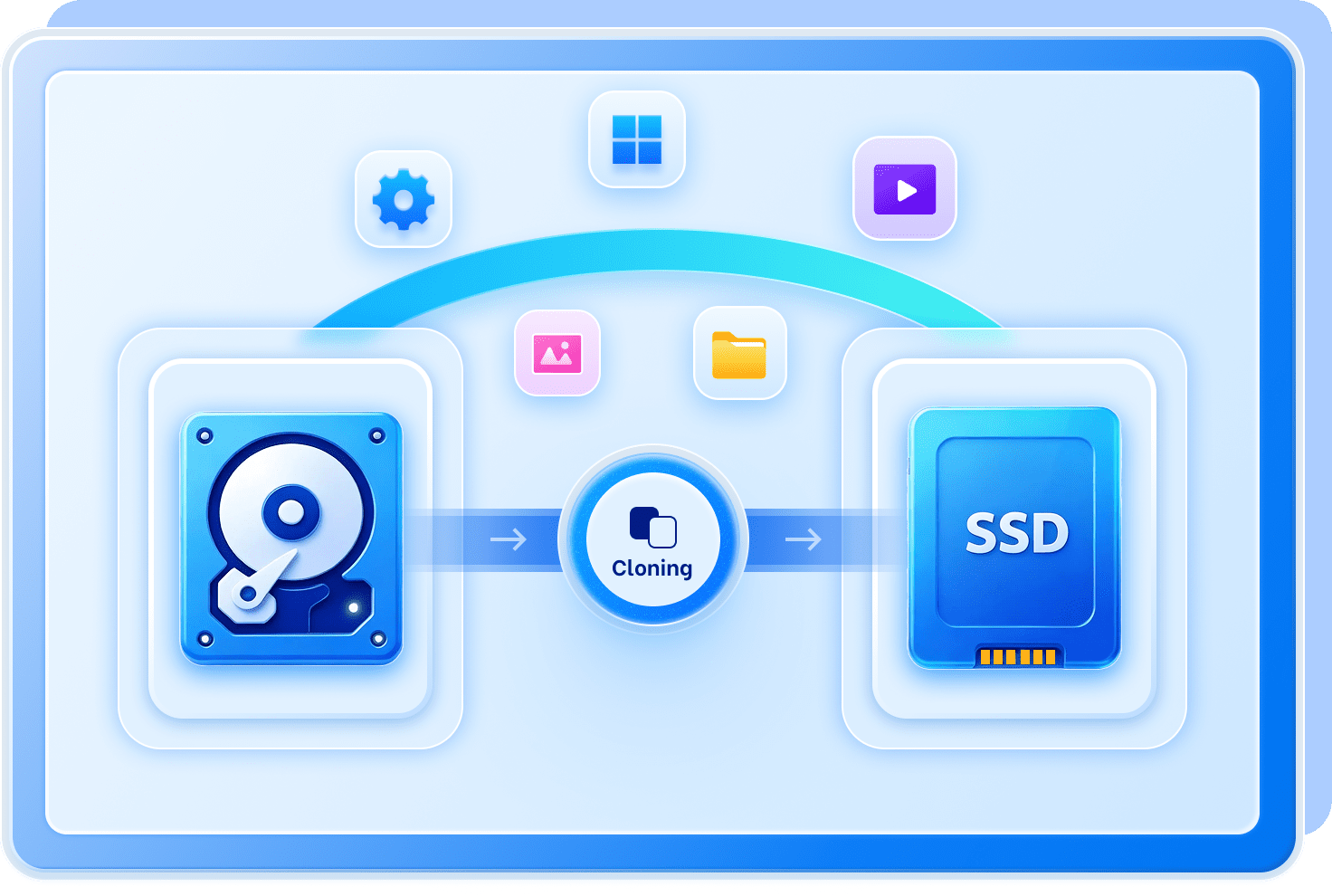
The following sections will help you identify the common scenarios where you might need to clone hard drive for a better PC experience
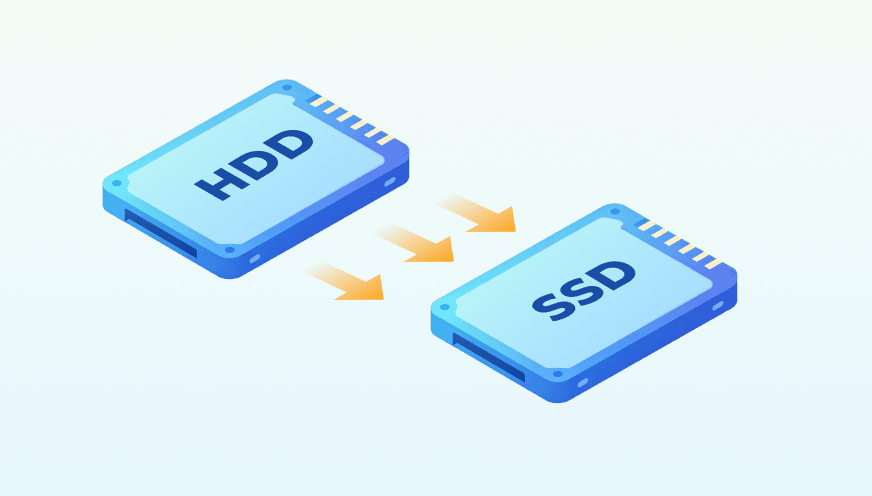
Clone HDD to SSD to replace a slow drive for a massive speed boost and migrate your entire system without needing to reinstall everything.
Clone SSD to larger SSD to gain more room for games and projects without deleting files or losing your original partition structure.
Seamlessly migrate to a new PC by transferring your OS, apps, and settings to start working instantly without reconfiguration.


Prevent data loss by creating a secure system mirror.

Seamlessly move Windows to a fast SSD without reinstalling.

Upgrade Drives without Limits
Use disk clone software to bypass hardware and partition conflicts.

Ensure a bootable system migration without complex manual configurations.

Auto-adjust partition sizes to fit compact, high-speed storage perfectly.

Skip damaged areas to rescue data to a healthy drive safely.

Create identical bootable copies to keep portable settings and files ready.

Move apps and games to larger storage without any reconfiguration.
Explore these available methods to clone hard drive—ranging from official manufacturer utilities and built-in system features to specialized hardware solutions for data transition.
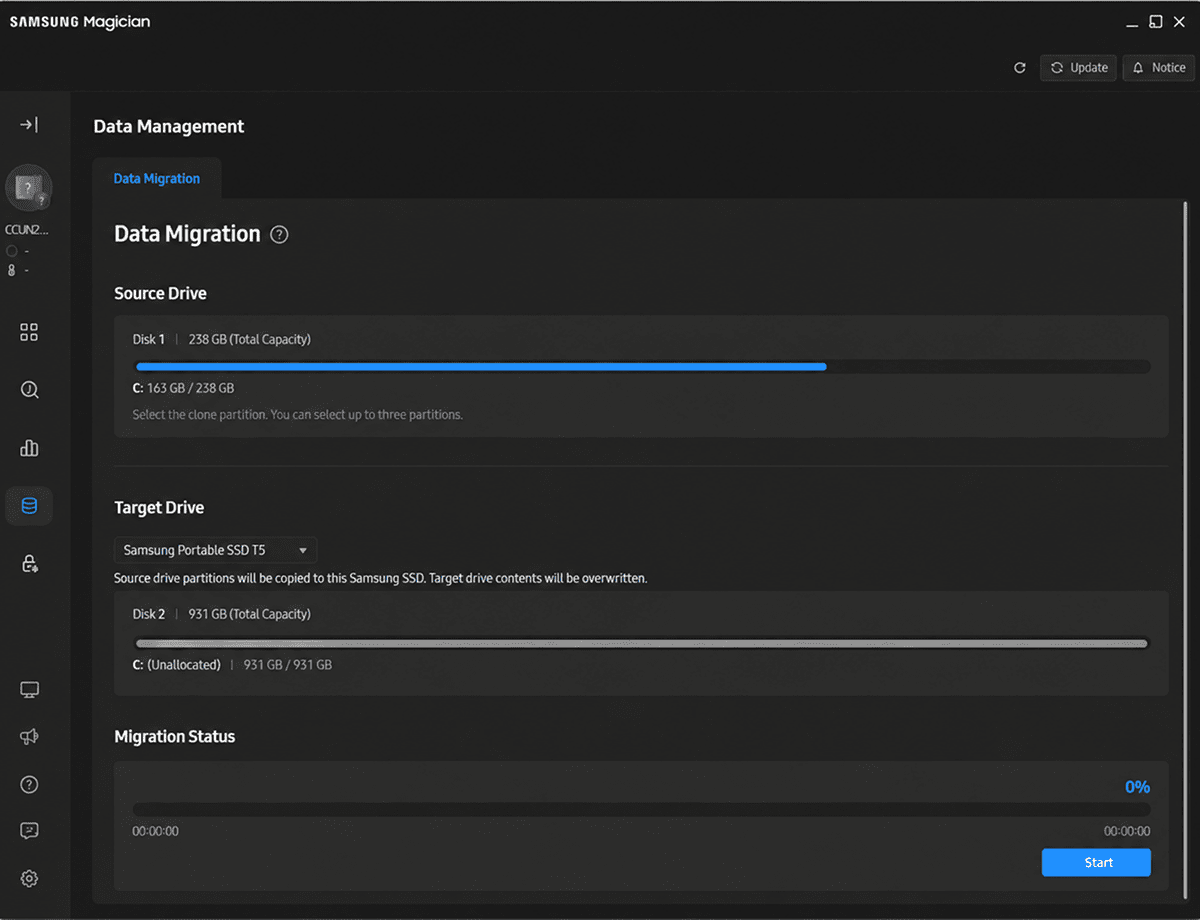
Many SSD brands, such as Samsung and Crucial, provide dedicated software specifically designed to migrate your operating system to their own hardware.
Pros:
High reliability for specific hardware and free for brand customers.
Cons:
Restricted to specific brands and lacks advanced partition tools.
Who is It For?
Ideal for non-technical users who want a simple, secure system move to a new name-brand SSD.
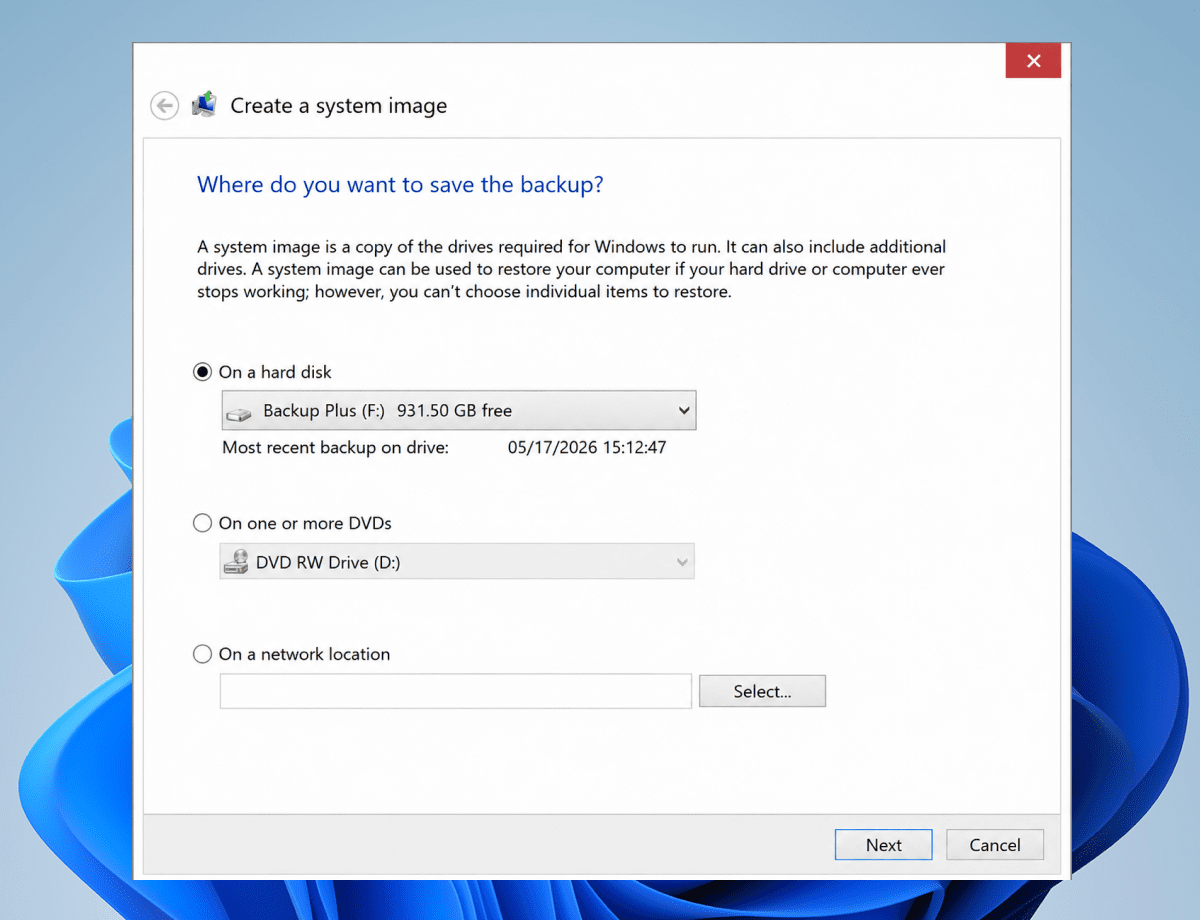
Windows includes a native "System Image" feature that allows you to create a complete backup of your OS and restore it to a new drive without third-party software.
Pros:
Completely free and pre-installed in Windows; no need to download external tools.
Cons:
Very slow process with high failure rates; strict requirement for target partition sizes.
Who is It For?
Best for budget-conscious users who prefer using native Microsoft tools and don't mind a multi-step,
time-consuming restoration process.
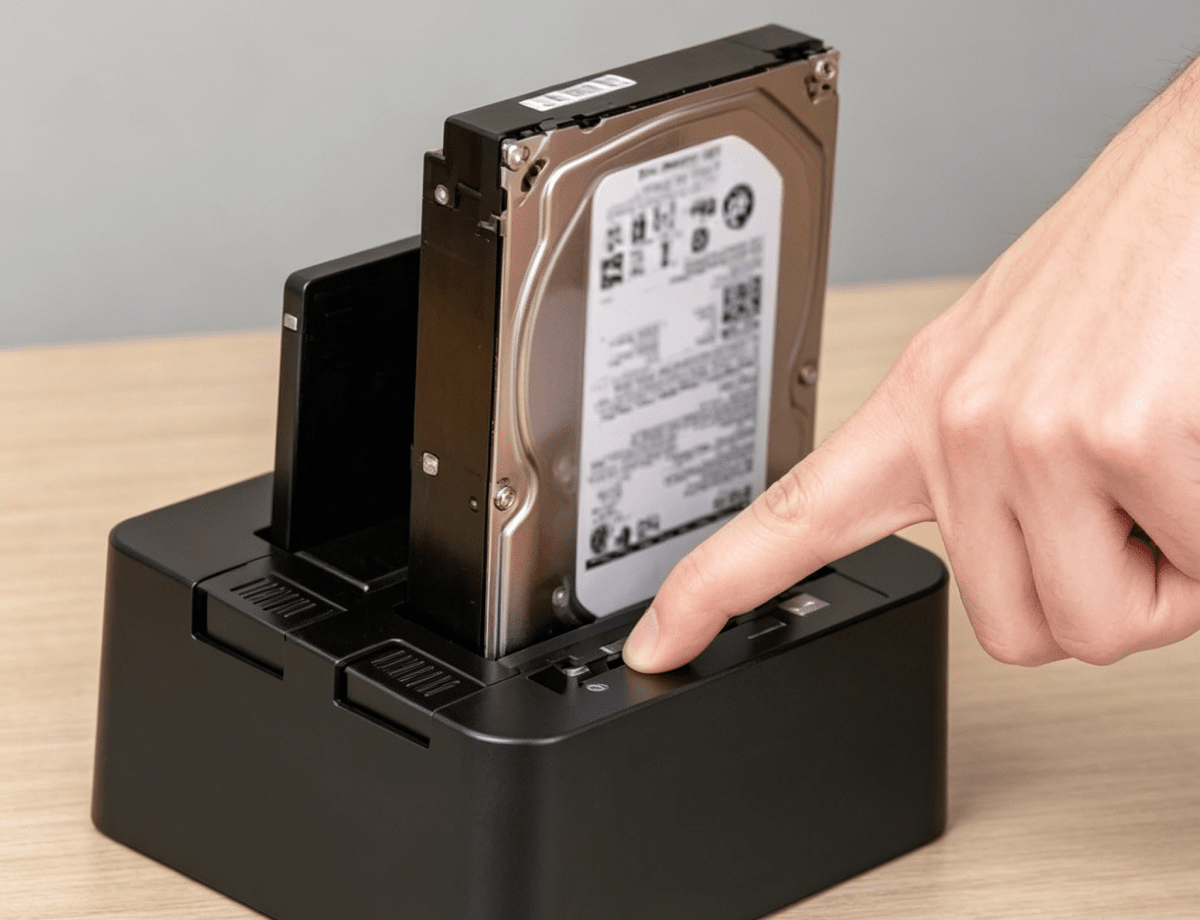
A hardware-based approach that performs a standalone "bit-by-bit" copy between two drives without needing a computer or OS intervention.
Pros:
Extremely fast, PC-independent, and requires zero software installation.
Cons:
Target drive must be equal to or larger than the source; cannot resize partitions during cloning.
Who is It For?
Best for budget-conscious users who don't mind a multi-step,
time-consuming restoration process.
Overcoming the limitations of standard utilities, 4DDiG Partition Manager offers a universal solution for any device. Simply install the tool and connect your drive to begin a seamless cloning process.
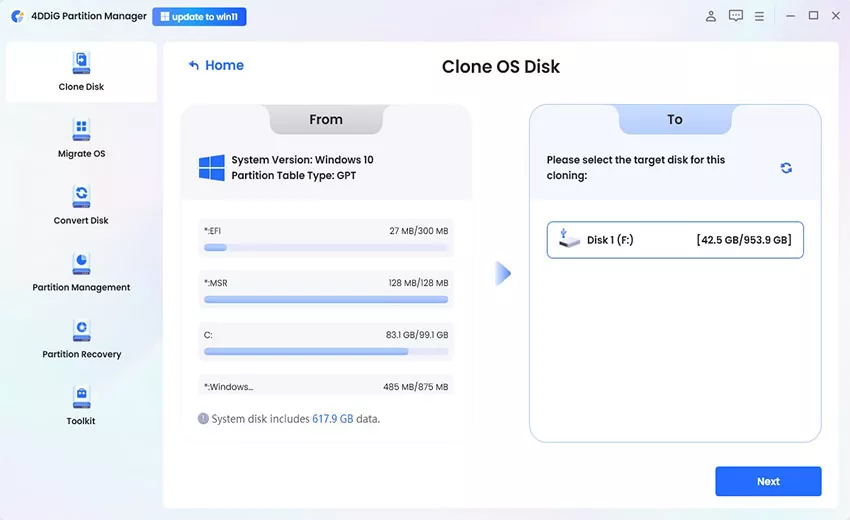
Choose the original drive you wish to copy as the source and your new SSD or HDD as the target disk.
After confirming your selection, click "Next" to continue.
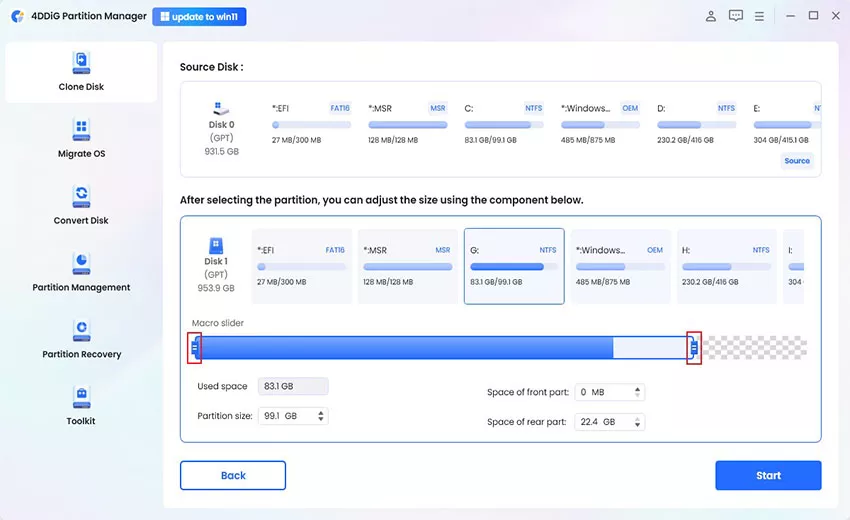
A preview interface will display the layout of your cloned disk. By default, the source partitions will expand to fill the entire target drive, but you can manually adjust the partition sizes by dragging the handles on either side.
Once you have confirmed the preview is correct, click the "Start" button to begin the cloning.
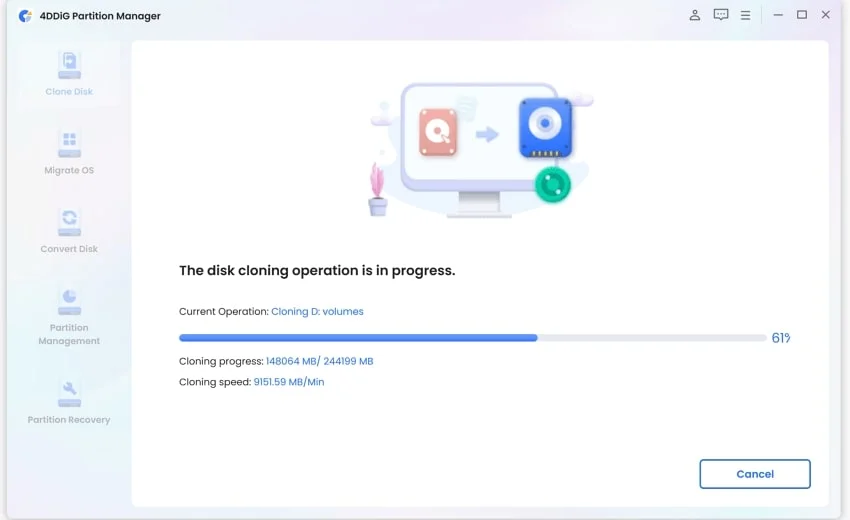
Wait patiently for the disk cloning process to finish, as the speed depends on the total size of your source disk.
To ensure a successful migration, do not interrupt or perform any other operations until the process is complete.
4DDiG Partition Manager offers broad compatibility, allowing you to clone HDDs and SSDs from major brands like Samsung, Crucial, and WD, as well as many other storage devices without compatibility concerns.







Ensure a stable and reliable process to clone any SATA hard drive or SSD for daily system maintenance.
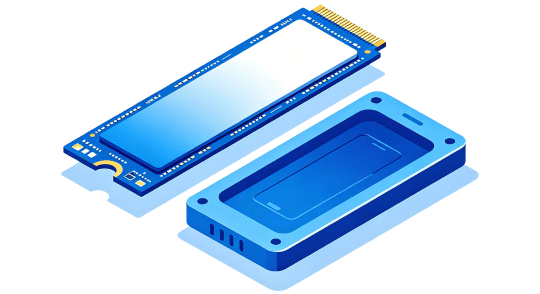
Experience ultimate cloning speeds with full support for high-performance NVMe SSD upgrades.
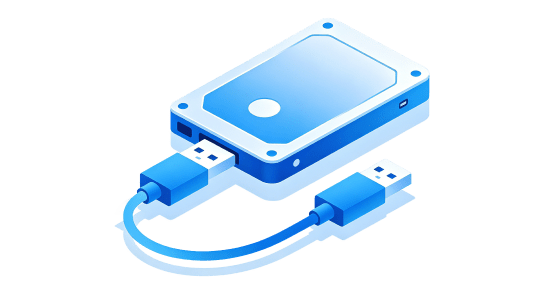
Seamlessly clone your hard drive to an external disk via USB for easy portable backups and data migration.
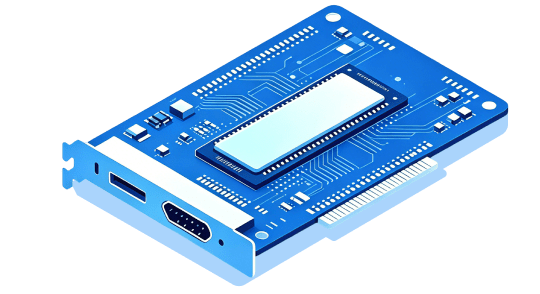
Leverage high-bandwidth efficiency to clone a hard drive directly through professional PCIe expansion cards.
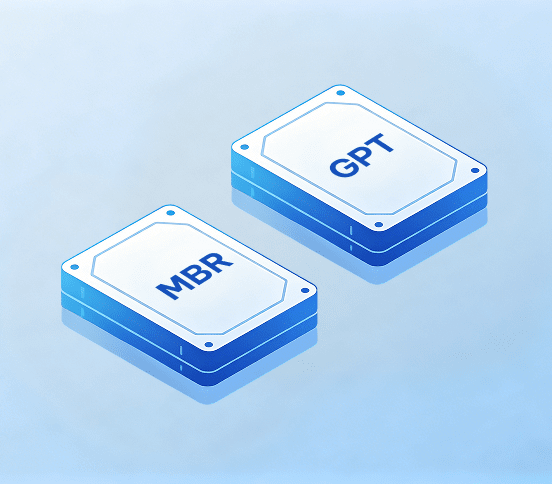
Compatible with both MBR and GPT partition styles. 4DDiG Partition Manager allows you to clone a hard drive of any size, including large-capacity drives over 2TB
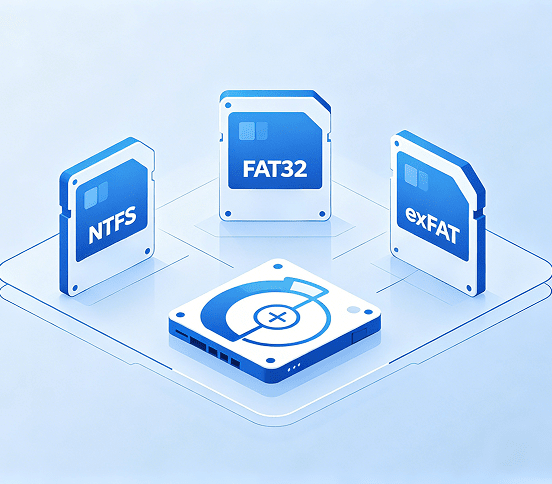
Full support for NTFS, FAT32, and exFAT. Seamlessly clone your hard drive with 100% data integrity and perfect partition alignment.
Yes. Disk cloning software can create a complete copy of a hard drive, including the operating system, boot files, applications, settings, and personal data. After cloning, the new drive can usually boot and work just like the original drive.
Yes. Most professional tools like 4DDiG Partition Manager will automatically resize partitions to fit the smaller SSD.
Yes. Cloning is safe when using reliable disk cloning software and selecting the correct source and target drives. To avoid issues, double-check the drives and back up important data before starting.
You can clone a hard drive using tools like 4DDiG Partition Manager, Macrium Reflect, Acronis True Image, or Clonezilla, depending on whether you want a simple, advanced, or free solution.
It depends on the amount of data and drive speed. In most cases, cloning a hard drive takes between 30 minutes and 3 hours.
First, check the boot order in BIOS/UEFI and make sure the SSD is selected as the boot drive. If it still won’t boot, reconnect the SSD or try cloning the drive again.
Clone Your Hard Drive with Ease
4,009,017 people have downloaded it