Upgrade to Windows 11
Convert MBR to GPT to prepare your PC for modern Windows requirements.
Convert MBR to GPT safely to support UEFI, Secure Boot, and Windows upgrades without losing data, formatting drives, or reinstalling Windows.
Convert MBR to GPT to get your PC ready for Windows 11, UEFI boot, Secure Boot, and larger drives.
Upgrade to Windows 11
Convert MBR to GPT to prepare your PC for modern Windows requirements.
Meet Windows 11 Setup Requirements
Convert MBR to GPT for UEFI and Secure Boot compatibility, then enable TPM 2.0 separately if needed.

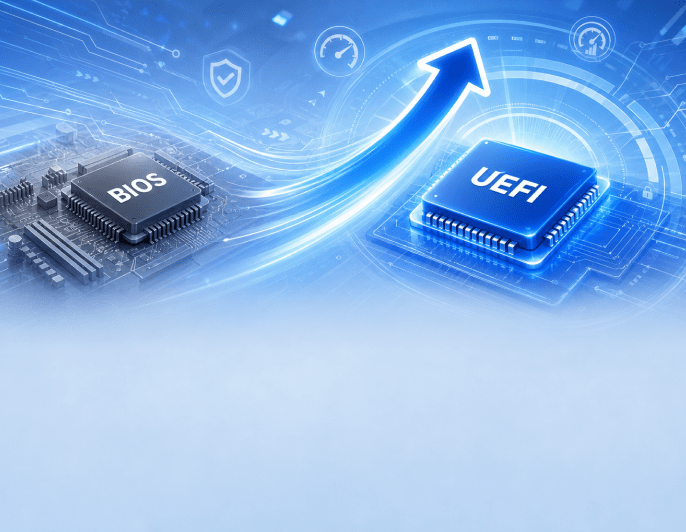
UEFI Boot Support
Switch from Legacy BIOS to UEFI mode for faster startup, better compatibility, and modern boot support.
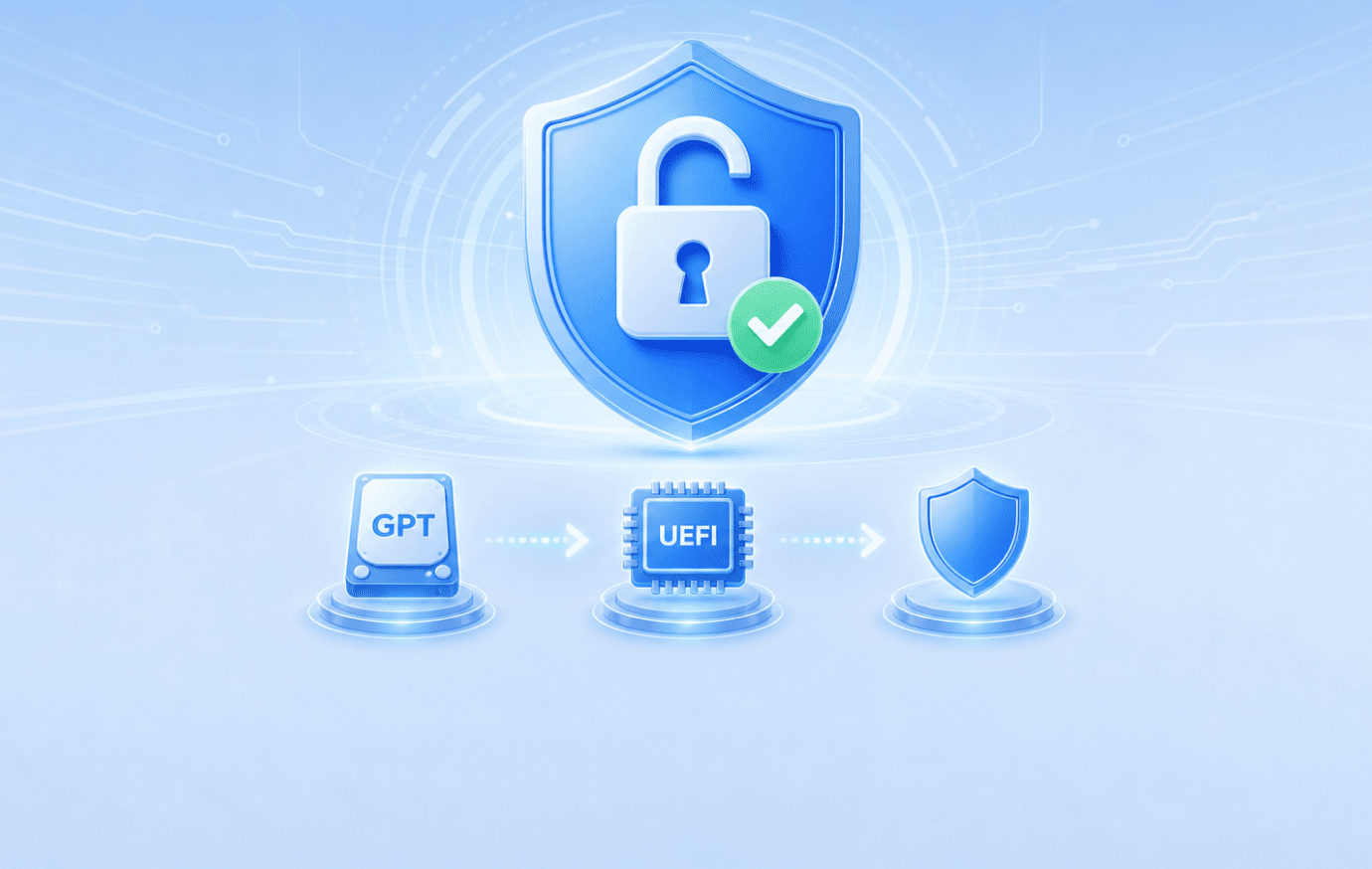
Enable Secure Boot
Switch to GPT to support UEFI before enabling Secure Boot.
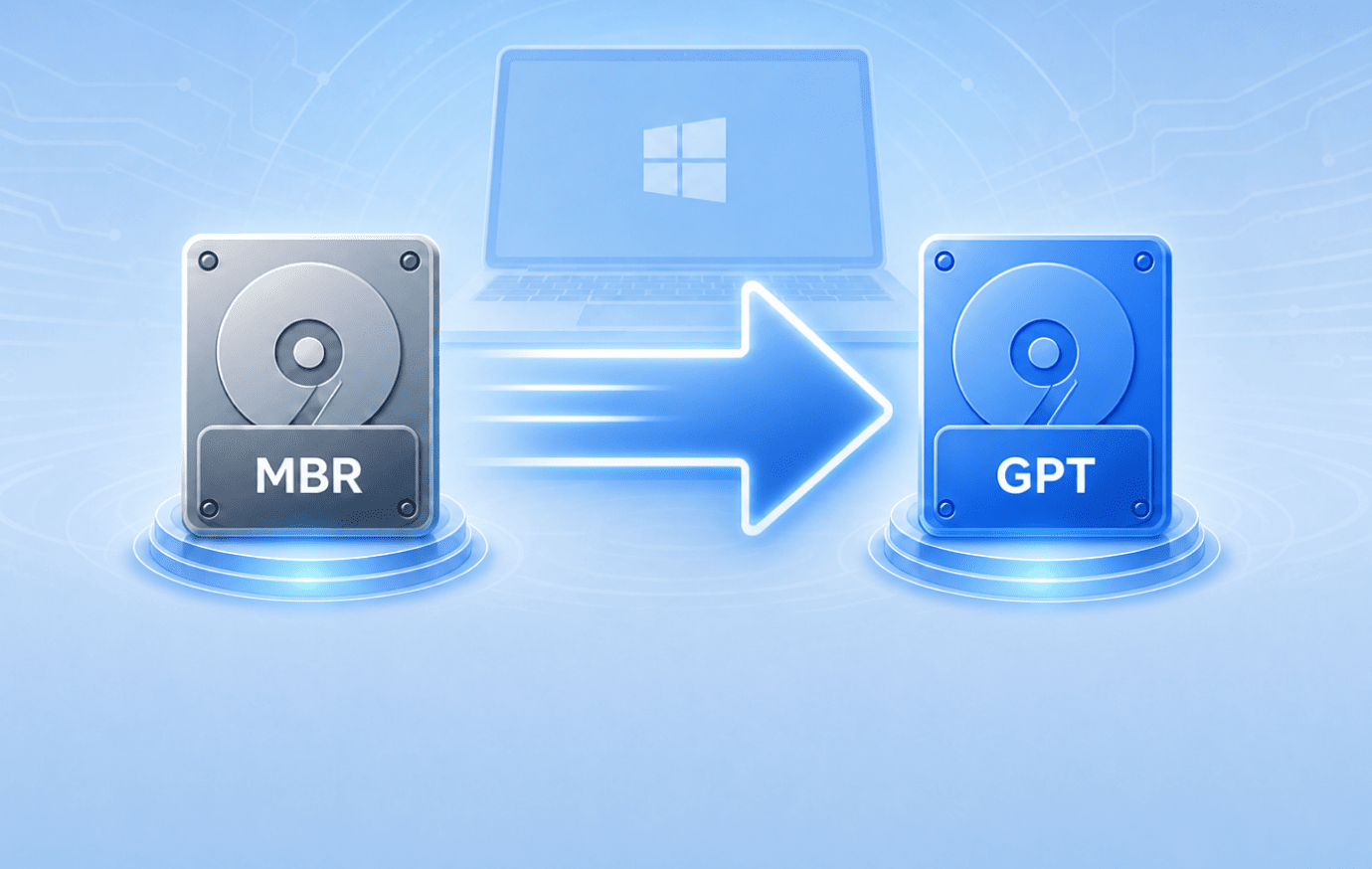
Adopt the GPT Partition Style
Change your Windows system disk to GPT for a cleaner, newer partition structure.
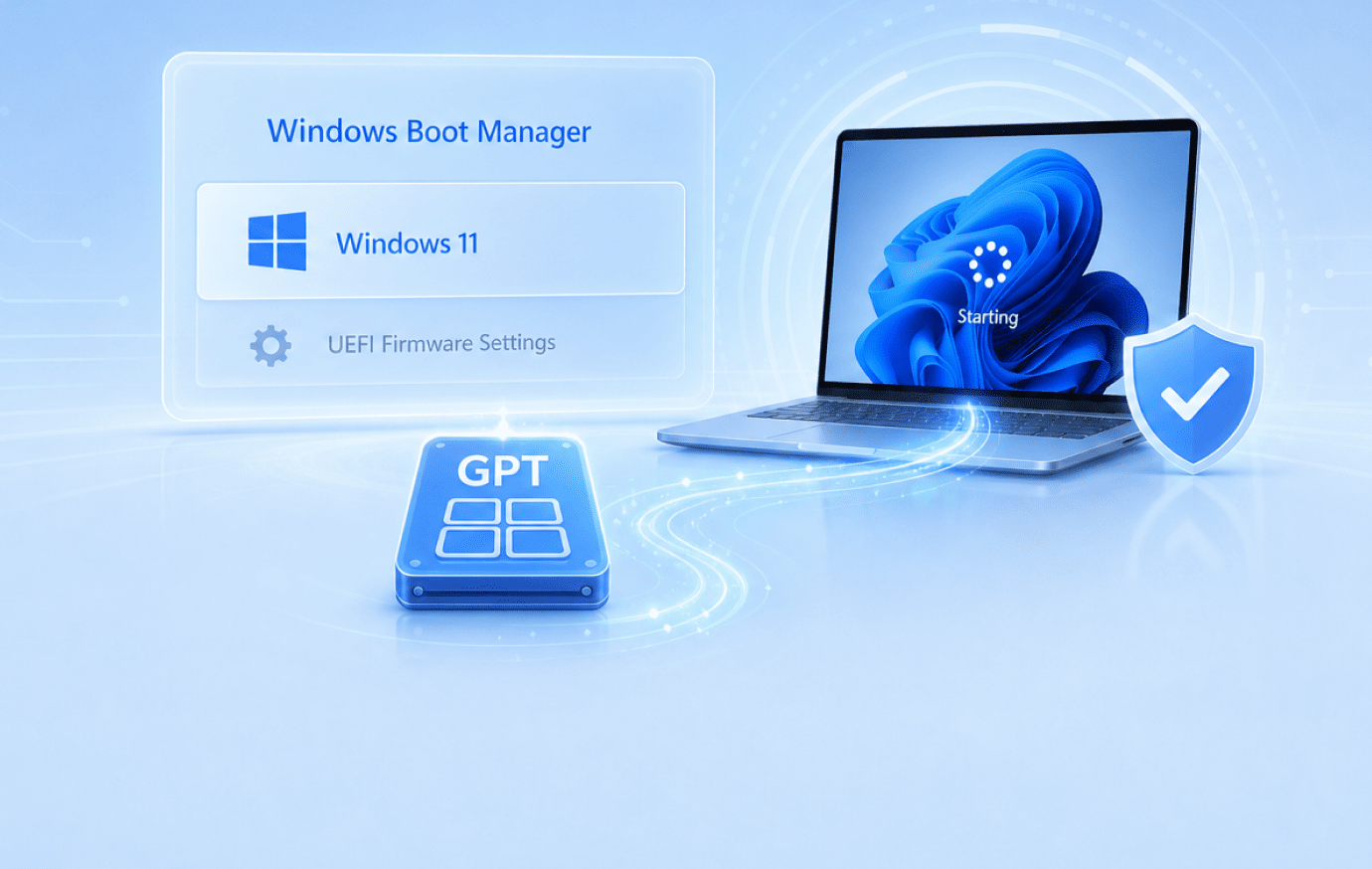
Modernize the Windows Boot Disk
Replace the legacy MBR layout with GPT so Windows Boot Manager can start from a modern EFI/GPT system disk.
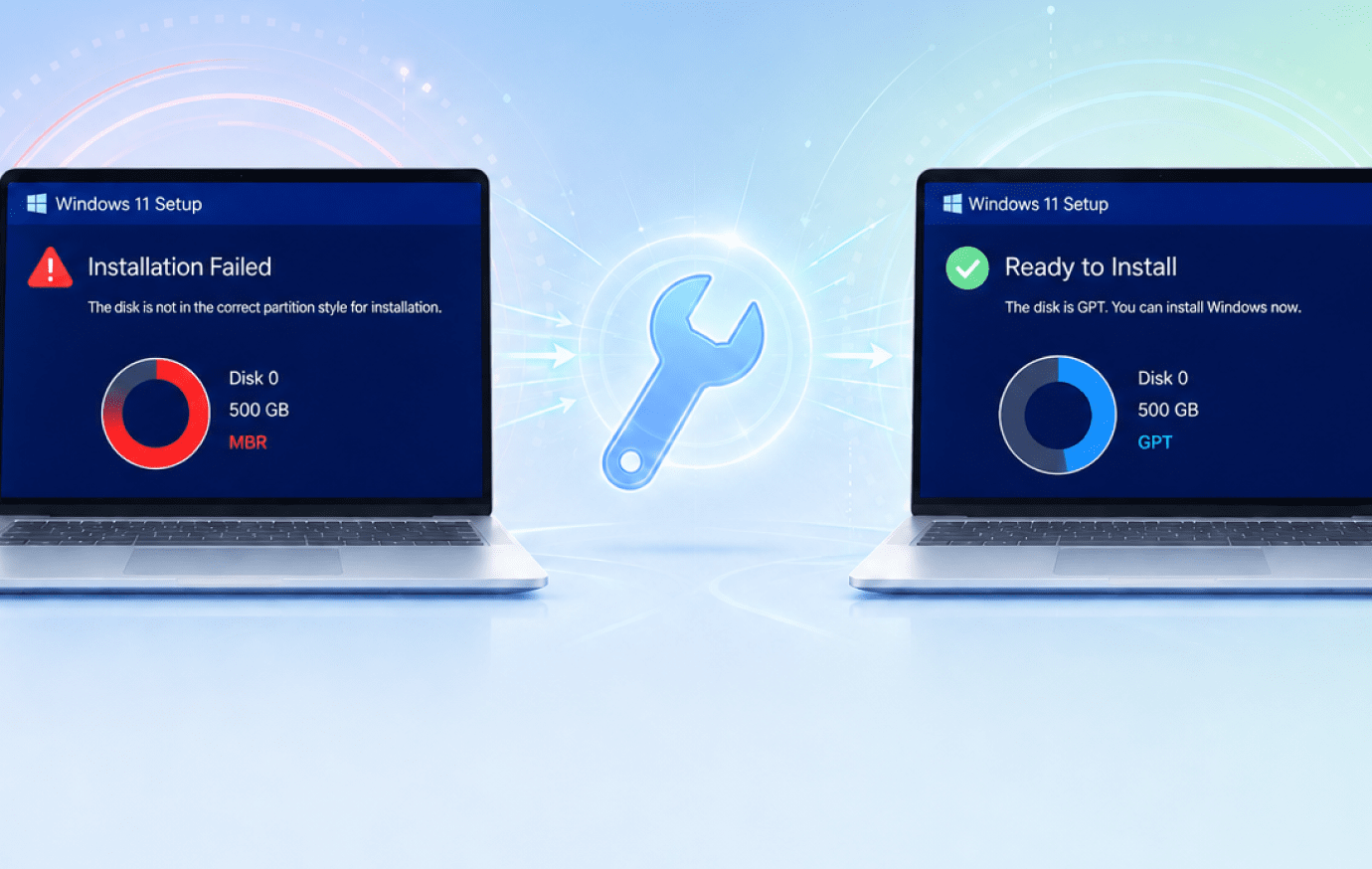
Fix Installation Errors
Solve MBR partition table errors during Windows setup.
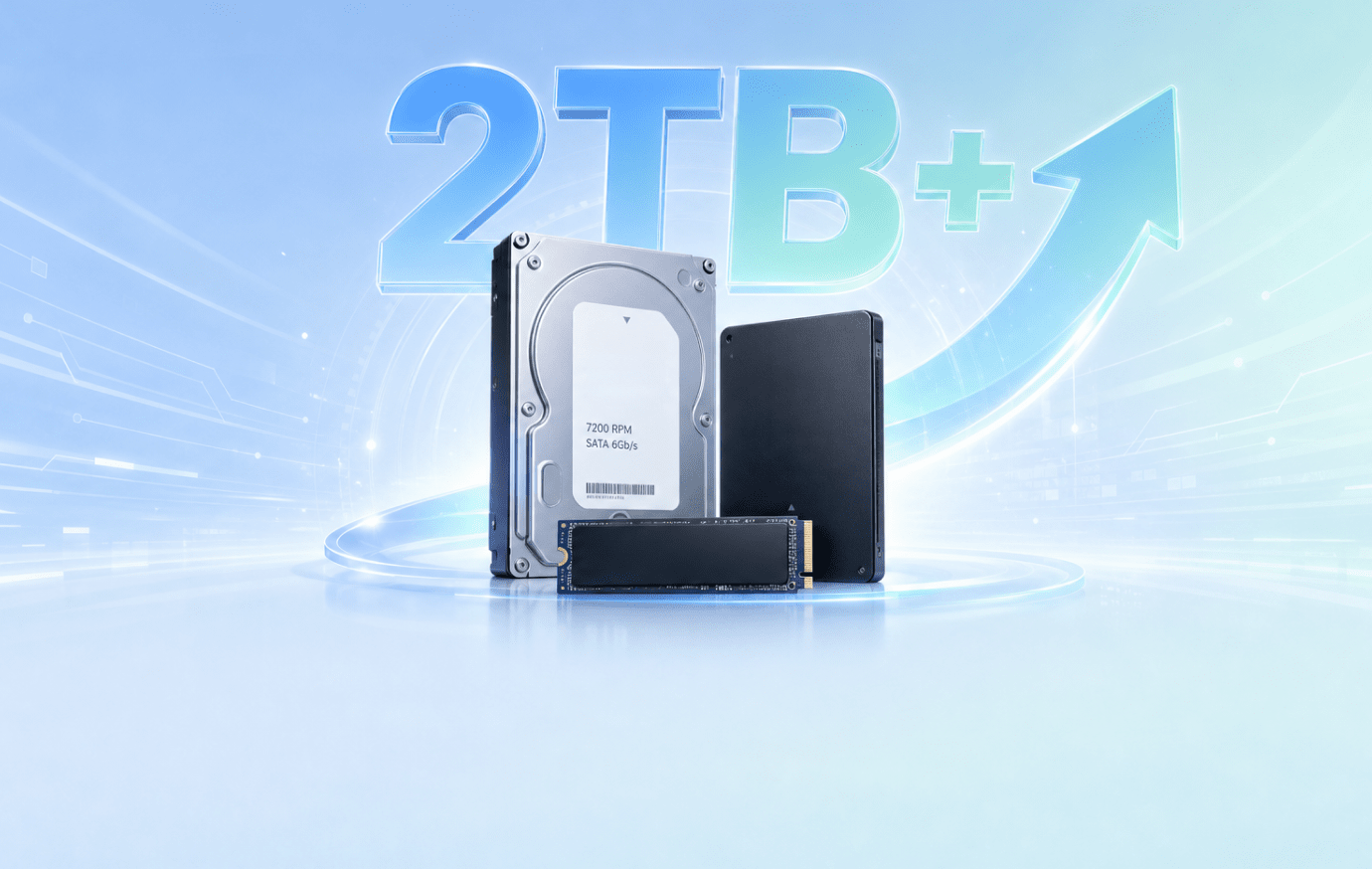
Use Large Drives
Break the MBR disk size limit and use full capacity on large HDDs, SSDs, or NVMe drives.
 Boot Mode
 UEFI recommended with Secure Boot
 Max Disk Size
Up to 18EB
Max Disk Size
Up to 18EB
 Number of Partitions
Up to 128 partitions
Number of Partitions
Up to 128 partitions
 Windows 11 / UEFI Boot
Recommended for Windows 11 and UEFI boot
Windows 11 / UEFI Boot
Recommended for Windows 11 and UEFI boot
 Best Use Case
Modern PCs, large drives, and Windows 11
Best Use Case
Modern PCs, large drives, and Windows 11
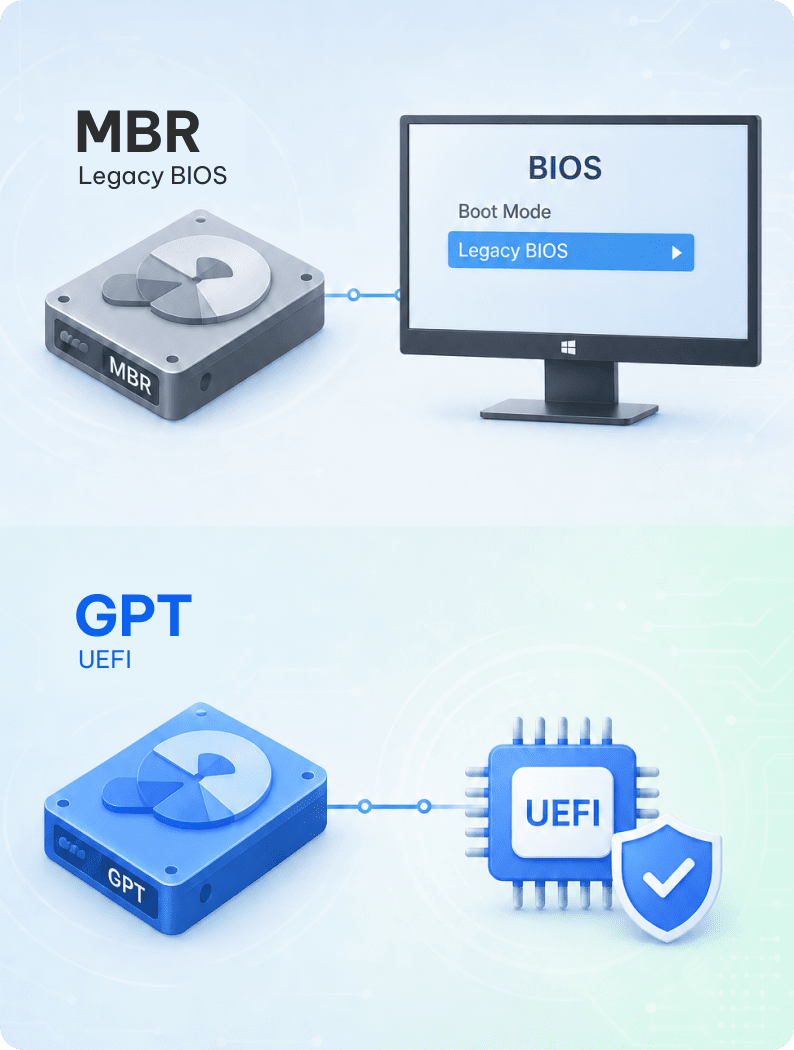

Not sure whether your disk is MBR or GPT? Check your disk partition style first. UEFI works with GPT, while Legacy BIOS works with MBR. A mismatch may cause Windows installation errors.
Yes, you can convert MBR to GPT without losing data, but the risk depends on the method you choose. Some tools preserve your files and system during conversion, while other methods may require deleting partitions or cleaning the disk first.
Low
 Most users
Low, but technical
Most users
Low, but technical
 IT users
 High
High
 Clean install
High
Clean install
High
 Non-system disk only
 If your disk contains important files, back up your data first or choose a no-data-loss MBR to GPT
conversion method.
If your disk contains important files, back up your data first or choose a no-data-loss MBR to GPT
conversion method.
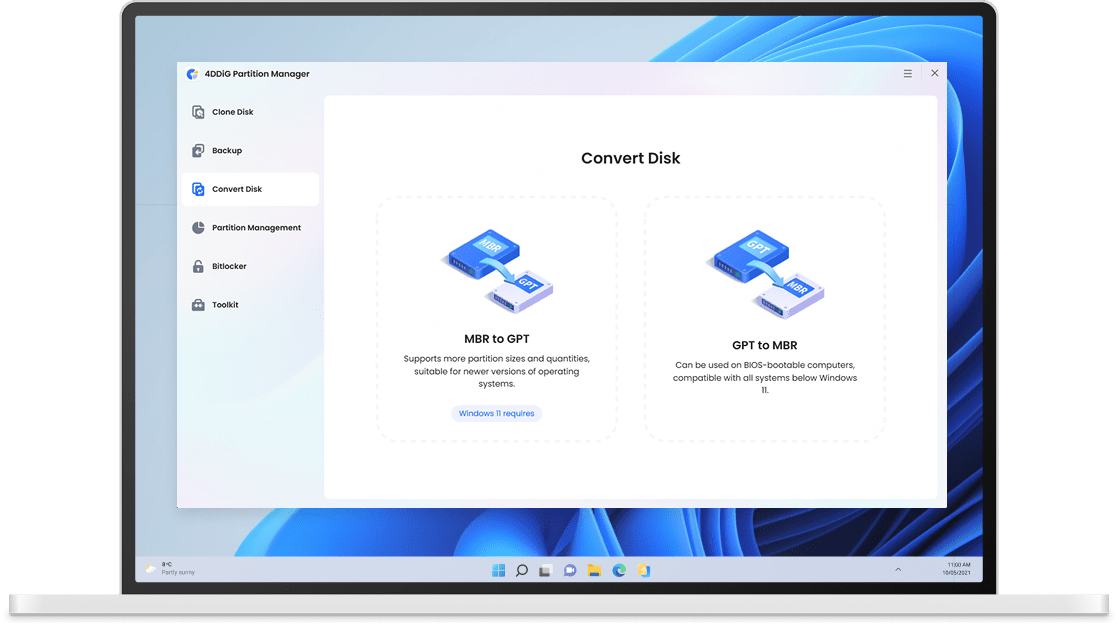
Convert your MBR disk to GPT without complex commands. 4DDiG Partition Manager guides you through disk selection, PE conversion when needed, helping your PC successfully boot from the converted GPT disk.
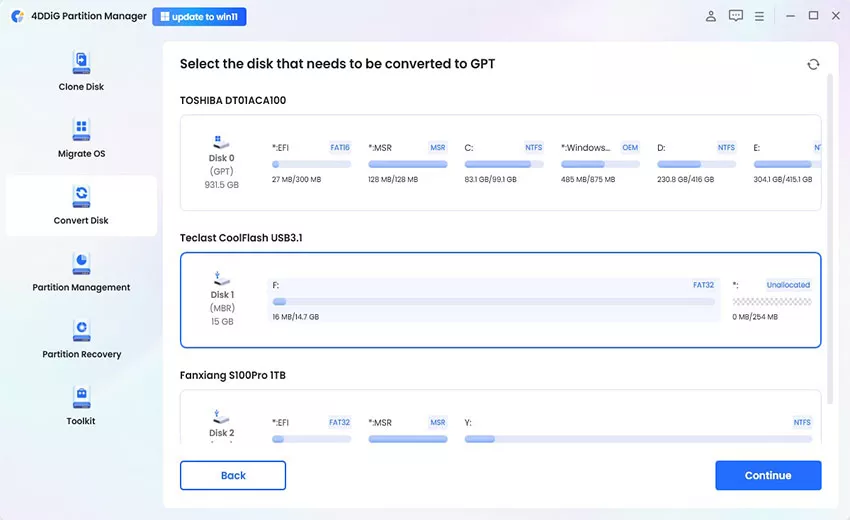
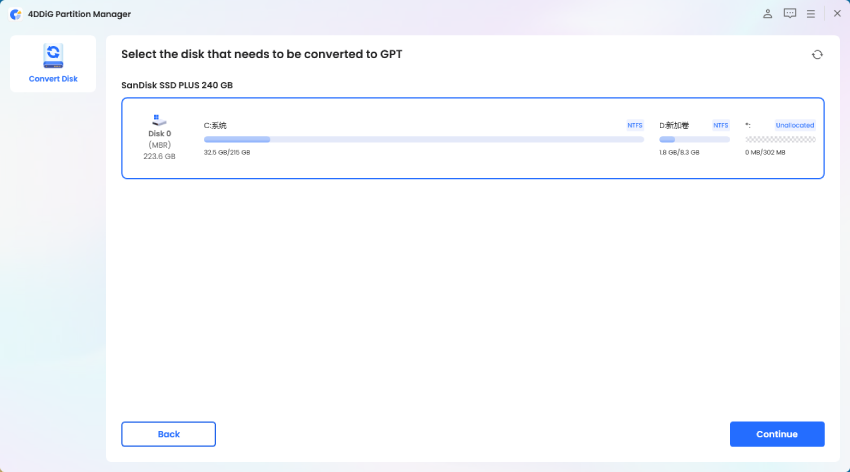
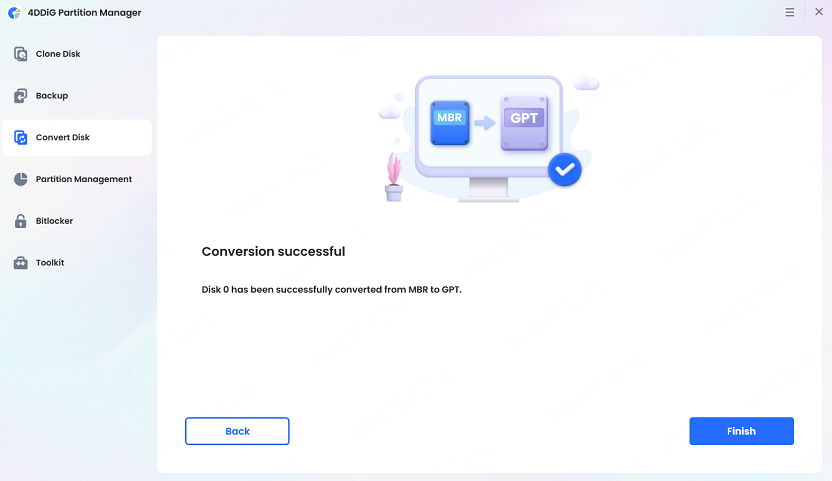
Explore complete collection of methods and tips to safely convert MBR to GPT, eliminate conversion errors.
 Windows 11 / UEFI
 Conversion Errors
 Installation Errors
Not always. MBR2GPT is designed to convert MBR to GPT without modifying or deleting data, while DiskPart or Disk Management may require deleting existing volumes first. Always back up important files before conversion.
Yes. You can convert a Windows system disk without reinstalling Windows if the disk meets the required conditions. MBR2GPT is Microsoft’s command-line option, while 4DDiG Partition Manager provides a guided visual workflow.
It is usually greyed out because the disk still contains existing volumes or partitions. Windows built-in conversion methods often require you to delete all volumes first, so back up your data or use a no-data-loss conversion method.
GPT is the better choice for Windows 11, UEFI boot, and Secure Boot scenarios. MBR is mainly for older Legacy BIOS systems.
This error usually appears when Windows Setup is booted in UEFI mode but the target disk is still MBR. Convert the disk to GPT for UEFI installation, or reboot the installer in Legacy BIOS mode.
It means MBR2GPT will run the conversion from the full Windows operating system instead of Windows PE. The full command often appears as mbr2gpt /convert /allowFullOS.
Convert MBR to GPT safely, making your hardware instantly compatible with UEFI, Secure Boot, and Windows updates.
3,559,693 people have downloaded it