How to Merge C and D Drives in Windows 11/10 Without Losing Data

5 mins read

Updated on 2026-07-24 18:45:32 to Hard Drive

When your C drive is running out of space while your D drive sits mostly empty, merging them can instantly solve low disk space warnings for Windows updates, apps, and games. However, native Windows tools cannot combine partitions directly without wiping the D drive first.

In this guide, you will learn:

  • The Zero-Data-Loss Method: How to directly merge C and D drives using a professional partition manager without deleting files.
  • The Native Windows Methods: Step-by-step instructions for using Disk Management and Diskpart (requires backing up and deleting Volume D).
  • Key Precautions: Essential disk management tips to ensure a safe, smooth, and error-free partition extension."

1. Can You Merge C and D Drive?

Yes, you can usually merge C and D drive when both partitions are on the same physical disk. However, the partition layout determines which method is available.

Drive letters do not prove that two volumes belong to the same disk. C may be on Disk 0 while D is on Disk 1; in that case, D cannot be added to the normal Windows system partition.

Partition order also matters. Disk Management extends C only into unallocated space immediately to its right. If another partition sits between C and D, Extend Volume may remain grayed out.

Check Whether C and D are on the Same Physical Disk

  • Right-click Start and select Disk Management. Locate C and D in the lower graphical pane.

  • Check the disk label at the left. Both must appear in the same row, such as Disk 0.

    check c and d partitions
  • Confirm the order of the partitions. Look for a Recovery, EFI System, OEM, or other partition between C and D.

⚡ 3. How to Merge C and D Drive Without Formatting by Drive Merger?

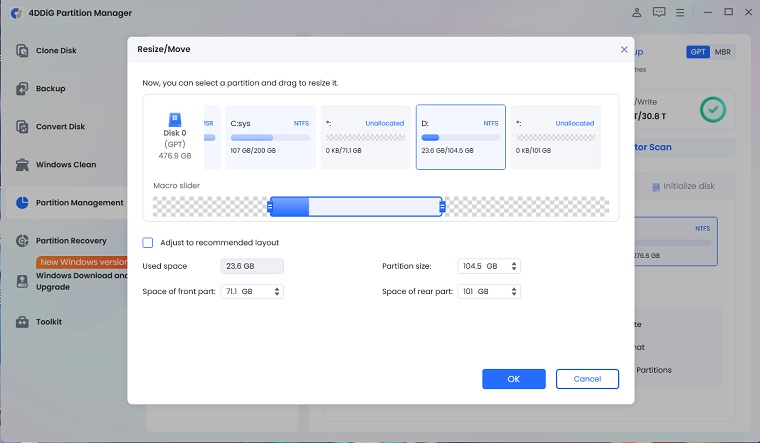
4DDiG Partition Manager provides a Merge function for combining compatible partitions on the same disk without requiring users to delete D first. It is suitable when D not contains unmovable files, Disk Management cannot extend C while D still exists, or the user wants a visual preview before applying the change.

Before starting, back up D, close running programs, connect a laptop to power, and suspend BitLocker if required.

  • Download and install 4DDiG Partition Manager. Enter the partition-management view and select C as the partition that should receive additional space. Choose the Merge operation.

    FREE DOWNLOAD

    Secure Download

    locate drives
  • Select D as the adjacent partition to combine with C, and click OK.

    select partition to merge
  • Review the proposed layout and confirm the disk number, drive letters, and capacities. Then, start the operation.

    start to merging
  • Do not shut down or disconnect power during the merge. Click Finish after successfully merging the partitions.

    complete merging drives

After Windows starts, check the new C-drive size in File Explorer and Disk Management.

4. How to Merge C and D Drive via Disk Management in Windows 10/11?

Step 1: Prepare the D Drive

  • Move all personal files.
  • Uninstall or relocate applications installed on D.
  • Change any Windows library, OneDrive, game launcher, or paging-file path that uses D.
  • Save the BitLocker recovery key and turn off protection on D if needed.
  • Confirm that D is immediately to the right of C.

Step 2: Delete D Drive

  • Press Windows + X and open Disk Management.

  • Confirm the disk number and partition order again.

  • Right-click D and select Delete Volume.

    delete d volume
  • Accept the warning only after verifying the backup.

  • Wait until the space displays as Unallocated.

The D drive letter now disappears. If you delete the wrong volume, stop writing new data to that disk.

Step 3: Extend C Drive

  • Right-click C. Select Extend Volume.

    extend c drive
  • Click Next in the wizard. Choose the amount of adjacent unallocated space to add. Select the maximum amount to merge local disk C and D completely.

  • Click Next > Finish. After that, confirm the increased C-drive capacity.

If Extend Volume option is grayed out, D drive may still exist and has not become unallocated space, or the file system or disk layout is unsupported. You can try these methods to fix the issue.

More FAQs About Merging C and D Drive

1. Is It Possible to Combine C and D Drive?

Yes, if C and D are partitions on the same physical disk. A partition manager can often combine adjacent volumes while retaining data. Disk Management requires deleting D and then extending C. If the letters belong to different physical drives, they cannot be combined into one normal Windows system partition through this procedure.

2. Is It Safe to Merge C and D Drive?

It is generally safe when the disk is healthy, the correct partitions are selected, and the process is not interrupted. Still, back up D, save BitLocker information, and avoid changing EFI or Recovery partitions. Disk Management intentionally deletes D, so use it only after verifying the backup.

Conclusion

Understanding how to merge C and D drive begins with confirming that both volumes are on the same physical disk and checking whether another partition blocks the space. Disk Management is free, but it requires deleting D before extending C. For users who prefer a more direct workflow, 4DDiG Partition Manager provides a visual Merge operation and a layout preview. Whichever method you use, verify the backup, prevent power interruption, and review application paths and BitLocker settings after the partition change.

FREE DOWNLOAD

Secure Download

William Bollson (senior editor)

William Bollson, the editor-in-chief of 4DDiG, devotes to providing the best solutions for Windows and Mac related issues, including data recovery, repair, error fixes.

(Click to rate this post)

You rated 4.5 ( participated)