Recover Deleted Files from Recycle Bin (Even After Empty)
Accidentally deleted files? Learn how to recover them from the Recycle Bin, even after it has been emptied, with this step-by-step guide.








Can You Recover Deleted Files from Recycle Bin?

Yes — If the Recycle Bin Is Not Emptied
If your files are still in the Recycle Bin, restoring them is quick and easy.
Simply open the Recycle Bin, right click the file, and select Restore to return it to its original location.

Maybe — If the Recycle Bin Has Been Emptied
Even after emptying the Recycle Bin, your files are not permanently erased right away.
The data remains on your drive until it is overwritten by new files, which means recovery may still be possible. For this situation, you can use professional recovery software to scan and restore deleted files before they are overwritten.
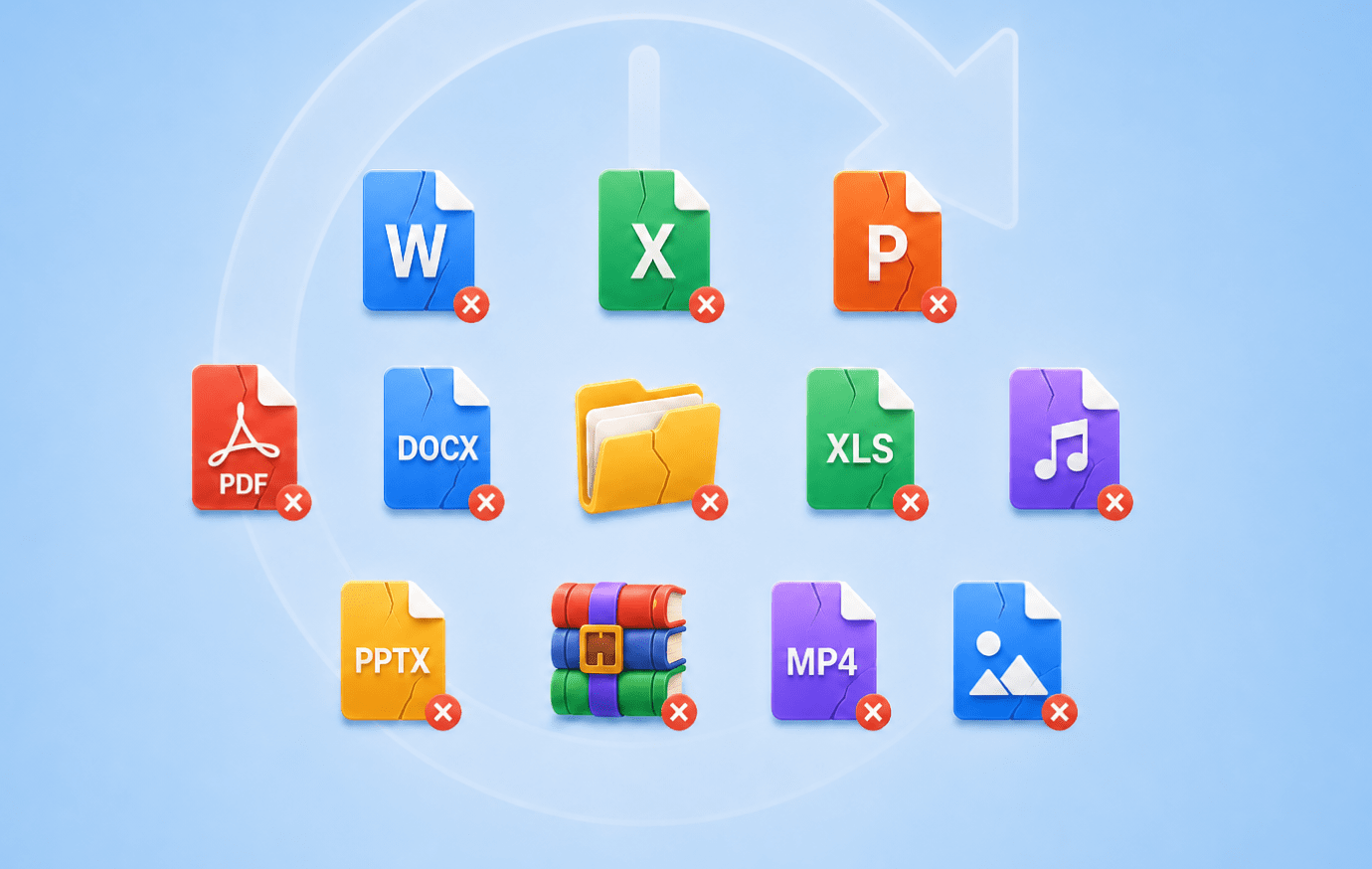
Hard — If Files Are Overwritten
If new data has overwritten the deleted files, recovery becomes much more difficult and may no longer be possible.
The longer you continue using the drive, the higher the risk of overwriting the remaining data and reducing your chances of successful recovery.
Recover Data from Recycle Bin
in Any Data Loss Situations

Emptied Recycle Bin
When the Recycle Bin is emptied, deleted files are removed from view but may still remain on the drive until overwritten. With the right recovery methods, recovering deleted files from Recycle Bin after empty is still possible with a high success rate.
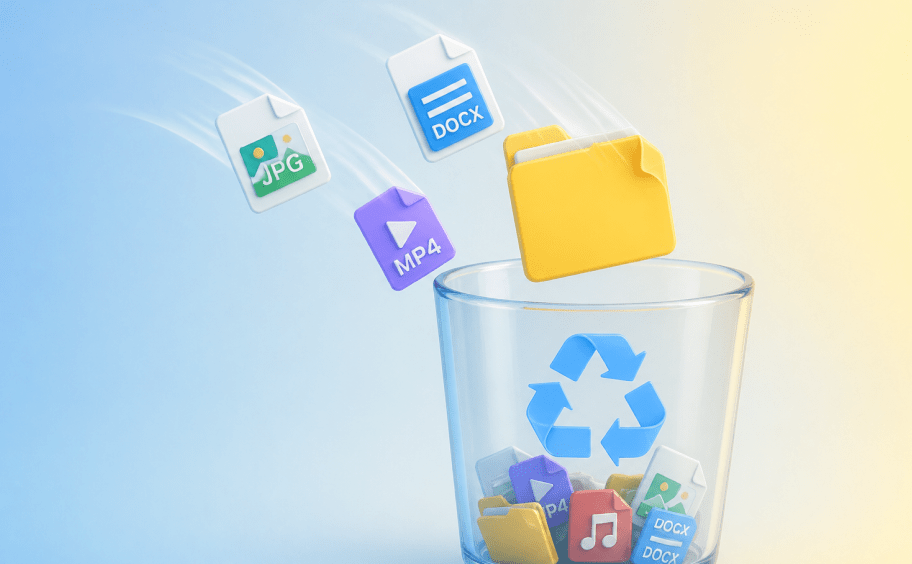
Accidentally Deleted Files
It's easy to accidentally drag the wrong folder to the Recycle Bin or delete important files without checking. Prompt recovery can help restore these accidentally deleted files before they are overwritten and become much harder to recover.
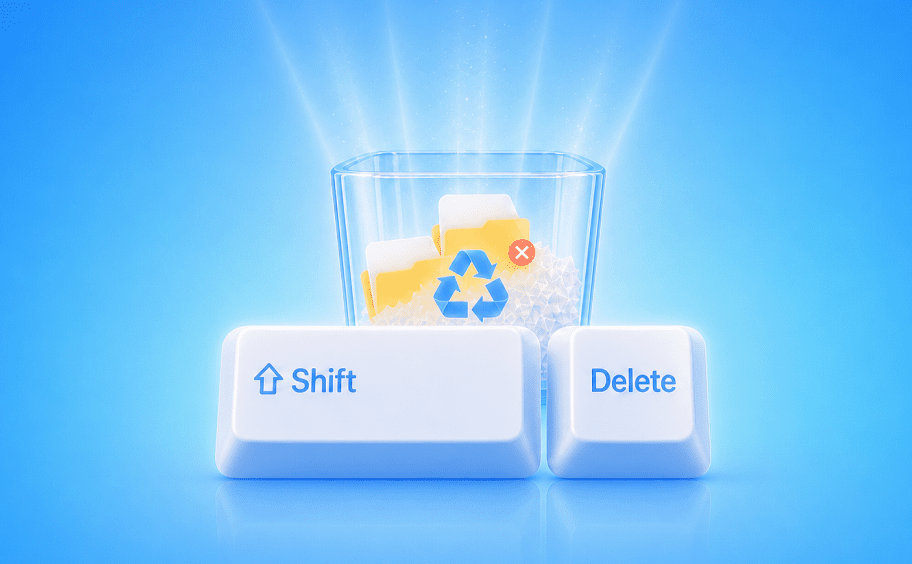
Shift + Delete
Files deleted with Shift + Delete bypass the Recycle Bin and are not available through normal restore methods. 4DDiG can deeply scan your drive to find and recover these permanently deleted files.

Files Deleted Long Ago
Files deleted long ago may still exist as hidden data on your drive until they are overwritten by new files. Over time, continuous disk usage can overwrite these hidden files, reducing the chances of successful recovery.

Auto-Cleaned Recycle Bin
System utilities like Windows Storage Sense or third party cleanup tools may automatically empty the Recycle Bin and remove deleted files without notice. Recovery software can help scan for these deleted files and restore them if the data has not been overwritten.
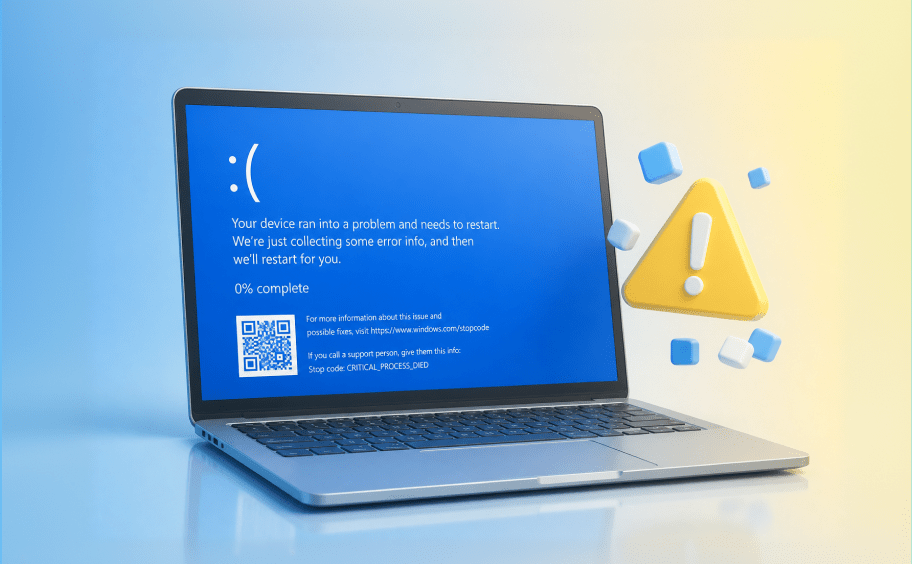
System Crashes
Sudden system crashes, disk errors, or power outages can make deleted files inaccessible. Recovery software can deeply scan your drive and recover items deleted from Recycle Bin when they cannot be recovered through normal methods.
8 Ways to Recover Deleted Files from Recycle Bin
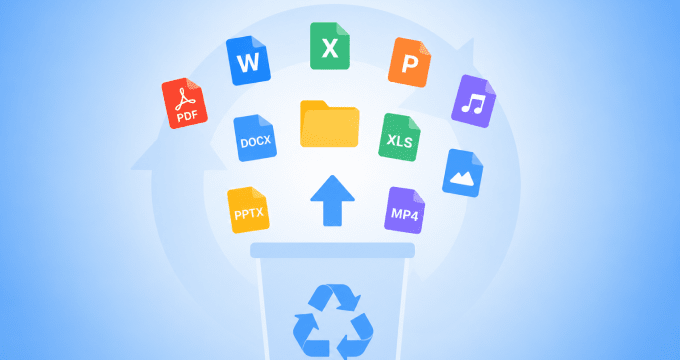
Restore Directly from Recycle Bin
If the Recycle Bin has not been emptied, you can easily restore deleted files from the Recycle Bin without using any additional tools. With just a few clicks, the files will be returned to their original location, making this the easiest recovery method.
-
Pros:
- Fast and simple
- No software required
- Keeps original file quality and structure
-
Cons:
- Only works if the Recycle Bin has not been emptied


Undo Delete (Ctrl + Z)
If you have just deleted a file, you can press Ctrl + Z to undo the action and restore the file instantly. This method works best when used right after deletion, before you perform other actions on your computer.
-
Pros:
- Instant recovery
- No technical skills required
-
Cons:
- Only works immediately after deletion
- May not work after restarting or performing other operations

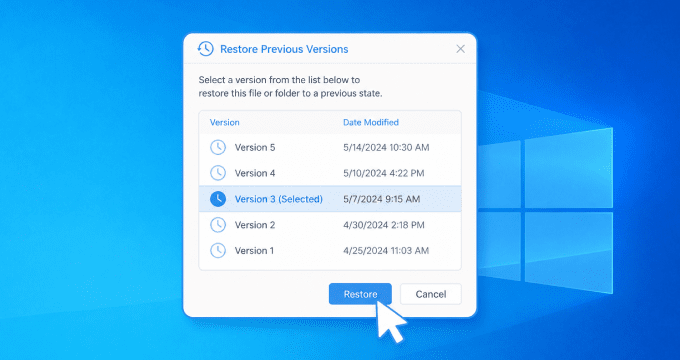
Restore Previous Versions
Windows provides a built in Previous Versions feature that allows you to restore earlier versions of files or folders. his method can help recover deleted files from a previous version if one is available.
-
Pros:
- Built into Windows
- Useful for recovering older file versions
-
Cons:
- Requires File History or restore points to be available
- May not be enabled by default

Recover from File History
Windows File History allows you to recover files deleted from Recycle Bin by restoring previously backed up versions. This method works if File History was enabled before the files were deleted.
-
Pros:
- Reliable if enabled
- Supports multiple file versions
-
Cons:
- Requires prior setup
- Not enabled by default

Use 4DDiG Data Recovery Software
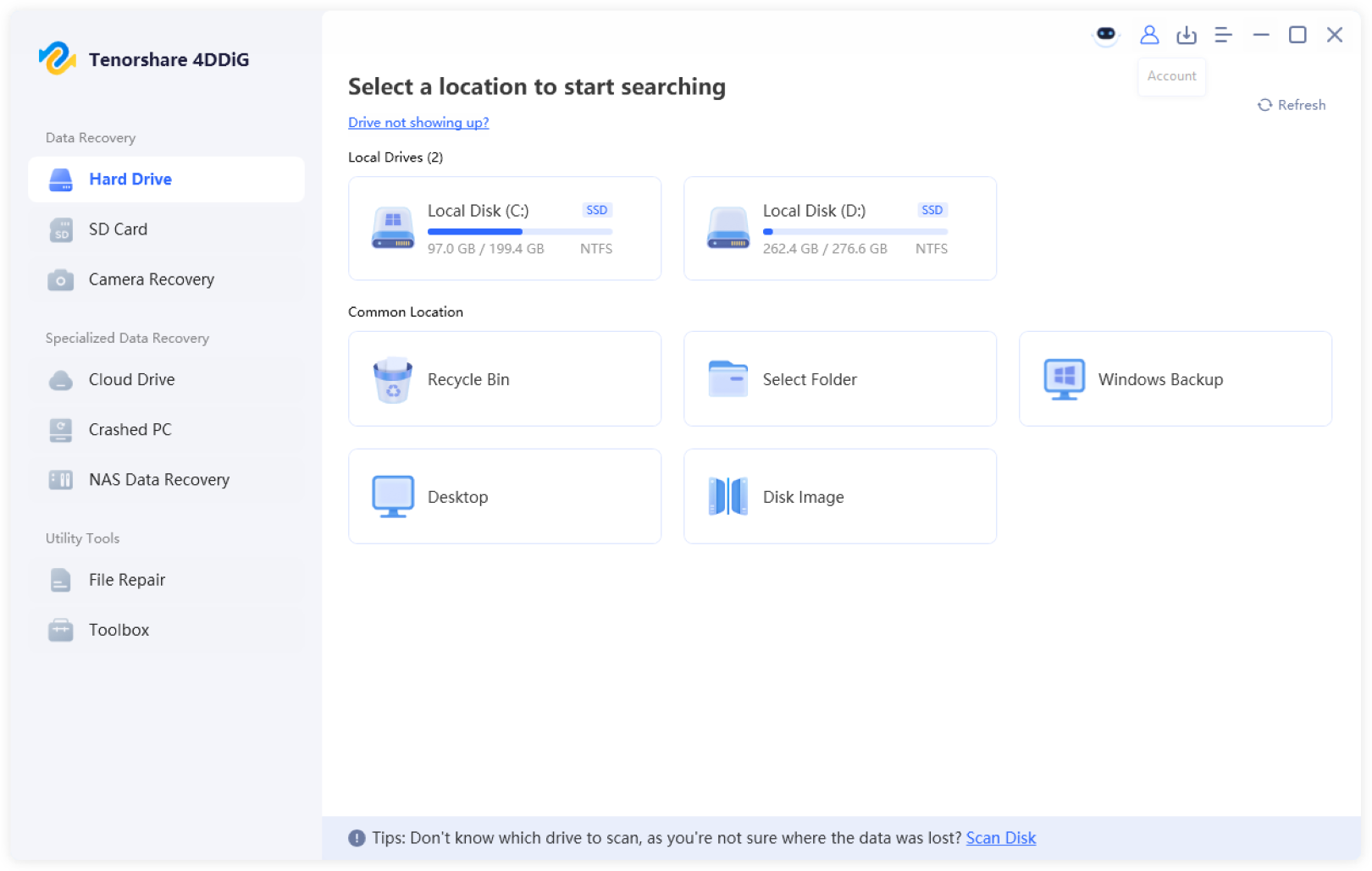
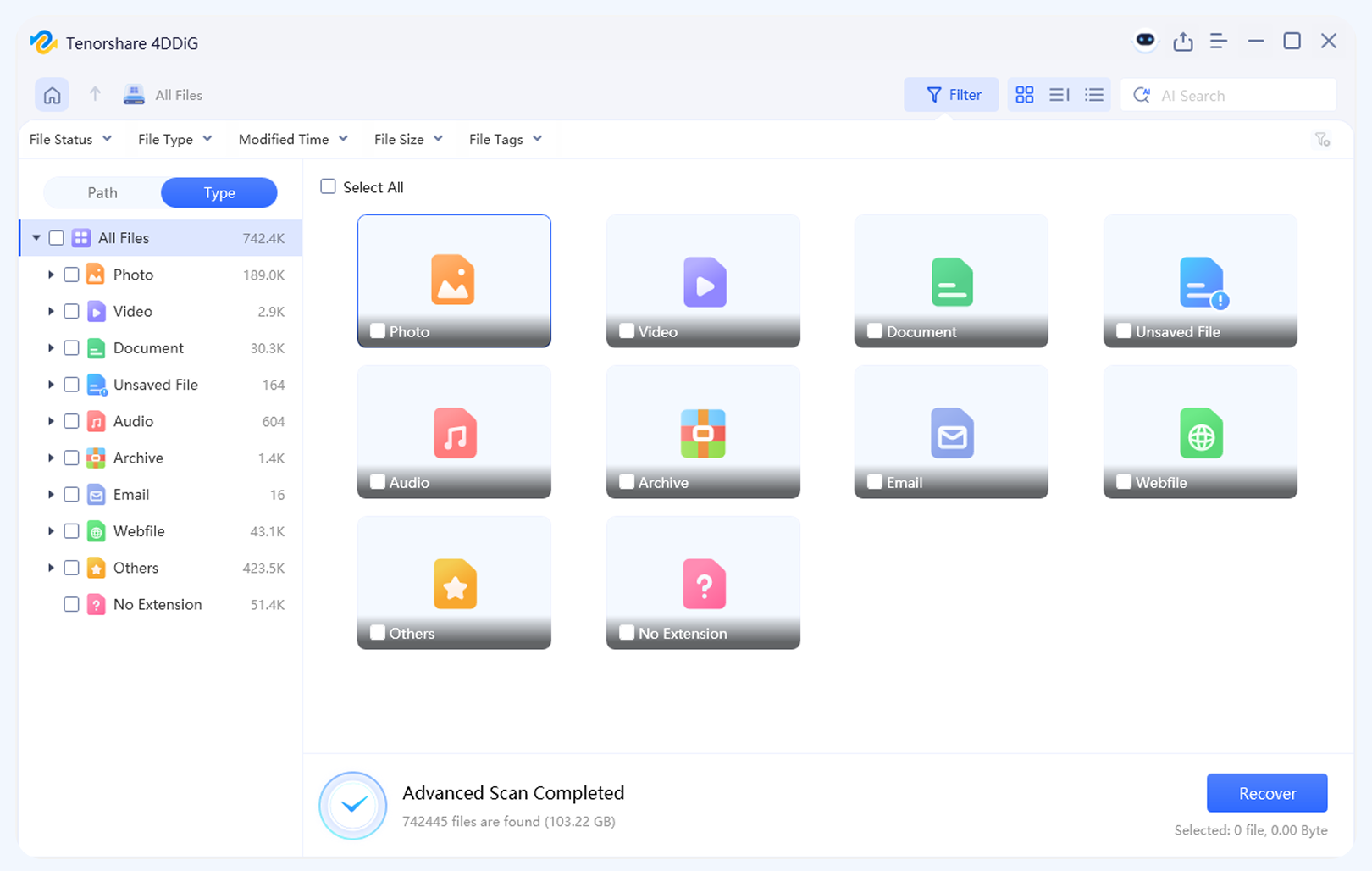
4DDiG is a powerful solution to recover deleted files even after the Recycle Bin has been emptied. It uses deep scanning technology to find and restore permanently deleted files and allows you to preview recoverable files before restoring them.
-
Pros:
- Works after the Recycle Bin is emptied
- High recovery success rate
- Easy to use with file preview
- Supports 2,000+ file types
-
Cons:
- Requires installation
- Full recovery requires a paid version
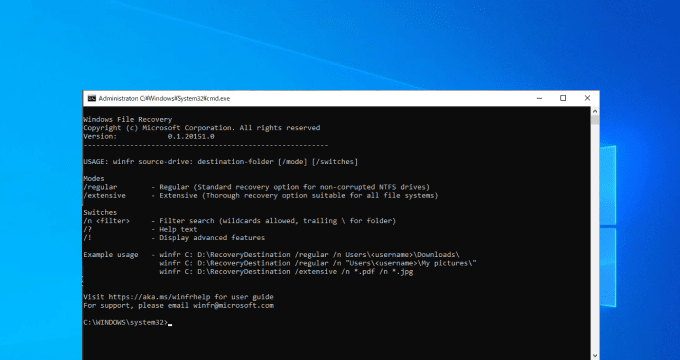
Use Windows File Recovery
Windows File Recovery is a Microsoft command-line tool that helps recover permanently deleted files that bypass the Recycle Bin. It uses advanced scanning methods to find recoverable data from your drive.
-
Pros:
- Official Microsoft tool
- Supports advanced scanning
-
Cons:
- Requires command-line commands
- Not beginner-friendly

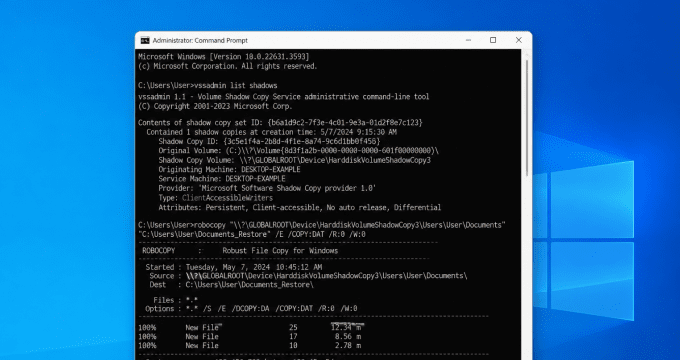
Use Command Prompt
Command Prompt can help perform basic disk checks and system repairs that may resolve file access issues. However, it is not designed for directly recovering permanently deleted files from the Recycle Bin.
-
Pros:
- No third-party software needed
- Useful for troubleshooting
-
Cons:
- Limited file recovery capability
- Requires command-line knowledge
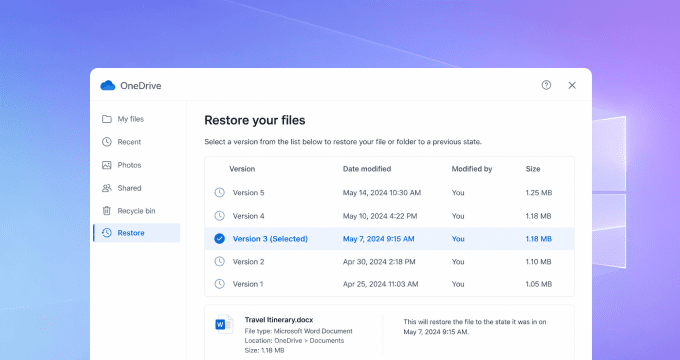
Recover from Cloud Backup
If your files were synced to a cloud storage service, you may be able to recover deleted files from the cloud trash or restore previous versions. This method works only if the files were backed up or synced before deletion.
-
Pros:
- Easy recovery if a backup exists
- Safe and reliable
-
Cons:
- Requires prior cloud sync or backup
- Deleted files may only be retained for a limited time
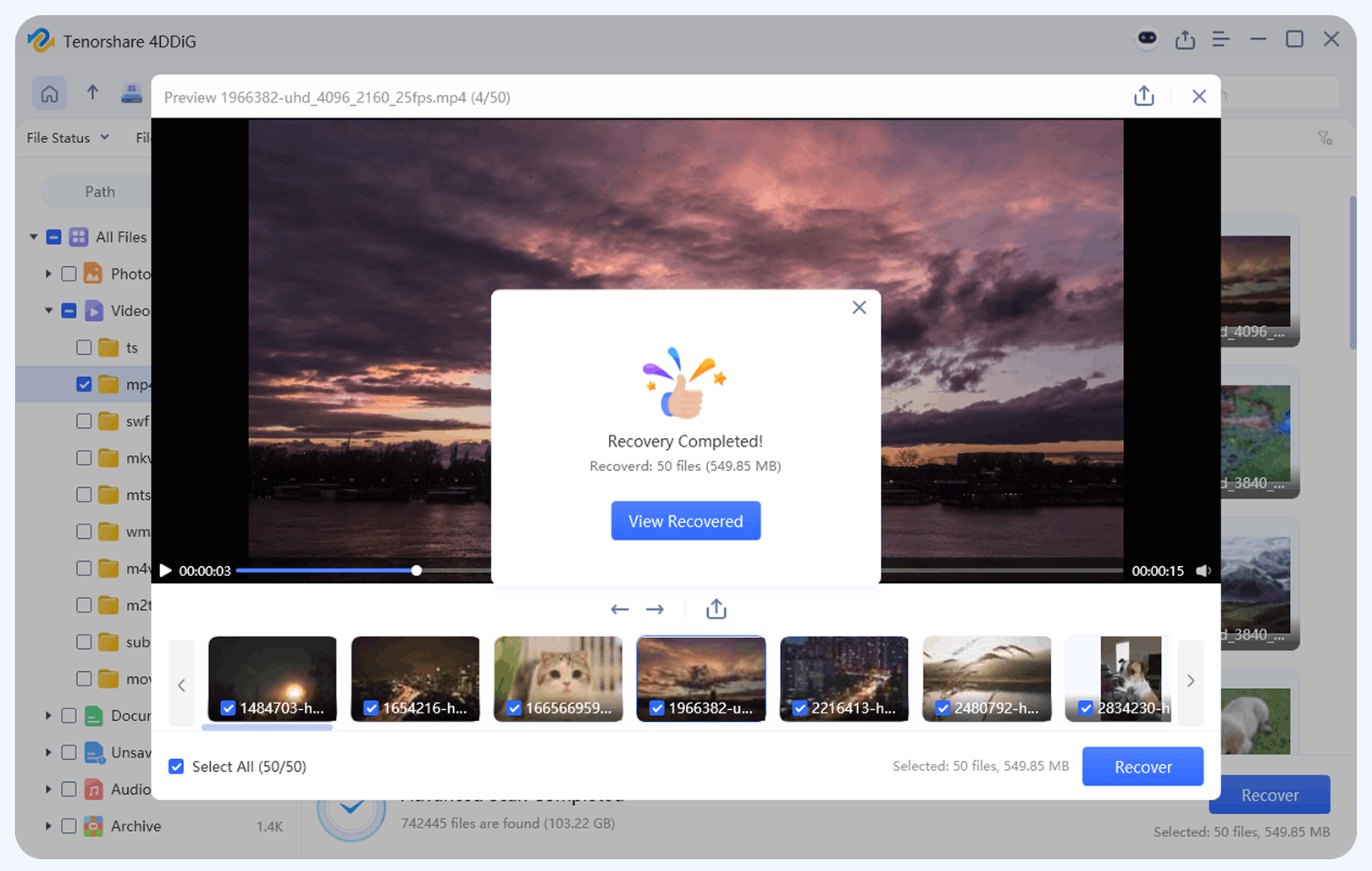
3 Steps to Recover Files from Recycle Bin
Tips to Prevent File Loss from the Recycle Bin
Tip 1: Double Check Before Emptying
Take a few seconds to review the files in the Recycle Bin before emptying it. A quick check can prevent important files from being accidentally removed.
Tip 2: Increase Recycle Bin Storage Capacity
Large files may skip the Recycle Bin if they exceed its default storage limit. Right click the Recycle Bin, select Properties, and increase the maximum size to allow more deleted files to be stored.
Tip 3: Configure or Disable Storage Sense
Windows Storage Sense can automatically remove files from the Recycle Bin after a set period to free up storage space. Adjust or disable this setting in Windows Settings to control when files are deleted.
Tip 4: Disable "Delete Immediately" Settings
Make sure Windows is not set to bypass the Recycle Bin. In Recycle Bin Properties, disable the "Don't move files to the Recycle Bin. Remove files immediately when deleted." option and enable deletion confirmation dialogs for extra protection.
Tip 5: Sync to Cloud Storage or Multiple Devices
Back up important folders to OneDrive, Google Drive, or an external drive. Cloud storage services often keep deleted files for a limited time, allowing you to restore data even if files are removed from your local Recycle Bin.
FAQs About Recycle Bin Recovery
Yes, it is possible. When you empty the Recycle Bin, Windows does not immediately erase the file data. Instead, it marks the occupied space as available for new data. As long as the deleted files have not been overwritten, they can still be recovered using proper recovery methods.
After the Recycle Bin is emptied, you can try several recovery methods depending on your situation. If you have backups available, tools like Windows File History, Previous Versions, or cloud storage can help restore deleted files. If no backup exists, 4DDiG can deeply scan your drive to find and recover permanently deleted files before they are overwritten.
Yes, Ctrl + Z can restore recently deleted files by undoing the last action. However, it only works right after deletion and before you perform other operations or restart your computer. For files that cannot be restored this way, professional recovery software may be needed to recover them.
Yes, you can recover files after emptying the Trash on a Mac if the deleted data has not been overwritten. If you have a Time Machine backup, you can restore files from a previous backup. Without available backups, 4DDiG can scan your Mac drive and help recover permanently deleted files.
Without a Time Machine backup, you can check other available backups, such as iCloud Drive or other cloud storage services. If no backup is available, 4DDiG can deeply scan your Mac drive to find and recover the files.

4DDiG Recycle Bin Recovery
Join over 10 million happy users. Preview your files for free before recovery.
 100% Secure & Virus-free
 30-Day Money Back Guarantee
 24/7 Tech Support