How to Format SD Card to FAT32 with Rufus?

5 mins read

Updated on 2026-07-10 10:28:29 to Hard Drive

Your camera, Raspberry Pi, or 3D printer refuses to recognize the SD card, and the fix is almost always the file system. Most devices require FAT32, but Windows refuses to format cards larger than 32GB to FAT32 using its built-in tools. Don’t worry, this guide covers exactly how to use Rufus as an SD card formatter, why FAT32 matters, and what to do if Rufus doesn't work for your situation.

1. How to Format SD Card with Rufus SD Card Formatter?

Note:

Before you format your SD card using Rufus, make sure to back up all important files first. Once the process is complete, recovering lost files can be difficult or even impossible.

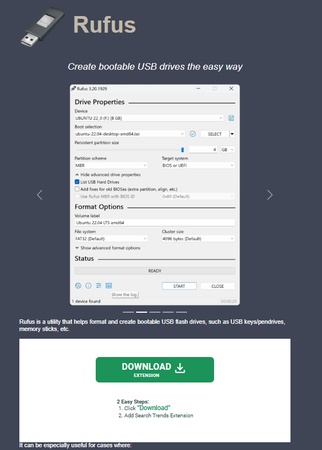
  • Visit Rufus official website and download the latest version. No installation needed; it runs as a portable .exe file.

  • Under the Device dropdown at the top, select your SD card. Rufus will detect it automatically once inserted. Double-check the drive letter to make sure you're not about to format the wrong disk.

    select your sd card
  • In the Boot selection dropdown, choose Non-bootable. In the File system dropdown, select FAT32. If you're formatting a card larger than 32GB and FAT32 doesn't appear, Rufus may be in a restricted mode — try clicking Show advanced format options.

    select fat32 file system
  • Give your SD card a name in the Volume label field. Click Start. Rufus will warn you that all data on the drive will be destroyed. Confirm and let it run. Formatting typically takes under a minute.

Once complete, open File Explorer, right-click your SD card, select Properties, and confirm the file system shows FAT32.

Best Rufus SD Card Formatter Alternative: 4DDiG Partition Manager

Rufus is great for formatting, but it's a single-purpose tool. If you need more control, like resizing partitions, converting file systems without data loss, or cloning drives, 4DDiG Partition Manager is a more complete solution. It includes a dedicated format function that works on SD cards, USB drives, and internal disks, with a clean graphical interface suited to any experience level.

Here's how to format an SD card to FAT32 using 4DDiG Partition Manager:

  • Download and install 4DDiG Partition Manager. Insert your SD card before launching the app, and select Partition Management from the left navigation panel. Select the SD card and click Format.

    select format

    2. Set the file system to FAT32. In the format dialog, set the File System to FAT32. You can also set a volume label and adjust the cluster size if needed. Click OK to queue the operation.

    choose fat32 file system
  • Click Execute 1 Task(s) in the bottom-right corner, then click OK to confirm. 4DDiG Partition Manager will format the SD card to FAT32.

    execute formatting task
  • Once complete, click Done. Your SD card is now formatted to FAT32 and ready to use with your camera, Raspberry Pi, or other device.

    format successfully

4DDiG Partition Manager also lets you resize or merge partitions, and recover deleted partitions — functionality that goes well beyond what Rufus offers. It's a solid choice if you regularly manage storage devices or need more than just a quick format.

3. Why Use Rufus/Other Tools to Format Your SD Card?

Windows' built-in format tool caps FAT32 at 32GB. For any card larger than that, it only offers exFAT or NTFS, neither of which works reliably with most cameras, retro game consoles, 3D printers, or single-board computers like the Raspberry Pi.

Tools, like 4DDiG and Rufus, can bypass that limitation entirely. A dedicated SD card formatter can write FAT32 to cards of any size, and it also handles partition cleanup — useful when a card has hidden or protected partitions left over from previous use. Here's a quick comparison of why users reach for other tools over the default Windows tool:

  • FAT32 support for SD cards larger than 32GB (64GB, 128GB, 256GB+)
  • Removes hidden or protected partitions that Windows Disk Management can't touch
  • Better device compatibility: digital cameras, Raspberry Pi, game consoles, 3D printers

More FAQs about Rufus SD Card Format

1. Can Rufus format SD cards?

Yes. Rufus works with SD cards, microSD cards, USB flash drives, and other removable media. Rufus will format it quickly and reliably, including cards larger than 32GB, which Windows' built-in tool refuses to format as FAT32.

2. Should I choose NTFS or FAT32 in Rufus?

It depends on what the SD card is for. Choose FAT32 if the card will be used in a camera, 3D printer, Raspberry Pi, game console, or any device that doesn't explicitly support NTFS. FAT32 has near-universal compatibility but limits individual file sizes to 4GB. Choose NTFS only if you're formatting a drive for Windows-exclusive use and need to store files larger than 4GB.

3. Why won't Rufus let me use FAT32?

There are a few reasons FAT32 might not appear in Rufus:

  • The card is larger than 32GB and Rufus is in a restricted mode. Fix: Click Show advanced format options and look for the Large FAT32 option, or try running Rufus as Administrator.
  • A boot selection other than Non-bootable is selected. FAT32 may not appear as a file system option if Rufus thinks you're creating a bootable drive for a specific OS.
  • The SD card has a protected or locked partition.

⚡ Conclusion

Rufus is a reliable, no-cost way to format SD card to FAT32 on Windows, especially for cards larger than 32GB that trip up the built-in format tool. Follow the steps above and you'll have a properly formatted card in under a minute. That said, if you need to do more than just format — convert file systems without data loss, recover deleted partitions, or manage multiple storage devices from one place — 4DDiG Partition Manager is a stronger alternative worth keeping in your toolkit. Either way, FAT32 is the right format for the vast majority of cameras, Raspberry Pi setups, game consoles, and 3D printers.

FREE DOWNLOAD

Secure Download

William Bollson (senior editor)

William Bollson, the editor-in-chief of 4DDiG, devotes to providing the best solutions for Windows and Mac related issues, including data recovery, repair, error fixes.

(Click to rate this post)

You rated 4.5 ( participated)