How to Fix “Unable to Connect to Virtual Disk Service”?

5 mins read

Updated on 2026-07-31 18:42:07 to Hard Drive

Have you encountered the “unable to connect to Virtual Disk Service” error while opening Disk Management? This can prevent you from creating, formatting, extending, or shrinking partitions when you need to manage your storage.

The problem may be caused by an unresponsive external drive, incorrect service settings, firewall restrictions, security software, or damaged Windows files. This guide explains several practical solutions and provides an alternative way to manage your disk if Disk Management still does not work.

1. What Does “Unable to Connect to Virtual Disk Service” Mean?

The "unable to connect to Virtual Disk Service" error appears when Disk Management cannot communicate with the Windows service responsible for detecting and managing your storage devices.

virtual disk service error

Virtual Disk Service (VDS) helps Windows identify hard drives, SSDs, partitions, and volumes so that Disk Management can display and manage them properly. When this service fails to respond or is blocked, Disk Management may be unable to load your disks or perform storage-related tasks.

In many cases, it's caused by a stopped Virtual Disk Service, an unresponsive external storage device, Windows Firewall restrictions, antivirus interference, or corrupted system files.

2. How to Fix Unable to Connect to Virtual Disk Service?

Start with the first solution and test Disk Management after each fix. You may not need to try every method.

Fix 1: Remove the Drive That is Blocking Disk Detection

A damaged or unresponsive external storage device can delay the disk-detection process. Disk Management may keep waiting for that device and fail to display the rest of your drives.

  • Close Disk Management if it is currently open.

  • Safely disconnect all removable storage devices from your computer.

  • Leave your Windows system drive connected.

  • Press Windows + X and select Disk Management. Check whether your internal disks and partitions now appear.

If Disk Management opens normally, reconnect the removed devices one at a time. Open Disk Management after connecting each device. When the problem returns, the last connected device, cable, port, or enclosure may be causing it.

Fix 2: Disable Microsoft Defender Temporarily

Microsoft Defender or another security program may occasionally interfere with storage-related processes. You can temporarily disable real-time protection to check whether it is causing the problem.

  • Press Windows + I button to open Settings. Now click on Privacy & security in Windows 11 or Update & Security in Windows 10.

  • Now select Virus & threat protection. Click Manage settings. Here, turn off Real-time protection.

    turn off real-time protection
  • After that, open Disk Management again and check whether it loads correctly.

If Disk Management works after Microsoft Defender is disabled, check for Windows updates and review recently installed security software. You may also need to add an appropriate exception instead of leaving protection turned off.

Fix 3: Allow Remote Volume Management in Windows Firewall

Microsoft identifiesRemote Volume Management as the firewall rule group used by Disk Management for remote management, and its troubleshooting guidance recommends enabling the Remote Volume Management exception when connection problems occur.

  • Press Windows + R, type wf.msc and press Enter.

  • In the left panel, select Inbound Rules and look for rules beginning with Remote Volume Management.

    locate remote volume management
  • Right-click each relevant rule and select Enable Rule.

  • After that, select Outbound Rules and enable matching Remote Volume Management rules if they are disabled.

Once completed, close Windows Defender Firewall with Advanced Security and restart Disk Management.

Fix 4: Switch the Virtual Disk Service Settings to Manual or Automatic

If the Virtual Disk service is stopped, disabled, or failing to start correctly, Disk Management may be unable to load your storage information.

  • Press Windows + R to open the Run box, type services.msc and click OK.

  • Scroll down and locate Virtual Disk, double-click the service to open its properties.

    locate virtual disk in services
  • Set Startup type to Manual first. If the service is stopped, click Start.

    change virtual disk startup type
  • Now click Apply, followed by OK and reopen Disk Management.

Microsoft troubleshooting discussions have also recommended setting Virtual Disk to Manual when resolving VDS-related errors.

If the service still does not start when needed, return to its properties and temporarily change the startup type to Automatic. Restart the computer and check again.

Fix 5: Repair Windows with DISM and SFC

Corrupted Windows components or missing system files can also cause Disk Management to fail. Windows includes two repair tools that can help:

  • Open the Start menu and search for Command Prompt.

  • Right-click Command Prompt and select Run as administrator.

  • Enter the following command and allow the scan to finish:

    $ DISM.exe /Online /Cleanup-Image /RestoreHealth
  • It may appear to pause at a certain percentage, so do not close the window.

  • When DISM is complete, run:

    $ sfc /scannow
  • Wait until the verification reaches 100% and restart your computer.

If SFC reports that it found corrupted files and repaired them, restarting Windows is especially important before testing Disk Management again.

Tip: What If Disk Management Still Cannot Connect to Virtual Disk Service?

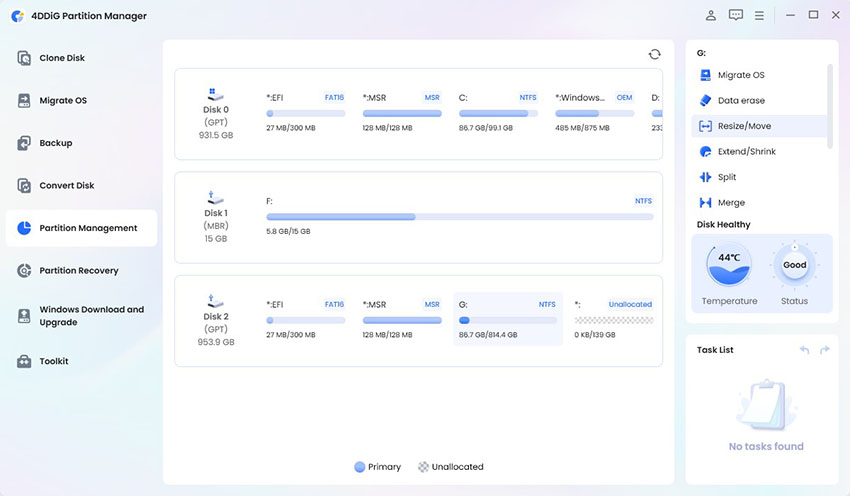
If Windows Disk Management remains unavailable, you do not necessarily have to stop managing your partitions. 4DDiG Partition Manager provides a visual alternative for common disk operations, including resizing partitions.

For example, you can use its resize/move partition feature when one partition is running out of space and another has unused capacity.

  • Open 4DDiG Partition Manager and go to the Partition Management section. Select the partition you want to modify, then click Resize/Move from the available options.

    select resize and move partition
  • In the resize window, drag either edge of the partition to increase or decrease its size. You can also enter the desired partition size manually. Once you're satisfied with the new layout, click OK to continue.

    click ok
  • Review the pending operation to make sure the new partition size and layout are correct. If everything looks good, click OK to begin the process.

    confirm resizing
  • Once the operation finishes successfully, click Finish. You can now check the updated partition size in the program or File Explorer to confirm the changes were applied correctly.

    click finish

More FAQs About Virtual Disk Service

1. What is Virtual Disk Service?

Virtual Disk Service (VDS) is a Windows component that helps manage disks, partitions, and volumes. Disk Management relies on it to detect storage devices and perform disk-related operations.

2. Can I disable Virtual Disk Service?

Yes, but it's generally not recommended. Disabling it may prevent Disk Management and other storage tools from working properly.

3. Does Windows 11 have a virtual drive?

Yes. Windows 11 can mount ISO files as virtual drives and supports virtual hard disks (VHD and VHDX). However, a virtual drive is different from Virtual Disk Service, which is a Windows service used to manage storage devices.

⚡ Conclusion

The unable to connect to Virtual Disk Service error can prevent Disk Management from displaying or modifying your drives, but it does not always indicate a serious disk failure. Begin by disconnecting unresponsive external devices, checking the Virtual Disk service, allowing Remote Volume Management through Windows Firewall, and repairing Windows with DISM and SFC.

You can also briefly test whether Microsoft Defender is creating a conflict. If Disk Management still cannot load, 4DDiG Partition Manager offers another way to manage and resize partitions through a clear visual interface. Always back up important data before changing partition sizes or performing major disk operations.

FREE DOWNLOAD

Secure Download

William Bollson (senior editor)

William Bollson, the editor-in-chief of 4DDiG, devotes to providing the best solutions for Windows and Mac related issues, including data recovery, repair, error fixes.

(Click to rate this post)

You rated 4.5 ( participated)