Best Crucial SSD Clone Software for Easy HDD to SSD Migration

5 mins read

Updated on 2026-05-29 17:49:42 to Hard Drive

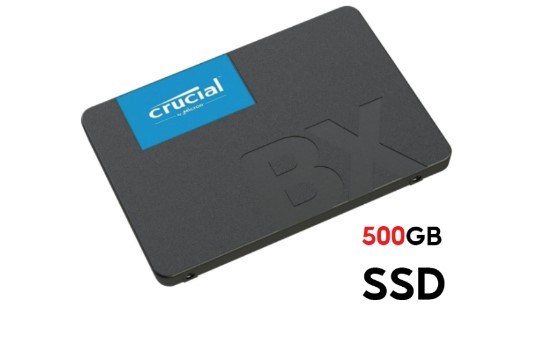
Upgrading from a traditional hard drive to a faster Crucial SSD is one of the best ways to improve your computer’s speed and performance. However, the biggest concern during the upgrade process is usually the same: “Will I lose my data or break my system during cloning?”

That is exactly why choosing the right crucial SSD clone software matters. In this guide, you will discover the best crucial cloning software options, compare their features, learn how to clone HDD to Crucial SSD step by step, and fix common boot problems after cloning.

1. Top Crucial SSD Clone Software Options

There are many disk cloning tools available online, but only a few provide stable performance, beginner-friendly controls, and proper compatibility with Crucial SSDs.

Below are two of the most popular crucial disk cloning software options users trust in 2026.

Option 1: 4DDiG Partition Manager

4DDiG Partition Manager is one of the most beginner-friendly and efficient tools for cloning drives and migrating Windows systems. It supports HDD-to-SSD migration, partition management, disk cloning, and system transfer without requiring advanced technical knowledge.

For users searching for crucial SSD cloning software that is simple yet powerful, this 4DDiG tool is an excellent choice.

Key Features of 4DDiG Partition Manager

  • Clone HDD to SSD safely without data loss
  • Migrate Windows OS without reinstalling the system
  • Support for SATA SSDs, NVMe SSDs, HDDs, USB drives, and external disks
  • Fast cloning speed with optimized SSD alignment
  • User-friendly interface suitable for beginners

One major advantage of this clone software is its simplified workflow. Even first-time users can complete the cloning process in just a few clicks. If you want an all-in-one crucial SSD disk clone software with cloning, partition management, and migration tools, 4DDiG Partition Manager is a strong option.

Option 2: Acronis True Image

Acronis True Image is another well-known crucial disk clone software option. Many users recognize it because of its partnership with Crucial SSD products. The special version called Acronis True Image for Crucial is often bundled with eligible Crucial drives.

Features of Acronis True Image

  • Full disk cloning
  • Backup and recovery tools
  • Secure disk imaging
  • Cloud backup support

Many users specifically search for “Acronis true image crucial” or “Acronis true image for crucial cloning software” because it is directly associated with Crucial SSD upgrades.

However, the interface may feel slightly more advanced for beginners. Some users also report that setup can take longer compared to lightweight alternatives.

4DDiG Partition Manager vs Acronis True Image

  • Features
  • 4DDiG Partition Manager
  • Acronis True Image
  • Core Cloning Features
  • Full disk clone, OS migration, partition clone
  • Full disk clone and backup
  • Supported Drive Types
  • HDD, SATA SSD, NVMe SSD, USB drives
  • HDD and SSD support
  • OS Compatibility
  • Windows 11/10/8.1/8/7
  • Windows and macOS
  • Cloning Options
  • Disk clone, system migration, partition management
  • Disk imaging and cloning
  • Ease of Use
  • beginner-friendly
  • Moderate learning curve

⚡ 2. How to Clone HDD to Crucial SSD?

If you recently purchased a Crucial SSD, the next step is migrating your existing data and Windows installation safely.

Below are two effective methods for performing a crucial SSD clone.

Method 1: Clone HDD via 4DDiG Partition Manager

Using 4DDiG Partition Manager is one of the easiest ways to clone HDD to Crucial SSD without reinstalling Windows.

Before beginning the cloning process, make sure:

  • Your Crucial SSD is connected properly
  • The SSD capacity is large enough for your data
  • Backed up Important files
  • The SSD is detected in Windows Disk Management
  • First, download and install 4DDiG Partition Manager on your computer. After installation, connect your external SSD or target drive to the PC.

    FREE DOWNLOAD

    Secure Download

  • Launch the software and choose the “Clone OS Disk” option from the main interface to begin the migration process.

    select clone os disk
  • Next, select the SSD to receive data from the source disk and then click on the Next button.

    select target ssd
  • You will now see a preview of how the cloned disk will look after migration. Once everything looks correct, click “Start” to proceed.

    click start to clone
    Note:

    By default, the software may use the full available space on the target SSD. If needed, you can manually resize partitions by dragging the edges of the partition layout.

  • Then, double-check that you selected the correct drive, and click “Sure” to confirm and start cloning to Crucial SSD.

    click sure to proceed
  • The software will now begin copying your operating system, applications, settings, and files to the target SSD. During the process, avoid disconnecting the drives or shutting down the computer. Once completed, your HDD data will be successfully cloned to the new SSD.

    clone successfully

Method 2: Clone HDD via Acronis True Image

  • Connect the new Crucial SSD to your PC. Once the drive is connected properly, launch the software and go to Tools > Clone Disk.

    select clone tool in acronis
  • When asked to choose a cloning mode, select “Manual” and click “Next.” This mode gives you more control over the cloning settings and disk selection process.

    choose clone mode
  • Choose your current HDD or old SSD as the source disk. This is the drive that contains your Windows system, applications, and files. Next, select the new SSD as the destination disk where the cloned data will be transferred.

    choose source and target disk

    If a warning message appears stating that all data on the target drive will be erased, review it carefully and click “OK” to continue.

  • Select “To use as a data disk” when prompted, then choose the “Proportional” move method. This option automatically adjusts partition sizes to fit the new SSD properly. Once everything looks good, click “Proceed.”

    click proceed
  • Acronis will now begin cloning your system, files, and partitions to the new SSD. Avoid using the computer or disconnecting the drives until cloning is complete.

After the process finishes, restart your PC and boot from the new SSD to confirm the migration was successful.

3. Troubleshoot Crucial SSD Not Booting after Clone

Sometimes users complete the cloning process successfully but discover that the Crucial SSD will not boot properly afterward. This issue can happen for several reasons, including incorrect BIOS settings, corrupted boot records, or partition problems.

Below are common fixes for resolving Crucial SSD boot issues after cloning.

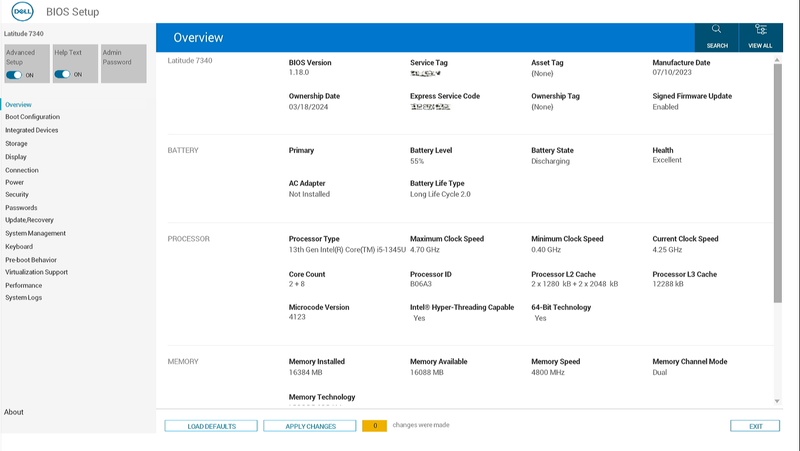
Fix 1: Check BIOS Boot Priority

One of the most common reasons a cloned Crucial SSD fails to boot is that the computer is still trying to start Windows from the old HDD instead of the newly cloned SSD. This usually happens after the cloning process when the boot order is not updated automatically.

  • Restart your computer and enter the BIOS or UEFI settings menu.

  • Open the Boot section. Set the Crucial SSD as the primary boot device

  • Save the changes and restart the PC

Fix 2: Verify Partition Style Compatibility

A GPT disk requires UEFI mode, while an MBR disk works with Legacy BIOS mode. If these settings do not match, Windows may fail to load properly after cloning.

  • Open Disk Management, right-click the disk label of the cloned SSD, such as Disk 0 or Disk 1, select Properties, and go to the Volumes tab.

    Open Disk Management
  • Next, open System Information by pressing Win + R, typing msinfo32, and pressing Enter. Check the value next to BIOS Mode, and make sure it matches the cloned SSD’s partition style:

GPT cloned SSD → UEFI boot mode

MBR cloned SSD → Legacy BIOS or CSM boot mode

Fix 3: Repair Boot Files

Sometimes the cloning process completes successfully, but essential Windows boot files become damaged or incomplete during transfer. When this happens, the SSD may be detected by the system but still fail to boot into Windows properly.

  • Insert a Windows installation USB and boot from it

  • Select Repair your computer

  • Open Command Prompt

  • Run these commands one at a time:

bootrec /fixmbr

bootrec /fixboot

bootrec /scanos

bootrec /rebuildbcd

repair boot files

After the repair process finishes, restart your computer and check whether the Crucial SSD boots normally.

Fix 4: Re-clone the Drive

If the cloning process was interrupted by power loss, software errors, or unstable connections, some important system files may not have been copied correctly. Incomplete cloning often leads to boot loops, missing files, or startup failures after migration.

In this situation, you should repeat the cloning process from the beginning, ensure the computer stays powered during migration.

More FAQs about Crucial Cloning Software

1. Does Crucial have disk cloning software?

Crucial itself does not create dedicated cloning software, but users can use other third-party crucial SSD cloning software for easier cloning and system migration.

2. Is Acronis free with Crucial?

Some eligible Crucial SSD products include access to Acronis True Image for Crucial. However, activation may require at least one compatible Crucial drive connected to the system. Availability may vary depending on the SSD model and region.

Conclusion

Choosing the right crucial SSD clone software can make the difference between a smooth SSD upgrade and a frustrating migration experience. Whether you want to clone HDD to Crucial SSD, migrate Windows safely, or avoid boot problems, reliable cloning software is essential.

Both Acronis True Image and 4DDiG Partition Manager are capable solutions, but 4DDiG Partition Manager stands out for its beginner-friendly design, fast cloning speed, and other useful features.

FREE DOWNLOAD

Secure Download

Ehtsham Ahmed (senior editor)

Ehtsham Ahmed, the content writer for 4DDiG, is dedicated to offering workarounds for Windows Data Recovery, Windows Troubleshooting, iDevices System Repair, etc.

(Click to rate this post)

You rated 4.5 ( participated)