eMMC vs SSD: Pick the Right Storage for Your Needs

5 mins read

Updated on 2026-04-10 14:23:56 to Windows Fix

If you've ever found yourself Googling "eMMC vs ssd" at midnight trying to decode tech jargon, you're not alone. Whether you're a student on a tight budget, a professional who needs raw speed, or simply someone who wants a reliable machine, understanding the difference between SSD and eMMC will save you from buyer's remorse. In this guide, we break it all down clearly, honestly, and without the fluff.

Part 1: What Is eMMC & SSD?

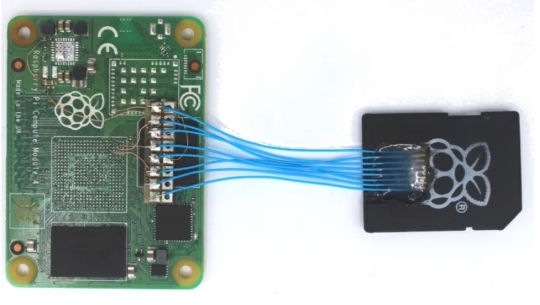
What does eMMC mean? eMMC (Embedded MultiMediaCard) is a type of flash-based eMMC memory that combines NAND flash storage and a controller chip into a single integrated circuit soldered directly onto a device's motherboard.

This compact design is what makes eMMC storage the go-to solution for budget-friendly devices like entry-level Chromebooks, Android tablets, and affordable Windows laptops. However, it also means the storage is not removable or easily upgradeable.

emmc vs ssd

What Is an SSD?

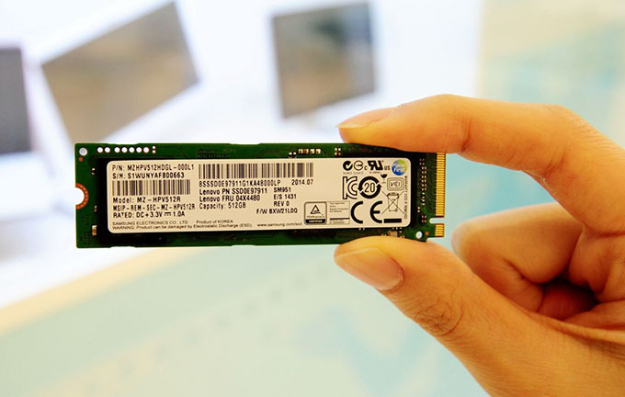
Unlike eMMC flash storage, an SSD (Solid-State Drive) is a discrete, standalone component that connects via a dedicated interface. SSDs come in various form factors including 2.5-inch drives, M.2 sticks, and PCIe cards.

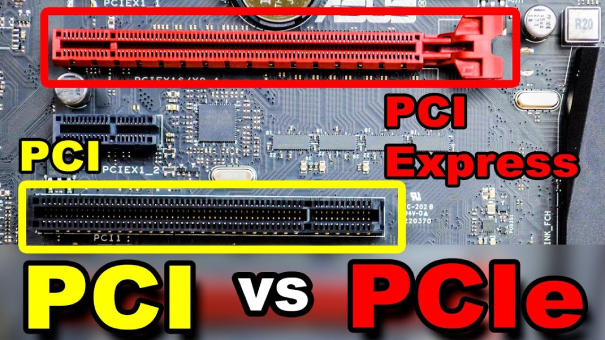
There are two main types. A SATA SSD uses the same interface as traditional hard drives, offering meaningful speed improvements over eMMC. An NVMe SSD (Non-Volatile Memory Express) uses a high-speed PCIe lane, delivering blistering eMMC vs ssd performance difference that leaves eMMC far behind. SSDs are commonly found in mid-range to high-end laptops, desktops, and professional workstations.

💡 Related Articles:

Part 2: eMMC vs SSD: Key Differences Explained

Now that we know what each technology is, let's compare eMMC and SSD across the dimensions that matter most to real users. The table below gives you a side-by-side breakdown across memory type, storage capacity, speed, lifespan, budget, and key advantages.

eMMC SSD (SATA) SSD (NVMe)
Memory NAND Flash (MLC/TLC) NAND Flash (TLC/QLC) NAND Flash (TLC/QLC)
Storage 32GB – 256GB 128GB – 4TB 256GB – 8TB
Speed Read: ~400 MB/s
Write: ~100 MB/s
Read: ~550 MB/s
Write: ~520 MB/s
Read: up to 7,000 MB/s
Write: up to 6,500 MB/s
Lifespan 3–5 years / ~1,000 P/E cycles 5–7 years / ~3,000 P/E cycles 5–10 years / ~3,000–5,000 P/E cycles
Budget Lowest ($20–$60 device cost) Mid-range ($40–$150) Higher ($60–$300+)
Advantage Compact, low power, affordable Good balance of speed & cost Blazing speed, best performance

Beyond raw transfer rates, their difference also shows up in random IOPS (Input/Output Operations Per Second), a measure of how fast a drive handles small, scattered data requests. SSDs, especially NVMe models, handle thousands of random operations per second with ease, while eMMC struggles under multitasking loads.

If you're comparing an eMMC vs ssd performance difference laptop, expect the SSD-equipped machine to feel noticeably snappier during boot, app launches, and file transfers.

❓ How to Choose the Right One?

Choosing between eMMC vs solid state drive ultimately comes down to your priorities:

  • Choose eMMC if: you need a lightweight, low-cost device for basic tasks — web browsing, streaming, document editing. An eMMC vs ssd budget laptop comparison usually puts eMMC devices $100–$200 cheaper.
  • Choose SATA SSD if: you want a balanced upgrade, better speed and longevity at a reasonable price.
  • Choose NVMe SSD if: you demand the highest performance for gaming, video editing, data science, or developer workflows.

⚡ Extra Tip: How to Clone Your OS Disk to an SSD?

Already decided to upgrade from eMMC memory to an SSD? Great decision, but don't start from scratch. Cloning your existing OS disk means you keep all your files, settings, and installed applications without reinstalling everything. That's where 4DDiG Partition Manager comes in.

This tool is a powerful, user-friendly disk management tool that includes a dedicated disk clone function. It lets you migrate your entire system from eMMC storage to a faster SSD in just a few clicks, without any data loss or system reinstallation. Here's how to do it:

3 day free trial

  • After installing 4DDiG Partition Manager, connect an external drive to your computer. Open the program and choose “Clone OS Disk.”

    FREE DOWNLOAD

    Secure Download

    clone os disk
  • Pick a destination disk where the data will be copied, then click Next. The source disk is your system disk, and the target disk is the external drive you just connected.

    select source and target disk
  • A preview screen will appear, showing how the cloned disk will look. By default, the source disk’s partitions will fill the entire target disk. You can adjust the partition size by dragging the edges. Once everything looks correct, click Start to begin cloning.

    click start
  • Keep in mind that all data on the target disk will be erased during the process. After confirming this, click Sure to proceed.

    click sure
  • Wait for the cloning process to finish. Avoid using the computer or interrupting the process during this time. Once completed, your system disk data will be successfully copied to the target disk.

    clone successfully

More FAQs about SSD vs eMMC

1. What is eMMC storage capacity?

eMMC storage capacity typically ranges from 32GB to 256GB, with 64GB and 128GB being the most common options in consumer devices. This is significantly less than what most SSDs offer. If eMMC storage capacity is a concern for you, that alone may be a decisive reason to upgrade to an SSD.

2. Which is better SSD or eMMC?

SSD is generally much better than eMMC for most consumer uses, especially in performance, responsiveness, capacity, and longevity. However, "better" depends on your specific needs, device, budget, and priorities like cost or power efficiency.

3. Is eMMC good for laptops?

eMMC can be acceptable for laptops that are used primarily for light tasks. However, if you plan to install multiple large applications, store photos and videos locally, or run more demanding software, eMMC will likely feel sluggish and fill up quickly. In that case, opting for an SSD-equipped laptop even a SATA-based one will make a noticeable difference in your experience.

Conclusion

When it comes to eMMC vs ssd, the choice is clear for most users who value performance, longevity, and scalability. eMMC has its place in budget devices designed for light use, but as storage demands grow, its limitations become increasingly apparent.

If you already own a device with eMMC storage and you're looking to upgrade without the hassle of a full reinstall, 4DDiG Partition Manager's disk clone feature makes the transition seamless, safe, and fast. Upgrading to an SSD could be the single most impactful performance boost you make this year.

FREE DOWNLOAD

Secure Download

William Bollson (senior editor)

William Bollson, the editor-in-chief of 4DDiG, devotes to providing the best solutions for Windows and Mac related issues, including data recovery, repair, error fixes.

(Click to rate this post)

You rated 4.5 ( participated)