2026 Guide to an SSD Upgrade: How to Replace SSD Without Losing Data

5 mins read

Updated on 2026-05-14 09:53:22 to Windows Fix

Whether you're upgrading to a faster NVMe drive or swapping in more capacity, replacing an SSD in a laptop or PC is a straightforward process you can do with just a screwdriver. This guide walks you through everything: how to safely clone your existing drive so you lose nothing, the exact steps for how to replace SSD physically, and how to verify the new drive is working correctly after installation.

how to replace ssd

1. Why Do You Need to Replace Your SSD?

SSDs don't last forever, and performance needs change over time. Here are the most common reasons people replace or upgrade their SSD:

  • Storage is full. Running out of space on your current SSD leads to slowdowns, failed updates, and limited headroom for new apps or games.
  • Performance has degraded. Older SSDs can slow down significantly over time due to write amplification and reduced cache efficiency.
  • Upgrading from SATA to NVMe. Switching to an NVMe M.2 SSD can deliver 3–5x faster sequential read/write speeds compared to a SATA SSD, making your whole system feel snappier.
  • Replacing OEM drives in new laptops. Some budget laptops ship with slow or small SSDs. Replacing them with a higher-capacity drive is one of the best bang-for-buck upgrades you can make.

2. Things You Need to Know Before SSD Replacement

1Check Your SSD Type (SATA vs. NVMe)

There are two main SSD interfaces: SATA and NVMe (M.2). They use different connectors and slots, and they are not interchangeable.

  • Open Device Manager. Expand Disk drives, and right click your SSD > Properties.

  • Go to the Details tab. In the dropdown, select Hardware Ids. Look at the value:

NVMe: Contains NVMe or PCIe; SATA: Contains ATA or SATA

check ssd type

2Check Compatibility

Before purchasing a replacement SSD for your laptop or PC, confirm:

  • Your motherboard or computer supports the M.2 slot size (2242, 2260, 2280 — the number refers to dimensions in mm).
  • Your system supports the PCIe generation of the new drive (e.g., a PCIe 4.0 NVMe in a PCIe 3.0 slot will work but only at PCIe 3.0 speeds).
  • You have a free slot if you're adding a second drive rather than replacing one.

3Back Up Your Data

Even when cloning, it's smart to have a separate backup of your important files before touching any hardware. Use an external hard drive, USB drive, or cloud storage. This is your safety net if anything goes wrong during the swap.

⚡ 3. How to Change SSD Without Data Loss: Step-by-Step

Step 1: Clone Your Old SSD to the New SSD

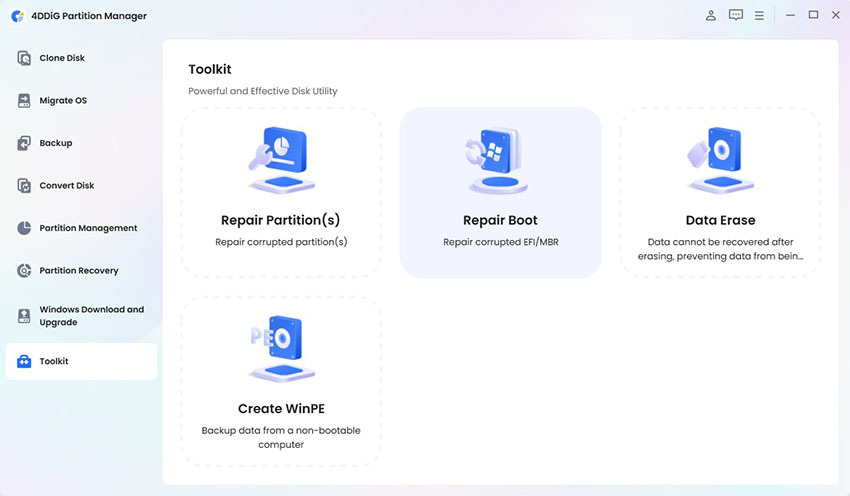
Cloning transfers everything from your current SSD onto the new drive. 4DDiG Partition Manageris a good choice. It's a beginner-friendly tool with a dedicated disk clone feature that requires no technical knowledge.

  • Download and install 4DDiG Partition Manager on your computer. Launch the program. Select "Clone OS Disk" from the main menu on the left sidebar.

    FREE DOWNLOAD

    Secure Download

    select clone os disk
  • Choose your source disk and your target disk (the new SSD you connected via USB). Click Continue.

    select source and target disk
  • Preview the partition layout on the target disk. 4DDiG Partition Manager will automatically adjust partition sizes to fit the new drive. Click "Start" and “Sure” to begin the process.

    click sure to clone
  • Once complete, click Finish. Do not boot from the new SSD yet until you complete the physical swap first (Step 2).

    finish cloning

Step 2: Physically Replace the Old SSD

Now that your new SSD has a full copy of your data, it's time to do the hardware swap. This process is straightforward, even if you've never opened a computer before.

Power Down & Remove Panel off

  • Shut down your computer fully and unplug the power cable from the wall. Next, Remove the side panel screws off.

Swap the Drives

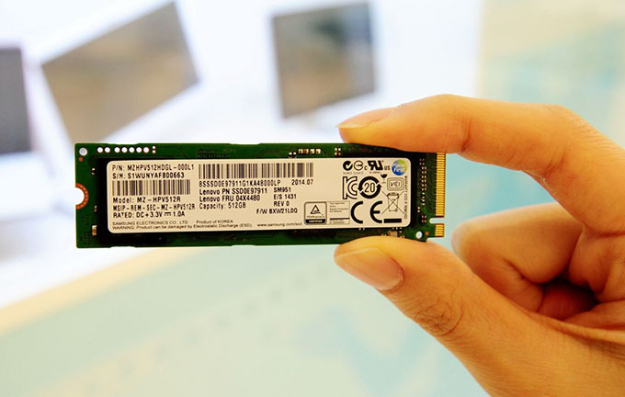
  • For M.2 NVMe SSD: Unscrew the small retaining screw at the end of the SSD slot. Gently pull the old SSD out at a 30-degree angle. Insert the new NVMe SSD at the same angle, push it flat, and secure it with the retaining screw.
  • For SATA SSD: Disconnect the SATA data cable and power cable from the old drive. Unscrew the drive from its bracket if mounted. Connect both cables to the new SSD and secure it in the bracket.
    Close the case and replace all screws before powering on.

Step 3: Boot Your Computer from the New SSD

After the physical swap, your computer may not automatically boot from the new SSD, so you need to set the boot priority in BIOS/UEFI.

  • Power on your computer and immediately press the BIOS key, usually Del, F2, F10, or F12 depending on your motherboard or laptop brand.

  • Navigate to the Boot menu. Find your new SSD in the list. It may appear under its model name or as a generic drive label.

    find new ssd in boot menu
  • Move it to the top of the boot order. Press F10 to save your settings and exit BIOS (on most systems).

    change boot order

Your computer will restart and boot from the new SSD. You should see your Windows desktop load exactly as it was before.

Common Problems After SSD Drive Replacement

Issue 1: Boot Failure / "No Bootable Device" after Installation

This is the most common issue and is almost always a BIOS/UEFI configuration problem, not a hardware defect.

  • Change Boot Priority(Detailed steps are provided above).

  • Switch Boot Mode (CSM/UEFI): If you cloned a drive that was formatted as MBR, make sure Compatibility Support Module is enabled in BIOS. If your drive is GPT-formatted, UEFI mode should be active and Secure Boot should match the original configuration.

    change boot mode
  • Check Physical Connection: Open the case again and make sure the SSD is fully seated in its slot. An M.2 drive that's not fully inserted at the correct angle will not be detected.

Issue 2: Random Crashes and BSOD (Blue Screen of Death)

Occasional crashes after an SSD swap can point to driver issues, firmware problems, or Windows power settings.

  • Update SSD Firmware: Visit the manufacturer's website and download the latest firmware for your specific model.
  • Clean Install Windows: If crashes persist, a fresh Windows installation on the new SSD eliminates any driver conflicts carried over from the clone.
  • Adjust Power Management: Go to Control Panel > Power Options > Change plan settings > Change advanced power settings > PCI Express > Link State Power Management, and set it to Off. Also disable "Fast Startup" under Shutdown settings.

Issue 3: No Display / Black Screen After SSD Swap

  • Check Physical Switches and Cables: Confirm the PSU power switch is on, the power cable is plugged in, and all internal connectors are properly seated. For desktops, reseat the RAM sticks as well, since vibration during the swap can loosen them.
  • Try connecting your monitor to a different port or using a different cable to rule out a display connection issue.

More FAQs About Replacing SSD in PC

1. How to replace SSD with a larger SSD?

The process is identical to a standard replacement: clone the old drive to the new, larger one, then swap.

2. How to replace SSD with an OS on it?

When your current SSD has Windows installed, you must clone it rather than move it. Direct disk imaging preserves the bootloader and system partitions. After cloning and swapping the drives, Windows boots from the new SSD with zero data loss and no re-activation needed in most cases.

3. Can I replace my SSD without reinstalling Windows?

Yes. As long as you clone your old SSD to the new one before swapping, Windows will boot normally on the new drive. Reinstalling Windows is only necessary if you want a fresh start or if your source drive is too corrupted to clone.

4. How to replace SSD in PC without losing data?

Use the three-step method outlined in this guide: (1) Clone your old SSD to the new SSD. (2) Physically swap the drives. (3) Set the new SSD as the primary boot device in BIOS. Following this sequence means no data loss and no need to reinstall anything.

5. Do You Need to Reinstall Windows After Replacing Your SSD?

No, if you clone your SSD first. Cloning creates an exact copy of your current system (OS, apps, and files). Once finished, the new SSD will work immediately without any reinstallation or reactivation hassle. Reinstall is only required if:

  • You prefer a fresh, clean start.
  • Your old SSD is corrupted or unreadable.
  • You are moving to a completely different PC (hardware changes may cause activation issues).

Conclusion

Replacing your SSD doesn't have to mean losing files or spending hours reinstalling software. With the right preparation, the entire process takes under an hour for most users.

The key tool that makes it seamless is 4DDiG Partition Manager. Its one-click disk clone function handles everything from partition resizing to bootloader preservation, making it the ideal choice whether you're doing a laptop SSD replacement, a Steam Deck SSD replacement, or a full desktop upgrade.

FREE DOWNLOAD

Secure Download

William Bollson (senior editor)

William Bollson, the editor-in-chief of 4DDiG, devotes to providing the best solutions for Windows and Mac related issues, including data recovery, repair, error fixes.

(Click to rate this post)

You rated 4.5 ( participated)