SSD Not Showing Up in BIOS? Fix It in 8 Ways!

5 mins read

Updated on 2026-05-20 16:38:22 to Hard Drive

There can be a disturbing issue of SSD not showing up in the BIOS? Many users face situations where a new or existing SSD is not detected in BIOS or UEFI settings. It can prevent system installation, boot access, or data recognition.

This guide will discuss why SSD is not recognized in BIOS and provide simple and effective solutions to get your drive working again on Windows 10 and Windows 11.

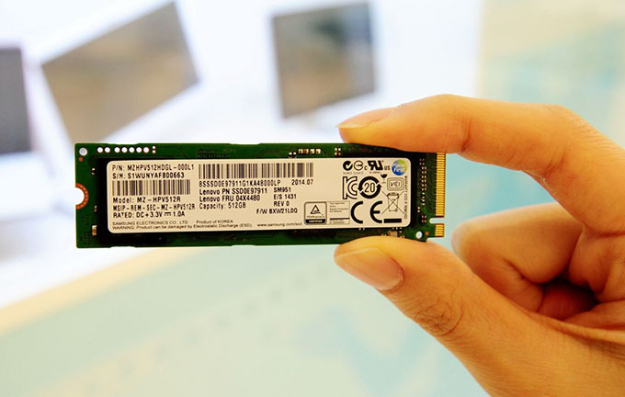
ssd not showing up in bios

Why Does My SSD Not Show Up in BIOS?

When asking why does my SSD not show up in BIOS, the issue usually comes down to hardware detection, configuration, or compatibility problems. Below are the most common reasons:

  • Reason
  • Explanation
  • Loose or faulty connections
  • SATA or power cables may not be properly attached, preventing detection
  • Incompatible M.2/NVMe slot
  • Some motherboard slots do not support all SSD types
  • Disabled SSD in BIOS
  • The drive may be turned off in BIOS settings
  • Incorrect SATA mode
  • AHCI, RAID, or IDE misconfiguration can block detection
  • Outdated BIOS firmware
  • Older BIOS versions may not support newer SSDs
  • Faulty SSD
  • The drive itself may be defective or damaged
  • Motherboard issues
  • Damaged ports or chipset problems can prevent recognition

Understanding these causes helps narrow down why your SSD does not show up in BIOS and guides you toward the right fix.

How to Fix SSD Not Showing Up in BIOS?

Before assuming hardware failure, try these proven fixes, which work when SSD not showing up on Windows.

Method 1: Check SSD Physical Connections

Best for: New SSD installation issues or sudden detection failure

Loose or incorrect wiring is one of the most common causes of a new SSD not showing up in the BIOS.

  • Power off your PC completely

  • Open the case and locate the SSD

  • Check SATA data and power cables for SATA SSDs

  • Re-seat M.2/NVMe SSD firmly into the slot

  • Ensure no dust or obstruction is present

  • Restart the system and enter the BIOS again

Method 2: Test SSD on Another Computer or Slot

Best for: Identifying whether the SSD or the motherboard is faulty

Sometimes the issue is not with the SSD itself but with the system detecting it incorrectly. Testing the drive on another computer or slot helps quickly isolate whether the problem is hardware or motherboard-related.

  • Remove the SSD from your current PC

  • Connect it to another compatible system. Alternatively, try a different M.2/SATA slot.

  • Check if the BIOS detects the drive there

  • If detected elsewhere, your motherboard slot may be the issue

Method 3: Check M.2 / NVMe Slot Compatibility

Best for: Newly installed NVMe or M.2 SSDs

Not all slots support all SSD types, which often causes SSD not detected in BIOS issues.

  • Check your motherboard manual to confirm NVMe or SATA M.2 compatibility.

  • Verify lane sharing limitations as some slots disable SATA ports

  • Ensure SSD is fully compatible with motherboard generation

Method 4: Reset BIOS Settings to Default

Best for: Fixing misconfigured BIOS settings

Incorrect BIOS configurations can prevent a properly working SSD from being detected. Restoring default settings helps eliminate any misconfigurations that may be blocking recognition.

  • Enter BIOS/UEFI menu during startup by restarting the computer and repeatedly pressing the BIOS key (F2 in the case of Dell)

  • Locate “Load Defaults” and ensure the "BIOS Defaults" option is enabled, then click "OK."

    enable the bios defaults option
  • Go through the warnings and permission screens by allowing on all steps and exiting so that the computer restarts.

  • Now check your SSD status again.

Method 5: Enable SSD in BIOS / UEFI Settings

Best for: Hidden or disabled drives

In some cases, the SSD is present but disabled within BIOS or UEFI settings. Using the correct storage configuration ensures the system can detect and communicate with the drive.

  • Enter BIOS setup by restarting your computer and pressing the "BIOS Key."

  • Press the "Enter" key to go to "Config" and select "Serial ATA," then press "Enter" again.

    enable ssd in bios settings
  • Locate "SATA Controller Mode Option" and choose the "IDE Compatibility Mode" option.

  • Save and reboot the system, and this will enable your SSD.

This is a key step in learning how to enable SSD in BIOS. Note that these steps were tested on a Lenovo machine and these may slightly vary as per brand.

Method 6: Change SATA Mode (AHCI / RAID / IDE)

Best for: Boot conflicts or OS installation issues

SATA mode settings can directly affect whether your SSD is detected during boot. Switching between AHCI, RAID, or IDE can resolve hidden compatibility or recognition conflicts.

  • Search for “CMD” in Windows Search then right-click “Command Prompt” and select “Run as Admin”

  • Run the command “bcdedit /set {current} safeboot minimal" and once it runs successfully, restart your computer.

Method 7: Update BIOS Firmware

Best for: New SSD compatibility issues

An outdated BIOS may not support newer SSD models, especially NVMe drives. Updating the firmware ensures improved compatibility and better hardware detection support.

  • Visit your motherboard manufacturer’s website and download the latest BIOS update.

    download the latest bios update
  • Follow official flashing instructions and ensure to be careful, as these vary between brands and models.

  • Restart system and re-check SSD detection

What If SSD Still Doesn’t Show Up in BIOS?

If your SSD is still not showing up in BIOS after checking the cables, slots, and BIOS settings, the problem is likely hardware-related rather than a simple configuration issue.

Possible causes include SSD failure, a faulty motherboard slot, unstable power delivery, or a damaged drive controller. Since BIOS detects hardware before Windows loads, an SSD that remains completely undetected usually indicates the system cannot communicate with the drive properly.

To confirm this, try connecting the SSD to another computer or using a different interface. If the drive is still not recognized, permanent hardware failure is much more likely, and professional repair or data recovery may be necessary.

⚡ Can You Recover Data from an SSD Not Showing in BIOS?

When an SSD does not appear in BIOS, it may seem like the data is gone permanently. However, if the drive has not suffered severe physical damage, the files may still be recoverable. In some cases, connecting the SSD to another computer or using a different interface can help determine whether the drive is still partially detectable.

If the SSD shows any sign of detection, specialized recovery software like Tenorshare 4DDiG may help retrieve inaccessible files. The tool can scan corrupted, formatted, or inaccessible SSDs and search for lost partitions or hidden data that the system can no longer access normally.

FREE DOWNLOAD

Secure Download

FREE DOWNLOAD

Secure Download

It supports NVMe, SATA, and external SSDs, and also allows users to preview recoverable files before restoring them. Below are the steps:

  • Install and launch 4DDiG Data Recovery on a working PC. Connect the SSD via SATA or an external enclosure, then select the SSD drive from the device list that is not showing in BIOS.

    launch 4ddig and enter interface
  • 4DDiG will scan your drive, and meanwhile, you can choose "Filters" or use the "Search" option to find the file you want to recover from your SSD, which is not showing.

    click type to see all files 4ddig
  • Preview found files after scanning by clicking them to ensure that the contents are secure, and click "Recover".

    preview and recover the files
  • Now, choose a secure location for saving these files and click “Save Now”. Do not save them again in the SSD that is not showing in BIOS to prevent data loss.

    This approach is especially useful when dealing with an SSD that is not recognized in the BIOS but is still partially accessible through other systems.

    save the recoverable files

Conclusion

The issue of SSD not showing up in BIOS can result from simple connection problems, incorrect BIOS settings, or hardware compatibility issues. By following the 8 methods above, you can effectively troubleshoot and resolve most cases of SSD detection failure.

If your drive still cannot be detected, recovery tools become essential. In such situations, 4DDiG Data Recovery is a reliable solution to help you retrieve important files safely and efficiently.

FREE DOWNLOAD

Secure Download

FREE DOWNLOAD

Secure Download

William Bollson (senior editor)

William Bollson, the editor-in-chief of 4DDiG, devotes to providing the best solutions for Windows and Mac related issues, including data recovery, repair, error fixes.

(Click to rate this post)

You rated 4.5 ( participated)