How to Fix Unsupported Encoding Settings in Windows Media Player (MP4/Others Not Playing)

5 mins read

Updated on 2026-06-08 17:12:15 to Video Error

Recently, many users reported that they tried to play a video and seen the message "We can't open [file name]. It uses unsupported encoding settings" in Windows Media Player, especially with MP4 files that won't play. And sometimes, it comes with error codes like 0x80070057.

It usually means the player lacks the codec required to decode the video and can't handle the video's internal encoding, even when the file itself is fine.

The good news? There are several simple ways to fix the Media Player's unsupported encoding settings error and get your videos playing again quickly in this article, including: use VLC, convert format, etc. Let's dive into the details now.

media player unsupported encoding settings

What Does "Unsupported Encoding Settings" Mean in Media Player?

This error appears when Windows Media Player (or the modern Media Player app) cannot decode the video file's format or codec. The file itself is usually fine, but the player lacks support for how the video was encoded, often involving modern codecs like HEVC/H.265 or specific settings from phones and cameras.

This results in messages like:

"We can't open [file name]. It uses unsupported encoding settings."

Common Error Codes Associated with Unsupported Encoding

As we mentioned at the beginning, this error message always comes with some error codes, such as:

Error Code Meaning
0x80070057 (most frequent) Media Player cannot process the video's codec or encoding configuration.
0xc00d3e8c The file format or codec is unsupported or damaged.
0x80004005 An unspecified playback error, often linked to unsupported codecs.

These errors have become more common after recent updates to the Windows 11 Media Player.

Note:

You may also encounter similar errors such as 0xc00d36b4 or 0xc10100be, which are often caused by the same underlying codec or format compatibility issues.

Why Does Media Player Unsupported Encoding Settings Error Occur

This problem often appears when the default Windows Media Player encounters videos with modern or advanced encoding it doesn't support well by default.

Common Symptoms

  • MP4 files suddenly refuse to open in the default Windows Media Player.
  • Videos play audio only or show a black screen.
  • The error appears consistently with files from certain devices (drones, smartphones, action cameras,
  • It may start after a Windows update.

Common Causes of the Error

  • Missing or unsupported codecs: Newer encodings like HEVC/H.265, 10-bit color, or specific H.264 variants aren't built into the default Windows Media Player.
  • Recent Windows Update: Certain versions of the Windows 11 Media Player (such as 11.2604.9.0) have introduced playback issues for many users.
  • Incompatible encoding settings: Videos exported with high-efficiency options, HDR, high bitrates, or advanced parameters that the default player doesn't handle well.
  • Corrupted or damaged files: Minor damage during file transfer, copying from cameras, or recording issues.
  • Videos from specific sources: Files from smartphones, GoPro, DJI drones, action cameras, or editing software like Premiere Pro.

Fortunately, most of these issues can be fixed without advanced technical knowledge. Now, let's move to the detailed fixes proven by Reddit and other forums' users.

⚡ How to Fix Unsupported Encoding Settings in Media Player

The fastest way to get back to watching is often switching players or adding support for the missing codecs. Here are the most effective solutions, starting with the simplest.

To help you choose the best solution quickly, here's a simple overview:

Methods Brief Steps Difficulty
Switch to VLC Install VLC and click Media > Open with to play the video. Very Easy
Roll Back WMP Uninstall the latest version, restart your PC, and install version 11.2603.12.0. Medium
Repair or Reset WMP Go to Settings > Apps > Media Player > Advanced options, click Repair first, and if needed, click "Reset". Easy
Install Missing Codecs Install Mirosoft HEVC Video Extension or K-Lite Codec Pack. Easy
Convert Video Format Open HandBrake > add your source file > select Fast 1080p30 preset, and click Start Encode. Medium
Repair Corrupted Videos On 4DDiG File Repair, select "Video Repair" and drag problem videos to it, click "Repair All", then preview and save the repaired videos in preferred formats. Very Easy

Fix 1. Best Solution: Switch to VLC Media Player

For the vast majority of users, the simplest and most effective fix is to stop using the default Windows Media Player and switch to VLC Media Player. VLC is free, lightweight, and built to handle almost any video format and encoding without issues.

  • Download and install VLC Media Player.

  • Launch VLC. Click Media > Open File.

    open video files in vlc without unsupported encoding settings error
  • Select the video that won't play in Windows Media Player and upload it into VLC.

  • Check whether the file opens normally.

In most cases, your MP4 file that won't play in Windows Media Player will open and play smoothly in VLC right away.

Fix 2. Roll Back to Previous Windows Media Player (11.2603.12.0)

If you prefer to keep using Microsoft's Media Player, rolling back to an older, more stable version can resolve the issue, especially the Media Player 0x80070057 codec error. Many users have successfully fixed the problem by going back from version 11.2604.9.0 to 11.2603.12.0.

  • Go to Settings > Apps > Installed apps, uninstall the current Media Player version.

    uninstall windows media player
  • Restart your computer.

  • Install the previous stable version (11.2603.12.0).

    windows media player 11 2603 12 0 download

This fix has worked well for many users facing the error after updates.

Fix 3. Repair or Reset Windows Media Player

Sometimes the error is caused by a temporary glitch in the app itself. Repairing or resetting Media Player is a quick step worth trying.

  • Open Settings > Apps > Installed apps.

  • Find Media Player, click the three dots next to it, and select Advanced options.

  • Click Repair first. If the issue continues, try Reset.

    repair or reset windows media player
  • Restart your PC and test your video again.

Fix 4. Install Missing Codec on Windows

A missing codec is one of the most common reasons why encoding settings aren't supported messages appear. If Media Player cannot decode the video stream, installing the correct codec often solves the problem immediately.

Option 1: Install Microsoft HEVC Video Extension

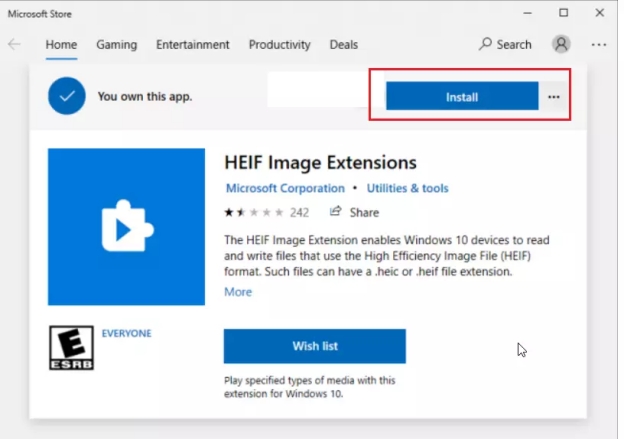
Many smartphones, drones, and cameras now record videos using HEVC (H.265). Windows does not always include HEVC support by default. Thus, you can install this HEVC Video Extension manually from Micorsoft Store.

  • Open the Microsoft Store, search for "HEVC Video Extensions".

  • Install the free version from Microsoft. This often fixes compatibility issues with modern MP4 files.

    install microsoft hevc video extension to fix wmp unsupported encoding settings

Option 2: Install K-Lite Codec Pack

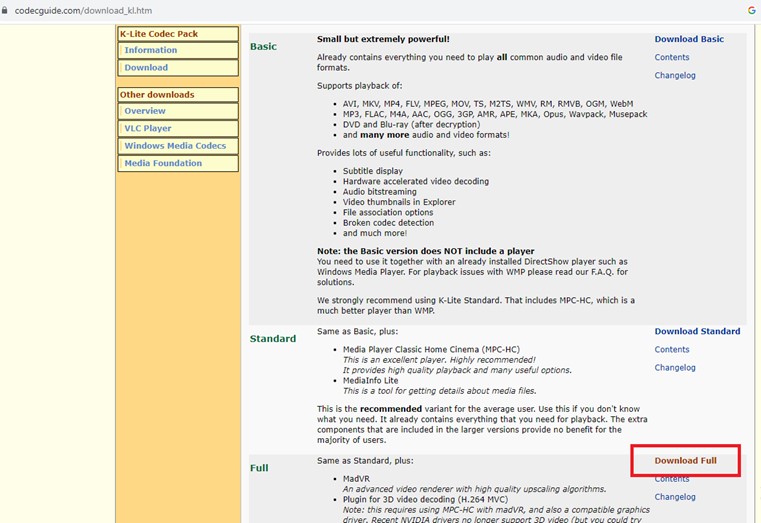
If you don't want to install Microsoft HEVC Video Extension with $0.99, it is also recommended to download the Standard or Full version of K-Lite Codec Pack for free. It adds support for a wide range of codecs and can significantly improve playback in Windows Media Player and other apps.

  • Open your browser and go to the official website.

  • Choose the version you want: Standard (Recommended for most users) or Full (If you need more codecs and tools). Then click Download.

    download k lite codec pack full version
  • Right-click the file and select Run as administrator to run the installer.

  • Select Advanced install mode and click Next.

    k lite codec pack advanced pack
  • Then follow the prompts (you can keep the recommended settings).

  • Click Install and restart your computer when finished.

Fix 5. Change the Problem Video's Format

Converting the video to a more standard format is one of the most reliable ways to fix the unsupported encoding settings MP4 error permanently. By re-encoding the file with common settings (like standard H.264), you remove the advanced parameters that Windows Media Player struggles with. This method works especially well for videos from smartphones, action cameras, or editing software.

  • Open Handbrake and drag your MP4 file into it.

  • Select the Fast 1080p30 preset.

  • Choose MP4 as the container and H.264 as the video codec.

  • Click Browse to set the destination file, then hit Start Encode.

    handbrake convert video files to mp4

Fix 6. Repair Corrupted Video Files (recommend 4DDiG Video Repair naturally)

Sometimes the unsupported encoding settings error is caused by minor corruption in the video file rather than just a codec issue. In these cases, repairing the file can be more effective than converting it.

One user-friendly tool that works well for this is 4DDiG Video Repair. It's designed to fix corrupted, choppy, or unplayable MP4, AVI, MOV, MKV, and more files quickly and easily. No technical experience is needed, and it often restores files that other methods can't fix.

Please download, install, and fire up the 4DDiG File Repair program before repairing.

FREE DOWNLOAD

Secure Download

FREE DOWNLOAD

Secure Download

  • Click "Video Repair" from the left menu bar, and click "Add Videos" or use the grad-and-drop action to upload all the unplayable MP4 or other files into 4DDiG.

    add unplayable videos into 4ddig
  • Once done, click "Repair All" to kick off the video file repair process, which will be finished in minutes.

    repair all unplayable videos
  • When finished, click "Preview" to play and check the repaired videos.

    preview repaired videos
  • If you are content with the repaired result, click the triangle icon next to "Save" button and select a output format (e.g., MP4, MOV, AVI, MKV, or original format) from the drop-down. Then click "Save" or "Save All" to export the videos.

    select output format and export repaired videos

Preventing the "Unsupported Encoding Settings" Error in the Future

Once you've resolved the current media player unsupported encoding settings issue, it's smart to take a few simple steps to avoid it happening again. Most problems occur because of advanced encoding settings that the default Windows Media Player doesn't handle well.

Best Export Settings for Maximum Compatibility

When editing or exporting videos, use these recommended settings:

  • Use H.264 (AVC) as the video codec
  • Choose MP4 as the container
  • Keep bit depth at 8-bit instead of 10-bit
  • Avoid HDR when possible
  • Resolution and Frame Rate: Match your target playback device

Quick Tips for Phone and Camera Recordings

  • Use standard video modes rather than cinematic or high-bitrate settings.
  • Test short clips in Windows Media Player before recording long videos.

FAQs

Q1: Why can't I open my MP4 file in Windows Media Player?

Your MP4 file won't play because the video uses encoding settings that the current version of Windows Media Player doesn't support. The file itself is usually fine, but the player simply lacks the right codec or struggles with advanced features like 10-bit color or specific H.264 profiles.

Q2: How to fix unsupported video codec?

The easiest way to fix an unsupported video codec is to install the required codec, use a player with built-in codec support such as VLC, or convert the video to MP4 using H.264 video and AAC audio. If the video file is damaged, repairing it before playback may also resolve the issue.

Q3: What causes Media Player error 0x80070057?

This error is typically caused by missing or incompatible codecs, recent updates to the Windows 11 Media Player, or videos encoded with advanced settings (such as HEVC, 10-bit, or HDR). It's one of the most common codes for the media player unsupported encoding settings problem.

Conclusion

Dealing with the Media Player unsupported encoding settings error can be much easier with this guide. From switching to VLC and installing codecs to rolling back updates or repairing files, you have several reliable options. For damaged or stubborn MP4 videos, 4DDiG Video Repair offers a simple and effective solution. Try these methods and enjoy smooth video playback again.

FREE DOWNLOAD

Secure Download

FREE DOWNLOAD

Secure Download

William Bollson (senior editor)

William Bollson, the editor-in-chief of 4DDiG, devotes to providing the best solutions for Windows and Mac related issues, including data recovery, repair, error fixes.

(Click to rate this post)

You rated 4.5 ( participated)