YouTube White Fade on Video: Why & How to Fix It

5 mins read

Updated on 2026-04-08 17:08:14 to Video Error

Imagine this; you’re sitting down to watch a high-definition movie on YouTube. But then, things go wrong. The colors don’t look right, the screen looks hazy and washed out, and you feel like you’re looking through a veil of mist. How annoying, right?

This so-called YouTube white fade on videos has been the scourge of many watchers all over the world, making people think their monitor is fading or their graphics card is failing. But what most people don’t know is that the problem is more often than not in your software stack.

And while there could be a number of root reasons, the good news is they can almost always be fixed! So join us as we explore the potential causes, and then touch upon a secret cheat code if nothing else works out!

Part 1: Why Do YouTube Videos Have a White Fade Overlay?

If you've ever looked at your screen and thought, "Why is there a white fade on my YouTube video?" you probably have one of these digital problems.

1. Forced settings for dark mode or inversion

"Forced Dark Mode" is a feature that many current browsers (notably Chromium-based ones like Chrome, Edge, and Opera GX) have added to protect our eyes from "blinding light mode."

Awesome for sites with lots of text, but disaster for video players. The browser is basically inverting colors and forcing it. This means it gets the video container wrong sometimes, putting a white shadow or a milky overlay on moving images.

2. Ad Blockers and Cosmetic Filtering

Ad blockers do more than just stop commercials; they use "cosmetic filters" to hide the empty spaces where ads used to be. Sometimes, these filters accidentally catch the native gradients YouTube uses for its user interface.

When these UI layers get stuck or partially blocked, it can result in a white fade video effect that lingers even when the player controls are hidden.

top ad blockers causing youtube white fade on video

3. Bugs in hardware acceleration and rendering

Your browser leverages your Graphics Processing Unit (GPU) to help videos play back more smoothly. If there is a "handshake" problem between your browser's version and your GPU drivers, though, the rendering can go wrong.

This often manifests as a washed-out look, where the contrast is stripped away, leaving you with a persistent YouTube white fade on video.

4. The "Ambient Mode" feature on YouTube

YouTube included a feature called "Ambient Mode" that throws a gentle, luminous color from the video into the page's background.

It should be immersive; however, sometimes it glitches, and the light bleeds into the movie frame instead of away from it. This makes it look like there is a white fade overlay on the videos, especially in darker moments.

youtube ambient mode causing white fade video

5. Corrupted Video Playback or Encoding Issues

If the white fade is only showing up on one upload, the problem’s likely embedded in the video during the encoding, usually since the color spaces don’t match up, like in cases when the recording is in HDR and exporting is in SDR. This makes the final result look pretty lifeless.

Part 2. How to Fix White Fade Overlay on YouTube (Step-by-Step)

Now that we’ve identified the "ghosts in the machine," let’s look at how to exorcise them. If your YouTube white fade on video problem is caused by your browser settings, these simple, tried-and-true procedures will fix it in most circumstances.

Fix 1: Disable Forced Dark Mode

If you are a power user who tinkers with browser "flags," this is likely where your YouTube white fade started. Forced dark mode is an experimental feature that doesn't always play nice with YouTube's dynamic player.

  • Start your browser (Chrome, Edge, or Opera GX).

  • Type chrome://flags (or edge://flags for Microsoft Edge) into the URL bar.

  • Type "Dark Mode for Web Contents" into the search box at the top.

    chrome auto dark mode for web content
  • It is likely that this is set to "Enabled." Set the dropdown menu to Disabled.

  • At the bottom, click the Relaunch button.

Fix 2: Use “Selective Inversion on Non-Image Elements”

If you absolutely cannot live without forced dark mode, you can try a more surgical approach. This tells the browser to leave images and videos alone while darkening everything else.

The Steps:

  • Type opera://flags (or chrome://flags) in the address bar and press Enter.

  • Search for Auto Dark Mode for Web Contents (or "Force Dark Mode for Web Contents").

  • Change it from the default (often "Enabled" or "Invert everything") to “Enabled with selective inversion of non-image elements”.

    chrome selective inversion of non image elements
  • Click Relaunch at the bottom.

  • Return to YouTube and test. This smarter inversion usually avoids breaking YouTube's gradients while still darkening other pages.

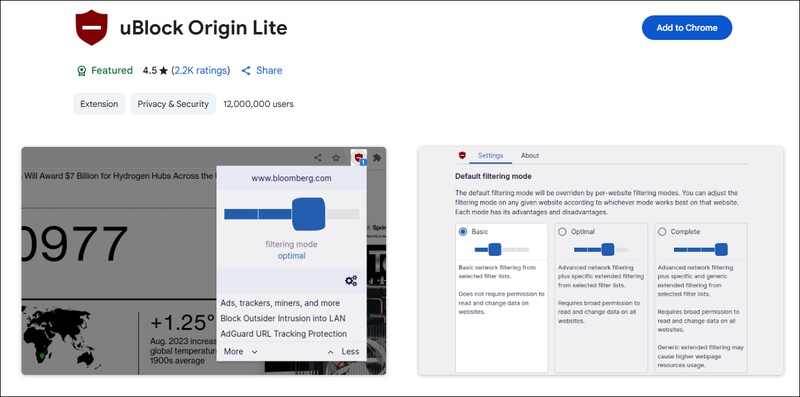
Fix 3: Apply Custom Cosmetic Filters (uBlock Origin or Similar AdBlocker)

Sometimes the issue is caused by the "gradients." YouTube places at the top and bottom of the video player (the ones that make the pause/play buttons easier to see). If these don't disappear properly, they cause a permanent YouTube white fade on video. You can use an ad blocker like uBlock Origin to manually hide these elements.

The Steps:

This effectively "clips" the foggy layers off the top and bottom of the player, removing the YouTube white fade instantly.

Part 3. What To Do If Video Itself Is Damaged or Looks Cloudy/Faded

What happens when the browser isn't the problem? If you’ve cleared your cache, disabled your extensions, and tried three different browsers, yet the YouTube white fade on video persists, you are likely looking at a file-level issue.

This is a nightmare for content creators. You spend hours editing, only to find that the final upload has a white fade overlay on the videos. This usually happens due to:

  • Color Space Mismatch: Recording in Log or HDR but failing to apply a proper LUT or conversion.
  • Corruption during Export: A glitch in the rendering engine that "lifts" the black levels.
  • Multiple Compressions: Re-encoding a video too many times can wash out the data.

⚡The Recommended Solution: 4DDiG Video Repair

When the issue is "baked in" to the file, you need a professional-grade tool to restore the color metadata and repair the corrupted frames.

4DDiG Video Repair is specifically designed to handle these visual anomalies. It doesn't just "filter" the video; it analyzes the underlying data to fix why the YouTube white fade is occurring at the source.

Here are some of the reasons why it’s the perfect tool to solve this problem:

  • AI-Powered Restoration: It uses intelligent algorithms to identify where contrast has been lost and restores the original depth.
  • Fixes Color Distortion: It specifically targets the "cloudy" or "washed out" look common in corrupted MP4 or MOV files.
  • Batch Processing: If your entire channel is suffering from a white fade video glitch, you can fix dozens of files at once.
  • Comprehensive Support: It works for videos that won't play at all, as well as those that just look terrible.

Steps to Fix Corrupted YouTube Videos with 4DDiG

  • Download the 4DDiG File Repair software. It’s available for both Windows and Mac. Once installed, select the "Video Repair" > “Add Videos” to upload videos showing the YouTube white shadow or faded effect.

    add youtube white faded videos to 4ddig
  • Click the “Repair All” button. The software will begin a deep scan of the video’s metadata and frame structure. It identifies discrepancies in brightness and color saturation that lead to the YouTube white fade on video and works to realign them.

    repair youtube white faded videos
  • You may preview the "before and after" once the process is done. You should be able to see that the white fade on YouTube has been removed, showing the real colors underneath.

    preview and save repaired youtube videos

Export the fixed file to your computer. Now, when you submit it again, people won't have to wonder why there is a white fade on my YouTube video.

Conclusion

The problem with the YouTube white fade on video is a great example of how complicated current web browsing has gotten. There are several ways that a video's signal can get "tripped up," such as "Ambient Mode," forced dark themes, and hardware acceleration.

Most of the time, the answer is as easy as changing a setting in your browser or installing a custom filter to hide a persistent gradient. But if you're a creator and see that your actual source file has a white fade overlay on the films, don't worry.

Digital safety nets like 4DDiG Video Repair may help you get your content out of the "fog" and back to looking professional, which is what your audience wants. Following these procedures will make sure that the only thing your viewers pay attention to is your material, not a white fade on YouTube that gets in the way.

FREE DOWNLOAD

Secure Download

FREE DOWNLOAD

Secure Download

William Bollson (senior editor)

William Bollson, the editor-in-chief of 4DDiG, devotes to providing the best solutions for Windows and Mac related issues, including data recovery, repair, error fixes.

(Click to rate this post)

You rated 4.5 ( participated)