4 Correct Ways of Viewing AVI Files on Windows Media Player

5 mins read

Updated on 2026-04-08 17:08:14 to Video Tips

If you've had difficulty with viewing AVI files on Windows Media Player and finding ways to open your files then you're not alone!

Windows Media Player is part of the Windows Operating System but there are actually some forms of AVI video container files that will not play well in WMP. Let's take a look at some alternate choices.

Part 1: Why Can't I Play AVI Files on Windows Media Player?

1. Is It Possible for WMP to Open AVI Files?

Yes and No! Windows Media Player was designed to allow for the direct playback of AVI formatted files but an AVI file is considered a "Container" file type; therefore, it requires specific "codecs" to decode both the video and/or audio.

2. Common Reasons Why Viewing AVI Files on Windows Media Player is Difficult
The primary reasons that Windows Media Player will not open AVI files can be broken down into several areas:

  • Outdated or Missing Codecs: To view an AVI video on WMP, you will also need to have any required codecs (Xvid, DivX, H.264, etc.) installed on your PC; if you don’t, WMP will not have the ability to play your AVI file.
    https://4ddig.tenorshare.com/video-error/missing-codec-error-0x887a0004.html
  • Microsoft 11 Limitation: Microsoft has moved from older video formats to newer video formats, an AVI file would essentially not work properly when viewed on Microsoft Windows 11 and WMP.
  • Corrupted AVI files: If the AVI files you're trying to play in Windows Media Player are either corrupted or don't meet the established compliance standard, you'll not be able to play them using WMP.
  • Windows Update Issues: If you upgrade to Windows 10/11 the upgrade process may cause issues with the operation of the codec pack on Windows Media Player and require that you reinstall your codec pack to work properly.

⚡ Part 2. How to View AVI Files on Windows Media Player Successfully

Method 1. Install the Free K-Lite Codec Pack

One solution for viewing AVI files on Windows Media Player to use a codec pack to fill in the "codec gap" created by missing codecs. The K-Lite Codec Pack is a comprehensive collection of codecs & filters that allows Windows Media Player to see any AVI file.

  • Visit the K-Lite website. Select either the Basic or the Standard download link.

    select klite codec pack version
  • Double-click the downloaded .exe file to launch the installer.

  • Accept the license agreement and choose Normal installation mode (recommended for beginners).

    select klite codec pack installation mode
  • In the component selection screen, ensure media players like Windows Media Player are checked if prompted.

  • Follow the on-screen prompts, select default settings for file associations (or customize to include AVI), and click Install.

    select klite default video codecs
  • Once installation is finished, reboot your Windows Media Player and attempt to open your AVI file and watch how it plays.

Method 2: Play AVI Files in Built-in Movies and TV App or VLC Player

When you’re still not able open your AVI file in WMP, then you can open it up in a different program.

There are more supported video formats and codecs in the Movies and TV app (included in Windows 10) than WMP, which is why it may be more appropriate to play your video file than in Windows Media Player.

To play your AVI file on WMP, do the following:

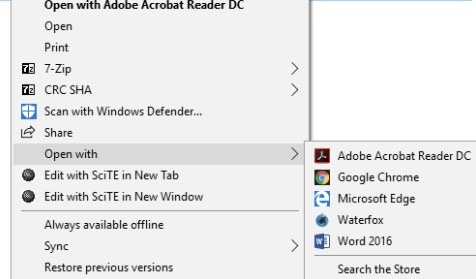
  • Click on the AVI file (right mouse click). Select “Open With”. Choose the Movies & TV app to open your AVI file.

  • You can also try using VLC Media Player to play your AVI since it comes with its own codecs and almost always will be able to play an AVI file.

    open avi files with movies and tv apps

Method 3. Fix Corrupted AVI Files with 4DDiG Video Repair

The problem of opening, playing back or choppy motion when attempting to watch an AVI file has nothing to do with the actual player.

In this case, one should use 4DDiG Video Repair because it is a professional software tool specially designed to repair stalls, unplayable, or corrupted videos.

Why choose 4DDiG Video Repair?

  • Huge Success Rate: Fix broken headers, frame errors and audio and video sync problems.
  • Supported video formats: The product is capable of repairing .AVI files together with the repair of other video formats as .mp4, .mov, .mkv, and more.
  • AI-based improvements: The AI video repair models will be installed to enhance the quality and the clarity of your video files.
  • Batch Repair Mode: Repair many files at the same time, and the time saved will be significant.
FREE DOWNLOAD

Secure Download

FREE DOWNLOAD

Secure Download

How to Repair Corrupt Video Files Using 4DDiG Video Repair:

  • Download & Install 4DDiG Video Repair On Your Computer. Go to Home Page → Click on "Video Repair." Select “Add Videos” to choose your corrupt AVI file to upload.

    add corrupted avi files to 4ddig
  • When the upload has finished, click “Repair All” to start the automatic repair for your corrupt file.

    repair corrupted avi files
  • You can preview the fixed video file and when you are satisfied then you can opt to export it to a preferred destination.

    preview and save repaired avi files

Method 4. Convert AVI to MP4

If you want an absolute solution on how to view AVI files on Windows Media Player, then it is a great idea to convert the file to the more widely accepted MP4 format.

alt:Steps to Convert AVI to MP4:

  • Go to CloudConvert or Zamzar site to convert an .AVI file to .MP4.

  • Press “Select File” to add your .AVI file from your computer to this online service.

    cloudconvert avi to mp4 converter
  • Set the output format to MP4.

  • Press “Convert,” and wait until you get the new MP4 back; then download it. Start Media Player and play that new file.

Part 3. Best Free AVI Video Players for Windows

In case you are not able to open the .AVI file using Windows Media Player (WMP), you will need to know how to watch an AVI file on a Windows computer using some alternative software.

There are numerous free software alternatives that permit you to view AVI videos without having the need to rely exclusively on the standard pre-installed software of Windows Media Player.

What program runs AVI files?

  • VLC Media Player is an excellent player that has its (built-in) codecs so that it can play the largest variety of video files without needing to download additional codecs.
  • PotPlayer, A free, light, but versatile player that allows for lots of customization with superior playback of large AVI files.
  • GOM Player – A fantastic player for watching .AVI files that are damaged can search the internet for missing codec files automatically to enable viewing of damaged AVI files.

FAQS

Q1: Are there any dangers associated with downloading codec packs?

As long as you’re getting the codec packages from reputable sources, downloading them should not put you at risk; they should be perfectly safe. You should never click on an unexpected advertisement that says you need to have “a codec”, this is usually just a way to install malware on your computer.

Q2: Why is AVI not used anymore?

Since the early 1990s, when Microsoft introduced the AVI file format, it has had many limitations relative to both the supported feature set and modern codecs such as MP4 and MKV. But right now you can play AVI files on Windows Media Player but with regard to new video compression codecs (like HEVC).

Conclusion

For viewing AVI files on Windows Media Player, you will need to either update your codec package (download a new codec) or you will need to have an AVI file to convert to another format.

When you do this and your file still fails to play then it can be corrupt. In case it is corrupt, then you need to repair the file using a program called 4DDiG Video Repair so that it comes back to its right shape and this will help fix the problem of your corrupted files and also allow you to play the files again without any further issue.

FREE DOWNLOAD

Secure Download

FREE DOWNLOAD

Secure Download

William Bollson (senior editor)

William Bollson, the editor-in-chief of 4DDiG, devotes to providing the best solutions for Windows and Mac related issues, including data recovery, repair, error fixes.

(Click to rate this post)

You rated 4.5 ( participated)