Fix: The HEVC Video Extensions Is Required to Display This File (2026)

5 mins read

Updated on 2026-01-22 20:14:56 to Photo Error

Many Windows users run into a confusing pop-up when opening photos or videos: “The HEVC Video Extensions are required to display this file.” This message often appears when double-clicking HEIC images or HEVC videos on Windows 10 or 11. While Microsoft offers a paid solution for $0.99, most users prefer free alternatives.

Fortunately, This comprehensive guide explains what HEVC Video Extensions are, why Windows requests them for HEIC files and HEVC videos, and provides three proven free methods to resolve this error. If problems persist, we'll show you how to batch convert HEIC to JPG effortlessly.

hevc video extension is required to display this file

Part 1. What are HEVC Video Extensions & Why Is My Computer Asking for It When Opening HEIC Images?

1️⃣ What Is "HEVC Video Extensions"?

HEVC Video Extensions is a Microsoft codec package that allows Windows to decode media files encoded using the High Efficiency Video Coding (HEVC) standard, also known as H.265. This compression format is widely used because it delivers high-quality visuals at much smaller file sizes than older formats like H.264.

On Windows, the HEVC Video Extensions component is responsible for enabling playback of HEVC videos and, in many cases, displaying images that rely on HEVC-based compression. Without this extension, Windows’ default apps such as Photos, Movies & TV, and File Explorer cannot properly decode certain modern media formats.

Note:

This error is common with 4K/HDR videos from smartphones (e.g., recent iPhones, Android flagships, GoPro), cameras, or downloaded high-efficiency content.

2️⃣ Why Is My Computer Asking for HEVC Video Extensions When Viewing HEIC Images?

HEIC (High Efficiency Image Container) images, commonly used by iPhones, are built on the HEIF format, which relies on HEVC compression to store image data efficiently. When you try to open a HEIC photo on Windows, the system needs both image and video decoding capabilities to interpret the file correctly.

This is why Windows may display the error message “the HEVC video extension is required to display this file”, even though you are opening an image rather than a video. Without HEVC decoding support, Windows simply cannot render the image content, triggering the prompt.

3️⃣ HEVC Video Extensions vs HEIF Image Extensions

Before fixing the issue, it helps to understand the difference between these two commonly confused components.

Feature HEVC Video Extensions HEIF Image Extensions
Primary Purpose Decodes HEVC videos and HEIC images Specifically designed for HEIF/HEIC images only
File Types Supported Supported.hevc, .heic, .heif, HEVC-encoded .mp4/.mov .heic, .heif image formats only
Required for HEIC images Yes (often) Yes
Required for HEVC videos Yes No
Codec Technology Full HEVC/H.265 decoder HEIF image decoder (may use HEVC internally)
Microsoft Store Price Paid ($0.99) Free
Error triggered "The HEVC video extension is required to display this file." Images won’t open
Best For Users who need both video and image support Users who only view HEIC photos

In many cases, users install the free HEIF Image Extensions but still encounter errors because the HEVC component is missing.

Install HEVC Video Extensions first for most errors since it covers the codec that HEIC photos depend on. Add HEIF Image Extensions if thumbnails or basic viewing still fail.

Part 2. How to Get Rid of "The HEVC Video Extensions Are Required to Display This File" Error Message [3 Common Ways]

Many users are reluctant to purchase HEVC Video Extensions from the Microsoft Store for $0.99, especially when free alternatives exist. Below are three proven methods to resolve this error without spending money.

Method 1. Download Free HEVC Video Extensions for Device Manufacturer on Windows (Free)

Microsoft offers a free version of HEVC Video Extensions from Device Manufacturers, which provides identical functionality to the paid version. It is originally bundled on OEM devices (Dell, HP, etc.) where the manufacturer covers licensing.

It enables native HEVC support in Photos, Movies & TV, and File Explorer without cost. The catch? It's often hidden from direct search results in the Microsoft Store, so most users don't know it exists.

⚠️ Weakness: This version may not be available or installable on all PCs, especially custom-built systems.

Method 2. Use an HEIC Viewer Like "XnView MP" (with Built-in HEIC/HEIF/HEVC Support)

Some users prefer to bypass Windows codecs entirely by using third-party image viewers. XnView MP is a popular free viewer that includes built-in support for HEIC, HEIF, and HEVC without relying on Microsoft Store extensions.

This option is especially attractive to users who do not want to pay for codecs or modify system-level media components.

  • Download XnView MP from its official website and install the program on your Windows PC

  • Launch XnView MP and open your HEIC image directly.

    open heic images on xnview mp

⚠️ Weakness: XnView MP works as a standalone viewer and does not enable HEIC previews inside Windows File Explorer.

Method 3. Install K-Lite Codec Pack

Another effective solution is installing the K-Lite Codec Pack, which adds extensive media format support to Windows through Media Foundation codecs. These codec packs can be used by multiple supported media players, hence solving the issue at your end.

  • Visit the official Codec Guide website to download the Standard pr Full version:

    a. Standard version is sufficient for HEIC image support

    b. Full version includes additional codecs for advanced media formats

    download klite codec pack for videwing heic
  • Then run the installer and select "Normal" or “Advanced” as installation mode during installation (Normal is recommended for most users).

    klite codec pack installation mode
  • Accept defaults for most screens, which auto-selects LAV Filters (key for HEVC/HEIC decoding).

  • When it asks about players, keep MPC-HC checked (it's great for viewing HEIC).

    select mpc hc during klite codec pack installation
  • Click "Next" through remaining screens and finish the installation.

  • Open Codec Tweak Tool (in Start menu or install folder) to prioritize LAV for better integration.

    enable media foundation for codec tweak tool
  • Restart your computer and try opening the media again.To view HEIC: Right-click your .heic file > Open with > MPC-HC (or set as default). MPC-HC decodes HEVC internally.

⚠️ Weakness: Codec packs may conflict with existing media software and are not ideal for users who prefer minimal system changes.

⚡ Part 3. Advanced Way: Batch Convert HEIC to JPG / Repair Corrupted HEIC (If HEIC Images Not Opening Still)

Even after installing codecs or viewers, some HEIC images still refuse to open. This usually happens when files are corrupted, partially transferred, or created on devices with newer encoding parameters. In such cases, changing the file format or repairing the image itself is the most reliable solution.

4DDiG File Repair provides a practical alternative by combining HEIC format conversion with advanced image repair capabilities. It's built-in lightweight image format converter allows users to batch convert HEIC, BMP, CR2, and PNG into JPG in seconds. At the same time, it can repair corrupted HEIC and JPG images, even when the damage is severe.

FREE DOWNLOAD

Secure Download

FREE DOWNLOAD

Secure Download

Instead of forcing Windows to support HEVC, this approach adapts the files to formats Windows handles natively.

Steps to Bulk Change Multiple HEIC Files to JPG in Seconds Using 4DDiG

Here is the complete step-by-step guide on how you can change HEIC to JPG with this amazing software:

  • Download, install, and open the 4DDiG File Repair Software on your computer. Go to “More Repair Tools” > "Image Format Converter" feature.

    select image format converter
  • Click "Add Files" and choose the HEIC images that you want to convert to JPG.

    add heic files for converting to jpg
  • Click the "Convert" button, and 4DDiG will automatically start analyzing and converting all your images.

    start converting heic to jpg files
  • When the images are converted, you just need to click “Save” and choose a location to save all the converted JPG images. Afterwards, click “Open Folder” to go directly to the directory in File Explorer where your converted images are saved.

    save and view converted jpg files
    Note:

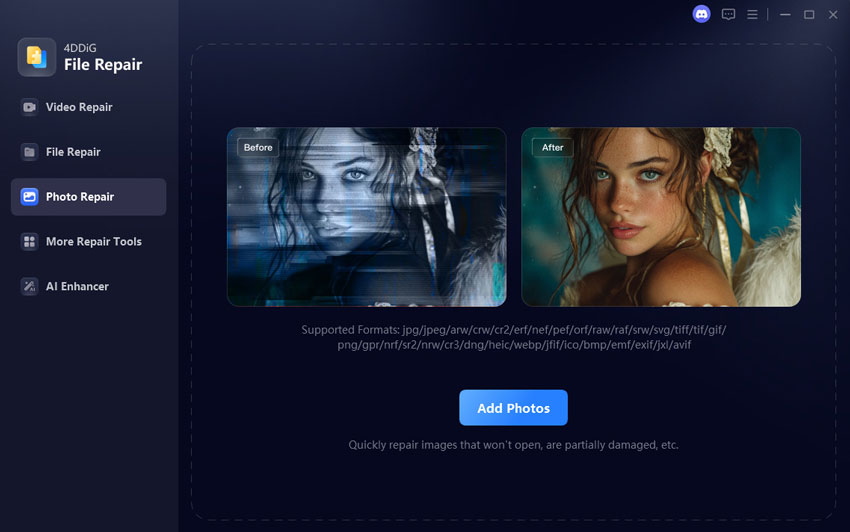
    If you hope to repair corrupted HEIC images, go to “Photo Repair” > “Add Photos” and follow the on-screen instructions.

    select photo repair and add corrupted heic images

This method is especially useful for users dealing with hundreds of HEIC files or photos that trigger the same error repeatedly.

People Also Ask about HEVC Video Extensions Errors

Q1: How can I convert HEVC to MP4?

You can use video converters like HandBrake or professional tools that support HEVC decoding to convert H.265 videos into MP4 format.

Q2: How to open HEVC video files?

Install HEVC Video Extensions, use VLC Media Player, or convert the video to a supported format.

Q3: How to get rid of HEVC video extensions?

You can uninstall the extension from Windows Apps settings, though HEIC and HEVC files may stop opening afterward.

Conclusion

The error “The HEVC video extension is required to display this file” is a common Windows limitation, not a system failure. It occurs because HEIC images and HEVC videos require specific decoding support. Whether you choose free manufacturer extensions, third-party viewers, or advanced conversion tools, the issue is solvable.

For users who want a long-term, flexible solution, 4DDiG File Repair offers both HEIC conversion and reliable image repair in one streamlined workflow.

FREE DOWNLOAD

Secure Download

FREE DOWNLOAD

Secure Download

William Bollson (senior editor)

William Bollson, the editor-in-chief of 4DDiG, devotes to providing the best solutions for Windows and Mac related issues, including data recovery, repair, error fixes.

(Click to rate this post)

You rated 4.5 ( participated)