MKV Won’t Open in Sony Vegas? Solve It Today with the Guide!

5 mins read

Updated on 2026-06-09 17:18:38 to Video Error

Import failures, missing video tracks, black screens, and unsupported format errors commonly occur when Sony Vegas won't open .mkv files. The root cause usually involves codec incompatibility, container limitations, outdated Vegas versions, or damaged MKV files.

The solutions in the article explain why MKV causes issues in Sony Vegas and provide proven methods to import, convert, repair, and edit MKV videos successfully.

sony vegas wont open mkv files

Why Sony Vegas Won’t Open.MKV Files?

MKV compatibility depends more on the codecs stored inside the file than the MKV container itself. Sony Vegas may read one MKV file successfully while rejecting another because each MKV can contain different video and audio codecs.

According to the official Matroska project, MKV is a multimedia container capable of holding unlimited video, audio, subtitle, and metadata tracks. Compatibility depends entirely on whether the editing software supports the embedded codecs.

MKV Is a Container, Not a Codec

Many users assume MKV is a video format similar to MP4.

Technical reality differs. MKV functions as a container that may include:

Sony Vegas may support the container but fail to decode specific codecs stored inside it.

Common Error Messages

Several import errors indicate MKV compatibility problems. Common messages include:

  • “Sony Vegas MKV could not be opened."
  • File format not supported
  • An error occurred while opening the media file
  • Media offline
  • Audio imports, but video is missing
  • Black preview screen

These errors typically indicate unsupported codecs, damaged file structures, or MKV reader limitations.

Version Differences

Vegas Pro support for MKV has changed significantly across releases.

Vegas Version MKV Support
Vegas 13 Limited
Vegas 14 Limited
Vegas 15 Limited
Vegas 16 Partial
Vegas 17+ Improved
Vegas Pro 18/19/20/21/22 Better MKV handling

Older versions often require conversion before editing.

Why can’t Sony Vegas open MKV? Discover that their version lacks native support for modern codecs such as HEVC and AV1 stored inside MKV files.

⚡ How to Open MKV in Sony Vegas without Issues?

Different causes require different fixes, like enabling experimental MKV or repairing corrupted MKV files.

The methods below progress from the simplest solutions to advanced repair techniques.

Method 1: Enable Experimental MKV Reader (Best for Vegas Pro 17+)

Vegas Pro 17 and newer versions include an experimental MKV reader that can improve compatibility with certain MKV files.

Enabling the built-in MKV reader often resolves import failures without requiring conversion. Sony Vegas disables some experimental media readers by default. Activating the MKV reader allows Vegas to process additional Matroska containers directly.

  • Launch Vegas Pro and go to "Options" from the menu, then click "Preferences."

  • Check the "Enable MKV Reader (Experimental) option under "File I/O Options."

    vegas enable mkv reader
  • Now, choose Vegas Pro and restart it to apply the changes.

Method 2: Convert MKV to MP4 or Other Vegas-Supported Formats (Most Reliable Solution)

Converting MKV into MP4 with H.264 encoding delivers the highest compatibility across Vegas 13, 14, 15, and 16.

Professional editors frequently choose conversion because it eliminates both container and codec conflicts.

MP4 with H.264 and AAC audio remains one of the most universally supported editing formats. According to industry reports from Adobe and Apple, H.264 MP4 remains the most widely accepted video editing format due to extensive hardware acceleration support.

  • Install a video converter or open an online free MKV to MP4 converter.

    cloudconvert mkv to mp4 converter
  • Import the MKV file and select “MP4” as the output format. Choose “H.264” for video codec and select “AAC” for audio codec if available.

  • Set output resolution and bitrate, then start conversion.

  • Import the converted MP4 into Sony Vegas.

This method is particularly useful for problems like Sony Vegas not opening MKV files in older software versions.

Method 3: Rename File Extension

Certain MKV files contain codecs fully supported by Vegas, but the application misidentifies the container. Renaming the extension occasionally allows Vegas to recognize the media correctly.

Some recording software creates MKV files that are technically compatible with MP4 standards. Changing the extension can help Vegas detect the file properly.

  • Click "View Tab" in the "File Explorer Options" section to disable the "Hide Extensions for known file types" option.

  • Locate the MKV file and right-click the file.

  • Select “Rename” then change “.mkv” to “.mp4”.

  • Confirm the extension change and import into Sony Vegas.

Important Note:

This method only works when the internal codecs are already compatible. If the import still fails, use conversion or remuxing instead.

Method 4: Remux MKV to MP4 Container (Fast, Lossless)

Remuxing changes the container while preserving the original video and audio streams. Unlike conversion, remuxing causes no quality loss and finishes much faster.

The original codecs remain untouched, and only the container structure changes from MKV to MP4.

  • Go to Flonnect Remux Container on your browser to remux videos online. Upload your "MKV" files here.

    flonnect remux container
  • Remux your video to an MP4 container and save it on offline storage, then try opening it.

To open MKV in Sony Vegas successfully, use remuxing because it preserves original quality while improving compatibility.

Method 5: Repair Corrupted MKV Files & Export MKV Files in MP4

File corruption remains a major cause of import failures. Incomplete downloads, recording interruptions, storage device errors, and damaged headers can prevent Sony Vegas from reading otherwise compatible MKV files.

Why This Works?

Repairing the file structure restores damaged metadata, indexes, and video streams before conversion or editing.

4DDiG Video Repair provides specialized repair algorithms for damaged video files. It can repair corrupted MKV videos and fix unplayable videos by restoring damaged headers. 4DDiG also supports batch processing. Moreover, it allows previews before saving results, and the final results can be exported in compatible formats.

FREE DOWNLOAD

Secure Download

FREE DOWNLOAD

Secure Download

Steps to Repair MKV Files with 4DDiG Video Repair

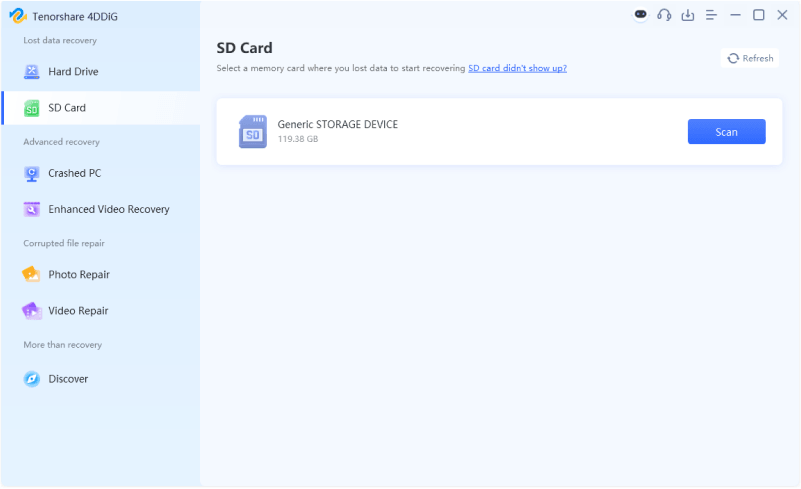
  • Install and fire up 4DDiG File Repair and go to the “Video Repair” feature from the left side. Click “Add Videos” to add your desired corrupted MKV videos.

    add corrupted mkv files to 4ddig
  • Click “Repair All” and 4DDiG will begin repairing all corrupted MKV videos in one click.

    repair all corrupted mkv files
  • Click the "Preview" button against a repaired video to check its results.

    preview repaired mkv files
  • Choose your preferred output format (e.g., MP4, MOV, AVI, etc.). Then click the "Save" button for the videos that are successfully repaired and save them to a safe location.

    choose output format and save repaired videos

This method is particularly effective when users encounter persistent “Sony Vegas mkv could not be opened” errors even after conversion attempts.

Best Practices to Avoid MKV Issues in Sony Vegas

Consistent import success depends on using editing-friendly formats and maintaining file integrity.

Preventative measures save significant troubleshooting time during post-production.

Recommended Practices

  • Record directly in MP4 whenever possible.
  • Use H.264 video codec for maximum compatibility.
  • Avoid unsupported codecs such as AV1 in older Vegas versions.
  • Keep Sony Vegas updated.
  • Verify file integrity after downloading.
  • Store media on healthy SSDs or HDDs.
  • Use remuxing before full conversion when possible.
  • Avoid incomplete file transfers.
  • Create proxy media for high-resolution footage.
  • Test sample clips before importing large projects.

People Also Ask about Opening MKV in Sony Vegas

Q1: Does Sony Vegas support MKV natively?

Support for MKV files depends heavily on the Vegas version and the codecs stored inside the container. Newer versions of Vegas Pro offer improved MKV compatibility, but older releases such as Vegas 13 and 14 often struggle with certain video codecs. Even when Vegas recognizes the MKV container, unsupported codecs can still prevent successful importing.

Q2: How to put MKV files in Sony Vegas 14?

First, convert the file into MP4 with H.264 encoding because Vegas 14 offers limited MKV support, then import it into Vegas.

Q3: Is there a Sony Vegas MKV plugin?

No official Sony Vegas MKV plugin exists from MAGIX or the original Sony Vegas development team. Most MKV compatibility improvements come from software updates, codec support enhancements, or external conversion tools. If MKV files continue failing to import, convert, or remux, converting the file is generally more reliable than searching for third-party plugins.

Q4: Why does it import audio only or show a black screen?

Audio-only imports and black screens usually indicate unsupported video codecs. Vegas can decode the audio stream but cannot decode the video stream stored inside the MKV container. This issue is one of the most common reasons users ask how to use MKV in Sony Vegas?

Conclusion

Codec incompatibility, container limitations, software version restrictions, and file corruption are the primary reasons Sony Vegas won't open .mkv files. Enabling the MKV reader, remuxing, converting to MP4, or repairing damaged videos can resolve most import failures.

For corrupted files that refuse to open, 4DDiG Video Repair offers one of the most reliable methods to restore and export videos into Sony Vegas-compatible formats.

FREE DOWNLOAD

Secure Download

FREE DOWNLOAD

Secure Download

William Bollson (senior editor)

William Bollson, the editor-in-chief of 4DDiG, devotes to providing the best solutions for Windows and Mac related issues, including data recovery, repair, error fixes.

(Click to rate this post)

You rated 4.5 ( participated)