How to Download K-Lite Codec Pack, Is It Safe & Alternative in 2026

5 mins read

Updated on 2026-01-19 16:46:12 to Photo Tips

Having trouble playing certain video or audio files on your Windows PC? You’re not alone. Many users face issues when opening media formats like MKV, FLV, or HEVC. This is where the K-Lite Codec Pack comes in. K-Lite Codec Pack is one of the most popular codec solutions for Windows users. It helps your system recognize and play almost any audio or video format without errors.

This article is a full K-Lite Codec Pack download and safety guide, as well as providing the best alternatives for those who prefer other options.

klite codec pack downlad and safety

Part 1. What is a K-Lite Codec Pack and Do I Need It?

What Is K-Lite Codec Pack Used For?

The term "codec" comes from "compressor-decompressor," referring to tools that encode and decode audio/video files. K-Lite Codec Pack is a free collection of codecs for Windows, enabling playback of many formats not natively supported.

It works with popular DirectShow players, including Windows Media Player, Media Player Classic, ZoomPlayer, KMPlayer, PotPlayer, and GOM Player.

The pack installs Video for Windows (VFW) codecs and DirectShow filters, allowing these players to handle a wide range of media formats automatically.

The pack supports a wide range of file formats, including:

  • Video: MKV, MP4, AVI, WebM, MOV, M2TS, WMV, FLV
  • Audio: MP3, FLAC, AAC, OGG, WAV, APE
  • Codecs: H.264, H.265/HEVC, VP8, VP9, AV1, MPEG-4, AC3, DTS

1Is K-Lite Codec Pack Necessary?

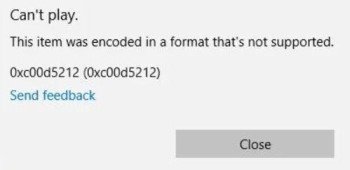
No, it is not strictly necessary but it is very useful. If you only use YouTube or HTML5 streaming in browsers, you may never need it. However, if you frequently download videos, watch local media files, or rely on Windows Media Player, K-Lite Codec Pack saves time and prevents playback errors. If you’re tired of installing codecs one by one, K-Lite is a convenient all-in-one option.

Part 2. K-Lite Codec Pack Versions Compared: Basic vs Standard vs Full vs Mega

K-Lite Codec Pack comes in four versions. Understanding the difference helps you choose the right one.

Version Key Features Best For Size Includes MPC-HC 64/32-bit
Basic Essential DirectShow filters, LAV Filters, DirectVobSub, Codec Tweak Tool Minimalists wanting basic playback capability Smallest No Both
Standard All Basic features plus MPC Video Renderer and MediaInfo Lite Average users seeking balance between size and features ~38.9 MB Yes Both
Full All Standard features plus madVR and 3D video decoding plugin Users wanting advanced rendering options ~54.4 MB Yes Both
Mega Everything in Full plus ACM/VFW codecs, ffdshow, and additional tools Power users and video editors Largest Yes Both

Which should you install? Go with the K-Lite Codec Pack Standard version for everyday use. Choose K-Lite Codec Pack Full version for advanced rendering. Pick the K-Lite Codec Pack Basic version if you want something lightweight. Select Lite MegaK Codec Pack (Mega) for professional needs.

Part 3. Is K-Lite Codec Pack Safe to Download and Install in 2026?

Is the K-Lite Codec Pack legal?

Yes. The K-Lite Codec Pack is generally safe when downloaded from the official source, although certain precautions are necessary.

Many users ask, “Is it safe to install codecs?” because codec packs had a bad reputation in the past. K-Lite itself does not contain malware, and it is also completely legal.

Why People Think It Unsafe

Yes. It is freeware and licensed for personal, educational, and professional use. However, people sometimes think it’s unsafe because older versions included optional bundled software. These were not mandatory, but users who rushed through installation accidentally installed them.

This led to security concerns and forum complaints. Additionally, Windows Defender occasionally flags K-Lite updates as false positives, not real threats.

Important notice: Always download K-Lite only from the official website, not mirrors or third-party sites. The official site provides file names, sizes, and hashes so you can verify authenticity. During setup, choose Advanced Install and carefully review each option. For users who want zero risk, all in one players like VLC Media Player are a simpler alternative.

Part 4. How to Safely Download and Install K-Lite Codec Pack on Windows 11/10

The k-lite codec pack official website is codecguide.com, which ensures you get a genuine, malware-free copy. This is the safest place to download K-Lite Codec Pack Basic (codecguide.com) or any other version.

System Requirements

Check out these requirements before you download K-Lite Codec Pack for Windows 11/10:

  • Operating System: Windows 11 or Windows 10
  • RAM: At least 512 MB
  • Processor: Pentium III or higher

K-Lite is lightweight and works smoothly even on older systems.

K-Lite Codec Pack Download Guide

Follow these easy steps to download K Lite codec pack and install it safely:

  • Download the Pack: Visit the official site, choose a variant, and search for "download k-lite codec pack basic (codecguide.com)" on the site:

    a. Basic: For essential formats (smallest).

    b. Standard (most popular): Includes Media Player Classic.

    c. Full or Mega: Advanced tools (e.g., for encoding).

    download klite codec pack latest version
  • Run the Installer: Double-click the downloaded .exe file (run as administrator if needed). Click Next on the welcome screen.

    setup klite codec pack
  • Select Installation Mode: Choose Advanced or Expert mode for full control over settings.

    select klite codec pack installation mode
  • Configure Preferences: Select your preferred player (e.g., Media Player Classic), file associations, and components. Stick to defaults unless you're experienced.

    klite codec pack install preferences klite codec pack select components
  • Complete Installation: Click “Install” and wait for the setup to finish.

Tips:

For silent installations, advanced users can use command-line parameters: "/verysilent /norestart". Additionally, K-Lite's installer intelligently detects when it's necessary to uninstall older versions first and offers to handle this automatically.

Note:

Remember that Windows 10 occasionally shows an error "This app can't run on your PC." This typically indicates a damaged installer file. Simply clear your browser cache and download again.

Part 5. Best K-Lite Codec Pack Alternatives in 2026?

Looking beyond K-Lite Codec Pack? Several excellent alternatives deliver similar functionality through different approaches.

1. VLC Media Player

VLC Media Player is the most popular codec-free alternative to K-Lite. It uses built-in decoders to play almost any audio or video format instantly, no extra codecs needed. This makes it best for users who want reliability without installing a traditional codec pack.

Best for: Simple, hassle-free playback across all platforms.

vlc media player

2. MPC-HC + LAV Filters (Standalone)

This is a lightweight combo that is popular with advanced users. MPC-HC handles playback, and LAV Filters offer high quality with accurate control. Collectively, they are an active K-Lite codec pack without any unwarranted extras or system cruft.

Best for: Users who desire performance, control, and less bloat.

mpc hc

3. Shark007 Codecs

Shark007 focuses on deep Windows integration, enhancing Windows Media Player and system wide playback. It supports 4K, HDR, advanced audio formats, and adds rich Explorer thumbnails. This option is closest to K-Lite in terms of improving native Windows media support.

Best for: Users who rely on Windows Media Player and system wide codec support.

shark007 codecs

4. Others: PotPlayer, MPV

PotPlayer delivers a clean, intuitive interface with smooth playback for challenging files. MPV offers extreme customization with lightning fast startup times and comprehensive format support. Both represent excellent alternatives for specific user preferences.

Best for: Power users and enthusiasts with specific playback preferences.

Part 6. When Installing Codecs Still Doesn’t Fix the Video

Sometimes, even with all codecs properly installed, video playback problems persist. When K-Lite Codec Pack and alternative media players fail to solve your playback issues, the root cause might be file corruption rather than missing codecs. In such situations, specialized video repair software becomes necessary.

4DDiG Video Repair provides a powerful solution for repairing video files that fail to play, even when compatible codecs are available. It can fix damaged videos with problems like freezing, no sound, playback errors, or issues opening. The software is compatible with multiple formats, such as MP4, MOV, MKV, AVI, FLV, and M4V.

FREE DOWNLOAD

Secure Download

FREE DOWNLOAD

Secure Download

Steps to fix corrupted corrupted videos using 4DDiG:

  • Launch “4DDiG File Repair” on your and choose “Video Repair.” Click “Add Videos” and import the videos you downloaded from Firefox that won’t play or show errors.

    select video repair and add corrupted videos
  • Click “Repair All.” If the video is badly damaged, turn on “Advanced Repair Mode” and upload a sample video from the same device.

    start repairing corrupted videos
  • Once the repair is complete, click “Preview” to check video playback, audio sync, and quality. Click “Save” or “Save All” to export the repaired videos to your computer.

    preview and save repaired videos

When codecs and media players fail, the issue is almost always file corruption. 4DDiG Video Repair is a simple and reliable solution for Firefox-downloaded videos that won’t open or play.

People Also Ask about K-Lite Codec Pack

Q1: Can I uninstall k-lite codec pack?

Yes, K-Lite Codec Pack can be completely uninstalled from your computer. The pack includes a built-in uninstaller that properly removes all components and reverts system changes made during installation.

Q2: How to uninstall k-lite codec pack?

K-Lite Codec Pack is best installed and uninstalled via Windows Control Panel or Settings. Instead, the uninstaller shortcut is located in the Windows Start menu. Do not use third party removal tools because they can strip too much or destroy your system.

Q3: Is the K-Lite Codec Pack legal?

K-Lite Codec Pack is absolutely legal. Its license allows you to use the software as you would like (to the extent that it is legal), whether personally or in education, research, military, governmental and professional use.

Q4: Is it okay to uninstall K-Lite Codec Pack?

Absolutely. The uninstaller will remove everything the pack installed and revert all tweaks and changes made to your system. There are no leftover files or registry entries.

Q5: Should I update the K-Lite Codec Pack?

Updating is recommended for security patches and improved compatibility with newer media formats. The pack will contain an update checker which will inform you about the existence of new versions.

Q6: How to install K-Lite Codec Pack for Windows Media Player?

Download K-Lite and run the installer then during the installation process make sure to select All Video Extensions to Windows Media Player. This will automatically set Windows Media Player to use the codecs.

Q7: Is the K-Lite Codec Pack free?

Yes, K-Lite Codec Pack is all freeware. The package does not have any costs or fees to download or use any version of the package.

Conclusion

K-Lite Codec Pack download and safety remain reliable in 2026 when used correctly. It is a powerful solution for Windows 11/10 users who need broad media compatibility. Always download from the official site and select the Standard version for optimal results. If videos still fail to play, file corruption, rather than codec issues, is likely the problem. In such cases, 4DDiG Video Repair is highly recommended for restoring damaged videos quickly and effectively.

FREE DOWNLOAD

Secure Download

FREE DOWNLOAD

Secure Download

William Bollson (senior editor)

William Bollson, the editor-in-chief of 4DDiG, devotes to providing the best solutions for Windows and Mac related issues, including data recovery, repair, error fixes.

(Click to rate this post)

You rated 4.5 ( participated)