How to Repair M4V Files: Corrupted, Not Playing and More

5 mins read

Updated on 2026-07-02 19:28:34 to Video Error

Have you ever tried to open an important video only to find it won't play, freezes, or shows strange errors? M4V files, common on Apple devices, can become corrupted for various reasons. In this guide, you'll learn the typical signs of damage and the most effective methods to repair M4V file. Whether you're dealing with a single clip or a whole collection, these practical tips can help restore your videos safely.

Why M4V Files Become Corrupted

M4V files, which are essentially Apple's version of the MP4 format, are convenient for storing and sharing videos. However, they aren't immune to problems. When corruption strikes, it can be frustrating, especially if the file contains precious memories or important work.

Common symptoms include videos that refuse to open, sudden freezing during playback, choppy or jerky motion, missing audio, pixelated images, error messages, or the file appearing completely blank. In some cases, the video might start but stop abruptly or display visual distortions like graininess.

Possible reasons for M4V file corruption include:

  • Sudden power outages or improper shutdowns while the file is being written, transferred, or saved
  • Virus or malware attacks that damage file structures
  • Errors during file conversion or editing processes
  • Incomplete downloads or interrupted transfers
  • Bad sectors on storage devices such as SD cards, USB drives, or hard drives
  • Software glitches or compatibility issues during recording or playback

Understanding these triggers is the first step toward prevention and effective recovery. Once you know what might have gone wrong, you're better prepared to choose the right solution.

⚡ Best Method to Repair M4V Files That Are Corrupted or Not Playing

If basic troubleshooting like restarting your player or converting the file hasn't worked, it's time for a more powerful approach. Many people wonder, is it possible to fix a corrupted MP4 file—and the answer is yes, especially since M4V shares a similar structure. One of the most dependable options available is 4DDiG Video Repair, a user-friendly tool designed specifically for these kinds of problems.

This software stands out because it supports a wide range of formats including M4V, handles batch repairs for multiple files at once, and offers advanced features like AI-powered video enhancement up to 8K resolution. It can fix issues such as choppy playback, audio-video sync problems, frozen frames, no sound, and videos that won't play after recovery. Unlike many basic tools, it works with files from various devices and storage media while keeping the process simple and secure.

FREE DOWNLOAD

Secure Download

FREE DOWNLOAD

Secure Download

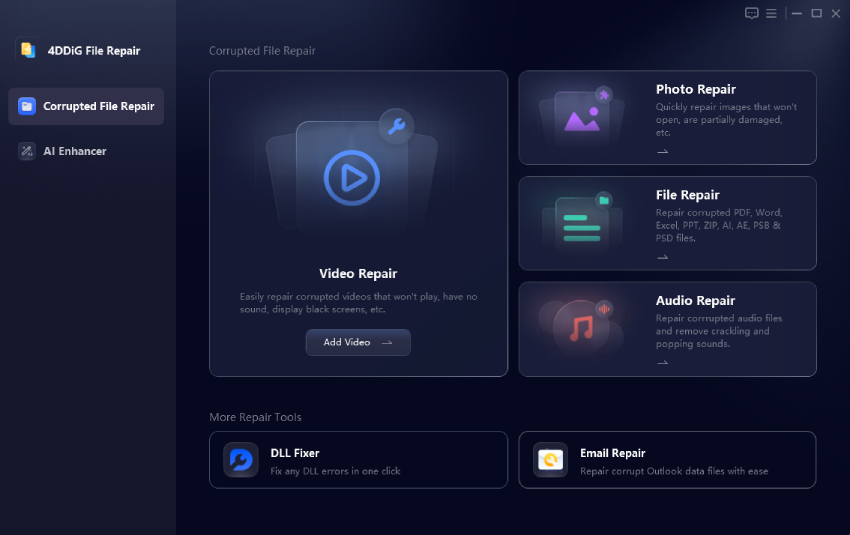
How to Batch Fix Corrupted M4V Files Using 4DDiG Video Repair:

  • Get 4DDiG File Repair and fire it up. Click "Add Videos" (or drag and drop) to import the affected M4V files.

    add corrupted m4v files to 4ddig
  • Hit "Repair All" to let the tool analyze and fix the corruption automatically. It works efficiently even on severely damaged files.

    start repairing all corrupted m4v files
  • Once complete, preview the repaired video to check the quality.

    preview repaired m4v files
  • Then choose your preferred format (e.g., Original format, MP4, MOV, MKV, AVI) and save the restored file to your desired location.

    export repaired m4v files in preferred format

Other 3 Common Method to Repair M4V Files

If the dedicated software approach doesn’t fit your needs or you prefer trying simpler options first, there are a few other practical ways to tackle M4V file not playing problems. These methods range from quick online tools to free players and command-line options. While they may not work for every severe case, they’re worth trying before giving up on your video.

1. Repair M4V File Online Free with 4DDiG Free Online Video Repair

For a no-install solution, the 4DDiG free online video repair tool offers a convenient choice. It’s especially helpful when you need a fast repair m4v file online free option without downloading software.

  • Visit the official 4DDiG online video repair page.

    4ddig free online video repair
  • Upload your corrupted M4V file (check size limits on the site).

  • Click to Repair All to kick off the repair process.

  • Preview the result once it finishes, then download the fixed video.

    4ddig Online Video Repair Preview Repaired Video

4ddig online video repair preview and save repaired m4v files

This method is straightforward and works well for minor corruption issues.

2. Fix M4V Files with VLC

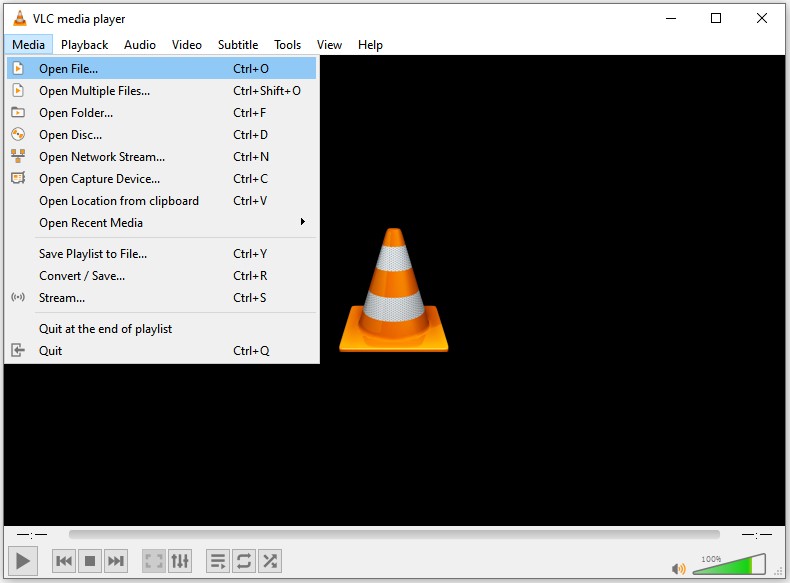
VLC Media Player, a free and widely used tool, can often help fix M4V file problems through its built-in conversion feature. You can simply convert M4V to MP4 using VLC with automatic repair. This method is useful for playback issues or minor container problems.

Steps to Remux Corrupted M4V to Normal MP4 Files:

  • Open VLC Media Player.

  • Go to Media > Convert/Save.

  • In the Open Media panel, tap “+Add” to upload your problematic M4V file.

    add corrupted m4v files to vlc
  • Choose a profile (such as Video – H.264 + MP3 (MP4)) and select a destination.

  • Click Start to convert and repair the file.

    vlc remux corrupted m4v files to mp4

3. Repair Corrupted M4V Files Using FFmpeg

For users comfortable with command-line tools, FFmpeg is a powerful free option that can repair corrupted M4V files by remuxing streams and fixing container issues.

  • Download and install FFmpeg from the official website.

  • Copy your corrupted M4V file into the same folder for easier access.

  • Open Command Prompt (Windows) or Terminal (Mac/Linux) and navigate to the folder using the cd command.

  • Run the basic repair command: ffmpeg -i input.m4v -c copy output.mp4 (replace "input.m4v" with your actual filename).

  • For better error handling, you can try: ffmpeg -err_detect ignore_err -i input.m4v -c copy output.mp4.

  • Once completed, play the new "output.mp4" file to check if the issue is resolved.

This approach is effective for container-level corruption but may require some trial and error with different flags for complex issues.

Conclusion

Repairing an M4V file doesn’t have to be complicated. From understanding why files get corrupted to trying different repair methods, you now have several ways to restore your videos. While online tools, VLC, and FFmpeg offer helpful alternatives, 4DDiG Video Repair stands out as the most reliable and user-friendly choice for consistent results, especially with severely corrupted M4V files.

Give these solutions a try and back up your files first. With the right approach, you can quickly enjoy your videos again without stress.

FREE DOWNLOAD

Secure Download

FREE DOWNLOAD

Secure Download

William Bollson (senior editor)

William Bollson, the editor-in-chief of 4DDiG, devotes to providing the best solutions for Windows and Mac related issues, including data recovery, repair, error fixes.

(Click to rate this post)

You rated 4.5 ( participated)