How to Fix Roku Black Screen with/without Sound

5 mins read

Updated on 2026-04-08 20:53:54 to Video Error

Nothing ruins movie night faster than a Roku TV screen black. Whether you have sound but no picture or the screen goes dark during playback, these problems are common. This article covers why your Roku TV turns on but the screen is black and offers practical solutions. Follow our step-by-step guide to troubleshoot and fix your Roku TV black screen with/without sound issue once and for all.

Why Is Your Roku TV Screen Black? (Common Scenarios & Causes)

Before jumping into fixes, it helps to identify which type of black screen you're dealing with. The cause: and the solution: can vary quite a bit depending on the situation.

Common Scenarios

Here are the most frequent black screen situations Roku users run into:

  • Roku TV turns on but the screen is black: no picture, no sound, nothing at all
  • Roku TV has sound but no picture: you can hear audio, menus, or even content playing in the background, but the display stays dark
  • The screen goes black while playing video: everything looks fine at first, then the picture suddenly cuts out mid-stream
  • A specific app shows a black screen: only one app like YouTube or Hulu is affected, while everything else works normally

Common Causes

Once you recognize your scenario, the root cause usually falls into one of these categories:

  • Loose or faulty HDMI connections: a cable that isn't fully seated can drop the video signal entirely
  • Incorrect input/source selection: the TV is powered on but pointing to the wrong input
  • Backlight failure: the panel's backlight burns out, leaving the screen dark even though the TV is technically working (this is often why you have sound but no picture)
  • Auto power-off or sleep settings: Roku's built-in power-saving features can shut the screen off during inactivity or long streams
  • Weak or unstable Wi-Fi: buffering and dropped connections can sometimes cause the picture to freeze or go black
  • HDCP handshake issues: a compatibility mismatch between your Roku and your display over HDMI
  • App-level bugs or corrupted cache: individual apps can crash or fail to load video, resulting in a black screen within that app only
  • Temporary firmware glitches: like any smart device, Roku can occasionally get stuck and need a restart to recover

Now that you have a clearer picture of what might be going on, let's work through each scenario one by one.

Scenario 1: Roku TV Turns On But Screen Is Black (No Sound Either)

If your Roku TV turns on but the screen is black and there's no audio either, the TV likely isn't outputting any signal at all. This is usually a power or connection issue, not a hardware failure, so don't panic. Work through these steps in order before assuming the worst.

Fix 1: Perform a Full Power Cycle

A proper power cycle clears temporary glitches that a standard remote restart won't fix. Here's how to do it correctly:

  • Turn off the TV using the remote or the power button on the unit.

  • Unplug the power cord directly from the wall outlet, not just from a power strip.

  • Wait a full 60 seconds. (This step matters, don't skip it.)

    unplug roku tv from electrical outlet
  • While the TV is unplugged, press and hold the physical power button on the TV itself for about 15 seconds. This drains any residual charge.

  • Plug the TV back in and power it on.

In many cases, this alone is enough to bring the picture back. If the screen is still black, move on to the next step.

Fix 2: Check & Cycle Your Input/Source and Connections

Your Roku TV might be on, but pointed at the wrong input — which will show nothing but a blank screen.

  • Press the Home button on your Roku remote to make sure the TV is active.

  • Press the Input or Source button (sometimes labeled with an arrow icon) and cycle through all available inputs, such as HDMI 1, HDMI 2, AV, etc.

    check tcl roku tv input source connections
  • While you're at it, check every HDMI cable connected to the TV:

    • Unplug each cable from both ends.
    • Inspect for bent pins or visible damage.
    • Firmly reseat each cable until it clicks into place.
  • If you have a spare HDMI cable, swap it in to rule out a faulty cable.

Sometimes the fix really is this simple, the TV is running fine, it just isn't showing the right source.

Fix 3: Try the Secret Remote Restart Sequence & a Different Outlet

Roku has a lesser-known remote shortcut that can force a restart even when the screen is completely dark:

  • Point the remote at the TV.

  • Press the following buttons in sequence: Home (×5) > Up (×1) > Rewind (×2) > Fast Forward (×2)

    roku tv remote restart
  • Wait about 10–15 seconds. The TV should restart on its own.

If that doesn't work, try plugging the TV into a different wall outlet. Power surges or an under-powered outlet can sometimes prevent the TV from booting correctly. Avoid using extension cords or power strips if possible — plug directly into the wall.

Scenario 2: Roku TV Black Screen With Sound (Picture Gone, Audio Works)

This is one of the most common — and most confusing — Roku black screen situations. Your Roku TV screen went black but still has sound, which tells you the TV is technically alive and receiving signal. The problem is almost always display-related: either a hardware issue (like the backlight), an HDMI signal conflict, or interference from a connected device.

Here's how to narrow it down.

Fix 1: Disconnect All External Devices

External devices (soundbars, streaming sticks, game consoles, or HDMI splitters) can sometimes interfere with the display signal, especially if there's a power or handshake conflict.

  • Unplug every device connected via HDMI, including soundbars and any external streaming sticks.

  • Also disconnect any USB devices plugged into the TV.

  • Power the TV off completely, wait 30 seconds, then power it back on.

  • Check if the picture returns with nothing else connected.

If the screen comes back, reconnect your devices one at a time to identify which one is causing the conflict.

Fix 2: Try a Different HDMI Port or Cable

If you're running content through an external device (like a cable box or streaming stick) and the screen is dark but audio is coming through, the HDMI connection itself may be the weak link.

  • Move the HDMI cable to a different port on the TV, for example, switch from HDMI 1 to HDMI 2.

  • Update the input selection on the TV to match the new port.

  • If the problem persists, swap in a different HDMI cable entirely.

  • For best results, use an HDMI 2.0 cable, particularly if you're streaming 4K content, older cables may not handle the signal reliably.

Note for TCL Roku TV users: If you're seeing a TCL Roku TV black screen with sound, this HDMI swap step is especially worth trying, as TCL models can occasionally have port-specific signal issues.

Fix 3: Run the Backlight Flashlight Test

If you've tried everything above and the screen is still dark with audio playing, there's a good chance the TV's backlight has failed. Here's a quick way to check:

  • Turn on the TV and play something with audio so you know it's active.

  • Shine a flashlight (your phone torch works perfectly) directly at the screen at a close range and a slight angle.

  • Look carefully for a faint, dim image behind the glass.

If you can see a faint picture, the backlight has failed, the panel itself is working, but there's no light behind it to make the image visible. This is a hardware issue that typically requires professional repair or a replacement panel.

If you see nothing at all, the problem may be deeper, a failed T-Con board or main board — and a service technician would need to take a closer look.

Scenario 3: Roku TV Screen Goes Black While Playing Video

Few things are more annoying than settling in to watch something, only to have the picture suddenly cut out mid-stream. If your Roku TV screen goes black while playing video but comes back when you press a button or the audio keeps going, the issue is rarely a hardware failure. It's more likely a power-saving setting, a shaky Wi-Fi connection, or an HDMI compatibility conflict. Try these fixes in order.

Fix 1: Disable Auto Power-Off

Roku's built-in Auto Power-Off feature is designed to save energy, but it can kick in during long streams or slow-paced content and shut the screen off unexpectedly. Here's how to turn it off:

  • Press the Home button on your Roku remote.

  • Go to Settings > System > Power.

  • Select Auto Power-Off and set it to Off (or adjust the timer to a longer interval if you prefer to keep it enabled).

    roku tv turn off auto power savings to fix black screen
  • Also check Settings > System > Screen Saver and extend or disable the screen saver timer while you're here.

Once this is off, test playback again to see if the screen stays on consistently.

Fix 2: Check and Stabilize Your Wi-Fi Connection

A weak or unstable Wi-Fi signal is a surprisingly common cause of the screen going dark during streaming. When the connection drops below a usable threshold, some apps simply go black rather than displaying a buffering screen.

  • On your Roku remote, press Home and go to Settings > Network > Check Connection to run a quick diagnostic.

    check roku tv network connections
  • If signal strength is weak, try moving your router closer to the TV — or move the TV closer to the router if that's an option.

  • Reduce interference by keeping the TV away from microwaves, cordless phones, and other devices that compete on the 2.4 GHz band. Switching to a 5 GHz network can make a noticeable difference.

  • If Wi-Fi continues to be unreliable, connecting via an Ethernet adapter (Roku supports this on select models) gives you a much more stable connection for streaming.

If you've been wondering why your Roku is connected but not working properly during playback, an unstable Wi-Fi signal is often the real culprit — even when the connection technically shows as active.

Fix 3: Adjust HDMI/HDCP Settings

HDCP (High-bandwidth Digital Content Protection) is a copy-protection protocol that runs over HDMI. When there's a handshake mismatch between your Roku and your display, it can cause the picture to drop out intermittently, especially when switching between apps or resuming playback.

  • Press Home and go to Settings > System > Advanced System Settings.

  • Select Advanced Display Settings.

  • Find Auto-detect display type and toggle it off, then back on to force the TV to re-establish the HDMI handshake.

    roku tv auto detect display type
  • If the issue persists, go back to Advanced Display Settings and try manually changing the HDMI mode (switching between HDMI 1.4 and HDMI 2.0, for example).

  • Unplug the HDMI cable, wait 10 seconds, and firmly reseat it — this alone can resolve intermittent HDCP errors.

Scenario 4: Specific App Black Screens on Roku TV — YouTube, Hulu & More

If the black screen only happens inside a particular app and say, you're getting a Roku YouTube black screen with sound, or Hulu launches but shows nothing. The good news is that the TV itself is almost certainly fine.

This is an app-level issue, and it's usually caused by a corrupted cache, a network hiccup, or an account session that needs to be refreshed. These three fixes resolve the vast majority of app-specific black screen cases.

Fix 1: Remove and Reinstall the App

  • Clearing out a corrupted app installation is often the fastest way to get things working again.

  • From the Roku home screen, highlight the app that's causing problems (don't open it yet).

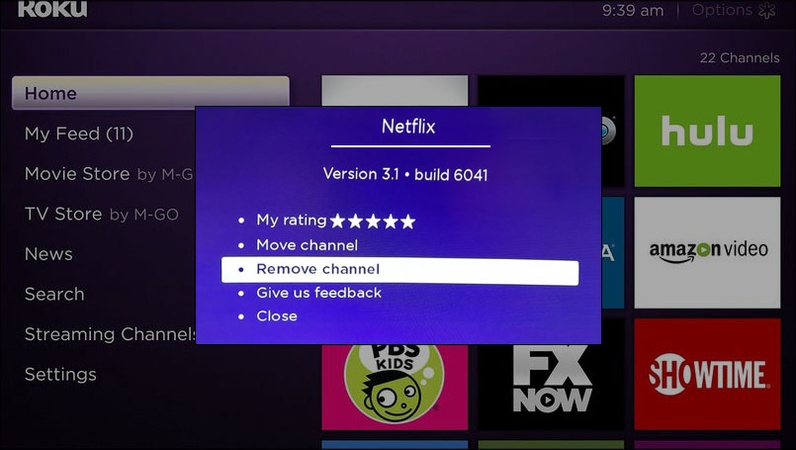
  • Press the Star () button on your remote to open the options menu.

  • Select Remove Channel and confirm.

  • Press Home, then go to the Roku Channel Store.

  • Search for the app, select it, and choose Add Channel to reinstall a fresh copy.

  • Open the app and test playback.

This clears any corrupted data that may have built up over time without affecting your other apps or Roku settings.

Fix 2: Reset Your Network Connection

Sometimes an app black screen isn't about the app at all. It's a stale network state that's blocking the video stream from loading properly. A quick network reset often clears it up.

  • Go to Settings > Network > Set Up Connection.

  • Select your Wi-Fi network and re-enter the password to establish a fresh connection.

  • Alternatively, try a faster reset: Home (×5) → Up (×1) → Rewind (×2) → Fast Forward (×2). This restarts the system and refreshes the network state simultaneously.

  • Once reconnected, open the app again and see if the picture loads correctly.

This is particularly useful if Roku screen mirroring or streaming features have also been acting up alongside the app issue, as both can stem from the same underlying network problem.

Fix 3: Sign Out and Back Into the App Account

An expired or corrupted login session can silently break video playback — the app opens, the interface loads, but the video feed stays black because the authentication token has timed out.

  • Inside the affected app, navigate to its Settings or Account section.

  • Select Sign Out (or Log Out). For example, log out Hulu app account to fix Hulu black screen on Roku TV.

    log out hulu account to fix hulu black screen on roku
  • Close the app completely by pressing Home.

  • Reopen the app and sign back in with your account credentials.

  • Try playing a video to confirm the fix worked.

If you're not sure where the sign-out option is, removing and reinstalling the app (Fix 1 above) will automatically clear your session, so you can log in fresh after reinstalling.

⚡ Bonus Tip: How to Fix Video Black Screen Due to File Corruption

If the black screen happens when playing your own downloaded or recorded videos (instead of streaming apps), the file itself might be corrupted. This can occur after incomplete downloads, transfer errors, or storage issues.

A reliable way to fix these damaged videos is with 4DDiG Video Repair. This tool is designed to repair various video problems, including black screens, and it supports many popular formats like MP4, MOV, and MKV. It has a user-friendly interface and offers an Advanced Repair mode that works well for heavily damaged files.

FREE DOWNLOAD

Secure Download

FREE DOWNLOAD

Secure Download

Here’s how to use it:

  • Get and launch 4DDiG File Repair on your computer. Click “Add Files” to select the corrupted videos that show a black screen.

    add corrupted black screen videos to 4ddig
  • Choose “Repair All” to start the basic fix. For more serious damage, switch to Advanced Repair mode while previewing the repaired the results.

    repair all black screen videos
  • Preview the repaired video to make sure the picture and sound are back to normal, then save the fixed file to a new location.

    preview and save repaired videos

Once repaired, you can transfer the video back to your Roku TV or play it through a USB drive or media app. This method saves videos you thought were lost and prevents the frustrating black screen.

Conclusion

Dealing with a Roku TV black screen can be frustrating, but most issues can be fixed quickly with the right steps. Whether your Roku TV turns on but shows no picture, has sound but no image, or goes black during playback, these troubleshooting methods usually solve the problem. For video files that still show a black screen due to corruption, try 4DDiG Video Repair. It’s a simple and effective tool that can fix damaged videos and restore your playback.

FREE DOWNLOAD

Secure Download

FREE DOWNLOAD

Secure Download

William Bollson (senior editor)

William Bollson, the editor-in-chief of 4DDiG, devotes to providing the best solutions for Windows and Mac related issues, including data recovery, repair, error fixes.

(Click to rate this post)

You rated 4.5 ( participated)