12 Best HDR Video Players for Windows/Android/Mac/TV in 2026 (Free & Paid)

HDR videos are meant to look stunning, but the reality is often disappointing; washed-out colors, gray blacks, or dull highlights ruin the experience. Choosing the best HDR video player is just as important as having HDR content itself. In this guide, we’ll explain why HDR playback fails, how to fix it fast, and which HDR video players truly deliver vibrant, accurate visuals across Windows, Android, Mac, and TVs in 2026.
⚡ Part 1. Why HDR Looks Terrible & Quick Fixes for Washed Out/Dull/Gray HDR
1. Is Your HDR Video Showing These Problems?
Many users assume HDR is broken when videos look worse than SDR. In reality, HDR playback issues usually come from mismatched hardware, incorrect settings, or poor tone mapping. These problems are extremely common, even on high-end systems. Common HDR playback issues include:
- Washed-out or gray colors instead of rich contrast
- Blacks appear faded instead of deep
- HDR not triggering on TVs or monitors
- Dull highlights with no brightness "pop."
- Color banding in gradients
- Stuttering or frame drops in high-bitrate REMUX files
Understanding these symptoms helps you apply the right fix instead of endlessly switching players.
7 Effective Ways to Convert HDR to SDR on iPhone/Mac/More [Full Guide]
2. Quick Solutions for HDR Video Issues:
Now that you know the common causes, let’s explore some of the quickest and easiest solutions that you can try to fix them:
Solution 1. Check If Your Display Supports HDR
Not all “HDR-ready” displays can render real HDR. Before adjusting any software, check for official HDR formats like HDR10, HDR10+, Dolby Vision, or HLG, and ensure your HDMI cable supports HDMI 2.0 or higher. Without proper hardware, HDR will always look flat.
Solution 2. Enable Windows 11 + VLC HDR Settings
On Windows 11, HDR must be enabled at both the system and player levels. Many users enable HDR in Windows but forget to activate HDR output inside their video player.
On Windows: Just Go to “Settings” in Windows and choose “System" > "Display" > turn on the "Use HDR” option under Brightness & color.
On VLC: Click the "Tools" tab > “Preferences”. Switch to “Video” and set “Output” to "Direct3D11 video output” to enable HDR settings. Then restart VLC and replay the HDR video.
This ensures that HDR metadata is passed correctly to your display.
How to Fix VLC Not Playing Video Issues: Ultimate Guide (2026)
Solution 3. Colorize Your Videos in Vivid Hues with AI
Sometimes, HDR files themselves are poorly graded or converted, making them look dull no matter the player. In these cases, enhancing the video itself is the most effective solution.
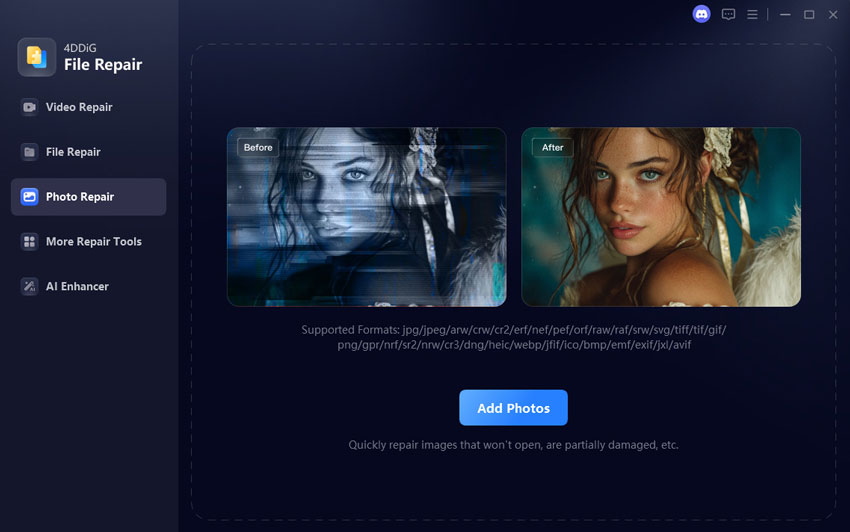
4DDiG AI Video Colorizer uses AI to intelligently restore brightness, contrast, and color depth without manual tuning. With it, you can add vivid color and enhance details to your videos in one click without quality loss.
-
Launch 4DDiG File Repair and choose the "AI Enhancer” > "Video Colorizer" feature.
FREE DOWNLOADSecure Download
-
Then click "Add Videos" to import the HDR or washed-out video.
-
Select the AI "Colorize Model" and choose what type of videos you are working with, then click "Colorize”.
-
4DDiG will automatically enhance your video with dynamic colors and give you a side-by-side preview of the results. Click “Save” then choose a location on your computer to save the video.
This method is ideal when HDR metadata is missing or broken, and it works even on older displays.
[Top 6] AI Colorize Video Tools to Revive Your Vintage Footage
Part 2. Quick Answer: Which Is the Best 4K HDR Video Player You Should Choose
This table gives a fast answer if you just want the best HDR video player for your device.
Part 3. Top 5 Best HDR Video Players for Windows 11/10 - 2026 List
If you are using Windows 10 or 11, here is the list of the best HDR video players that you can use on your PC or laptop:
1. PotPlayer – Customizable & Free 4K HDR Player
🎨 Tone Mapping: Adjustable built-in tone mapping
💡 Formats: HDR10, HDR10+ (limited support), HLG
💰 Price: Free
☺️ Best For: Best for advanced users and HTPC enthusiasts
PotPlayer is one of the most powerful HDR video players available for Windows. It supports HDR playback with GPU acceleration, ensuring smooth performance even with large 4K files. Advanced users appreciate its deep customization options.
- Pros
- Cons
-
- Excellent performance with GPU acceleration (DXVA2 / CUDA / QuickSync)
- Highly customizable HDR tone mapping and color settings
- Lightweight with very low CPU/GPU usage
- Supports HDR10, HDR10+, and HLG with correct Windows HDR triggering
- Large codec and subtitle format support
-
- Steep learning curve for beginners
- HDR configuration requires manual setup (Direct3D11 output, Windows HDR toggle)
- No native Dolby Vision playback (falls back to HDR10)
- UI feels outdated compared to modern players
2. MPC-HC + MadVR – Best for Videophiles
🎨 Tone Mapping: Industry-leading and dynamic
💡 Formats: HDR10, HDR10+ (limited support), Dolby Vision (fallback to
HDR10 only)
💰 Price: Free
☺️ Best For: Best for videophiles and home theater enthusiasts
This setup is considered the gold standard for HDR playback quality. MadVR provides reference-level tone mapping that surpasses most commercial players. It is ideal for enthusiasts who want maximum control over HDR rendering.
- Pros
- Cons
-
- Reference-grade HDR tone mapping with frame-by-frame dynamic processing
- Best color accuracy and highlight detail retention for HDR movies
- Supports HDR10, HDR10+, and Dolby Vision (converted to HDR10)
- Massive customization for calibration professionals
-
- Extremely complex setup for beginners
- High GPU requirements (RTX 3060+ recommended for 4K HDR)
- No official development support (community-driven)
- Not ideal for laptops or low-power systems
3. CnX Media Player – Smooth 4K HDR Playback on Any GPU
🎨 Tone Mapping: Automatic system-managed tone mapping
💡 Formats: HDR10
💰 Price: Free app with some paid features
☺️ Best For: Best for casual users and low-end PCs who want smooth HDR
playback with minimal setup
CnX Media Player focuses on smooth HDR playback rather than advanced customization. It performs well on mid-range GPUs, making it a practical choice for laptops and low-power systems.
- Pros
- Cons
-
- Smooth HDR playback even on mid-range GPUs
- Simple interface with automatic HDR detection
- Good for laptops and low-power systems
- Supports major codecs without heavy configuration
-
- Limited HDR tone mapping control
- Fewer advanced features compared to VLC or PotPlayer
- Some features locked behind paid version
- Smaller community and plugin ecosystem
4. VLC Media Player – Reliable HDR with Easy Settings
🎨 Tone Mapping: Basic, relies heavily on Windows HDR pipeline
💡 Formats: HDR10, HLG
💰 Price: Free
☺️ Best For: Best for beginners and cross-platform users who want free
and reliable HDR playback
VLC Media Player remains one of the most trusted media players worldwide. Recent updates have improved HDR handling on Windows 11, offering simple and reliable HDR playback.
- Pros
- Cons
-
- Free, open-source, and widely trusted
- Easy HDR playback on Windows 11 with Direct3D11 output
- Supports HDR10 and HLG across platforms
- Excellent codec and streaming protocol support
-
- Basic HDR tone mapping with less accurate color reproduction
- No HDR10+ or Dolby Vision metadata handling
- UI and settings for HDR are not beginner-friendly
- Performance drops on high-bitrate 4K REMUX files
5. PowerDVD Ultra – 4K Blu-ray Disc Playback
🎨 Tone Mapping: Automatic hardware-accelerated tone mapping
💡 Formats: HDR10, Dolby Vision
💰 Price: Up to $100
☺️ Best For: Best for 4K Blu-ray disc users
PowerDVD Ultra is designed for users who play physical 4K Blu-ray discs. It offers licensed playback with consistent HDR output and official Dolby Vision support.
- Pros
- Cons
-
- Official licensed 4K UHD Blu-ray disc playback
- Reliable Dolby Vision and HDR10 support
- Excellent Blu-ray menu and DRM support
- Optimized for home theater PC setups
- Consistent HDR output
-
- Expensive subscription or license cost
- Strict hardware and DRM requirements
- Limited customization compared to MadVR setups
- Focused mainly on disc playback, not power-user tweaks
Part 4. Top 3 Best 4K HDR Video Players for Android
Many users prefer watching HDR content on their Android devices, and here are the best video players that support playing high-quality 4K HDR videos on Android.
1. VLC for Android – Best Free HDR Player with HDR10 Support
🎨 Tone Mapping: System-managed HDR with no advanced controls
💡 Formats: HDR10
💰 Price: Free
☺️ Best For: Best for Android users who want a free HDR player
VLC for Android delivers stable HDR playback without ads or hidden costs. It supports a wide range of video formats and performs reliably on most modern Android phones and tablets. It is a dependable choice for users who want simple HDR playback with minimal setup.
- Pros
- Cons
-
- Free, no ads, open-source
- Reliable HDR10 playback
- Good codec compatibility
- Lightweight and efficient
-
- No advanced HDR tone mapping
- Relies heavily on device system HDR handling
- Limited UI for HDR calibration
2. MX Player Pro – Battery-Friendly 4K HDR Playback
🎨 Tone Mapping: Automatic, relies on Android system HDR handling
💡 Formats: HDR10
💰 Price: Up to $6
☺️ Best For: Best for mobile users focused on battery efficiency
MX Player Pro is optimized for efficient video decoding, making it suitable for long HDR viewing sessions. It focuses on smooth playback and low power consumption rather than advanced HDR processing. This makes it a good option for users who prioritize battery life.
- Pros
- Cons
-
- Excellent battery efficiency
- Smooth playback with hardware decoding
- Good subtitle support
-
- Limited codecs without custom packs
- Minimal HDR tuning
- HDR relies on Android system implementation
3. Nova Video Player – Clean HDR Trigger & Minimal Washed Issues
🎨 Tone Mapping: Automatic HDR passthrough to system / TV
💡 Formats: HDR10
💰 Price: Free
☺️ Best For: Suitable for users who want a clean local media player
interface
Nova Video Player is designed to properly trigger HDR mode on Android TVs and compatible devices. It offers a clean, minimal interface focused on local media playback. While it lacks advanced controls, it reliably handles HDR content without unnecessary complexity.
- Pros
- Cons
-
- Clean UI for Android TV
- Reliable HDR trigger on TVs
- Good local library management
-
- No advanced HDR processing
- Few customization features
- Not ideal for mobile phones
Part 5. Top 4 HDR Players & Devices for Mac, iOS & TV Streaming
If you are using a Mac, iOS devices, and TV Streaming, here are the top 4 options you can try:
1. IINA – Free Mac HDR Player
🎨 Tone Mapping: Basic macOS system-level HDR handling
💡 Formats: HDR10
💰 Price: Free
☺️ Best For: Best for Mac users who want a free native HDR player
IINA is the most popular native HDR video player designed specifically for macOS. It integrates tightly with Apple’s system frameworks and offers smooth HDR playback with a modern macOS-style interface. The player focuses on simplicity and system-level compatibility rather than advanced HDR processing.
- Pros
- Cons
-
- Native macOS HDR support
- Modern UI and system integration
- Lightweight and free
-
- No Dolby Vision support
- Limited HDR tone mapping customization
- Depends heavily on macOS HDR pipeline
2. Infuse – Dolby Vision Support
🎨 Tone Mapping: High-quality device-dependent software tone mapping
💡 Formats: HDR10, Dolby Vision (Apple TV and supported devices)
💰 Price: Free
☺️ Best For: Suitable for users who want Dolby Vision and premium
playback quality
Infuse delivers high-quality HDR playback across Apple devices with a strong focus on visual accuracy. It supports advanced tone mapping and handles HDR content reliably on Apple TV, iPhone, and iPad. Dolby Vision support is best on Apple TV, while macOS playback is more limited.
- Pros
- Cons
-
- Excellent Dolby Vision playback on Apple TV
- High-quality tone mapping
- Great media library management
- Strong ecosystem integration
-
- Subscription required for full features
- Limited advanced calibration tools
3. [Hardware] Nvidia Shield Android TV Pro
🎨 Tone Mapping: Automatic and hardware-level (device- and TV-managed
HDR output)
💡 Formats: HDR10, HDR10+, Dolby Vision
💰 Price: Paid
☺️ Best For: Suitable for users who need top-tier HDR performance on
Android TV
NVIDIA Shield TV Pro is one of the most powerful streaming and media playback devices available. It supports advanced HDR formats and has enough processing power for high-bitrate local playback and demanding streaming apps. The device is especially popular among home theater enthusiasts.
- Pros
- Cons
-
- Hardware-level HDR processing
- Full support for HDR10, HDR10+, Dolby Vision
- Excellent for Plex and local playback
- Excellent app and codec support
-
- Expensive
- Overkill for casual users
4. Roku Express 4K+ – Streaming Player in 4K/HD/HDR
🎨 Tone Mapping: Automatic (system-managed, no user adjustment)
💡 Formats: HDR10, HDR10+, HLG, Dolby Vision
💰 Price: ~ $40 - $60
☺️ Best For: Suitable for users who want an affordable HDR streaming
device
Roku Express 4K+ focuses on simple and reliable HDR streaming with minimal setup. It is designed for users who want plug-and-play access to streaming apps without advanced configuration. While streaming performance is solid, local media playback options are limited.
- Pros
- Cons
-
- Very easy to use
- Affordable HDR streaming device
- Supports multiple HDR formats
-
- Weak local media playback
- Limited customization and codecs
People Also Ask about HDR Video Player
Q1: Which video player supports HDR?
PotPlayer, VLC, MPC-HC + MadVR, IINA, and Infuse all support HDR playback.
Q2: Can VLC play HDR videos?
Yes, VLC supports HDR10 and HLG with proper settings enabled.
Q3: How to play videos in HDR?
You need an HDR-capable display, enabled system HDR, and a compatible video player.
Q4: What is the best media player for HDR10+?
PotPlayer and MPC-HC with MadVR provide the best HDR10+ support.
Q5: Why does HDR look washed out even after enabling it?
This usually happens due to incorrect tone mapping or broken HDR metadata.
Q6: Why does HDR turn off when playing games?
Some games override system HDR settings, temporarily disabling HDR output.
Conclusion
Choosing the best HDR video player is essential for unlocking true HDR quality. From free software like PotPlayer and VLC to premium solutions and hardware players, the right choice depends on your device and needs. If HDR videos still look dull or washed out, enhancing them directly with 4DDiG AI Video Colorizer ensures vibrant, eye-catching results, no matter the display.
Secure Download
Secure Download
💡 Summarize with AI:
You May Also Like
- Home >>
- Video Tips >>
- 12 Best HDR Video Players for Windows/Android/Mac/TV in 2026 (Free & Paid)
ChatGPT
Perplexity
Grok