Windows Photos It Looks Like We Don't Support This File Format: Why & How to Fix It

5 mins read

Updated on 2026-07-10 10:28:29 to Photo Error

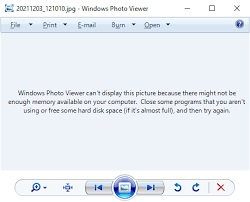
Seeing the error “I t looks like we don't support this file format” in Windows Photos can be frustrating, especially when your image will not open. This message usually means the app cannot read the file due to format issues or corruption. It commonly affects JPG and PNG files, especially after data recovery. In this guide, we discuss what causes this error and how you can fix it step by step using simple solutions.

Quick Answer: Easy Ways to Fix “It Looks Like We Don’t Support This File Format” Error

Many users notice it looks like we don't support this file format after recovery, especially when files are restored from damaged storage or recovery tools.

If you’re facing this issue, don’t worry. In most cases, it happens due to file corruption or app glitches. The fastest fixes include trying another viewer, repairing the image, or resetting Windows Photos.

  • Method
  • Brief Steps
  • Use another photo viewer
  • Open image in FastStone or XnView instead of Photos app
  • Repair corrupted image
  • Use a repair tool like 4DDiG Photo Repair to fix JPG/PNG files
  • Reset Windows Photos app
  • Go to Settings → Apps → Photos → Reset
  • Rename file extension
  • Change .jpg/.png format and try reopening

What Does "It Looks Like We Don't Support This File Format" Mean & Why It Appears?

When you see “it looks like we don't support this file format”, it means Windows Photos cannot read or decode the image file correctly. This usually happens when the file is partially missing or saved in a format the app cannot fully process.

This issue is also closely related to Windows photos it looks like we don't support this file format errors that appear after updates, system changes, or unsupported codecs.

Error Message Meaning + Common Error Messages

This message appears when the Photos app fails to open an image due to compatibility or file structure problems. You may also see similar alerts like:

These all point to the same issue: the system cannot properly read the image data.

Common Reasons

Several factors can trigger this error. One major cause is how to fix it looks like we don't support this file format situation after file recovery, where images become partially corrupted. Other common reasons include:

  • Corrupted or incomplete JPG/PNG files
  • Unsupported image codecs in Windows Photos
  • Files damaged during transfer or recovery
  • Incorrect file extensions or renamed files
  • Outdated Photos app or system updates

In most cases, the issue is not with the image type itself, but with how Windows is reading or interpreting the file.

⚡ How to Fix "Windows Photos It Looks Like We Don't Support This File Format" Error

Sometimes Windows Photos refuses to open an image even when everything looks normal. This usually happens due to app glitches, missing support, or file damage. Many users also experience Windows Photos error not supported format after updates or file transfers. Here are some of the fixes you can try:

Fix 1: Repair or Reset the Windows Photos App

If the Photos app starts misbehaving, it can block images from opening even when the file is perfectly fine.

The steps for this are:

  • Open Settings and go to Apps > Installed apps

  • Find Microsoft Photos and open Advanced options

    open windows photos advanced options
  • Click Repair first

    repair or reset windows photos
  • If nothing changes, click Reset

Fix 2: Open the Problem File in Another Photo Viewer

Before assuming your image is broken, you should try to test it in a different program.

Sometimes the file is completely fine, but Windows Photos simply cannot read it. This is common in cases of image file not opening in Windows 10.

Try apps like:

  • FastStone Image Viewer
  • XnView

To do this fix, here are the steps you should follow:

  • Right-click the image file

  • Choose Open with

  • Select another viewer

  • Check if the image loads properly

    view images in faststone image viewer

Fix 3: Check and Repair Corrupted JPG or PNG Files

When images fail everywhere, the file itself is usually damaged. This mostly happens after recovery tools, sudden shutdowns, or transfer interruptions. Instead of replacing the file, you can try repairing it using 4DDiG Photo Repair, which is designed for damaged images.

Main Features

The 4DDiG Photo Repair has many useful features:

  • Fixes broken JPG, PNG, HEIC files
  • Works even on heavily corrupted images
  • Repairs multiple files in one go
  • Keeps original quality and resolution
  • Very simple for beginners
FREE DOWNLOAD

Secure Download

FREE DOWNLOAD

Secure Download

Steps to Fix Corrupted JPG or PNF Files Using 4DDiG

  • Get 4DDiG Photo Repair installed and go to “Photo Repair” fromt eh left menu and choose “Add Photos” to upload the damaged images

    add corrupted jpg png photos to 4ddig
  • Then hit the bottom-right “Repair All” button to commence the JPG and PNG repair process.

    repair all corrupted images
  • Wait for second and preview the repaired result.

    preview the repaired photos
  • Save the restored files in the format you want.

    save repaired images in preferred format

Fix 4: Rename the File Extension

In some cases, nothing is actually wrong with the image. The file extension may just be incorrect, which confuses Windows Photos.

This happens more frequently than people think, especially after downloads or file transfers.

To fix this error, follow these steps:

  • Right-click the image and select Rename.

  • Change extension (like .jpeg to .jpg or .png)

  • Press Enter

  • Try opening again

How to Prevent "Windows Photos Don't Support This File Format Error" in the Future

To avoid running into this error again, there are many small habits that can help you avoid any mistakes when handling image files.

Keep Transfers Clean And Uninterrupted

When moving photos from phone, USB, or cloud, don’t interrupt the process halfway. A sudden disconnect is one of the main reasons behind jpg file not opening in Windows Photos later on. Always safely eject devices before unplugging them.

Be Careful Where You Download Images From

Try to use trusted sources only. Broken or incomplete downloads often lead to format issues or trigger Windows Photos error not supported format messages when you try to open them.

Keep Your System Updated

Windows updates and Photos app updates quietly fix many compatibility problems. If your system is outdated, it can easily struggle with newer image formats.

Don’t Rename File Extensions Randomly

Changing .jpg to .png without a reason can confuse the system. Even if the image is fine, it may stop opening because of incorrect formatting.

Keep A Backup Of Important Photos

Store important images in cloud storage or an external drive. This saves you from stress if a file ever becomes unreadable or corrupted.

Conclusion

The error “it looks like we don't support this file format ” usually appears when Windows Photos cannot open an image because the file is corrupted or slightly damaged.

In most cases, repairing the image is the best solution. 4DDiG Photo Repair can help fix damaged photos and bring them back without losing quality. If your images are not opening, try 4DDiG Photo Repair to quickly fix and recover your photos in just a few steps.

FREE DOWNLOAD

Secure Download

FREE DOWNLOAD

Secure Download

William Bollson (senior editor)

William Bollson, the editor-in-chief of 4DDiG, devotes to providing the best solutions for Windows and Mac related issues, including data recovery, repair, error fixes.

(Click to rate this post)

You rated 4.5 ( participated)