How to Fix Missing Codec Error 0x887a0004 on Windows 10/11 (6 Ways in 2026)
A few days ago, I clicked on a video, ready to watch, and suddenly it wouldn’t play. Instead, I saw the Missing Codec Error 0x887a0004. When I was looking for solutions and found I was not alone. This annoying glitch frequently strikes in built-in apps like Movies & TV, Photos, or Windows Media Player, turning simple playback into a headache.
Thus, I came here and arranged 6 actually feasible solutions for users who face the same problem. Such as, install HEVC Video Extensions, codec pack, convert video format, reinstall media app, or use an alternative player, etc.
Look no further, let's get started
Part 1. What Does Missing Codec Error 0x887a0004 Mean
1. Missing Codec 0x887a0004 Error Meaning
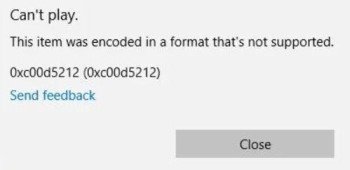
The Missing Codec Error 0x887a0004 pops up when Windows can't find or use the right codec to decode a video file. You'll typically see messages such as:
“Missing codec. Please try again. If the problem continues, visit https://support.microsoft.com to check for guidance. Error Code: 0x887a0004”
In most cases, audio continues normally while the video remains invisible, frozen, or completely absent. Without the proper one, Windows built-in players simply can't render the visuals. This error stands out because it targets Microsoft's own media apps, which have more limited codec support than many third-party options.
2. Typical Platforms & Devices Happening This Error
You'll encounter the 0x887a0004 error most often on Windows 10 and Windows 11 PCs, laptops, or tablets when using default Microsoft apps. The usual suspects include:
- Movies & TV app (also called Films & TV)
- Photos app (especially when previewing or editing short clips from your camera roll)
- Windows Media Player
How to Fix Error Code 0xc00d36c4 While Playing Videos (9 Ways)
Part 2. How to Fix Missing Codec Error 0x887a0004 (6 Quick Ways)
You've identified the problem and its causes. Now let's get your videos playing again. Below are six proven, step-by-step methods to resolve the missing codec 0x887a0004 error, starting with the simplest and most common fixes.
Many users see success with the first one or two, especially on Windows 10 or Windows 11 when the issue hits the Movies & TV app.
1. Install Official HEVC Video Extensions for Windows
The most frequent culprit for 0x887a0004 is missing support for HEVC (H.265) encoding, common in phone videos and 4K clips. Adding this extension often fixes it instantly in built-in apps.
It also works to troubleshoot the error message: The HEVC Video Extensions is required to display this file.
Option A. Install HEVC Video Extensions from Microsoft Store ($0.99)
This is the straightforward paid option that works for all Windows users.
-
Open Microsoft Store. Search for "HEVC Video Extensions".
-
Select the one published by Microsoft (it may show a small price of $0.99).
-
Click “Buy” or “Get” (it may prompt for payment if not free for your device).
-
Once installed, restart your computer or the app, then try playing the video again in Movies and TV or your preferred media player.
Option B. Install HEVC Video Extensions from Device Manufacturer (Free)
Some users qualify for the free version if their device came pre-loaded with it (or via a workaround link).
-
In you browser, head to this HEVC Video Extensions from Device Manufacturer link.
-
If it opens the Store, click “Install” (it should be free if eligible).
-
If unavailable, fall back to Option A or proceed to other methods.
2. Convert Video Format to MP4
If the file uses an unsupported encoding, converting it to a standard H.264 MP4 bypasses codec needs entirely. No extra installations required.
-
Download and open free software like HandBrake (handbrake.fr)
-
Click “Open Source” at top left and select your HEVC video file for upload
-
In Summary tab, confirm the Format is set as MP4.
-
On the right Presets panel, choose “Fast 1080p30” (quick process and decent quality)
-
Then go to the “Video” tab. From Video Encoder, select H.264 (x264) . Or H.264 (NVENC) if you have NVIDIA GPU for faster speed.
-
Click the bottom-right “Browse” button to choose a save location. Then click the top “Start” button.
Afterward, play the new file in Movies & TV, it should work smoothly without popping up missing codec 0x887a0004.
3. Repair Corrupted Video Files (H.265, AV1, RAW, MOV, etc)
Sometimes the error stems from file corruption rather than (or in addition to) missing codecs: damaged headers or data can mimic codec issues.
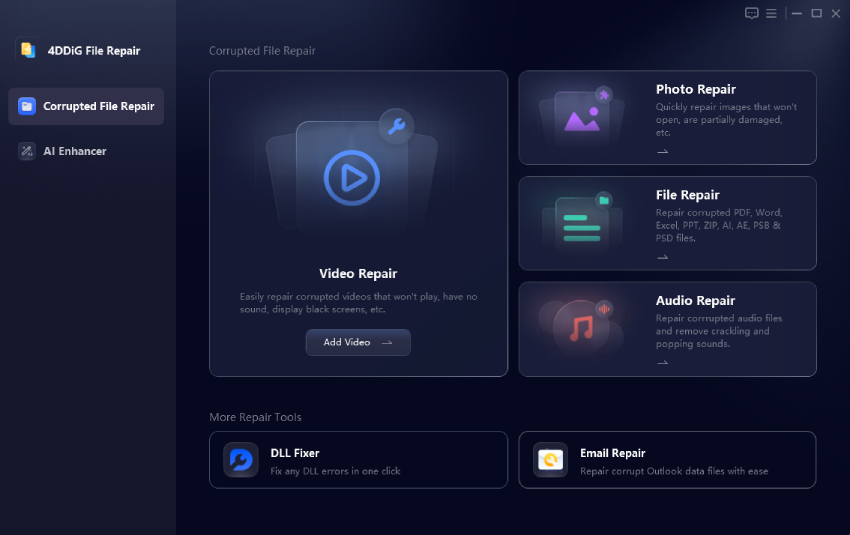
Before assuming it's purely a codec problem, try repairing the video using a reliable tool like 4DDiG Video Repair. It specializes in batch fixing corrupted MP4, MOV, AVI, MKV, and other videos in high success rate.
Steps to repair corrupted videos using 4DDiG Video Repair:
-
Download and install 4DDiG File Repair. Launch it, select "Video Repair" section, and click "Add Videos" or drag-and-drop your problematic files.
-
Hit "Repair All" and wait for the process to finish. If needed, switch to the bottom “Advanced Repair Mode” button for tough cases (it may use a simple file for reference).
-
When finished, preview the repaired video in 4DDiG. If it looks good, click “Save” or “Save All” to export it to your computer.
4. Install a Third-Party Codec Pack in Windows 10/11
Installing a comprehensive codec pack like the popular K-lite Codec Pack provides your system with the ability to decode virtually any video format, effectively preventing most codec-related errors.
-
Go to the official site: codecguide.com to install the K-Lite Codec Pack.
-
Download the “Full” or "Standard" version (avoid bundles with extra software).
-
Run the installer > Choose "Normal" or “Advanced” mode (“Normal” is more recommended). Accept defaults unless you have preferences and click “Install”.
Restart your PC.
5. Reset / Repair Movies & TV App
If the movies and tv missing codec error 0x887a0004 persists specifically in the Movies & TV app, the app itself might be corrupted or misconfigured. Resetting or reinstalling can resolve these issues.
-
Go to “Settings” > “Apps” > “Installed apps” (or Apps & features) in Windows.
Search for "Movies & TV" (or "Films & TV").
-
Click the three dots > select “Advanced options”.
-
Scroll to "Reset" section: First try "Repair", then "Reset" if needed (this clears cache/data).
6. Use Alternative Media Players (such as Windows Media Player, VLC)
If built-in apps keep failing, switch to players with built-in codecs. No more missing codec headaches.
- Windows Media Player (legacy but solid): Right-click video > Open with > Windows Media Player.
- VLC Media Player (highly recommended): Download from videolan.org > Install > Set as default or right-click video > Open with VLC.
Part 3. Why Does 0x887a0004 Codec Error Occur (Causes & Related Fixes)
Part 4. How to Prevent Such Video Codec Not Supported and Not Playing Issues
Quick, effective habits to avoid missing codec error 0x887a0004 in the future:
- Install HEVC Video Extensions now (Microsoft Store – free manufacturer version or $0.99).
- Record/download in H.264 MP4 format whenever possible.
- Keep Windows, Store apps, and graphics drivers updated.
- Set VLC Media Player as backup/default (bundles all codecs).
- Avoid aggressive system cleanups that delete codec-related files.
- Run sfc /scannow + DISM repair every few months.
Conclusion
These are all troubleshooting fixes for missing codec error 0x887a0004. The 0x887a0004 missing codec error is frustrating but usually fixed fast: start with HEVC extensions, convert to MP4, repair corrupted videos with 4DDiG Video Repair, or reset the app. Use the fixes and these prevention tips to keep videos playing smoothly in Movies & TV, Photos, and other Windows apps. No more black screens or codec headaches!
Secure Download
Secure Download
💡 Summarize with AI:
You May Also Like
- Home >>
- Video Error >>
- How to Fix Missing Codec Error 0x887a0004 on Windows 10/11 (6 Ways in 2026)
ChatGPT
Perplexity
Grok