How to Repair Corrupted NEF Files Quickly (Step-by-Step)

5 mins read

Updated on 2026-10-14 11:41:48 to Photo Error

Corrupted NEF files can ruin important photos in seconds. Whether the image won’t open, shows as blank, or triggers error messages, the problem is more common than most photographers expect. This guide helps you quickly tell if the file is truly damaged or simply unsupported, explains why NEF files get corrupted, and shows reliable ways to repair corrupted NEF files so you can get your pictures back without unnecessary stress.

Part 1. Is Your NEF File Corrupted or Just Unsupported?

Before you start any nef file repair process, it helps to confirm the real issue. Sometimes a NEF file looks broken simply because the software you are using does not support the latest Nikon camera model or firmware. Other times the file itself has actual data damage.

Common Signs of a Corrupted NEF File

A genuinely corrupted NEF file usually shows more than a simple "unsupported format" warning. Use the table below to narrow down the cause.

Symptom Likely Cause What To Do
File opens as a blank or gray preview Incomplete write or card error Try opening in another program
Error message: “Unsupported file format” or “File is damaged” Header or metadata corruption Test with official Nikon software
Thumbnail appears but full image fails to load Partial data loss Check file size against normal NEF size
Sudden crash when opening the file Severe structural damage Avoid further edits and move to recovery tools
File size is unusually small or zero Transfer interrupted or card failure Attempt recovery from the original memory card

If you see one or more of these signs, the file is likely corrupted rather than just unsupported.

Test the NEF File with Nikon NX Studio First

The quickest way to check whether your file is truly damaged is to test it with Nikon’s free official software. Follow these simple steps:

  • Go to Nikon’s official website and download the latest version of NX Studio for your computer.
  • Install the program and open it.
  • Drag and drop your NEF file into NX Studio, or use the File > Open menu to select it.
  • Wait a few seconds for the software to load the image.
  • If NX Studio shows the photo clearly, the problem is almost certainly software compatibility rather than real damage. You can then convert or export the file and keep working.
  • If NX Studio also fails to open the image or displays the same error messages, you are dealing with a genuinely corrupted file. In that case you will need dedicated corrupted nef file repair methods.

Part 2. Why Do NEF Files Get Corrupted

Understanding the causes makes future prevention easier and helps you choose the right repair approach. The most common reasons include:

  • Interrupted transfer or ejection: Removing the memory card or unplugging the camera while files are still writing often leaves incomplete data.
  • Faulty or aging memory cards: Bad sectors, physical wear, or cheap cards can scramble RAW data during capture or storage.
  • Power failure during shooting or saving: Sudden battery drain or camera shutdown mid-write frequently damages the file header.
  • Software or firmware conflicts: Using outdated viewers, third-party converters, or mismatched camera firmware can introduce errors when opening or saving.
  • Virus or malware interference: Rare but possible, especially when transferring files across multiple devices.
  • Physical damage to storage: Dropping a card, exposing it to extreme heat, or magnetic interference can corrupt the stored NEF data.

Most of these issues affect the file structure rather than every pixel, which is why many damaged NEF files can still be recovered with the right tools.

⚡ Part 3. How to Repair Corrupted NEF Files Quickly (N Ways)

Once you confirm the file is damaged, you can repair corrupted NEF files with three practical methods. Start with the free official option if the damage is light. Move to a professional tool when you need higher success rates or batch processing. Use an online service only for occasional single-file recovery.

1. Convert and Export NEF Files as JPEG with Official Nikon Software

Nikon NX Studio can sometimes open mildly damaged files and let you save them as JPEG. This method works best when the corruption is limited to the header or metadata.

  • Install and open Nikon NX Studio and load the corrupted NEF file.

  • If the image appears (even partially), go to File > Export or Convert.

    nikon nx studio export option
  • Choose JPEG as the output format, select quality settings, and pick a save location.

  • Click Export and wait for the process to finish.

    nikon nx studio export nef as jpeg

This method does not truly rebuild a severely corrupted RAW file. If NX Studio cannot open the photo, try the next method.

2. Using Professional 4DDiG Photo Repair (Fast, Batch & High Success Rate)

For NEF files that are unreadable, distorted, partially gray, or damaged in batches, 4DDiG Photo Repair offers a more direct solution. It supports RAW photo formats and allows you to repair multiple images at once.

4DDiG Photo Repair (part of 4DDiG File Repair) supports NEF and other RAW image formats and can process multiple damaged photos in one batch. It also lets you preview repaired images before saving them.

Why Choose 4DDiG Photo Repair

  • High success rate on severely damaged NEF files
  • Full support for batch repair so you can fix dozens of photos at once
  • Handles various photos issues
  • Ability to preview repaired images before saving
  • Fast processing speed even with large RAW files
  • Simple interface that requires no technical skills
  • Also support repairing JPG, PNG, HEIC, DNG, CR2, CR3, TIFF, and more image types
  • Provide multiple output image format: JPG, PNG, and the original
FREE DOWNLOAD

Secure Download

FREE DOWNLOAD

Secure Download

Steps to Repair Corrupted NEF Files in Bulk:

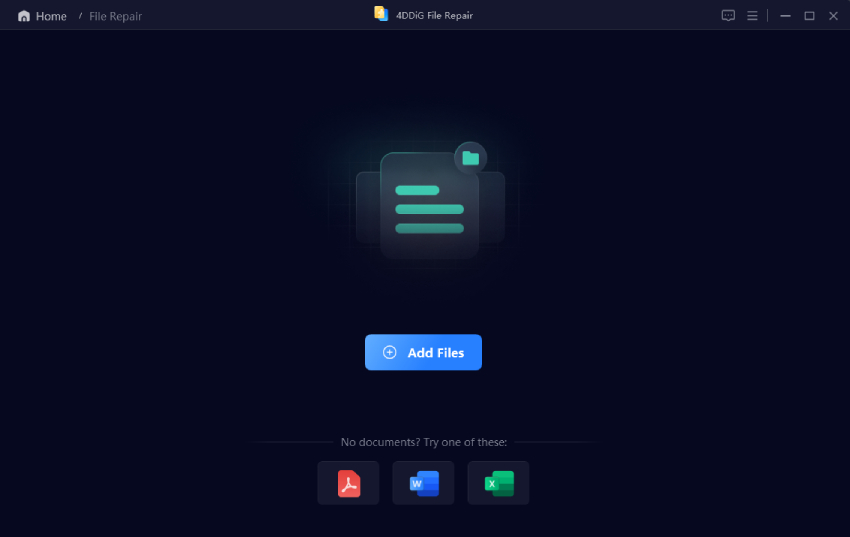
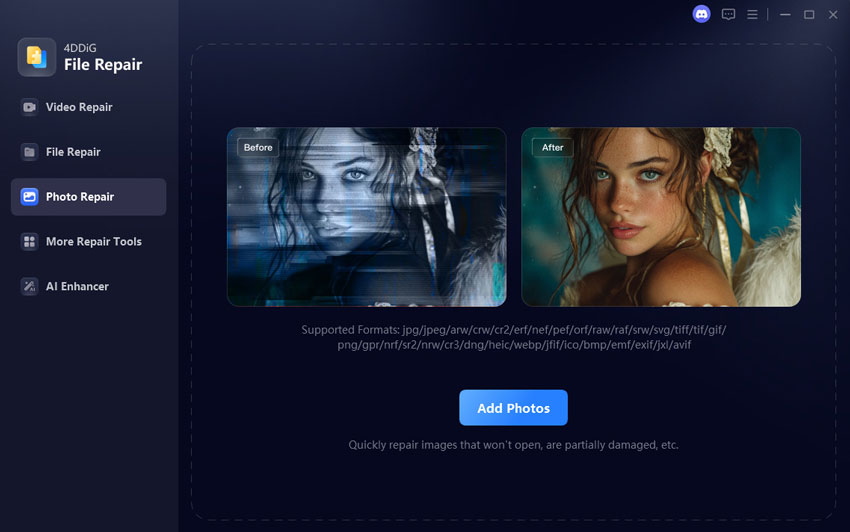
  • Download, install, and fire up the 4DDiG File Repair program. Later, select the left Photo Repair module and click Add Photos or use the drag-and-drop action to import one or more corrupted NEF files.

    add corrupted nef files to 4ddig
  • Click Repair All and wait while the software analyzes the damaged image data and attempts to restore the files.

    start repairing all nef files
  • After the repair is complete, open the preview window and check whether the image, colors, and details look normal.

    preview repaired nef files
  • Then select an output format (JPG, PNG, or the original NEF) and click Save All to export them.

    save repaired nef files in suitable format

3. Using OfficeRecovery Online NEF File Repair Tool

If you do not want to install another desktop program, OfficeRecovery offers an online photo repair service that supports RAW images from Nikon and other major camera brands. It is a convenient option when you only have one or a few damaged NEF files to test.

  • Go to OfficeRecovery Online Photo Repair in your browser.

    officerecovery online photo repair tool
  • Drag the damaged file into the upload area, or click the browse option to select the NEF image from your computer.

  • After the file is uploaded, click Start Repair. The online service will scan the file and attempt to recover usable image data.

  • Processing time depends on the file size and the level of corruption. Keep the browser page open until the analysis is complete.

  • Once repaired, you can click “Preview Results” to check the repaired images. Then click “Buy Results” to pay for and download the repaired NEF file.

    officerecovery preview and save repaired nef files

Conclusion

Corrupted NEF files no longer have to mean permanent photo loss. By testing with Nikon NX Studio first, understanding the common causes, and applying the right recovery method, you can successfully repair corrupted NEF files in most cases. For the fastest results, highest success rate, and convenient batch processing, 4DDiG Photo Repair stands out as the most practical choice among the three methods.

FREE DOWNLOAD

Secure Download

FREE DOWNLOAD

Secure Download

William Bollson (senior editor)

William Bollson, the editor-in-chief of 4DDiG, devotes to providing the best solutions for Windows and Mac related issues, including data recovery, repair, error fixes.

(Click to rate this post)

You rated 4.5 ( participated)