How to Repair Corrupted CR2 Files in 4 Easy Ways

5 mins read

Updated on 2026-10-14 11:41:48 to Photo Error

Corrupted CR2 files can ruin your best photo moments in seconds. These Canon RAW images often fail to open after a transfer glitch or storage issue. The good news is that most problems are easy to spot and fix. If you want to know how to repair corrupted CR2 files, then look no further than this guide. This guide walks you through four practical solutions, plus recovery options for more seriously damaged Canon RAW photos.

Part 1. Why Do CR2 Files Become Corrupted? How to Diagnose It?

CR2 files store rich detail from Canon cameras, but they are not immune to damage. Before trying a CR2 file repair tool, understanding the warning signs and causes helps you act quickly before the problem gets worse.

Common Signs of a Corrupted CR2 File

A CR2 file may be corrupted if you notice one or more of these problems:

  • The file refuses to open in your usual photo software.
  • You see a blank, black, or scrambled preview instead of the real image.
  • The file size looks unusually small or suddenly changes.
  • Error messages appear such as "unsupported format", "CR2 file cannot be opened", or "file is damaged."
  • The photo loads only partially or freezes the program.

If any of these happen, your CR2 file is likely corrupted and needs attention.

Common Reasons Behind Corrupted CR2 Files

Most corruption comes from everyday mishaps rather than complicated technical failures. CR2 photos can become damaged for several reasons:

  • Interrupted file transfer: Disconnecting an SD card or USB drive before copying finishes can leave the RAW file incomplete.
  • Removing the memory card while the camera is writing: This can interrupt the save process.
  • Damaged or failing SD cards: Bad sectors and file-system errors may affect stored photos.
  • Unexpected camera shutdown: A depleted battery during image writing can create incomplete CR2 files.
  • Unsafe drive removal: Removing external storage without ejecting it properly may damage files.
  • File-system corruption: Errors on an SD card, hard drive, or external SSD can make otherwise valid files unreadable.
  • Incomplete recovery: A CR2 photo restored by data recovery software may be missing part of its original data.

Once you have ruled out a simple compatibility problem, move through the following solutions in order.

⚡ Part 2. How to Repair Corrupted CR2 Files in 4 Easy Ways
Once you know your CR2 file is damaged, the next step is to try simple recovery methods. These four approaches work for mild to serious problems and require no advanced skills. The first two methods help determine whether the CR2 is truly corrupted, while the last two are more suitable when the file itself needs repair.

Method 1. Open the CR2 in Another RAW Viewer

Sometimes the issue is not the file itself but the software you are using. Trying a different RAW viewer can open the image without any repair work. This quick check often solves minor compatibility glitches and lets you view the image right away.

  • Download a free RAW viewer such as IrfanView or FastStone Image Viewer.

  • Install the program and open it.

  • Drag your CR2 file into the window or use the File menu to open it.

    open cr2 files in faststone image viewer
  • If the photo appears correctly, save the CR2 as JPEG or TIFF for safe keeping.

    Faststone Image Viewer Batch Convert

Method 2. Update Canon / Adobe RAW Software

An outdated RAW decoder can also make a valid CR2 file appear damaged. Adobe Camera Raw, for example, supports different Canon camera models starting from specific Camera Raw versions. If the camera is newer than your installed software, updating the application may solve the problem without performing any actual repair.

  • Visit the Canon or Adobe website and download the latest Camera Raw or Digital Photo Professional update.

    update canon or adobe software
  • Install the update and restart your computer.

  • Open the updated program and load your CR2 file again.

  • If it opens successfully, export a fresh copy.

Method 3. Repair Corrupted CR2 Files with 4DDiG Photo Repair (High Success Rate for Severe Corruption)

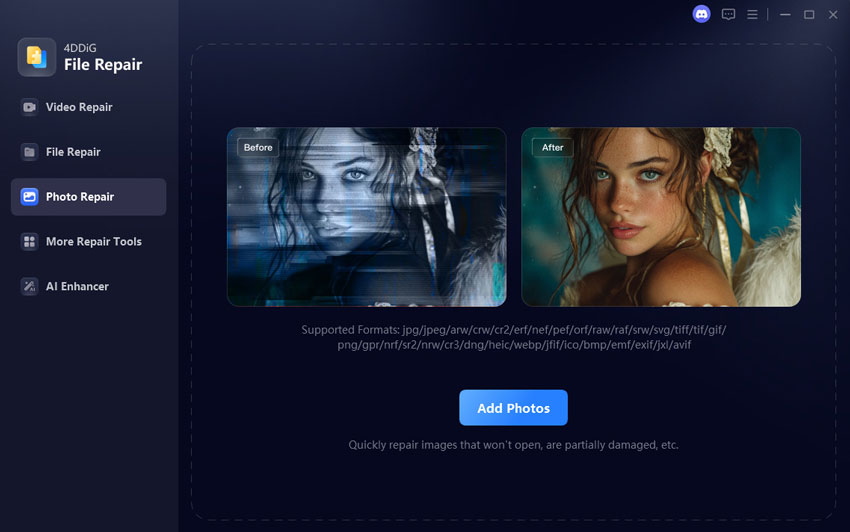
When basic methods fail, a dedicated cr2 repair tool like 4DDiG Photo Repair (part of 4DDiG File Repair) offers strong results even for badly damaged files. It also supports CR2 and other RAW image formats, including RAW, CRW, RAF, DNG, and SRW. This raw repair tool works offline and handles severe corruption better than most free options, making it a reliable choice when other attempts fall short.

Key Related Features of 4DDiG Photo Repair:

  • Supports CR2 and other RAW photo formats, including CRW, DNG, RAF, and SRW.
  • Repairs photos that are corrupted, distorted, blurry, pixelated, or unable to open, etc.
  • Offers batch repair for multiple damaged photos at the same time.
  • Lets you preview repaired photos before saving.
  • Offers Advanced Repair for severe corruption.
  • Works offline for better privacy and large RAW files.
  • Provide multiple output image format: JPG, PNG, or the original format
  • Easy-to-use interface with preserving high quality after repair
FREE DOWNLOAD

Secure Download

FREE DOWNLOAD

Secure Download

Steps to Fix Damaged CR2 Files with 4DDiG Photo Repair:

  • Open the program and go to the Photo Repair section from the main interface. Then click Add Photos to import one or more damaged CR2 images from your device.

    add damaged cr2 files to 4ddig
  • After the files are loaded, click Repair All. The software will scan the damaged photo data and attempt to rebuild the corrupted images automatically.

    repair all corrupted cr2 files
  • Once the repair is complete, click Preview to check whether the image displays correctly and whether the visible corruption has been fixed.

    preview repaired cr2 files
  • Select an output format (JPG, PNG, or the original CR2) and tap on "Save All" to export those repaired CR2 files.

    save repaired cr2 files in preferred format

Method 4. Using OfficeRecovery Online CR2 Corrupt File Repair

If you prefer not to install software, you can repair cr2 files online with OfficeRecovery. provides a browser-based file repair service that accepts various file types, including RAW images.

  • Visit OfficeRecovery Online File Repair.

  • Drag and upload your corrupted CR2 image into the pointed area.

    officerecovery cr2 image file repair online
  • Click Start Repair and wait while the service analyzes the uploaded file.

  • Review the available repair result. Download the recovered version if the result meets your needs.

Main points to remember with this service:

  • It works from any device with an internet connection.
  • No installation is required.
  • Free trial shows a preview; full download may need payment.
  • Best for mild to moderate corruption rather than total file loss.

Part 3. What If the CR2 File Repair Fails

Sometimes the basic methods do not fully restore your photos. This can happen with heavily damaged files. Do not worry. You still have a couple of practical options left.

1. Using the Advanced Repair Mode of 4DDiG Photo Repair

If the standard scan does not work well, switch to the advanced repair mode in 4DDiG Photo Repair. This mode digs deeper into the file structure and often recovers more data from severely corrupted CR2 files. Here is how to use it:

FREE DOWNLOAD

Secure Download

FREE DOWNLOAD

Secure Download

  • Open 4DDiG Photo Repair and load the damaged CR2 files again.

  • Click Repair All still. Once done, the Advanced Repair mode will appear if the file fails to be repaired under the Quick Repair.

  • Import a simple file as instructed and let the software analyze the files thoroughly.

  • Preview the repaired results and save the recovered photos to a new folder.

2. Extract the Embedded JPEG If Repair Fails

Most CR2 files contain a smaller JPEG preview inside them. When full repair is not possible, you can still extract this embedded JPEG. It will not give you the full RAW quality, but it often saves a usable version of the image.

You can try free tools such as ExifTool or online extractors that pull the JPEG from a CR2 file. Simply upload or open the corrupted file, locate the extract option, and save the JPEG. This is a quick fallback when other repair CR2 files methods do not succeed.

  • Download and install ExifTool (available for Windows, Mac, and Linux).

  • Place a copy of the corrupted CR2 file in a simple folder (for example, C:\Photos or your Desktop).

  • Open a command prompt or terminal in that folder.

  • Type one of these commands and press Enter: exiftool -b -JpgFromRaw -w _preview.jpg yourfile.CR2 or exiftool -b -PreviewImage -w _preview.jpg yourfile.CR2

  • A new JPEG file (named something like yourfile_preview.jpg) will appear in the same folder.

  • Open the JPEG to see if it looks good.

Part 4. How to Prevent CR2 Files from Getting Corrupted Again

Once you have recovered your photos, it makes sense to protect future files. Simple habits can greatly reduce the risk of corruption. Here are practical tips that really help:

  • Always eject memory cards safely from your camera and computer. Never pull them out while data is transferring.
  • Use high-quality, reputable memory cards and replace them when they show signs of wear.
  • Keep your camera firmware and software updated so they handle RAW files correctly.
  • Avoid sudden power loss during shooting or file transfer by using fully charged batteries.
  • Store important CR2 files on multiple drives or in cloud storage as soon as possible.
  • Do not fill memory cards to 100 percent capacity. Leave some free space.
  • Scan cards for errors regularly with basic disk-check tools on your computer.

Conclusion

Learning how to repair corrupted CR2 image files can save valuable Canon RAW photos that seem impossible to open. Start with simple fixes such as trying another RAW viewer or updating your software, then move to a dedicated repair solution if the damage is more serious.

For heavily corrupted files, 4DDiG Photo Repair offers standard and advanced repair options, batch processing, and preview support to help recover damaged CR2 images more efficiently.

FREE DOWNLOAD

Secure Download

FREE DOWNLOAD

Secure Download

William Bollson (senior editor)

William Bollson, the editor-in-chief of 4DDiG, devotes to providing the best solutions for Windows and Mac related issues, including data recovery, repair, error fixes.

(Click to rate this post)

You rated 4.5 ( participated)