Error Code 233500: Why This Video Cannot Be Played & How to Fix It

5 mins read

Updated on 2026-10-14 11:41:48 to Video Error

Are you trying to watch a video but repeatedly getting error code 233500? This frustrating playback error can interrupt your favorite movies, online courses, or streaming sessions. It usually indicates that your browser or video player cannot load the requested content properly.

Fortunately, several simple troubleshooting methods can help. This guide explains the possible causes of error 233500, five effective fixes, and how to repair downloaded videos that won't play.

Part 1. What Is Error Code 233500?

Error code 233500 is a video playback error that may appear when an online video player fails to load or play the requested content. It can occur because of browser-related problems, network interruptions, blocked video resources, or issues with the streaming service.

Users may encounter messages such as:

The error may occur while watching videos through Chrome, Firefox, Edge, Safari, or browsers on Android and Samsung devices. If you encounter error code 233500 samsung, the issue may involve Samsung Internet browser settings, outdated browser components, or restrictions affecting the video player.

However, error 233500 is not a universal browser or operating-system error code. Its precise meaning depends on the video player displaying it.

book icon Note

Related Error Codes: Erro Code 233001

Part 2. Why Are You Getting Error Code 233500?

Before learning how to fix error code 233500, understanding its possible causes can help you choose the right solution.

  • Temporary browser glitches: A failed loading request or unresponsive browser tab can interrupt video playback.
  • Corrupted browser cache: Outdated cookies and cached website data may prevent the player from loading correctly.
  • Browser extensions: Ad blockers, privacy extensions, and security tools sometimes block essential video scripts.
  • Unstable internet connection: Slow speeds, packet loss, or frequent disconnections can stop videos from loading.
  • VPN or proxy interference: Certain streaming services restrict connections from VPNs, proxies, or unsupported regions.
  • Browser compatibility issues: An outdated browser or unsupported media format may cause playback failure.
  • Server-side problems: The website's video hosting server might be temporarily unavailable.

If the problem occurs only on one website, the website itself may be responsible rather than your device.

Part 3. How to Fix Error Code 233500 (Step-by-Step)

If you see this video cannot be played error code 233500, start with the simplest troubleshooting methods. The following five fixes address common browser and network problems without requiring technical expertise.

Fix 1. Reload the Page and Reopen the Video

Sometimes, a video fails because the browser cannot complete its initial request to the streaming server. Refreshing the page establishes a new request and may resolve temporary loading problems.

Follow these steps:

  • Open the webpage displaying error code 233500.

  • Press Ctrl + R on Windows or Command + R on Mac to refresh the page.

  • Wait for the webpage to finish loading completely.

  • Click the Play button and check whether the video works.

  • If the error remains, close the browser tab, reopen the website, and play the video again.

tips icon Tip

If other videos on the same website play normally, the problem may be limited to the original video.

Fix 2. Play Video in Incognito/Private Mode or Try Another Browser

Private browsing provides a useful way to determine whether existing cookies, extensions, or browser settings are interfering with playback.

Here's how to test the video in Chrome:

  • Open Google Chrome on your computer.

  • Click the three-dot menu in the upper-right corner.

  • Select New Incognito window or press Ctrl + Shift + N.

    chrome incognito mode
  • Paste the video's URL into the address bar.

  • Play the video and check whether error 233500 disappears.

If the video works in Incognito mode, the problem may involve your regular browser profile. Remember that some extensions can still operate in Incognito mode if explicitly permitted. Alternatively, try opening the video in Microsoft Edge, Mozilla Firefox, or Safari.

Fix 3. Disable Browser Extensions

Browser extensions improve functionality, but some interfere with video playback. Ad blockers, privacy tools, VPN extensions, and antivirus web shields may prevent websites from loading video resources.

To disable extensions in Chrome:

  • Launch Chrome and type chrome://extensions/ in the address bar.

  • Press Enter to open the Extensions page.

  • Locate ad blockers, VPN extensions, privacy tools, or other extensions that may interfere with playback.

    disable adblocker to fix error code 233500
  • Turn off the toggle beside each suspected extension.

  • Return to the video webpage, refresh it, and try playing the video again.

If the video works, re-enable extensions individually to identify the problematic one. Keep your security protection enabled whenever possible, and use site-specific exceptions for trusted websites instead of permanently disabling security features.

Fix 4. Check Internet Connection or Disable VPN/Proxy

An unstable internet connection can interrupt communication between your browser and the video server. Similarly, some streaming websites restrict traffic from VPNs or proxy servers.

First, check your connection:

  • Open another website like speedtest.com to verify that your internet connection is working.

  • Run an internet speed test to check whether your connection is stable enough for streaming.

    test internet speed
  • Restart your Wi-Fi router if the connection is unusually slow or frequently disconnects.

  • Temporarily switch to another network, such as a mobile hotspot, to test playback.

If you're using a VPN:

  • Open your VPN application or browser extension.

  • Click Disconnect to turn off the VPN temporarily.

    disable vpn to fix error code 233500
  • Refresh the video webpage and try playing it again.

If the video works after disconnecting the VPN, the service may be blocking your VPN server or experiencing routing problems. You can also check your system's proxy settings if a proxy is configured.

Fix 5. Clear Browser Cache and Cookies

Corrupted cookies and outdated cached files can cause video playback errors. Clearing this information allows your browser to download fresh website resources.

Follow these steps in Google Chrome:

  • Open Chrome and click the three-dot menu.

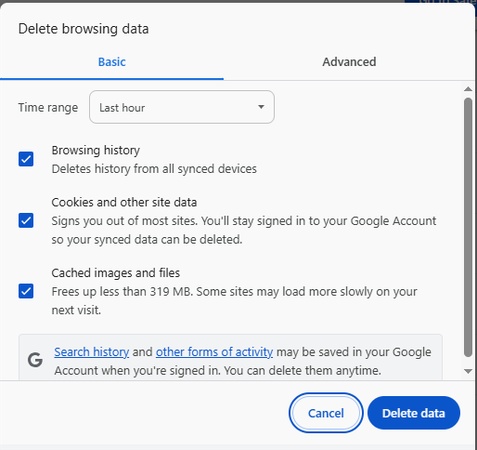
  • Go to Settings > Privacy and security > Delete browsing data.

  • Select All time from the Time range dropdown.

    clear browser cache to fix error code 233500
  • Check Cookies and other site data and Cached images and files.

  • Click Delete data and wait for the process to finish.

  • Reopen the streaming website and check whether the video plays.

book icon Note

Clearing cookies may sign you out of websites. If you want to avoid affecting other websites, consider deleting only the problematic site's stored data.

If none of these methods works, check whether the streaming website is experiencing an outage or whether the video has been removed.

Bonus: How to Fix Downloaded Videos That Cannot Be Played on Any Player

What if a downloaded video refuses to play in VLC, Windows Media Player, or other media players? Unlike browser-related 233500 error code issues, this may indicate that the video file itself is damaged, incomplete, or corrupted. In such situations, 4DDiG Video Repair provides a practical solution for repairing damaged video files.

Why Choose 4DDiG Video Repair?

4DDiG Video Repair is a video repair tool designed to restore corrupted, broken, and unplayable videos on Windows and Mac. It uses automated repair technology to address various video file problems without requiring advanced technical knowledge.

Some of its notable features include:

  • Repairs unplayable videos: Helps restore damaged videos that display black screens, freeze during playback, or refuse to open, and more.

  • Supports multiple formats: Repair corrupted MP4, MOV, AVI, MKV, M4V, and numerous other video formats.

  • Batch video repair: Allows users to repair multiple corrupted videos simultaneously.

  • Advanced repair capabilities: Provides an additional repair option for files that cannot be restored through standard repair.

  • Preview before saving: Lets users inspect repaired videos before exporting them.

  • Broad device compatibility: Supports videos originating from cameras, smartphones, SD cards, USB drives, and computers.

These capabilities make it useful for restoring personal recordings, downloaded movies, and other damaged video files.

FREE DOWNLOAD

Secure Download

FREE DOWNLOAD

Secure Download

How to Repair Unplayable Videos with 4DDiG Video Repair

Follow these steps to repair corrupted or unplayable videos:

  • Import the Corrupted or Unplayable Videos

    Download, install, and launch the software for Windows or Mac. Select Video Repair from the left sidebar. Click Add Videos and choose the damaged video files you want to repair.

    add unplayable videos to 4ddig
  • Start the Video Repair Process

    After importing your files, click Repair All. The software will analyze the selected videos and attempt to repair the detected damage.

    start repairing unplayable videos
  • Preview the Repaired Videos

    Once the repair finishes, click Preview to check whether your videos play correctly. If the standard repair does not work, check whether the software offers Advanced Repair for your file.

    preview repaired videos
  • Save the Repaired Videos

    Click Save or Save All, select the desired output format (MP4, MOV, MKV, AVI, or the original) and destination, and export the repaired videos.

    save repaired videos in suitable format

Conclusion

Encountering error code 233500 can interrupt video playback, but refreshing the page, using private browsing, disabling extensions, checking your connection, and clearing cached data may resolve the issue.

If the problem involves a corrupted downloaded video instead, 4DDiG Video Repair offers a convenient way to repair damaged files. Its batch repair, multiple-format support, and preview features make restoring unplayable videos easier.

FREE DOWNLOAD

Secure Download

FREE DOWNLOAD

Secure Download

William Bollson (senior editor)

William Bollson, the editor-in-chief of 4DDiG, devotes to providing the best solutions for Windows and Mac related issues, including data recovery, repair, error fixes.

(Click to rate this post)

You rated 4.5 ( participated)