How to Fix MSVCR100.dll Missing Error on Windows 11 and 10?
Seeing the MSVCR100.dll missing error with message “the program can’t start because MSVCR100.dll is missing from your computer” can be frustrating, especially when it prevents a program or game from launching at all.
This issue is common on both Windows 10 and Windows 11 and often appears unexpectedly. In this guide, we’ll explain what the error means, why it happens, and walk you through safe, step-by-step solutions to restore the missing DLL and get your system running normally again.
1.What is the "MSVCR100.dll Missing" Error?
The MSVCR100.dll missing error occurs when Windows cannot locate the DLL file required by a specific application. This dll is a core runtime library file that belongs to Microsoft Visual C++ 2010 Redistributable, which many programs rely on to function properly.
When this file is missing, corrupted, or incompatible, Windows displays errors such as the code execution cannot proceed because MSVCR100.dll was not found. Since many applications depend on this file, the error can affect games, productivity software, and even system utilities.
2. How to Solve “MSVCR100.dll Missing” Error?
Below are the safest and most effective methods to fix the MSVCR100.dll missing error. Start with the recommended solutions and proceed only if the issue persists.
Fix 1: Installing “Microsoft Visual C++ 2010 Redistributable”
This is the most common and officially recommended solution for MSVCR100.dll errors. Since the file is part of the Visual C++ 2010 package, reinstalling it often restores the missing DLL automatically. This method is safe, fast, and works in most cases without manual file handling.
-
Visit Microsoft’s official website and download Microsoft Visual C++ 2010 Redistributable.
-
Choose the correct version (x86 for 32-bit apps, x64 for 64-bit apps). Run the installer and follow the on-screen instructions, and restart your PC after installation completes.
Reinstalling the Visual C++ 2010 Redistributable restores MSVCR100.dll safely and resolves the error in most cases.
Fix 2: Repair MSVCR100.dll and Other DLL Errors Automatically with 4DDiG DLL Fixer
When multiple DLL files are missing or corrupted, manual fixes may not be enough. A dedicated repair tool like 4DDiG can scan the system deeply and repair runtime issues automatically. This is especially helpful for users who want a faster and safer solution without technical steps.
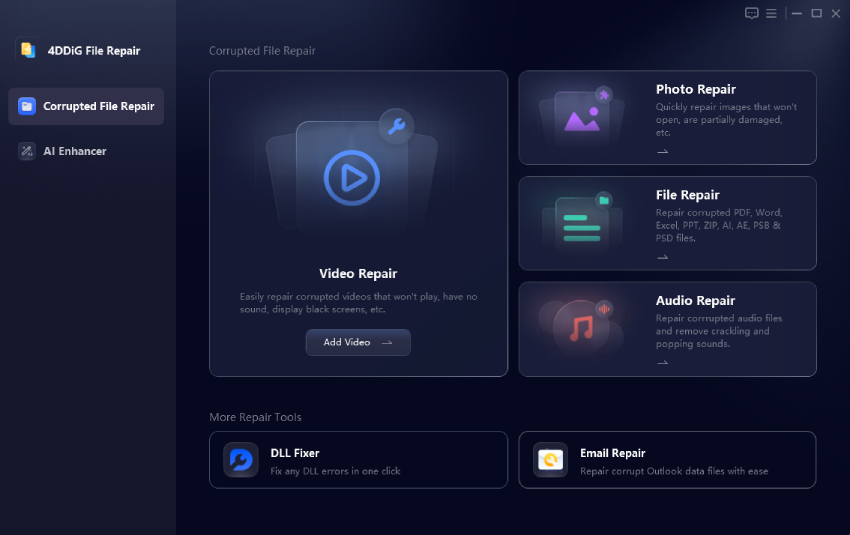
4DDiG DLL Fixer is designed to repair missing or corrupted DLL files related to Visual C++ runtime errors. It scans your system, detects damaged files, missing libraries, or missing files msvcr100 dll, and restores the correct versions automatically, without risky downloads from unknown websites.
-
Download and install the 4DDiG DLL Fixer software on your computer and go to the “DLL Repair” option from the left pane. Click “Full Scan” to begin scanning your computer for DLL issues.
FREE DOWNLOADSecure Download
-
When the scan is complete, 4DDiG will automatically show you a list of DLL-related errors, including missing and corrupted files. Simply click the “Repair” button to begin repairing.
-
Wait as 4DDiG fixes all the DLL-related errors on your computer and changes the status to "Repair Complete". Once all files are repaired, you can close the tool and restart your computer.
Fix 3: Reverse Recent System Modifications via System Restore
If the error appeared suddenly after an update or software installation, System Restore can help. This feature rolls your system back to a previous working state without affecting personal files. It’s ideal when the issue is caused by recent system modifications.
However, this method only works if you have already enabled the System Restore feature and created a restore point before the update/installation.
-
Search for "Create Restore Point" in Windows Search and click "System Properties," then go to the "System Protection" tab.
-
Click “System Restore” then “Next” and choose a restore point from the list.
-
Click "Scan for affected programs," then "Close," and "Next," and click on a restore point, then click "Finish."
System Restore is effective when MSVCR100.dll issues are caused by recent system changes.
Fix 4: Transfer the MSVCR100.dll File from Another PC
This method works if you have access to another computer running the same Windows version. It allows you to replace the missing file directly, but it must be done carefully. Only use this option if you are confident about system file handling.
-
On a working PC, locate MSVCR100.dll in “C:\Windows\System32” and copy the file to a USB drive.
-
Paste it into the same directory on the affected PC and click "Replace." If you get a pop-up saying the same file already exists, then restart your system.
Manually copying MSVCR100.dll can work, but it carries risks if the file version is incompatible.
Fix 5: Scan for Malware
Malware infections can delete or corrupt DLL files without warning. Running a full malware scan ensures that malicious software isn’t causing the problem. This step is crucial if the error keeps reappearing. If you are wondering, how do I fix msvcr100 dll missing error? Here are the steps to do it:
-
Search for “Windows Security” in Windows Search and open Windows “Security”.
-
Go to “Virus & threat protection” and go to "Scan Options", then select the “Full scan” and start the scan by clicking “Scan Now”.
It wii remove any detected threats and restart your PC. Malware scans help prevent recurring MSVCR100.dll missing errors caused by malicious activity.
Fix 6: Reinstall the Program with MSVCR100.dll Missing Error
Sometimes the issue lies within the affected program itself. Reinstalling it ensures that all required runtime files are installed correctly. This is especially useful if only one application triggers the error.
A common sign that you need this fix is that the DLL error started happening right after installing the application, or it happened after you installed an update.
-
Search for "Control Panel" in Windows Search and open it, then go to the "Programs" section and click "Uninstall a program".
-
Locate the problematic program and right-click it, then select “Uninstall” and proceed with the uninstallation process by following the on-screen steps.
Restart your computer after the uninstall is complete.
Go to the application store or the official website of that program to download and reinstall the program. This time, it may have fixed the MSVCR100.dll was not found error.
More FAQs about MSVCR100.dll Missing
1. Where to put MSVCR100.dll in Windows 11?
MSVCR100.dll should be placed in C:\Windows\System32 for 64-bit systems. However, manual placement is not recommended unless you are sure the file version is correct.
2. How do I manually fix DLL errors?
Manual fixes include reinstalling Visual C++ Redistributable, using System Restore, or copying DLL files from a trusted system, though automated tools are safer.
3. How do I manually install a DLL?
You can copy the DLL into the system folder and register it, but incorrect versions can cause system instability.
Conclusion
The MSVCR100.dll missing error is a common Windows issue, but it doesn’t have to be permanent. Whether the problem stems from missing Visual C++ components, corrupted system files, or malware, the solutions above can restore normal functionality.
While reinstalling Microsoft Visual C++ often works, tools like 4DDiG DLL Fixer provide a safer, faster way to repair multiple DLL issues automatically. By following the correct fix, you can eliminate runtime errors and keep your Windows system stable and reliable.
Secure Download
ChatGPT
Perplexity
Grok