Microsoft Print to PDF Missing? Here's Why & How to Fix It on Windows

5 mins read

Updated on 2026-01-15 12:32:30 to Corrupted File Repair

Microsoft Print to PDF is a built-in Windows feature that lets users save documents as PDFs without extra software. However, many users suddenly find the Print to PDF option missing, especially after Windows updates. If you’re wondering why is the Microsoft Print to PDF is missing or not showing up or where it disappeared to, this guide explains the causes and the fastest ways to fix it.

microsoft print to pdf missing

Part 1. Why Did Microsoft Print to PDF Disappear?

The Microsoft Print to PDF feature can vanish for several reasons, especially on Windows 11 (including 24H2 updates) and Windows 10. Common causes include:

  • A recent Windows update disabled or removed the Print to PDF feature
  • The Microsoft Print to PDF driver (prnms009.inf) became corrupted or unregistered
  • Windows Features settings were changed accidentally
  • System file errors caused Print to PDF to disappear
  • Printer services failed to load properly after a reboot
  • Certain cumulative updates have caused Microsoft Print to PDF to disappear, particularly in fresh Windows 11 24H2 installations or after specific patches As a result, users may see Print to PDF not showing up, missing from Word or Excel, or completely gone from the printer selection menu.

Part 2. Quick Checks Before Fixing Print to PDF Missing Error

1Verify If It's Listed in Printers & Scanners:

Go to Settings > Bluetooth & devices > Printers & scanners and search for "Microsoft Print to PDF" in the list.

search for microsoft print to pdf in printers scanners list

2Check Windows Features: steps in one sentence

Search for "Turn Windows features on or off" in the Start menu, open it, and ensure "Microsoft Print to PDF" is checked.

find print to pdf via windows features

3Restart Your PC and Test Printing to PDF: steps in one sentence

Simply reboot your computer, then try printing a test page to PDF from any app (like Notepad) to see if it reappears automatically.

Part 3. How to Fix Microsoft Print to PDF Missing or Not Showing Up: 5 Fixes

If the quick checks didn't resolve the issue where Microsoft Print to PDF is missing or the option not showing up, try these proven methods. Many users on Windows 11 (including 24H2) and Windows 10 have successfully restored the feature this way.

Method 1: Install Latest Windows Update (KB5043178 or Later)

Recent Windows updates have fixed bugs causing Microsoft Print to PDF to disappear, especially in Windows 11 24H2 installations.

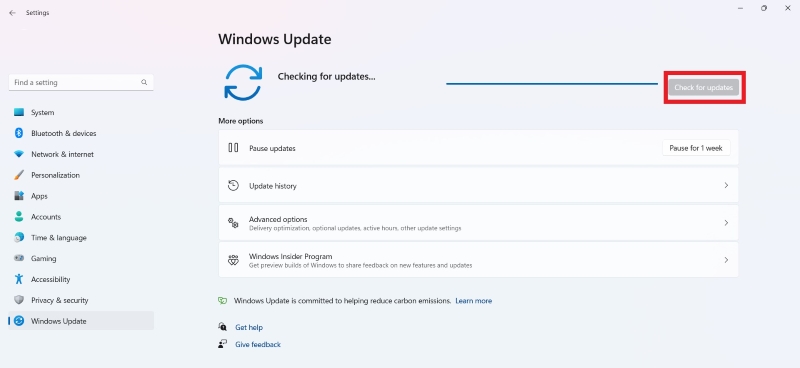
  • Go to Settings > Windows Update.

  • Click "Check for updates" and install any available updates.

    check for windows update to fix print to pdf missing error
  • Restart your PC and check if the printer reappears in Printers & scanners.

This often resolves driver-related issues automatically.

Method 2: Add Printer via Windows Update

Sometimes the Print to PDF driver gets corrupted or removed. Windows Update can automatically reinstall it for you.

  • Open “Settings” > “Bluetooth & devices” > “Printers & scanners”.

  • Click "Add device" > "Add manually" > "Add a local printer or network printer with manual settings."

  • Click to Copy & Paste ⬇

    (Local Port) > Next.

  • Choose "Windows Update" to refresh the driver list (this may take a few minutes).

  • Select Manufacturer: Microsoft > Printer: Microsoft Print to PDF > Next > Finish.

This method pulls the required files directly from Microsoft servers.

Method 3: Manual Printer Installation via PowerShell

For users comfortable with command-line tools, PowerShell offers a direct way to reinstall the Print to PDF feature, especially useful when microsoft print to pdf missing from driver list.

For advanced users, use PowerShell to enable the feature directly.

  • Right-click Start > Windows PowerShell (Admin) or Terminal (Admin).

  • Run: Enable-WindowsOptionalFeature -Online -FeatureName "Printing-PrintToPDFServices-Features"

  • Restart your PC.

If needed, first disable it with: Disable-WindowsOptionalFeature -Online -FeatureName "Printing-PrintToPDFServices-Features" then re-enable.

install printer via powershell

Method 4: Enable/Re-enable via Windows Features (Reinstall Microsoft Print to PDF via Windows Features)

The most common cause of microsoft print to pdf missing windows 11 or Windows 10 is that the feature has been accidentally disabled. Re-enabling it through Windows Features typically resolves the issue.

Steps (Same as Part 1 Method 2):

  • Search for "Turn Windows features on or off" in the Start menu.

  • Uncheck "Microsoft Print to PDF" > OK > Restart.

  • Repeat the process, but check the box this time > OK > Restart.

This method is highly effective for microsoft print to pdf missing windows features scenarios and works across Windows 7, 10, and 11.

Method 5: DISM Enable/Disable PrintToPDFServices Feature

If the above methods fail, the issue might be deeper in the system files. The DISM (Deployment Image Servicing and Management) tool can forcefully enable or repair the Print to PDF feature at the system level.

  • Open Command Prompt as Administrator.

  • Run: dism /Online /Enable-Feature /FeatureName:"Printing-PrintToPDFServices-Features" /All.

  • If it fails, first disable with: dism /Online /Disable-Feature /FeatureName:"Printing-PrintToPDFServices-Features".

    dism enable and disable printtopdfservices feature
  • Then re-enable and restart.

This advanced method resolves stubborn cases where Microsoft Print to PDF not showing up in printers despite trying other solutions. It's particularly useful for Windows Server 2019 microsoft print to pdf missing issues.

⚡ Bonus: How to Fix Print to PDF Not Working Due to File Corruption

Even after successfully restoring Microsoft Print to PDF, you might encounter situations where the generated PDF files are corrupted, won't open, or appear completely blank (pdf printing blank). This often happens when:

  • The source document contains damaged elements
  • The print-to-PDF process was interrupted
  • System errors occurred during PDF creation
  • The source PDF file is damaged and cannot be opended In these cases, use a dedicated tool like 4DDiG File Repair. It can repair PDF and other files in batch, with an Advanced Repair mode that handles heavily damaged files with a high success rate.

Why Choose 4DDiG File Repair for PDF Recovery:

  • Batch Repair: Fix multiple corrupted PDFs simultaneously
  • Advanced Repair Mode: High success rate for heavily damaged files
  • Multiple Format Support: Repairs PDFs, Word, Excel, PowerPoint, and more
  • Preview Feature: View repaired files before saving
  • Easy to Use: Simple interface requiring no technical skills

Steps to repair corrupted PDF files using 4DDiG:

  • Download and install 4DDiG File Repair. Launch the program and select "File Repair" > "Add" to upload corrupted PDFs.

    FREE DOWNLOAD

    Secure Download

    FREE DOWNLOAD

    Secure Download

    select file repair and add corrupted pdf files
  • Click "Repair All" to kick off the PDF repair process (or enable "Advanced Repair" for severe damage).

    repair all corrupted pdf files
  • When finished, preview and save the repaired files.

    preview and save repaired pdf

Conclusion

Dealing with Microsoft Print to PDF missing is frustrating, but this guide provides proven solutions. Whether experiencing print to pdf disappeared or microsoft print to pdf not showing up windows 11 issues, work through the five methods systematically. For corrupted PDFs or blank printing problems, 4DDiG File Repair efficiently recovers damaged files. You now have everything needed to restore this essential Windows feature.

FREE DOWNLOAD

Secure Download

FREE DOWNLOAD

Secure Download

William Bollson (senior editor)

William Bollson, the editor-in-chief of 4DDiG, devotes to providing the best solutions for Windows and Mac related issues, including data recovery, repair, error fixes.

(Click to rate this post)

You rated 4.5 ( participated)