How to Fix X/Twitter Images Not Loading/Showing Issues

5 mins read

Updated on 2026-08-17 18:59:58 to Video Error

Seeing blank image placeholders, endless loading circles, or the message "An error occurred loading this image" on X (formerly Twitter) can be frustrating, especially when other parts of the platform work normally.

If you're experiencing Twitter images not loading, several proven fixes can resolve the problem. We explained the common causes and walks you through seven practical solutions for both mobile devices and computers in our detailed guide.

Part 1. Why Twitter Images Won't Load Or Show?

When images fail to load on X, the problem isn't always caused by the platform itself. In many cases, the issue comes from local device settings, network configurations, outdated apps, or temporary server problems.

Common symptoms include:

  • "An error occurred loading this image."
  • Blank image placeholders.
  • Photos that never finish loading.
  • Tweets showing only text and links without images.
  • Images loading on mobile data but not on Wi-Fi.
  • Only a few photos appearing while others remain blank.

Here are the most common reasons behind Twitter not loading photos:

  • Data Saver is enabled. X may intentionally reduce image downloads to save mobile data.
  • Corrupted cache or media storage. Damaged temporary files can prevent images from loading correctly.
  • VPN, DNS, or network configuration issues. Some network routes block or interrupt media requests.
  • An outdated X app or browser. Older versions may have compatibility bugs affecting image loading.
  • Temporary X server outages. Media servers occasionally experience downtime or regional disruptions.
  • Account authentication issues. An expired login session can interfere with loading protected media.
  • Corrupted app installation. Damaged application files may stop images from displaying properly.

Part 2. Quick Ways To Fix X/Twitter Images Not Loading Or Showing Issues

Most image-loading problems can be fixed without advanced troubleshooting or technical knowledge. Start with the quick and proven solutions first, such turning off Twitter data saver, clearing media storage, reinstalling the Twitter app, etc. Then move to the more comprehensive fixes if the issue continues.

Fix 1: Turn Off Data Saver In X

Data Saver reduces image quality and limits automatic media downloads to conserve bandwidth. While useful on slow or limited connections, it can sometimes cause pictures not to load on Twitter, particularly on unstable networks. Disabling this option allows X to download media normally again.

  • Open the X app and tap your profile picture to open "Settings and Privacy".

  • Tap "Data Usage" and turn Data Saver off.

    turn off twitter data saver to fix images not loading
  • Restart the app and check whether images load.

Fix 2: Clear Media Storage (For Mobile Users)

Temporary media files can become corrupted after app updates or interrupted downloads. Clearing the app's cached media forces X to download fresh copies from its servers, which often resolves Twitter image won't load issues without affecting your account or saved tweets.

  • Open the X app and tap your profile picture, then go to "Settings and Support".

  • Open "Settings and Privacy" > "Accessibility, display, and languages".

  • Tap "Data Usage" and go to "Media Storage," then tap "Clear Media Storage"

    clear twitter media storage to fix images not loading

Fix 3: Reset VPN, DNS, Or Network Settings

If Twitter is not loading images on wifi but works on mobile data, the problem often lies with your network configuration. VPN services, custom DNS providers, proxy settings, or corrupted network configurations can interrupt image requests. Resetting these settings frequently restores normal access to Twitter's media servers.

Steps on iPhone & Android

  • Disable any active VPN, then turn Airplane Mode on for 30 seconds.

  • Turn Airplane Mode off and forget your Wi-Fi network.

    ios airplane mode
  • Reconnect to Wi-Fi and try again.

Steps on Computer

  • Disconnect your VPN.

  • Open "Settings" and go to Network settings.

  • Select "Advanced Network Settings" and reset for Windows. On a Mac, remove any unnecessary VPN configurations.

    windows advanced network settings
  • Restart your PC and connect to your network before opening X.

Fix 4: Uninstall X, Restart Device, And Reinstall It

If the application itself has become corrupted after an update, reinstalling often resolves persistent loading issues. Many users have reported that completely removing the app, restarting the device, and installing a fresh copy fixes Twitter not loading media problems that survive cache clearing or network resets.

  • Press and hold the X app icon and select "Uninstall" or "Remove App" and completely "Delete" the app.

    uninstall twitter to fix image not loading
  • Restart your device, then open "Google Play" or the "App Store" to reinstall X.

  • Sign back into your account and test image loading.

Fix 5: Update the X App or Your Browser

Running an outdated version of the X app or your web browser can cause compatibility issues with new platform updates. Updating to the latest version fixes known bugs, improves performance, and often resolves Twitter images not loading.

  • Open the "App Store" or "Google Play Store" and search for "X".

    mobile update twitter app
  • Tap "Update" if a newer version is available.

  • Launch the updated app to check whether images load normally.

Fix 6: Check Whether X Is Down

Sometimes the issue has nothing to do with your device. X's image servers may experience temporary outages, causing Twitter to show only links or preventing photos from loading for many users. Checking the platform's status can save time before trying more troubleshooting steps.

  • Open a browser and visit a service such as Downdetector.

    downdetector check twitter server status
  • Search for X or Twitter and review recent outage reports. Check whether other users are reporting image-loading issues by clicking "Jump to comments".

  • If an outage exists, wait until the service is restored.

Fix 7: Log Out And Log Back In

A damaged or expired authentication session can occasionally prevent media from loading correctly. Signing out refreshes your account session and downloads new authentication data, which can resolve persistent Twitter image won't load or Twitter unloaded picture problems.

Steps on iPhone & Android

  • Open the X app and tap your profile picture to open "Settings and Privacy".

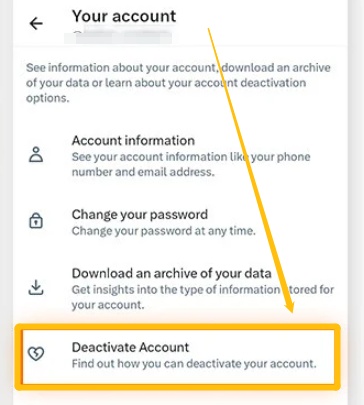
  • Select "Your Account" and go to account information, scroll down to the "Log Out" option, and sign out.

    log out and log in twitter to fix images not loading
  • Restart the app and sign back in to check whether images load.

Steps on Windows & Mac

  • Open X in your browser and click on your account at the bottom right to select "Log Out".

  • Restart the browser and reopen X to sign in again.

⚡ Part 3. How To Repair Corrupted Images Uploaded To/Download From Twitter/X?

Sometimes the images load correctly on X but become unreadable after downloading, or uploads fail because the image file itself is damaged. You may see broken thumbnails, incomplete previews, unsupported file errors, or photos that won't open in any image viewer. These issues usually indicate file corruption caused by various factors rather than a problem with X itself.

If your downloaded or uploaded photos have become corrupted and not opening, 4DDiG Photo Repair provides an efficient way to recover them before attempting another upload or viewing them locally.

Why Many Users Choose 4DDiG Photo Repair

  • Repair corrupted JPG, JPEG, PNG, HEIC, RAW, and many other image formats.
  • Support batch repair and preview before saving.
  • Address a wide range of photo issues or scenarios and servere photo damage
  • Export repaired photos in JPG, PNG, or original format
  • Intutive, easy-to-use interface and fast repair speed
FREE DOWNLOAD

Secure Download

FREE DOWNLOAD

Secure Download

Steps To Repair Corrupted Images with 4DDiG

  • Get 4DDiG File Repair installed and opened. Choose the "Photo Repair" option from the left side, then click "Add Photos" to import the corrupted images you download from or wanna upload to Twitter.

    add corrupted twitter images to 4ddig
  • After you have added all the corrupted X images, click "Repair All" and wait as 4DDiG automatically repairs your images.

    4ddig repair corrupted twitter images
  • Click the "Preview" button to see the repaired photos and verify the results. Finally, save the repaired images in a preferred format by clicking "Save" or "Save All".

    preview and save repaired twitter images

FAQs About Twitter Not Loading Photos Error

Q1: Why is Twitter media only showing a few photos?

This usually happens because of Data Saver settings, network problems, cached media errors, or temporary server issues. Clearing the cache, disabling Data Saver, and checking X's server status often resolve the problem.

Q2: Is there something wrong with Twitter right now?

Possibly. X occasionally experiences outages that affect image loading, videos, or timelines. Checking a service like Downdetector or X's official status updates can confirm whether the problem is platform-wide.

Conclusion

If you're experiencing Twitter images not loading, the problem is often caused by Data Saver settings, corrupted cache, network configuration, outdated software, or temporary X server issues. Working through the fixes in this guide should resolve most cases.

If your downloaded or uploaded images are themselves damaged, 4DDiG Photo Repair can repair corrupted photos and restore them for viewing or sharing.

William Bollson (senior editor)

William Bollson, the editor-in-chief of 4DDiG, devotes to providing the best solutions for Windows and Mac related issues, including data recovery, repair, error fixes.

(Click to rate this post)

You rated 4.5 ( participated)