How to Fix YouTube Error 153: Video Player Configuration Error in 2026 [7 Ways]
Streaming should be smooth, but sometimes things break unexpectedly. Many users try to watch a video on YouTube and encounter an error 153 video player configuration error, especially when videos are embedded on websites or apps. This issue, officially known as YouTube Error 153: Video Player Configuration Error.
It usually appears due to browser restrictions or missing referrer settings. This article explains why it happens and shows you 7 proven fixes that actually work in 2026.
Part 1. What Is YouTube Error 153 and Why Does It Happen?
YouTube Error 153, also known as the "Video Player Configuration Error", occurs when the YouTube player fails to initialize properly inside an embedded environment to display YouTube iframes, such as:
- Android WebView
- iOS WebView
- In-app browsers (Facebook, Instagram, TikTok, etc.)
- Embedded video players on websites
- Hybrid apps using frameworks like React Native or Flutter
Instead of playing the video, users see an error message, often with a link to watch directly on YouTube.com (where the video typically works fine). The message is similar to:
"Watch video on Youtube. Error 153: Video player configuration error"
Error 153 specifically relates to how the player is initialized, not the internet connection speed. The player initializes but rejects the request, showing the configuration error. It means the YouTube player could not load the required configuration settings from YouTube's servers. As a result, the embedded video cannot be played.
This differs from direct browser playback on youtube.com, where the video usually works fine. Developers embedding videos via iframe or the YouTube IFrame API often encounter this in app environments where the origin or referrer isn't handled as YouTube expects.
Common Causes of "Error 153: Video Player Configuration Error".
Here are the most common reasons behind error 153 on YouTube:
- Missing or blocked HTTP Referer header
- Strict Referrer-Policy settings (like no-referrer)
- Ad blockers or privacy extensions (See: Why Is Adblock Not Working on YouTube)
- Corrupted browser cache
- Incorrect iframe embed code
- Using outdated plugins (e.g., certain WordPress embed tools)
- Privacy-restricted WebView apps
- Improper server header configuration (Apache, Django, Cloudflare)
This is why many users experience the YouTube embed not working error 153 on blogs or apps.
Typical Platforms and Devices Affected by YouTube Embed Error 153
You may see YouTube Embed Error 153 on:
- WordPress websites
- Sites using Fast YouTube Embedder (CatsWhoCode)
- News readers like Feedly
- Note apps (Anytype, Notion)
- WebView apps
- iPhone Safari
- Firefox with strict tracking protection
- Embedded players inside presentation tools like Keynote
- Browsers running customization tools like Lively Wallpaper (some overlays interfere)
In short, if you try to watch video on YouTube and encounter error 153 video player configuration error inside an embedded player, the platform is likely suppressing referrer data.
Part 2. How to Fix "YouTube Error 153: Video Player Configuration Error" for Users & Website Owners
Since late 2025, YouTube has enforced stricter rules around how embedded players must identify their host environment via HTTP Referer headers. Any site, app, or browser configuration that strips or blocks this header will trigger Error 153. The fixes below address this from every angle, whether you're a viewer, a website owner, or a developer.
Method 1. Add referrerpolicy Attribute to iframe (for Web Owners & Content Creators)
If you manage the website where the error appears, the most reliable fix is
adjusting the iframe configuration. YouTube requires a proper referrer
policy. Adding
referrerpolicy="strict-origin-when-cross-origin" ensures the browser
sends a valid origin header and prevents YouTube embed not working error 153
on platforms like WordPress.
Open your website editor (WordPress, HTML editor, etc.).
-
Find the
<iframe>tag that contains your YouTube video URL -
Add this attribute inside the iframe:
referrerpolicy="strict-origin-when-cross-origin"
-
Your updated code should look like this:
<iframe>
width="560"
height="315"
src="https://www.youtube.com/embed/VIDEO_ID"
title="YouTube video player"
referrerpolicy="strict-origin-when-cross-origin"
frameborder="0"
allow=" accelerometer; autoplay; clipboard-write; encrypted-media; gyroscope; picture-in-picture; "
allowfullscreen > </iframe> -
Save your changes, clear the site cache, and refresh the page to verify the video plays correctly.
This solution works because it explicitly tells YouTube that referrer information will be sent, satisfying YouTube's security requirements for embedded content.
Method 2. Switch to youtube-nocookie.com Domain (for Web Owners)
When changing the referrer policy doesn't solve error 153 on YouTube, replacing www.youtube.com with www.youtube-nocookie.com in your embed URL often works. This method reduces tracking conflicts and improves compatibility on WordPress, Keynote embeds, and secure websites.
-
Open your website's code editor or CMS.
Keep all other parameters and attributes the same.
Save and test your embedded videos
Method 3. Install ModHeader Extension to Set Custom Referer Header (for Users)
When you cannot edit website code and still see error 153 on YouTube, you can manually send a Referer header using the ModHeader browser extension. This forces the browser to provide the information YouTube needs. It works on Chrome, Edge, and Firefox.
-
Install the ModHeader extension from your browser's extension store (available for Chrome, Firefox, and Edge)
Click the ModHeader icon in your browser toolbar
-
Click "Add Request Headers".
-
In the "Name" field, enter: Referer
Enable the profile by toggling the switch.
Refresh the page with the embedded YouTube video.
The video should now play without Error 153.
Remember to disable ModHeader when not needed, as it affects all websites you visit.
Method 4. Click "Watch video on YouTube" Link (for Common Users)
If you just want to watch the video and don't care about the embed, this is the fastest solution. When you watch a video on YouTube and encounter error 153 video player configuration error, simply open the video directly on YouTube. This opens the video directly on youtube.com, where playback almost always works without issues.
While this doesn't fix the embedded video not playing issue, it provides immediate access to the content you want to watch.
Method 5. Clear Browser Cache and Cookies (for Common Users)
Sometimes the problem is not the website but your browser. Corrupted cookies or cached scripts can cause YouTube embed not working error 153. Clearing the cache forces the browser to reload fresh configuration files.
-
Press Ctrl+Shift+Delete (Windows) or Cmd+Shift+Delete (Mac)
Select "All time" from the time range dropdown
-
Check "Cached images and files" and "Cookies and other site data".
-
Click "Clear data".
Restart your browser, then try playing the video again.
Method 6. Disable Browser Extensions (for Common Users)
Privacy tools and ad blockers often block embedded scripts, causing error 153 on YouTube. If you use tracking blockers, script blockers, or animated tools like Lively wallpaper integrations, they might interfere with YouTube's embed verification process.
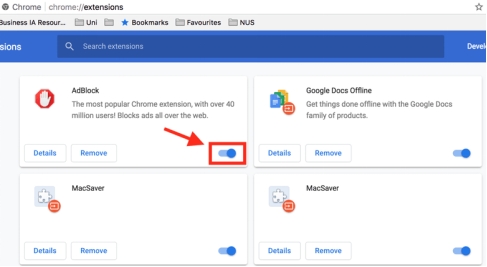
Open Chrome. Click the 3 dots in the top-right corner.
Go to "More tools" then "Extensions".
-
Turn off each extension (especially Adblockers) using the toggle switch or click "Remove".
Reload the webpage.
If it works, re-enable extensions one by one.
Add the site to the extension's allowlist.
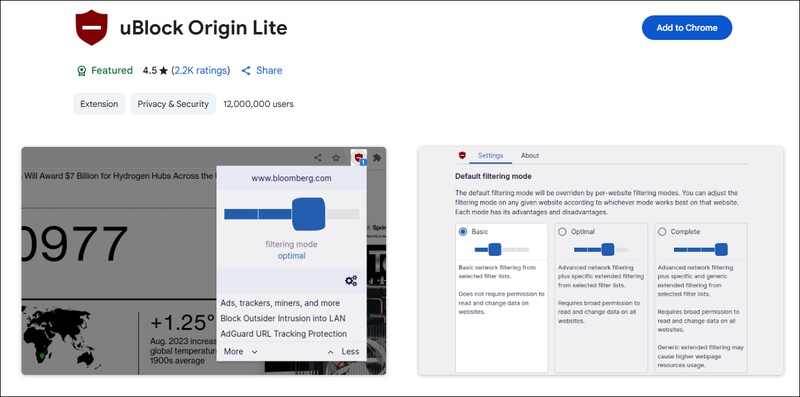
uBlock Origin users: Go to the uBlock Origin dashboard > Privacy tab > uncheck "Remove referrers". This usually resolves Error 153 while keeping other blocking features active.
Method 7. Try a Different Browser (for Common Users)
Different browsers handle tracking and referrer policies differently. If the embed fails in one browser, try another. For example, it may fail in Firefox but work in Safari or Chrome. This helps identify whether privacy settings are causing the issue.
Recommended browsers to try:
- Google Chrome: Uses strict-origin-when-cross-origin by default, the policy YouTube recommends.
- Microsoft Edge: Same default as Chrome; generally works well with YouTube embeds.
- Safari: macOS and iOS users: disable Prevent Cross-Site Tracking in Safari Preferences → Privacy as a test. Re-enable it after testing if this was the cause.
If it works in other browsers but not Firefox, the issue is likely strict tracking protection.
How to Fix YouTube Problem with Server 400 Error [Best 6 Ways]
⚡ Part 3. Bonus: What If the Video Still Won't Play After Fixing Error 153
YouTube Error 153 is a delivery problem. The embed fails to authenticate with YouTube's servers. But once you've ruled that out, you might be dealing with something different: choppy or jerky playback, video no sound, or a black screen video, audio and video out of sync, etc., a video file that has been damaged at the data level.
This can happen to downloaded YouTube videos, screen recordings, or any local video that was interrupted during transfer, stored on a failing drive, or improperly exported. If any of these describe what you're seeing, the YouTube embed configuration isn't the problem anymore. The file needs dedicated repair, and that's where 4DDiG Video Repair comes in.
4DDiG Video Repair is a dedicated video restoration tool built to fix corrupted, unplayable, choppy, or distorted video files. Powered by AI, it reconstructs damaged file headers, realigns audio/video streams, and recovers missing frame data, without overwriting your original file until you confirm the result.
Secure Download
Secure Download
Steps to Fix Corrupted YouTube Videos Using 4DDiG Video Repair
If your downloaded YouTube video still won't play after fixing Error 153, follow these steps:
-
Install and launch 4DDiG File Repair. Select "File Repair" from the left panel. Click "Add Videos" and upload the corrupted YouTube video files.
-
After adding videos, click "Repair All". The software will automatically repair videos one by one.
-
Once the repair is complete, click "Preview" to check if the video plays properly. If satisfied with the result, click "Save" to export one video, or choose "Save All" to export all videos at once.
Part 4. How to Prevent Error 153 on YouTube
Prevention is always better than troubleshooting. Here are prevention tips that actually work:
- Always use strict-origin-when-cross-origin
- Avoid no-referrer policies
- Use official embed code
- Keep WordPress plugins updated
- Avoid conflicting security plugins
- Test embeds in Firefox and Safari
- Don't block third-party cookies unnecessarily
- Use the YouTube-nocookie domain for privacy compliance
- Keep Cloudflare rules clean
- Avoid overly aggressive privacy headers
Following these steps reduces the chance of seeing YouTube Error 153: Video Player Configuration Error again.
People Also Ask about YouTube Error 153: Video Player Configuration Error
Q1: What is error code 153 on iPhone?
On iPhone, Error 153 usually appears in apps that use a "WKWebView" to show YouTube videos. It is almost always caused by the app's internal browser settings blocking the referrer information. Clearing the app's cache or updating the app often solves it.
Q2: Why is YouTube restricting me from watching videos?
YouTube isn't necessarily "restricting" you personally. Error 153 is a technical handshake failure. However, if you use a VPN or a very restrictive browser, YouTube's automated systems might block the connection because they can't verify that the request is coming from a legitimate web context.
Q3: Why does my YouTube say error loading?
"Error loading" is a generic message. It can be caused by cache corruption, a weak internet connection, an outdated browser, or configuration issues, such as YouTube Error 153: Video Player Configuration Error.
Conclusion
YouTube Error 153: Video Player Configuration Error is mostly caused by embed and referrer policy issues. Fortunately, the solutions above can help both website owners and regular users fix the issue and get videos playing again quickly. Keeping your system optimized helps prevent browser related playback errors.
If Error 153 on YouTube is fixed but the video still does not play properly, the problem is likely file corruption. With advanced AI repair technology, 4DDiG Video Repair can restore damaged videos and make them playable again quickly and easily.
Secure Download
Secure Download
💡 Summarize with AI:
You May Also Like
- Home >>
- Video Error >>
- How to Fix YouTube Error 153: Video Player Configuration Error in 2026 [7 Ways]
ChatGPT
Perplexity
Grok