How to Fix "HTML5 Video Not Properly Encoded" Error | 6 Practical Ways

5 mins read

Updated on 2026-04-08 17:08:14 to Video Error

When videos fail to play online, it can quickly become frustrating, especially if you are not sure why it is happening. One reason behind this issue is the HTML5 video not properly encoded error. This issue is more common than many people think and can happen on different browsers and websites. There are many simple ways to fix it.

Part 1. What Does "HTML5 Video Not Properly Encoded" Mean?

The HTML5 video not encoded error appears when a video cannot play in your browser. This usually means the file is not saved in a format that the browser understands.

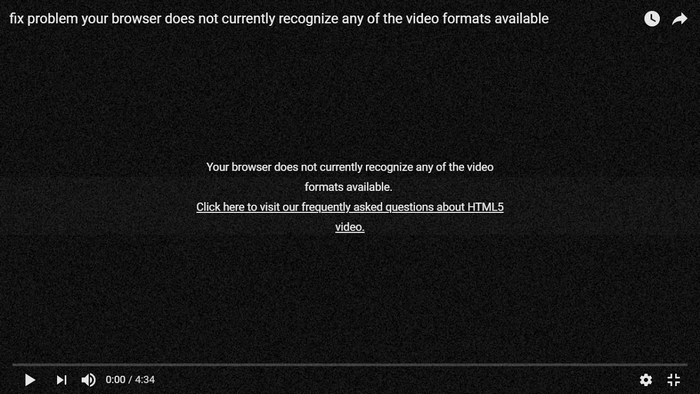
Sometimes, you may see messages like:

These messages all point to the same error; the wording might be different depending on your browser. If you face the chrome HTML5 video not properly encoded error, it means the video’s codec or settings do not match what Chrome supports.

The browser cannot read the video correctly, so it refuses to play it.

html5 video not properly encoded

What Codecs Are Supported by HTML5

HTML5 videos work only with certain codecs. Codec is a method that is used to compress and play a video file. The most commonly supported ones are:

  • H.264 (AVC): works on almost all browsers
  • VP8 / VP9: supported by Chrome, Firefox, and others
  • AV1: newer but not supported everywhere

For better results, videos are usually saved in MP4 format with H.264 codec. If a video uses a different codec, your browser may fail to play it and show an HTML5 video not properly encoding error.

Part 2. Why Is HTML5 Video Not Encoded Properly in Chrome/Firefox/More

Videos can fail to play due to browser or file issues. This can result in the HTML 5 video not properly encoded error. Here are the main reasons why a video might not work on Chrome, Firefox, or other browsers:

Unsupported Codec or Format

If the video uses a codec or format that the browser does not support, it will not play. Browsers like Chrome and Edge only accept formats like MP4 with H.264, WebM, or Ogg.

Corrupted Video File

A damaged or incomplete video file can stop playback. Even if the format is correct, errors in the file prevent the browser from reading it.

Browser Settings or Extensions

Specific settings, like hardware acceleration or extensions such as ad blockers, can block videos from playing.

Outdated Browser

Older browser versions may not support newer video codecs. You might just need to update the browser to fix this issue.

Missing Codecs on Your System

Some videos need specific codecs to play. Without them, the video will fail, showing the HTML5 not properly encoded problem.

⚡ Part 3. How to Fix HTML5 Video Not Properly Encoded Issue | Step-by-Step

When a video does not play, it does not always mean the file is useless. In most cases, you will be able to fix the issue with a few simple methods related to HTML5 video encoding.

Method 1. Repair Problematic Video Files with 4DDiG Video Repair Tool

If the video file itself is corrupted or improperly encoded, no browser tweak will help. The fastest and most reliable way is to use a dedicated video repair tool.

Recommended Tool: 4DDiG Video Repair

4DDiG Video Repair is an excellent choice for fixing HTML5 video not properly encoded errors. It supports a wide range of formats (MP4, MOV, WEBM, etc.) commonly used in HTML5 players and can repair corrupted headers, damaged codec data, and encoding issues without quality loss.

Key features include:

  • Quick Repair and Advanced Repair modes
  • Repair corrupted MP4, MOV, MKV, RAW, RSV, and more video files
  • Batch repair for multiple files
  • Address various video issues: video black screen, corrupted, unplayable, and more
  • Support for Ultra HD, 4K, and 8K videos
  • AI-powered detection of corruption areas
  • Professional mode for complex files (RAW, HDR, advanced codecs)
FREE DOWNLOAD

Secure Download

FREE DOWNLOAD

Secure Download

Steps to Use 4DDiG Video Repair Tool

To use this tool, follow the steps below:

  • Download, install, and launch the tool and select the “Video Repair” option from the menu. Click “Add Videos” and choose the HTML5 video files that will not play. You can add more than one if needed.

    add corrupted html5 videos to 4ddig
  • Press the “Repair All” button. The tool will scan and fix the files automatically.

    repair all html5 videos
  • Once done, you can preview the repaired videos to check if they now play correctly. You can then save your video.

    preview and save repaired html5 videos

Method 2. Disable Hardware Acceleration

Hardware acceleration can sometimes cause playbook issues in browsers. Turning it off can help fix the problem, especially in cases like firefox HTML5 video not properly encoded.

For Chrome:

You can follow these steps to disable hardware acceleration in Google Chrome:

  • Open “Settings”. Go to “System”.

  • Turn off “Use graphic acceleration when available.”

    disable chrome hardware accleration to fix html5 video not properly encoded
  • Restart the browser.

For Firefox:

The steps to disable hardware acceleration in Firefox are:

  • Open “Settings”. Scroll to “Performance”.

  • Uncheck “Use recommended performance settings.”

    disable firefox hardware acceleration
  • Disable hardware acceleration

  • Restart Firefox

For Edge:

You can disable hardware acceleration in Edge through these steps:

  • Open “Settings”. Go to “System and Performance”.

  • Turn off “Use graphic acceleration when available”.

    disable edge hardware acceleration
  • Restart Edge

Method 3. Remove or Turn Off Conflicted Extensions

Some extensions, especially ad blockers, can stop videos from loading properly. They may block scripts needed for playback.

This can be done by:

  • Open your browser extensions page

  • Disable extensions one by one, especially Ad Blocker.

  • Refresh the video page

  • Find and remove the one causing the issue

    Remove the Extensions from Chrome

disable browser extensions to fix html5 video mot encoded properly

Method 4. Move to a Different Browser

Not all browsers handle videos the same way. If one browser fails, another may play the video without any issue. You can try browsers like Brave, Opera, or Edge.

Method 5. Re-encode the Video with FFmpeg

If the video not properly encoded and the video format is not supported, re-encoding it can solve the issue. This changes the file into a format that browsers can read.

You can re-encode the video with FFmpeg by following these steps:

  • Install FFmpeg on your system

  • Open the command prompt or terminal

  • Run a command: ffmpeg -i input.mp4 -vcodec libx264 -acodec aac -strict experimental output.mp4 to convert the video to MP4 with H.264

    reecode video with ffmpeg
  • Save and test the new file

Method 6. Install Missing Codecs (K-Lite Codec Pack)

If your system does not have the right codecs, videos may not play. Installing a codec pack can fix this problem. You can install it by following these steps:

  • Go to the official K-Lite Codec Pack website and choose the version you want. The standard package is usually enough for this issue.

    select klite installation mode
  • Run the installer.

  • Use the recommended settings unless you need something specific. Make sure the essential video and audio codecs are selected.

    select video and audio codecs
  • Click Next and finish the setup.

    start to install klite codec pack

Part 4. How to Prevent Such HTML5 Video Encoding Issues

Taking a few simple steps can stop most video problems before they start. Using proper HTML5 encoding and safe browser habits will keep your videos playing without any errors.

Use Supported Formats

Save videos in MP4 with H.264 so most browsers can play them.

Keep Browsers Updated

Update your browser regularly so it can play new video types.

Avoid Corrupted Files

Make sure your videos are not broken before uploading or sharing.

Limit Conflicting Extensions

Turn off or remove extensions that can block videos.

Install Necessary Codecs

Have the right codecs on your system to avoid errors like camwhores video not properly encoded.

People Also Ask about HTML5 Videos

Q1: How to fix the error code in HTML5_Video 4?

The error code can be fixed by refreshing the page or using a different browser. If the file is broken, try repairing or re-encoding the video.

Q2: Why is HTML5 video not playing in Chrome?

This can happen due to unsupported formats or extensions blocking the video. Try updating Chrome or disabling hardware acceleration. You can also test the video in another browser to check the issue.

Q3: Is HTML5 still working?

Yes, HTML5 is still widely used and works on all modern browsers. It is the standard way to play videos online today and is supported by Chrome, Firefox, Edge, and others.

Conclusion

Fixing the HTML5 video not properly encoded issue should not be difficult, especially if you try the simple steps to solve this issue. Small changes like updating your browser or checking settings can solve it quickly.

If the problem is in the video file itself, 4DDiG Video Repair can help restore it so you can watch it without any trouble.

FREE DOWNLOAD

Secure Download

FREE DOWNLOAD

Secure Download

William Bollson (senior editor)

William Bollson, the editor-in-chief of 4DDiG, devotes to providing the best solutions for Windows and Mac related issues, including data recovery, repair, error fixes.

(Click to rate this post)

You rated 4.5 ( participated)