How to Repair RSV Files: Step-by-Step Guide for Sony Cameras (2026)

5 mins read

Updated on 2026-03-17 17:40:45 to Video Error

Sony cinema cameras such as FX3, A7S III, and FX30 are widely used by filmmakers and content creators for their professional video quality. However, users sometimes face unexpected RSV files instead of normal video footage. This usually happens when recording stops suddenly due to battery failure, card removal, or camera shutdown. Fortunately, several methods can help you recover your video. This article explores how to repair RSV file using free tools, online services, and professional repair software.

repair rsv files

Part 1. What Does an RSV File Mean & Why Does Sony Save Files as RSV

An RSV file extension is a temporary or incomplete video file generated by some Sony cameras when a recording process is interrupted before the file is properly finalized. Normally, Sony cameras save videos in formats like MP4 or MXF, but if the recording is suddenly stopped, the camera may store the clip as an RSV file instead.

This happens because the metadata needed to finalize the video file is missing. Without the proper header information, the video player cannot read the file correctly. As a result, the video becomes inaccessible until it is repaired or reconstructed using specific tools.

Why Sony Videos Turn into RSV Files

Several situations can cause Sony cameras to produce RSV files instead of playable videos. These issues often occur during the recording of professional formats like XAVC.

Common causes include:

  • Sudden power loss while recording. (Same issue: The power went off and my video corrupted)
  • Battery removal or drain
  • Memory card errors
  • Camera crash or overheating
  • Improper shutdown or forced stop during XAVC recording
  • Card removal before video writing finishes.

Because XAVC videos are often stored in MP4 or MXF containers, the camera needs to finalize the file structure after recording stops. If this final step fails, the camera leaves the unfinished data as an RSV file.

Fortunately, the data inside the RSV file is usually still repairable.

Note:

If you cannot see any recorded.rsv file on your SD card or computer, just refer to this RSV file recovery guide for data scanning/recovering. However, if you can find an incomplete .rsv file (or one that won't open), please read on for repair methods.

Part 2. How to Repair RSV File for Free

You should try several free methods before using paid software. Many Sony users successfully recover footage using built-in tools or open source utilities. Here are three reliable free solutions.

Method 1: Use Camera Built-in Recovery (5 Minutes)

Sony cameras include a built-in repair function designed to fix corrupted recording data. When recording is interrupted, the camera sometimes creates an incomplete video database entry.

Running the Recover Image Database feature allows the camera to scan the memory card and rebuild the file structure. This is often the fastest and safest way to perform RSV video repair.

✨ Best for: RSV files caused by sudden power loss or interrupted recording.

Steps to repair using camera recovery:

  • Turn off your Sony camera. Insert the original memory card that contains the RSV file.

  • Turn the camera on. (It may auto-prompt recovery. Follow if shown)

  • Press the "MENU" button, then go to "Setup" settings.

  • Select "Recover Image DB".

    repair rsv file with sony recovery feature
  • Press "Enter" to start the recovery process.

  • Wait for the camera to scan and rebuild the image database.

After recovery, the camera may convert the RSV file back to a playable MXF or MP4 video.

Note:

Use a sufficiently charged battery pack during this process. Low battery power while repairing the image database could cause further data damage.

Method 2: Rename and Force Open with VLC (Free & Easy)

Sometimes an RSV file actually contains a playable video stream but lacks the correct container structure. By renaming the file extension, VLC media players may be able to decode the video data. This is one of the easiest ways to try RSV video repair without specialized tools.

✨ Best for: Lightly corrupted files where the video stream is still intact.

Steps to fix Sony RSV files in VLC:

  • Copy the RSV file from the SD card to your PC.

  • Right-click the file and select "Rename".

  • Change the extension from .RSV to .MP4.

  • A warning will appear; click "Yes" to confirm.

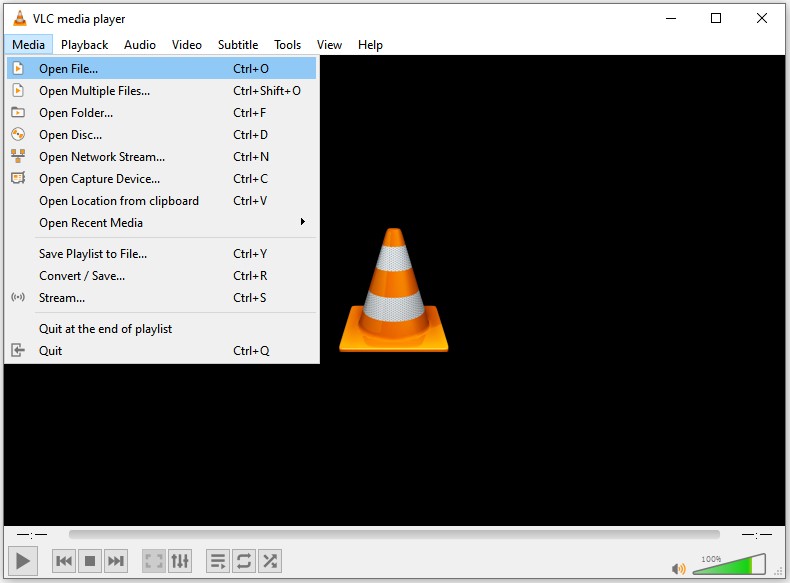
  • Open VLC Media Player. Go to "Media" > "Open File", select the renamed .MP4 file.

    open renamed mp4 in vlc
  • VLC's built-in repair engine will attempt to reconstruct the container if needed.

    vlc decode and repair container on open
  • If VLC plays it, go to "Media" > "Convert/Save" to re-export a clean copy.

Although this method doesn't always fully restore videos, it works surprisingly well for minor corruption.

Method 3: Use Untrunc Video Repair

Untrunc is a popular open-source video recovery tool. It is designed to rebuild broken video files by referencing a working sample recorded with the same camera. It reconstructs the missing video headers and metadata that were never finalized during recording.

✨ Best for: Severely damaged recordings where headers are missing.

Steps for RSV Repair with Untrunc:

➡️ Option 1: Using Command

  • Record a short reference video on the same camera: Same resolution, fps, codec (prefer H.264/XAVC). Named it, for example, reference.mp4.

  • Rename corrupt RSV video file from .rsv to .mp4 (e.g., bad.mp4).

  • Copy both the recorded reference video and the renamed MP4 file from the same camera to your computer.

  • Download Untrunc from its official GitHub repository.

  • Extract the ZIP file and run the tool using: untrunc /path/to/reference.mp4 /path/to/bad.mp4

  • Test fixed output in VLC.

➡️ Option B: Using GUI

  • Download/extract ZIP from above link. Double-click untrunc-gui.exe (or run untrunc.exe -gui if no separate exe). Opens on the "Repair" section).

  • In "Reference File", drag or select the working reference video (reference.mp4).

  • In "Truncated File", enter the path of the corrupted video file (bad.mp4).

    upload reference and damaged videos to untrunc
  • Before starting the repair, open the "Settings tab". Enable the option "skip unknown (-s)".

    untrunc enable skip unknown
  • Return to the "Repair" tab and click "Repair". Once completed, Untrunc will display the command output and generate a repaired file with "mp4_fixed-s1" appended to the filename.

  • Open the repaired video file to check if the video is now playable.

This tool is especially useful when you want to convert an RSV file into a playable container such as MP4 or MXF.

If these free solutions cannot restore your footage, the RSV file may be severely damaged. In such cases, using professional video repair software can provide a higher recovery success rate.

Part 3. How to Repair RSV File Online Free (No Download Needed)

If you do not want to install software, you can use an online repair service. One of the most popular tools is Fix.Video supports many camera formats and automatically repairs incomplete video files.

This method is convenient because everything happens online. This tool is specifically optimized for high-end camera formats, including Sony's XAVC. It works by analyzing the data stream and reconstructing the Moov Atom.

Steps to fix RSV files using Fix.Video:

  • Navigate to the Fix.Video website.

  • Click the "+" button to upload your corrupted RSV file.

    repair rsv online free with fixvideo
  • The site will analyze the file automatically. If it needs a reference, upload a small, healthy clip shot with the same settings.

  • Wait for the processing to finish.

  • Preview the recovered footage. If satisfied, download the repaired MP4.

Many users ask whether fix.video is good for Sony RSV file repair. In most cases, it works well when the corruption is related to incomplete metadata rather than heavy data loss. For fixing servere damaged, please read on.

⚡ Part 4. Use Professional RSV Repair Software (When Free Methods Aren't Enough)

Sometimes, free methods cannot fully repair damaged files, especially when the recording was interrupted or the file header is severely corrupted. In such cases, using professional RSV repair software is the most reliable solution. One recommended tool is 4DDiG Video Repair.

4DDiG Video Repair can repair heavily damaged RSV files and supports many formats such as MP4, MOV, MKV, MXF, and more. Its Advanced Repair mode helps fix problems such as file corruption, a missing moov atom, black screen playback, choppy or stuttering videos, and even audio noise.

FREE DOWNLOAD

Secure Download

FREE DOWNLOAD

Secure Download

Steps to Repair Sony RSV Files Using 4DDiG Video Repair

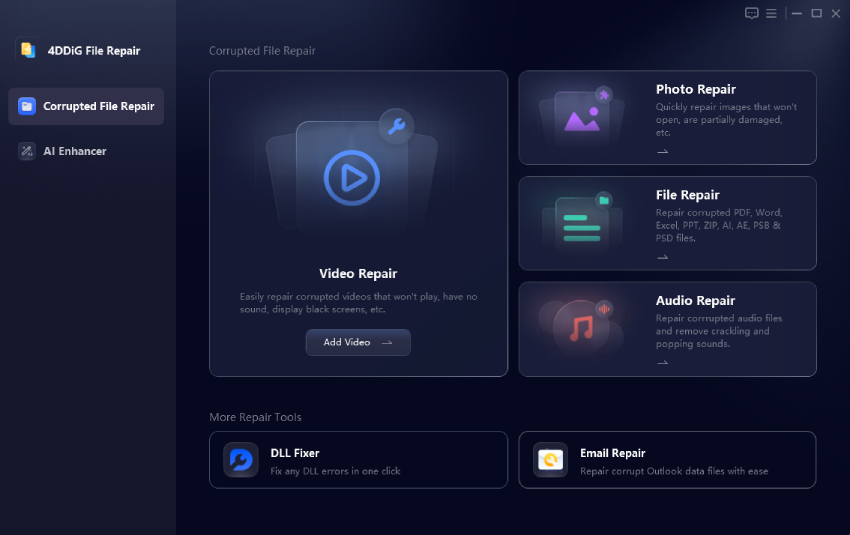
  • Download, install, and open 4DDiG File Repair on your computer. Choose "File Repair" from the left menu. Then click "Add Videos" to import one or more corrupted RSV files from your computer.

    add corrupted rsv files to 4ddig
  • After adding the videos, click the "Repair All" button. The program will automatically start repairing the RSV files one by one.

    start repairing corrupted rsv files
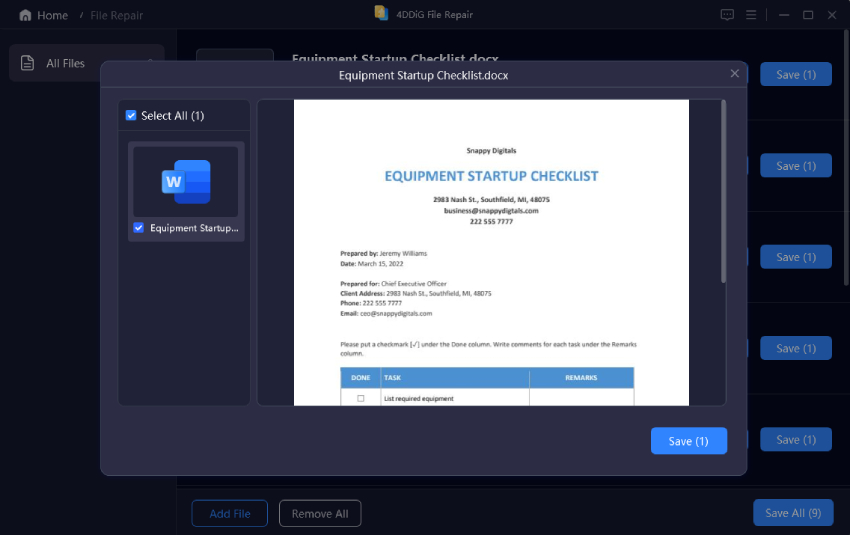
  • When the repair process finishes, click "Preview" to check the repaired videos. Play each file to make sure the video works correctly. Finally, click "Save" to export the repaired file to your computer.

    preview repaired rsv video files

This professional solution is especially useful when dealing with severely corrupted footage that cannot be fixed using free tools.

Part 5. How to Convert RSV File to MP4 After Repair for Better Playback

Once your video is repaired, you may want to convert it for easier playback or editing. Many editors and players work best with the MP4 format.

VLC Media Player is a free and popular media player that also includes a built-in video converter. If your repaired video plays in VLC, you can quickly convert it into MP4 without installing additional tools. This method is easy for beginners and works on Windows, Mac, and Linux.

Best for: Quick conversion with a graphical interface.

Steps:

  • Open VLC and go to "Media", then select "Convert / Save".

    go to vlc convert or save section
  • Click "Add" and select the repaired RSV video file.

    add repaired rsv files to vlc
  • Click "Convert / Save" at the bottom. In Profile, choose "Video – H.264 + MP3 (MP4)".

    convert rsv files to mp4 in vlc
  • Choose a destination folder and file name. Click "Start" to begin the conversion.

After the process finishes, the video will be saved as an MP4 file and can be played on most devices.

Part 6. How to Avoid RSV Files in the Future

Preventing a file from becoming an RSV is always better than trying to fix it later. Follow these professional habits:

  • Wait for the Light: Never pull the SD card while the camera's access light (usually red) is blinking.
  • Use V90 Rated Cards: High-bitrate recording (XAVC S-I) requires fast cards. Slow cards lead to buffer overflows and corruption.
  • Battery Management: Set your camera to alert you early for low battery. If you see the battery icon flashing, stop recording immediately.
  • External Power: For long interviews or events, use a V-Mount battery or a dummy battery to ensure consistent power.
  • Dual Slot Recording: If your camera supports it, record to both SD cards simultaneously. If one card corrupts into an RSV, the other may remain intact.
  • Format C ards in- Camera, N ot on PC: Format cards in-camera and never shoot over unverified footage

These habits significantly reduce the chance of encountering damaged video files.

FAQs

1. Can I play an RSV file directly?

No, an RSV file lacks the necessary header information. You must perform an RSV to MP4 conversion or repair before any media player can read it.

2. Is fix.video good for RSV file recovery?

Yes, fix.video good for RSV file recovery especially for small to medium-sized clips. It is a convenient browser-based solution that doesn't require software installation and handles Sony's XAVC codec quite well.

3. Does repairing an RSV file lose quality?

If you use tools like Untrunc or 4DDiG, the repair is lossless. The video data itself is untouched; only the "wrapper" is rebuilt.

4. Why does my Sony camera create RSV files?

RSV files are created when recordings using formats like XAVC or MXF are interrupted before saving properly. The camera stores the incomplete data in RSV format so it can potentially be recovered.

Conclusion

In summary, discovering an RSV file doesn't mean your footage is gone forever. This guide showed how to repair RSV file using built-in camera tools, open-source software like Untrunc, or online platforms. You can recover almost any clip. For the most reliable results, especially with batch processing and professional codecs, we highly recommend 4DDiG Video Repair. It is the most robust RSV repair software available today, ensuring your cinematic work remains safe and playable.

FREE DOWNLOAD

Secure Download

FREE DOWNLOAD

Secure Download

Ehtsham Ahmed (senior editor)

Ehtsham Ahmed, the content writer for 4DDiG, is dedicated to offering workarounds for Windows Data Recovery, Windows Troubleshooting, iDevices System Repair, etc.

(Click to rate this post)

You rated 4.5 ( participated)