Best M4V Player 2026: How to Open M4V Files on Any Device Easily

5 mins read

Updated on 2026-07-02 12:06:25 to Video Tips

Have you ever double-clicked an M4V file only to be greeted with an error message or a blank screen? That’s a common problem because M4V files are Apple’s version of MP4 and may sometimes include FairPlay DRM protection from iTunes or Apple TV purchases. Finding the right M4V player can make all the difference.

In this guide, we’ll explore the best players for every platform in 2026, compare their strengths, and show you how to fix playback problems when M4V files refuse to open.

What Is an M4V File & Why Your M4V File Is Not Playing?

Before choosing an M4V player, it helps to understand the file format itself. An M4V file is a video container developed by Apple. It is very similar to MP4 and commonly used for videos purchased or downloaded through iTunes and Apple TV.

Most unprotected M4V files can be played by many modern media players. However, some files include Apple’s FairPlay DRM, which restricts playback to authorized devices and applications. This is where many users run into trouble.

If you can’t open M4V files, several issues may be responsible:

  • Your media player doesn’t support the M4V format.
  • The file is protected by Apple’s FairPlay DRM.
  • The video file has become corrupted.
  • Required video codecs are missing.
  • The file extension is incorrect or damaged.

A reliable M4V format player solves most compatibility issues, while damaged files may require repair or conversion.

Top 6 Best M4V Players for Windows, Mac, Android, iPhone & Online

The best M4V player depends on your device and whether the file contains DRM protection. For most unprotected files, VLC remains the universal recommendation because it works across multiple platforms and supports a wide range of formats.

Tips:

Mac users may prefer QuickTime or Elmedia, while Android users often get the best experience with MX Player. If you simply need quick browser access, an m4v online player like Jumpshare can be convenient.

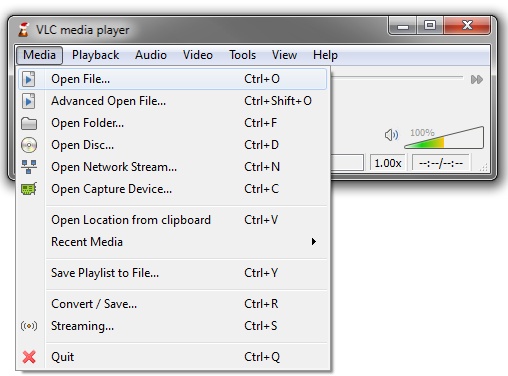
VLC Media Player (Universal M4V Support)

vlc m4v player

VLC Media Player has remained a favorite among users for years because of its unmatched format support. As a free, open-source application, it can handle almost any video file you throw at it, including most M4V videos. Whether you’re looking for an M4V player for Windows or a cross-platform solution, VLC is often the first recommendation for good reason.

  • Pros
  • Cons
    • Completely free, open source, and no advertisement.
    • Supports almost every major video format.
    • Available on Windows, Mac, Linux, Android, and iOS.
    • Supports subtitles sync, audio switching, and advanced playback controls.
    • Lightweight despite powerful capabilities.
    • Smooth 4K playback
    • Interface feels outdated.
    • Limited media library management.
    • Cannot bypass DRM-protected M4V restrictions.

QuickTime Player (Mac-Native)

quicktime player for m4v playing

QuickTime Player is Apple’s built-in media player and naturally supports M4V files. For users interested in playing m4v files on Mac, QuickTime provides seamless integration with the Apple ecosystem and delivers stable playback without requiring additional downloads.

  • Pros
  • Cons
    • Pre-installed on macOS.
    • Native playback of DRM-protected M4V with your Apple ID.
    • Simple and clean interface.
    • Optimized performance on Mac hardware.
    • Seamless integration with AirPlay and Picture-in-Picture.
    • Smooth playback experience.
    • Limited format support outside Apple formats.
    • Fewer customization options.
    • Not available for modern Windows systems.

Elmedia Player (Advanced Mac Playback)

elmedia m4v player

Elmedia Player is a feature-rich M4V player for Mac designed for users who want more control than QuickTime offers. It supports a wide variety of video formats while providing advanced playback features such as streaming, subtitle management, and picture-in-picture mode.

  • Pros
  • Cons
    • Excellent support for M4V and MP4.
    • Supports AirPlay and DLNA streaming.
    • Strong format support with hardware acceleration for 4K/8K.
    • Advanced subtitle customization and picture-in-picture mode available.
    • Modern user interface.
    • Smooth playback of large files.
    • Some advanced features require the Pro version.
    • Mac-only application.
    • More resource-intensive than QuickTime.

PotPlayer (High Customization Support)

potplayer for m4v playback

PotPlayer is a popular Windows media player known for its extensive configuration options. Power users often choose it because almost every aspect of playback can be customized, from rendering engines to subtitle behavior and hardware acceleration.

  • Pros
  • Cons
    • Highly customizable interface.
    • Excellent hardware acceleration support.
    • Handles large video files efficiently.
    • Supports advanced subtitle controls.
    • Strong codec compatibility.
    • Free to use.
    • Built-in screen recorder and 3D support.
    • Windows only.
    • Settings can overwhelm beginners.
    • The interface appears cluttered initially.
    • No native DRM support

MX Player (M4V Player for Android)

mx player for m4v playback

MX Player is one of the most downloaded Android media players available today. It offers reliable playback, strong codec support, and hardware acceleration, making it an excellent option for users who want an M4V solution on mobile devices.

  • Pros
  • Cons
    • Optimized for Android devices.
    • Hardware acceleration improves performance.
    • Supports multiple subtitle formats.
    • Gesture-based playback controls.
    • Chromecast and background playback.
    • Lightweight with Kids Lock feature.
    • Advertisements in the free version.
    • Some codecs require additional downloads.
    • DRM-protected content may not play.

Jumpshare M4V Player Online

jumpshare free online video player

Sometimes installing software isn’t practical. Jumpshare M4V Player offers a browser-based M4V viewer that allows users to preview M4V files online. This can be especially useful when working on shared computers or devices where software installation isn’t possible.

  • Pros
  • Cons
    • No installation required.
    • Accessible from any modern browser and across different operating systems.
    • Simple upload-and-play workflow.
    • AES-256 encryption for temporary files.
    • Useful for quick previews.
    • Supports file-sharing features.
    • Requires an internet connection.
    • File size and daily limits on free plan.
    • Less suitable for large video collections.

⚡ How to Fix the M4V File Not Playing on Any Player?

Even after installing the best M4V player, some files may still refuse to open. In most cases, the problem falls into one of two categories: file corruption or format compatibility issues.

Method 1: Repair Problem M4V Files

If the M4V file itself is damaged, no media player will be able to play it properly. Corruption can happen due to incomplete downloads, file transfer errors, system crashes, interrupted recordings, or faulty storage. Common symptoms include playback freezing, [black screens](video black screen), missing audio, or the file refusing to open at all.

4DDiG Video Repair is a reliable solution for fixing corrupted M4V files. It uses AI-powered technology to analyze and reconstruct damaged video data while preserving original quality and file structure.

Key advantages include:

  • Supports multiple video formats, including M4V, MP4, MOV, MKV, and more
  • Address wide range of video issues: video black screen, failed to load, error code (like 224003), audio and video out of sync, format not supported, missing codec, etc.
  • Batch repair: fix multiple files or entire folders at once
  • Built-in preview so you can check repaired videos before saving
  • Simple, user-friendly interface, no technical skills required
FREE DOWNLOAD

Secure Download

FREE DOWNLOAD

Secure Download

Steps to Repair Corrupted M4V Files Using 4DDiG Video Repair

  • Launch 4DDiG File Repair software and select “Video Repair," then click “Add Videos”.

    select 4ddig video repair and add corrupted m4v files
  • Import the corrupted M4V file, then start the repair process by clicking “Repair All”.

    repair all corrupted m4v files
  • Click the “Preview” button to preview the repaired M4V video.

    preview repaired m4v video
  • When you are satisfied with the results, touch on the triangle icon next to “Save” or “Save All” to select a preferred output video format (MP4, MOV, MKV, AVI, and Original) from the drop-down. Then click the “Save” button to save the repaired file.

    save repaired videos in preferred format

Method 2: Convert M4V to MP4

Sometimes the problem isn’t corruption but compatibility. Certain devices and media players handle MP4 more reliably than M4V, making conversion a practical solution.

Converting an M4V file to MP4 can improve compatibility across Windows PCs, Android phones, smart TVs, and older media players. Keep in mind that DRM-protected M4V files generally cannot be converted using standard tools due to Apple’s content protection restrictions.

Steps to Convert M4V to MP4

  • Open a trusted video converter, for example, CloudConvert, and import the M4V file.

    cloudconvert m4v to mp4 converter
  • Select MP4 as the output format and choose the desired video quality settings.

  • Start the conversion process and save the converted MP4 file when the process is complete to test playback on your preferred device.

People Also Ask About M4V File

Can Android / iPad Play M4V Files?

Yes. Most unprotected M4V files can be played on Android devices using apps such as MX Player or VLC. iPads can typically play M4V files through Apple’s native video support and compatible third-party applications.

Can DVD Players Play M4V Files?

Most traditional DVD players do not support M4V files directly. Some modern media-enabled DVD players may support playback through USB drives, but compatibility varies by model.

Is There a Free Best M4V Player with No Ads?

Yes. VLC Media Player remains one of the best free options available. It supports M4V playback across multiple platforms, contains no advertisements, and receives regular updates from its open-source community.

Conclusion

Choosing the right M4V player depends largely on your device, file type, and playback needs. VLC remains the most versatile option, while QuickTime, Elmedia, PotPlayer, MX Player, and Jumpshare each excel in specific situations.

If you still can’t open M4V files after trying different players, the file may be damaged. In that case, 4DDiG Video Repair provides an effective way to repair corrupted M4V videos and restore smooth playback without complex troubleshooting.

FREE DOWNLOAD

Secure Download

FREE DOWNLOAD

Secure Download

Ehtsham Ahmed (senior editor)

Ehtsham Ahmed, the content writer for 4DDiG, is dedicated to offering workarounds for Windows Data Recovery, Windows Troubleshooting, iDevices System Repair, etc.

(Click to rate this post)

You rated 4.5 ( participated)