How to Increase OBS Recording Quality: Ultimate Guide for High-Quality Videos

5 mins read

Updated on 2026-03-18 20:25:46 to Video Tips

Content creators often struggle with understanding how to increase OBS recording quality, especially when their videos turn out blurry or pixelated despite following basic setup guides. The problem, in most cases, lies in incorrect configuration. Beyond bitrate, factors such as encoder selection, recording format, and resolution settings also play crucial roles in determining final output quality.

This guide covers the best OBS settings for recording in detail, from optimizing OBS recording settings to troubleshooting common quality issues.

how to increase obs recording quality

✅ Quick Answer: How to Improve OBS Recording Quality Fast

To increase OBS recording quality, adjust these key settings:

  • Use NVENC or hardware encoder for better performance
  • Set bitrate high enough (e.g., 10,000–20,000 kbps for 1080p 60FPS)
  • Match base and output resolution (e.g., 1920×1080)
  • Use CQP (16–22) for consistent quality recording
  • Record in MKV format to avoid corruption
  • Use 4DDiG Video Enhancer to increase quality of recorded OBS videos
⚡ In short: OBS recording quality depends on bitrate + encoder + resolution + rate control working together, not just one setting.

Part 1. Why Are My OBS Recordings Low-Quality?

Many users ask: Why is my recording quality bad on OBS? The issue usually comes from incorrect settings, system limitations, or encoding problems. When OBS recording quality is bad, the output may appear blurry, compressed, or choppy.

For example, if the bitrate is too low, the video will lose detail during fast movement. Using the wrong encoder may overload your CPU or GPU, which can cause frame drops and blurry visuals.

Sometimes the recording format itself compresses the video more than expected. OBS presets, such as High Quality vs Low Latency, can also affect visual quality. Additionally, users with low-end PCs may experience quality loss due to CPU or GPU overload.

Common OBS Recording Problems and Fixes

Here are the most common reasons and how they affect recording quality.

Symptom Most Likely Cause Recommended Fix
Blurry video output Bitrate too low Increase recording bitrate
The video looks compressed Wrong encoder Switch to hardware encoder (NVENC/AMD/QuickSync)
Pixelation during motion Rate control is not optimized Use CQP or a higher bitrate
Frame drops or lag CPU/GPU overload Lower resolution or FPS
Poor text clarity Resolution mismatch Match base and output resolution
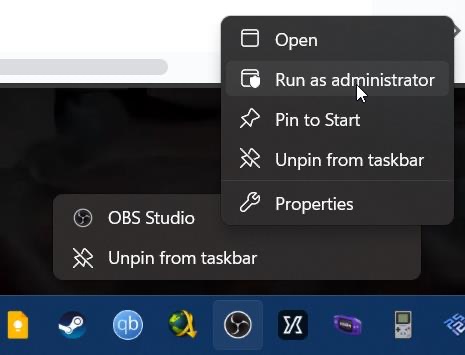
Stuttering gameplay recording Game capture conflict Run OBS as Administrator
Output quality inconsistent Recording format compression Switch to MKV or FLV format
The recording looks worse than the preview Wrong OBS preset Choose “High Quality” instead of “Low Latency.”

Many users also face that OBS recording is so blurry. In most cases, blur occurs because the bitrate is too low or the resolution is scaled improperly. Fortunately, adjusting OBS settings correctly can dramatically improve video clarity.

Part 2. How to Increase OBS Recording Quality Effectively (Full OBS Settings Guide)

If you want to improve video clarity and smoothness, adjusting the right OBS settings is very important. Many users try to make OBS recording quality better by only increasing resolution, but several settings work together to produce high-quality recordings.

Here are the most important settings to adjust.

1. Best OBS Settings for Recording High-Quality Videos

OBS needs to be configured correctly to achieve professional results. The following settings are considered the OBS best recording settings for most users.

1.1 Resolution & Frame Rate

Resolution and frame rate determine the clarity and smoothness of your recording.

How to Access: Click “Settings” in the bottom-right Controls panel. In the Settings window, go to the “Video” tab on the left.

Recommended settings:

  • Base (Canvas) Resolution same as monitor resolution (usually 1920×1080)
  • Output Resolution same as canvas for best quality
  • 60 FPS is best for gameplay or fast movement.
  • 30 FPS works well for tutorials or presentations.
obs resolution and frame rate settings for high quality recording

Higher FPS requires a higher bitrate to maintain quality.

1.2 Encoder Selection

The encoder determines how OBS compresses your video during recording. Many users ask what video encoder should I use for OBS because the choice affects both quality and performance.

How to Access: Go to OSB Settings > Output > change Output Mode into Advanced > switch to the “Streaming” tab. Then look for and change “Video Encoder”.

change obs encoder selection to increase recording quality

Common encoders:

  • x264 (CPU encoding): High quality but CPU intensive
  • NVENC (NVIDIA GPU): Best balance of quality and performance
  • AMD VCE/AMF: Good for AMD GPUs
  • Intel QuickSync: Efficient for Intel CPUs

For most users, NVENC is recommended because it produces excellent quality without stressing the CPU.

1.3 Bitrate Settings

Bitrate controls how much data is used to encode the video. Higher bitrate usually means better video quality.

How to Access: Go to Settings > Output tab > Advanced output mode > Streaming tab. Then look for and change “Rate Control” to CBR, CRF, etc.

change obs bitrate settings to increase recording quality

Recommended bitrate settings

Resolution FPS Recommended Bitrate
720p 30 FPS 3000 – 5000 kbps
1080p 30 FPS 6000 – 8000 kbps
1080p 60 FPS 10000 – 16000 kbps
1440p 60 FPS 20000+ kbps

If recordings look pixelated, increasing the bitrate is the easiest way to change OBS recording quality.

1.4 Rate Control (CBR vs CRF vs CQP)

Rate control determines how OBS manages video compression.

  • CBR (Constant Bitrate): Keeps bitrate fixed; commonly used for streaming
  • CRF (Constant Rate Factor): Balances quality and file size
  • CQP (Constant Quality Parameter): Keeps video quality consistent and is ideal for recording

For local recordings, CQP between 16 and 22 usually produces very high-quality results. Using the right rate control helps achieve the highest quality OBS recording settings.

1.5 Other Important OBS Settings

Some additional settings also affect recording quality.

Factor Impact on Quality Best Settings for OBS Recording
Resolution Determines image sharpness 1920 × 1080
FPS Affects motion smoothness 30 or 60 FPS
Downscale Filter Controls scaling quality Lanczos
Preset Balances quality vs performance Quality / Max Quality

Using these adjustments together helps you achieve the best OBS settings for high quality recording.

Complete Steps to Change OBS Recording Settings

Follow these steps to apply the correct settings.

  • Open OBS and click “Settings” (bottom right).

  • Go to the “Output” tab and set the “Output Mode” to “Advanced.”

  • Click the “Recording tab.”

  • Select your “Video Encoder” (e.g., NVIDIA NVENC AV1).

  • Set “Rate Control” to CQP.

  • Set CQ Level to 20 (lower numbers are higher quality; 0 is lossless but creates massive files).

    change obs encoder settings cq level
  • Go to the “Video” tab and ensure Output (Scaled) Resolution matches your Base Resolution, such as 1920×1080.

  • Click “Apply,” and then “OK.”

These steps help improve video clarity and make OBS recording quality better.

2. Best OBS Recording Format for High-Quality Videos: MKV, MP4, MOV, or FLV?

The recording format also affects reliability and editing compatibility.

Format Advantages Disadvantages
MKV Prevents file corruption if OBS crashes Needs remux to MP4
MP4 Widely supported for editing and sharing Can be corrupted if the recording stops suddenly
MOV High editing compatibility Larger file sizes
FLV Stable recording format Limited editing support

Recommended option: Use the MKV format for recording and enable automatic remux to MP4 in OBS. This method protects recordings from corruption while keeping them compatible with video editing software.

Using the right format together with the OBS best recording settings ensures stable recordings and better video quality.

⚡ Part 3. How to Fix OBS Recording Quality Issues

Sometimes OBS recordings may look blurry or low quality. This usually happens because of incorrect settings or resolution problems.

Below are common issues and how to fix them.

Issue 1. OBS Recording Is Blurry When Moving

Sometimes recordings look clear when the screen is static. But it becomes blurry or pixelated during fast movement, especially in gameplay videos. This usually happens because the bitrate is too low or the encoding settings cannot handle fast motion.

Fixes:

  • Increase the recording bitrate
  • Use CQP rate control instead of CBR to maintain consistent quality.
  • Use the Lanczos downscale filter in OBS video settings

These adjustments help preserve detail during motion and reduce blur in recordings.

Issue 2. OBS Game Capture Poor Quality

Sometimes the game capture source does not record the game correctly or the video looks washed out or low quality. This problem often occurs when OBS cannot properly hook into the game process.

Fixes:

  • Confirm the correct game process is selected.
  • Run OBS as Administrator so it can access the game properly.
  • Disable Allow Transparency in the source settings
  • Switch to Display Capture only if Game Capture fails

Applying these steps usually improves game recording stability and quality.

Issue 3. OBS Recording Text Is Blurry

Blurry text is common when recording tutorials, presentations, or desktop screens. If UI elements or text look soft or unreadable, the problem usually comes from scaling issues.

Fixes:

  • Match the output resolution with the canvas resolution.
  • Disable Windows display scaling or set it to 100% to prevent scaling artifacts.

These simple adjustments keep text and interface elements clear in recordings.

Issue 4. OBS Recording Already Saved in Low Quality?

Unfortunately, once a video is recorded with heavy compression, OBS can't magically improve what's already baked in. However, modern AI tools can dramatically enhance it afterward.

A good option is 4DDiG AI Video Enhancer. Its AI technology is adept in upscaling and restoring low-res or compressed footage like OBS recordings up to 8K, sharpening blurry footage, reducing noise, and increasing resolution. This makes it useful for fixing bad-quality OBS recordings after they have already been saved.

Key Features of 4DDiG AI Video Enhancer

  • AI-powered video upscaling to 4K and even 8K
  • Sharpen blurry videos and recover details
  • Reduce noise and grain from recordings
  • Improve colors and overall video clarity
  • Enhance and restore old or compressed videos
  • Supports multiple formats and batch processing
  • Batch processing to enhance several videos at once

This tool is especially helpful when OBS recordings were captured with low bitrate or incorrect settings.

FREE DOWNLOAD

Secure Download

FREE DOWNLOAD

Secure Download

Steps to Enhance OBS Bad-Quality Recordings with 4DDiG AI Video Enhancer

  • Download and install 4DDiG AI Video Enhancer, then open the program.

    select 4ddig ai video enhancer
  • Click “Add Videos” and upload the OBS recording that looks blurry or low quality.

  • Choose the appropriate AI model (e.g., General Model or Denoise Model) and set the desired output resolution (e.g., 1080p or 4K).

  • Click “Enhance” and allow the AI to process the video, sharpening details and improving visual quality.

  • Preview the improved video and click "Save" to export the enhanced OBS recording.

    preview and save enhanced obs recordings

You can significantly improve the quality of your recordings by adjusting OBS settings and using AI enhancement tools when needed.

People Also Ask about OBS Recording Quality

Q1: What video encoder should I use for OBS?

The best encoder depends on your hardware. For most users, NVENC (NVIDIA GPU) provides the best balance between performance and video quality. If you don't have a dedicated GPU, x264 CPU encoding is the next best option.

Q2: OBS turning high quality vs low latency: what are the differences?

High Quality prioritizes visual detail and compression efficiency, while Low Latency reduces encoding delay for live streaming. For recording videos, High Quality is the better option.

Q3: What are the best OBS settings for recording low-end PCs?

Set 720p resolution at 30 FPS. Audio should use 44.1 kHz for lower processing demands. Bitrate around 4,000 Kbps works for video, though 1,500 Kbps suffices for lower definitions.

Q4: How to get 1080p recording on OBS?

Set both base and output resolutions to 1920x1080. Configure bitrate to 4,000 Kbps for 30 FPS or 6,000 Kbps for 60 FPS.

Q5: Is 6000 bitrate enough for 1080p?

For 1080p streaming, 6000 kbps is acceptable. However, for recording, it is relatively low. For high-quality local recordings, a bitrate between 12000 and 20000 kbps is recommended.

Conclusion

Improving recording clarity is mostly about optimizing OBS settings such as bitrate, encoder, resolution, and recording format. Once you understand how to increase OBS recording quality, you can eliminate blurry footage and produce professional-looking videos. If you have already recorded low-quality clips, tools like 4DDiG AI Video Enhancer can upscale and sharpen them using AI. It helps you recover valuable recordings without needing to reshoot content.

FREE DOWNLOAD

Secure Download

FREE DOWNLOAD

Secure Download

Ehtsham Ahmed (senior editor)

Ehtsham Ahmed, the content writer for 4DDiG, is dedicated to offering workarounds for Windows Data Recovery, Windows Troubleshooting, iDevices System Repair, etc.

(Click to rate this post)

You rated 4.5 ( participated)