How to Fix Error Code 232600: "This Video File Cannot Be Played" Issue

5 mins read

Updated on 2026-04-08 17:08:13 to Video Error

Have you ever settled down to watch your favorite show only to see the frustrating error code 232600? This common issue often displays a message saying, “sorry the video player failed to load." Whether you are on a streaming site or a browser, it can be a real headache. This article explores why error code 232600 occurs and provides effective solutions to make sure your viewing experience remains uninterrupted and smooth.

error code 232600 fix

Part 1. What Is Error Code 232600?

1. What Does Error Code 232600 Mean?

Technically speaking, error code 232600 is a specific error generated by JW Player. It is one of the most widely used video playback engines on the internet today. According to the official JW Player third-party software notices, additional terms and conditions, and technical reference documentation, this error indicates that the "parent HLS manifest could not be parsed."

HLS, or HTTP Live Streaming, is a communication protocol developed by Apple for streaming media. It works by breaking down the overall stream into a sequence of small HTTP-based file downloads, each download loading one short chunk of an overall potentially unbounded transport stream.

A manifest file (usually with an .m3u8 extension) acts as a map for the player, telling it where to find these individual video segments. When the player cannot read or "parse" this map, it results in the "This video file cannot be played" message.

Variations of the exact error message covered under this code include:

  • "The video player failed to load."
  • "Error 232600: This video file cannot be played."
  • "The parent HLS manifest could not be parsed."
  • "Error loading player: No playable sources found."

2. Where Does Error Code 232600 Appear Most

You are most likely to experience this error on third-party streaming platforms that use JW Player as their primary media engine. It is common on:

  • Browsers: Chrome, Firefox, Safari, and Edge
  • Streaming sites: Aniwave, Watch2Gether, Crunchyroll, and free anime streaming platforms
  • Video platforms: YouTube (occasionally), Vimeo, and custom streaming websites
  • Mobile apps: Android video streaming applications
  • Live streaming services: AWS Amplify-based platforms using OBS.

The error is particularly prevalent on free streaming sites that rely on third-party video hosting.

Similar Error Code List:

Part 2. Common Causes of Error Code 232600

Why does the HLS manifest fail to parse? There are several underlying reasons that range from simple user errors to complex server-side failures:

  • HLS Manifest Corruption: The parent HLS manifest could not be parsed. This is often because the file itself is malformed on the server side.
  • Browser Cache and Cookie Corruptions: Temporary files stored by your browser can interfere with loading new HLS manifests. If a previous attempt failed, the browser might keep serving you the broken version.
  • Extension Conflicts: Ad blockers or privacy tools may incorrectly flag a manifest file as a "tracking pixel," preventing it from loading.
  • VPN Interference: Advanced security features in VPNs can strip necessary HTTP headers (such as CORS headers) from the video request.
  • DNS Filtering and CDNs: If your DNS provider blocks the specific content delivery network (CDN) hosting the video, the player won't be able to reach the manifest at all.
  • Outdated Player Versions: A mismatch between old player scripts and newer browser security standards can cause a handshake failure.
  • Unstable Network Connectivity: Even a microsecond of packet loss during the initial handshake can cause the manifest to be downloaded as a partial, unreadable file.

Part 3. How to Fix Error Code 232600 (5 Quick Fixes)

If you are staring at a black screen right now, try these five steps in order. These methods address the most common client-side causes for the error code 232600.

Fix 1. Reload Page (Hard Refresh) / Restart the Browser

Sometimes, the browser fails to load a specific script or a small piece of data required for the video stream. A "Hard Refresh" forces the browser to ignore its saved cache and download everything from the server again.

  • On Google Chrome/Windows: Press Ctrl + F5.

    page reload shortcuts
  • On Mozilla Firefox/Windows: Press Ctrl + Shift + R.

  • On Mac (Chrome/Safari): Press Cmd + Shift + R.

Fix 2. Try Incognito / Private Mode

Incognito mode launches a window without your saved cookies, history, or most importantly, your active extensions. If a hidden setting or a specific extension is causing the error, Incognito mode will bypass it.

Steps:

  • Open your Chrome browser.

  • Click the three dots or three lines menu in the top-right corner.

  • Select “New Incognito Window” (Chrome).

    play video in incognito window to avoid error code 232600
  • Paste the video URL and try playing it.

Fix 3. Turn Off "Threat Protection" of Your VPN

If you use NordVPN or similar services like Surfshark or ExpressVPN, they often have a feature called "Threat Protection" or "CyberSec." This tool filters web traffic to block trackers and malware before they reach your device. However, it frequently flags HLS manifests as "suspicious" and blocks the connection.

Step for NordVPN:

  • Open your NordVPN app.

  • Click the "Shield icon" (Threat Protection) on the left-side menu.

    nordvpn shield icom
  • Toggle the switch for Threat Protection to "OFF."

    turn off nordvpn threat protection to fix error code 232600
  • Refresh your browser page.

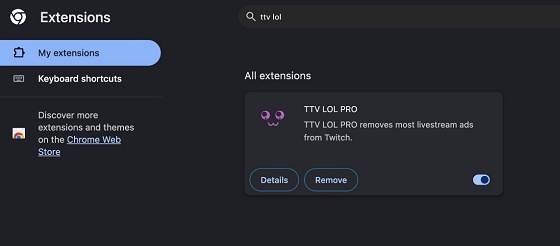
Fix 4. Disable Ad Blocker / Extensions

Ad-blockers are a primary trigger for video errors. Since they constantly monitor and modify the code of the pages you visit, they can easily break the JW Player's ability to read the video source.

Steps: Steps:

  • Click the "three dots" in the top-right corner. Select "Extensions" and then click "Manage Extensions" to see a list of your installed tools.

    chrome select manage extensions
  • Find your ad blocker and click the toggle switch so it turns gray (this means it is off).

    turn off adblocker and extensions to fix error code 232600
  • Refresh your video to see if it plays correctly.

Fix 5. Disable VPN / DNS / Security Filtering

If you are using a custom DNS (like a "Family Safety" filter or a Pi-hole) or a full VPN tunnel, try turning it off temporarily. Some security filters see the "third party software notices" or the external HLS stream as a security risk.

  • Open the Start menu and select "Settings."

  • In the Settings window, choose "Network & Internet."

  • Click on "Ethernet" from the sidebar.

    go to ethernet settings
  • Find the "IP Assignment" section.

  • Click the "Edit" next to “IP Assignment.”

  • If the setting is “Manual,” change it to “Automatic (DHCP).”

    edit ip settings
  • Click "Save" to apply the changes.

Remove any custom servers like 1.1.1.1 and revert to defaults. Switching back to your default ISP settings or a neutral DNS like Google (8.8.8.8) can resolve the handshake issue that causes the error code 232600 video failure

Part 4. Why Does It Keep Saying "This Video File Cannot Be Played"?

When you have meticulously followed all the fixes above and the message "This video file cannot be played" still haunts your screen, the problem is likely a Server-Side Issue. This is common on free streaming platforms where links are frequently updated or taken down.

  • The Website is Overloaded: High traffic on sites like Aniwave can cause the manifest-generating server to time out.
  • Server Migration: The site might be moving its content to a new server, leaving the old HLS manifests invalid.
  • Region Locking: Sometimes the server-side manifest is only valid for certain IP addresses, and if your network configuration doesn't match those addresses, the player fails to parse it.
  • Temporary Server Glitches: Sometimes the root trigger (extension, Threat Protection, cache) keeps reactivating. In these cases, there is no fix you can apply; you must wait for the site administrators to resolve it.

Recommendation: If you face this issue repeatedly, the best solution is to download the video for offline playback. This bypasses the need for the browser’s JW Player to handle the complex HLS manifest altogether.

⚡ Part 5. How to Fix "Video Cannot Be Played" for Downloaded Videos

Downloading videos can save you from browser-based errors, but what if the downloaded file itself is corrupted? If you've managed to avoid the online error code 232600 only to face a "file cannot be opened" error on your PC, it’s time to use 4DDiG Video Repair.

4DDiG Video Repair is a powerful, user-friendly tool for repairing corrupted offline videos. It supports many formats like MP4, MOV, MKV, and more. It is ideal for batch repairing corrupted videos caused by download interruptions, virus attacks, or disk errors. The software is particularly adept at handling various video issues, such as flickering, blurriness, and audio sync problems.

One of its best features is Advanced Repair. It uses a sample video to intelligently rebuild the damaged header and frame data in your corrupted file. This helps fix even badly corrupted videos with a higher success rate.

FREE DOWNLOAD

Secure Download

FREE DOWNLOAD

Secure Download

Steps to Repair Corrupted Media Videos with 4DDiG Video Repair:

  • Download and install 4DDiG Video Repair on your Windows or Mac. Select the "Video Repair" tab and click "Add Videos" to upload the files that won't play.

    add unplayable videos to 4ddig
  • Click the "Repair All" button. The software will perform a quick scan and attempt to fix the issues automatically.

    repair all added videos
  • After the repair is complete, preview the video to check if it’s fixed. Finally, click "save" to export the repaired file to a secure folder.

    preview and save repaired videos

FAQs about Error Code 232600

Q1: Why does my browser say this video can't be played even in Incognito mode?

This suggests the problem is at the network level (VPN "Threat Protection" or DNS) or a server-side problem on the website. If it works on your phone's data but not your Wi-Fi, the router or ISP is likely the block.

Q2: Is error code 232600 video related to my internet speed?

No. This is a "parsing" error, meaning the player cannot understand the video's instructions, regardless of speed. However, an extremely unstable connection can result in a partial download of the manifest file, which can cause the error.

Q3: Does clearing my browsing history fix the jw player error?

Clearing "History" won't help, but clearing your "Cache" and "Cookies" can resolve conflicts with old site data. Be sure to select "All time" for the time range to ensure all corrupted data is removed.

Conclusion

In summary, error code 232600 is a common playback failure. It is usually caused by HLS manifest parsing issues or interference from security tools such as VPNs and ad blockers. Most users can resolve the issue immediately by systematically applying the fixes above. If the problem lies with the file itself, we recommend 4DDiG Video Repair as the ultimate solution for restoring unplayable media.

FREE DOWNLOAD

Secure Download

FREE DOWNLOAD

Secure Download

William Bollson (senior editor)

William Bollson, the editor-in-chief of 4DDiG, devotes to providing the best solutions for Windows and Mac related issues, including data recovery, repair, error fixes.

(Click to rate this post)

You rated 4.5 ( participated)