How to Fix Hulu Error RUNUNK13 Step-by-step?

5 mins read

Updated on 2026-03-27 14:23:00 to Windows Fix

When you're ready to stream your favorite show on Hulu — only to be greeted by a cryptic Hulu error RUNUNK 13 message that refuses to go away. You're definitely not alone. Thousands of Hulu users encounter this error every day across different devices and browsers, and it can feel like a dead end when you don't know what's causing it.

The good news is that this error is almost always fixable. In this guide, we'll walk you through everything you need to know, including what it means, why it happens, and how to resolve it so you can get back to streaming without further interruptions.

1. What is Hulu Error RUNUNK13?

Hulu error code RUNUNK 13 is a playback error code that appears when Hulu's streaming service encounters a problem delivering video content to your device or browser. It is essentially a client-side or network-side failure signal, indicating that communication between your device and Hulu's servers has broken down at some point during the streaming session.

Hulu error rununk13

The "RUNUNK" prefix stands for a runtime unknown failure, meaning Hulu's system detected an issue but couldn't precisely identify its root cause. The "13" suffix is simply an internal identifier Hulu uses to categorize this particular type of unknown runtime problem. In short, what does Hulu error code RUNUNK13 mean? It's Hulu's way of telling you something went wrong during playback, even if it can't pinpoint exactly what.

2. What Causes Hulu Error RUNUNK13?

Understanding the root causes is half the battle. The Hulu error code RUNUNK13 can be triggered by a variety of factors:

  • Browser extensions or add-ons: Certain extensions, especially sound boosters, ad blockers, or VPN plugins installed in Chrome, can interfere with Hulu's DRM (Digital Rights Management) system, triggering the error.
  • Corrupted or outdated browser cache: Cached data that has become outdated or corrupted can prevent Hulu from loading properly, resulting in the Hulu error code RUNUNK 13 on computer.
  • Browser compatibility issues: Streaming on an unsupported or outdated browser version can cause playback failures, particularly when the Hulu error code RUNUNK 13 appears on chrome.
  • Device-level software conflicts: Background applications, outdated system software, or conflicting drivers can sometimes interfere with Hulu's video playback on a PC or Mac.
  • Hulu server-side outages: Occasionally, the error originates from Hulu's own servers. A temporary outage or maintenance window can cause playback to fail.
  • Poor or unstable internet connection: A weak Wi-Fi signal or high packet loss can interrupt the data stream from Hulu's CDN (Content Delivery Network), causing the error to appear.

⚡ 3. How to Resolve Hulu Error RUNUNK13?

Now that you know what causes the Hulu error code RUNUNK 13 on pc and other devices, let's jump into the solutions. Work through these fixes in order for the best results.

Fix 1: Check Hulu's Status

Before making any changes to your device or browser, it's worth verifying whether Hulu's servers are currently experiencing issues. If the problem is on Hulu's end, no amount of local troubleshooting will resolve the Hulu error RUNUNK 13.

  • Open a web browser and navigate to a site such as Downdetector. Search for "Hulu" and check if there are any reported outages or service disruptions.

    check hulu status
  • Alternatively, visit Hulu's official Facebook/X account to see if they have acknowledged any ongoing issues.

  • If a server outage is confirmed, the only solution is to wait for Hulu to restore service. Try again after 30–60 minutes.

Fix 2: Restart Your Device

A simple restart can clear temporary software glitches causing the Hulu error code RUNUNK 13. This applies to all devices, including PC, Mac, Apple TV, and more.

  • Close the Hulu app or browser tab completely.

  • Power off your device fully (not just sleep/standby). Wait at least 30 seconds before turning it back on.

    close device
  • Relaunch Hulu and attempt to play the content again.

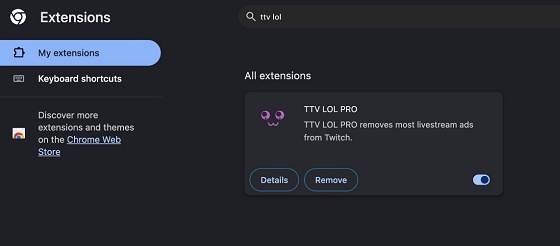
Fix 3: Turn Off Sound Booster Extension

One of the most common causes of Hulu error code RUNUNK 13 chrome is a Sound Booster or audio enhancement extension that interferes with Hulu's playback engine.

  • Open Google Chrome and click the three-dot menu in the upper-right corner.

  • Go to Extensions > Manage Extensions. Locate any Sound Booster or audio-related extension and toggle it off.

    disable sound booster extension
  • Refresh the Hulu page or relaunch the app and test playback.

If the error disappears, the extension was the culprit. Consider removing it permanently or using a different browser.

Fix 4: Minimize Your Browser

Believe it or not, minimizing your browser window has helped some users resolve this Hulu error. This appears to force a refresh of the video renderer, resolving temporary display or GPU-related conflicts.

  • While Hulu is open and displaying the error, minimize the browser window.

  • Wait 5–10 seconds, then restore the window. Attempt to start playback again.

Fix 5: Use a Different Device or Browser

If you're experiencing Hulu error code RUNUNK 13 on computer and other fixes haven't worked, try switching to a different browser or device. This helps determine whether the issue is browser-specific or device-specific.

  • Open a different browser (e.g., Firefox or Edge) on the same device.

  • Navigate to Hulu.com and sign in with your credentials.

  • Attempt to play the same content that triggered the error.

  • If it works, the issue is isolated to your original browser.

If the error persists across all browsers, try a completely different device (smartphone, tablet, or another computer).

Fix 6: Clear Hulu's Cache

Outdated or corrupted cache data is one of the top reasons for the Hulu error code RUNUNK 13 on pc and other platforms. Clearing the browser or app cache can often resolve the error instantly.

For Chrome Browser:

  • Go to Settings > Privacy and security in Chrome. Click “Delete browsing data.”

    delete browsing data
  • Set the time range to All time. Check Cached images and files and Cookies and other site data. Click Clear data and wait for the process to complete.

    click clear data
  • Reopen Hulu and check if the Hulu error RUNUNK 13 has been resolved.

Also, this method can be applied to solve Hulu error code P-DEV320.

🔥Pro Tip for Better Performance: Wipe Disk with 4DDiG Partition Manager

If you're consistently running into streaming errors like the Hulu error RUNUNK 13, a cluttered and fragmented hard disk may be quietly degrading your system's overall performance. Over time, junk files, redundant data, and fragmented disk space can slow down your system's processing capabilities, indirectly causing streaming apps like Hulu to struggle. This is where 4DDiG Partition Manager's Wipe Disk function can make a meaningful difference.

This powerful feature securely erases all data from a selected disk or partition, ensuring that sensitive information cannot be recovered and freeing up disk space thoroughly. Beyond wiping, it also supports OS migration to SSD, disk cloning, partition resizing, MBR/GPT conversion, and partition recovery, making it an all-in-one solution for disk health optimization.

  • Install and launch 4DDiG Partition Manager on your Windows computer. In the left navigation bar, select Toolkit, then click Data Erase.

    FREE DOWNLOAD

    Secure Download

    data erase
  • Select the disk or partition you want to wipe and click the Continue button.

    select partition and click continue
  • Confirm your selection by clicking Sure. The wipe process will begin — please be patient and do not disconnect the disk or close the program.

    click sure
  • Click Finish once the disk has been successfully wiped.

    click finish

By maintaining a clean, well-managed disk environment, you reduce the likelihood of system-level conflicts that can trigger streaming errors.

More FAQs about Hulu Error RUNUNK13

1. Why do I keep getting an error code on Hulu?

Persistent error codes on Hulu are typically caused by browser extensions interfering with DRM playback, outdated app or browser versions, corrupted cached data, or intermittent internet connectivity problems. If the Hulu error code RUNUNK 13 keeps appearing, try cycling through all the fixes listed in this guide.

2. Can I get Hulu on Chromebook?

Yes, you can. Hulu is available on Chromebook both as a web app (via Chrome browser at Hulu.com) and as an Android app through the Google Play Store.

3. How to clear cache on Hulu?

The method for clearing Hulu's cache depends on your platform. On a PC or Mac (via browser), Go to browser's settings > clear browsing data. On mobile devices, go to your phone's Settings > Apps > Hulu > Storage > Clear Cache. On Apple TV, the most effective method is to delete and reinstall the Hulu app.

4. How do I fix my Hulu connection error?

  • Restart your router and modem;
  • Switch from Wi-Fi to a wired Ethernet connection if possible;
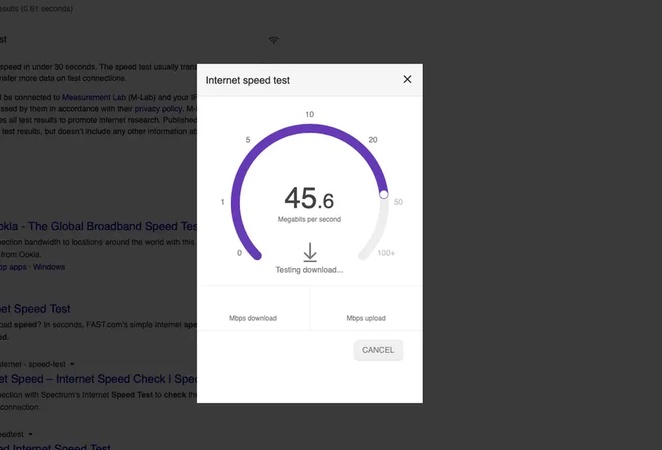
  • Check your internet speed to ensure it meets Hulu's minimum requirements (at least 3 Mbps for standard streaming, 16 Mbps for 4K);
  • Disable any VPN or proxy service that might be masking your IP address;
  • Try using a different DNS server such as Google DNS (8.8.8.8).

If the connection error persists, proceed with the other device-level fixes described above.

Conclusion

Dealing with the Hulu error RUNUNK 13 can be frustrating, but as this guide has shown, the fixes are manageable and straightforward. For those experiencing the error on apple tv or Mac, reinstalling the app and keeping firmware updated goes a long way.

And if you want to take a proactive approach to preventing future streaming errors, consider using 4DDiG Partition Manager to keep your disk clean and optimized. Its easy-to-use functions ensures that unnecessary data doesn't accumulate and slow down your system, giving you a smoother, uninterrupted Hulu streaming experience for the long haul. Take control of your disk health today, and say goodbye to disruptive error codes for good.

FREE DOWNLOAD

Secure Download

William Bollson (senior editor)

William Bollson, the editor-in-chief of 4DDiG, devotes to providing the best solutions for Windows and Mac related issues, including data recovery, repair, error fixes.

(Click to rate this post)

You rated 4.5 ( participated)