How to Fix MP4 Black Screen (Complete Guide 2026)

5 mins read

Updated on 2026-04-08 17:08:14 to Video Error

An MP4 black screen issue can be incredibly frustrating especially when your video plays sound but shows nothing on screen. Whether you're dealing with an mp4 video black screen on your PC, phone, or editing software, this problem is more common than you think. The good news? You can fix it quickly with the right methods. Let’s explore why it happens and how to solve it.

mp4 black screen

Part 1. Why Is My MP4 Showing a Black Screen?

When an MP4 file turns into a black screen, it usually indicates a problem with how the video data is encoded or played. Most common causes include:

  • Corrupted video file: Sometimes, the video file gets damaged. In this case, the audio may still play, but the video track is broken, resulting in a black screen.
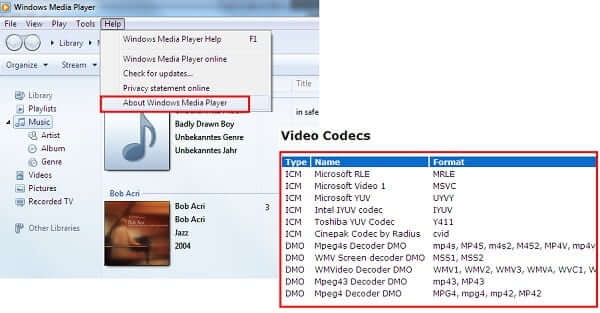
  • Unsupported video codec: MP4 is just a container format and can use different codecs (like H.264 or HEVC). If your media player doesn’t support the codec, it may play sound but show no video.
  • Hardware Acceleration Conflicts: Sometimes, your GPU and the media player don't communicate properly, causing the video frame to fail to render.
  • Incomplete download or transfer: If the file wasn’t fully downloaded or transferred, missing data can lead to playback problems like a black screen.
  • Editing/export issues (e.g., After Effects): Incorrect export settings can cause the video to appear black after editing.
  • Outdated media player or system: Older media players or OS may not support newer video formats, causing playback problems.
  • Graphics driver issues: Outdated or faulty drivers can interfere with video rendering.

In many cases, the file isn’t fully broken, only the video stream is affected, which is why audio still plays.

Quick Diagnostic Methods (Symptoms)

You can identify the problem by checking the symptoms. Here are the most common ones:

  • mp4 plays black screen with sound (mp4 black screen but audio works)
  • Video works on one device but not another
  • Black screen after exporting from After Effects
  • Playback freezes or shows blank visuals

Symptom-Based Diagnosis Table

Symptom Most Likely Cause Recommended Method Difficulty
MP4 black screen but audio works Corrupted video track Method 2: Repair corrupted MP4 Medium
MP4 black screen after Effects export Wrong export/render settings Method 3: Re-export video with correct settings Easy
MP4 shows black screen on one player only Unsupported codec Method 1: Try a different media player (e.g., VLC) Easy
MP4 black screen after download Incomplete or broken file Method 4: Re-download the video Easy
MP4 black screen on mobile but works on PC Device incompatibility Method 5: Convert video format Medium
MP4 not showing video at all (no audio/video) Severe file corruption Method 2: Repair or recover video Hard
MP4 black screen during playback randomly GPU/driver issue Method 6: Update graphics drivers Medium
Quick Tip:

If you hear sound but see a black screen, the video track is likely damaged or unsupported.

Part 2. How to Fix MP4 Black Screen | 5 Quick & Easy Methods

If your video shows a mp4 black screen, don’t worry. There are several ways to fix it. Here are 5 quick and effective methods you can try, depending on the cause of the problem.

Method 1: Switch to a Better Media Player (Fastest Fix)

One of the most common reasons behind an MP4 black screen is unsupported codecs in your media player. Default players like Windows Media Player or some mobile apps often fail to decode newer formats like H.265 (HEVC), resulting in audio-only playback.

Switching to a powerful, codec-rich player like VLC or MX Player can instantly fix the issue without modifying the video file.

Recommended Players:

  • VLC Media Player: The gold standard. It contains its own internal codecs, making it the top choice for fixing mp4 black screen in VLC.
  • MPC-HC: A lightweight alternative that handles high-bitrate MP4s efficiently.
  • KMPlayer: Excellent for 4K and 8K MP4 files.

Steps:

  • Download and install VLC Media Player (Windows/Mac) or MX Player (Android).

  • Launch the player.

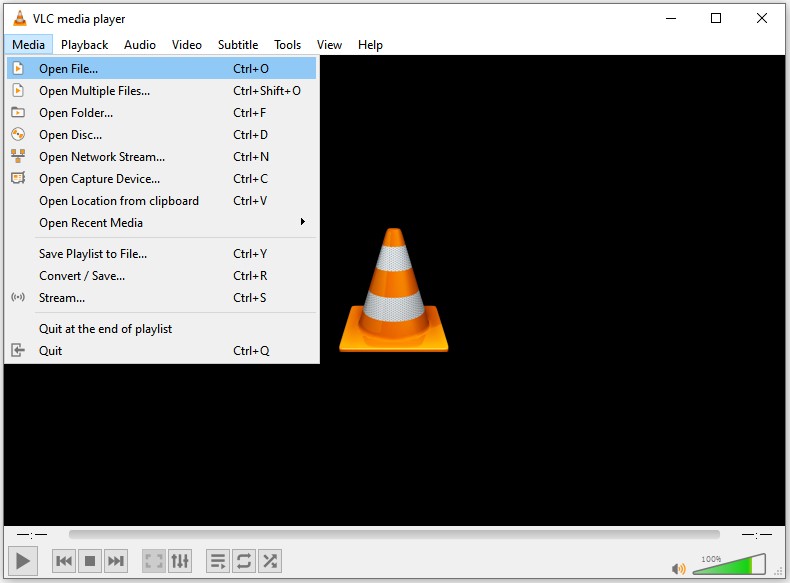
  • Click Media, and then “Open File...” (or tap “Open” on mobile).

    open mp4 on vlc without black screen
  • Select your MP4 file.

  • Play the video and check if the black screen is resolved.

Method 2: Repair Corrupted MP4 Video Black Screen with 4DDiG Video Repair

If switching players doesn’t work, your video file may be corrupted or partially damaged. This often happens due to interrupted downloads, file transfer errors, or system crashes.

In such cases, a professional tool like 4DDiG Video Repair can rebuild the video structure and restore the missing visuals without affecting quality.

Key Features:

Steps to fix black screen MP4 with 4DDiG:

  • Install and launch 4DDiG File Repair. Select “Video Repair” from the menu. Click “Add Videos” and import corrupted MP4 files with black screen issue.

    add black screen mp4 videos to 4ddig
  • Click “Repair All” to start fixing. The software will analyze the file for "mp4 black screen but audio works" symptoms and fix the underlying metadata.

    repair all added mp4 videos
  • Preview the fixed video and “Save” it to a secure location.

    preview and save repaired mp4 videos

This is the most effective solution if your mp4 plays black screen with sound due to file corruption.

Method 3: Disable Hardware Acceleration (Works for VLC, Chrome, Firefox, Edge)

Hardware acceleration helps improve performance by using your GPU, but sometimes it causes video decoding conflicts, leading to black screen issues. This is especially common with outdated graphics drivers or incompatible systems.

Disabling hardware acceleration forces the software to handle decoding, which often resolves playback problems.

For VLC Media Player:

  • Go to “Tools,” then choose “Preferences.”

    select vlc preferences
  • Click on the “Input / Codecs” tab. Locate “Hardware-accelerated decoding” and change it from "Automatic" to “Disable.”

    disable vlc hardware acceleration to fix mp4 black screen
  • Restart VLC.

Method 4: Reconvert or Re-encode MP4

Sometimes, MP4 files created from audio formats like MP3, WAV, or M4A don’t contain proper video streams, resulting in a black screen. In other cases, incorrect encoding settings can make the video unreadable by certain players.

Re-encoding the file with proper video codecs (such as H.264) ensures compatibility and restores visual playback.

  • Use a free tool like Handbrake.

  • Drop your black-screen MP4 into the window.

  • Select the "Fast 1080p30" preset.

  • Under the "Video" tab, ensure the Video Codec is set to H.264 (x264).

  • Click "Start Encode." This forces the creation of a fresh video stream.

    handbrake reencode mp4

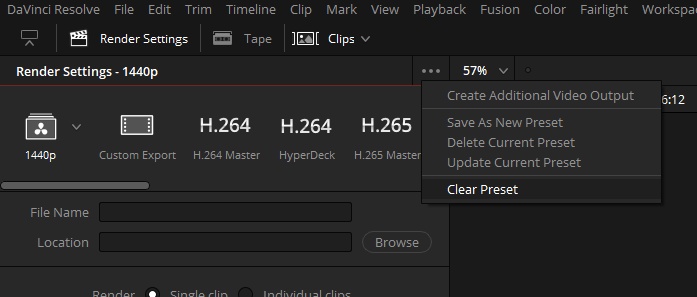
Method 5: Export via Adobe Media Encoder with Software Encoding

If your MP4 shows a black screen after exporting from Adobe After Effects, the issue is usually due to hardware encoding errors. Some GPUs fail to properly render video frames, resulting in blank output.

Switching to software encoding in Adobe Media Encoder ensures stable and accurate rendering.

  • Open your project in After Effects or Premiere Pro.

  • Go to File, then click “Project Settings” and then choose “General.’

  • Change Renderer to "Mercury Playback Engine Software Only."

    adobe media encoder change render
  • Queue the render to Adobe Media Encoder.

  • In Media Encoder, change the "Renderer" dropdown (bottom right) to "Software Only" before hitting the green play button.

    adobe media encoder change video render

Part 3. How to Prevent MP4 Black Screen Issues in the Future

Prevention is always better than repair. Follow these tips to ensure your mp4 video black screen problems don't return:

1. Use Reliable Media Players

Always use trusted players like VLC or Windows Media Player. These players support most video formats and reduce the chance of a mp4 video black screen. Using unknown or outdated players can cause compatibility issues.

2. Avoid Interrupted Downloads or Transfers

Make sure your video files are fully downloaded or copied. If a file is incomplete, it may lead to a mp4 black screen but audio works issue. Always check file size and transfer completion.

3. Export Videos with Correct Settings

When creating or editing videos, use standard formats like MP4 with H.264 codec. Wrong export settings can cause video playback errors. Proper encoding ensures your video plays correctly on all devices.

4. Keep Software and Drivers Updated

Update your media player, browser, and graphics drivers regularly. Outdated software may not support newer video formats. This can easily result in a mp4 video black screen.

5. Disable Hardware Acceleration if Problems Occur

Hardware acceleration can sometimes cause display issues. If you notice playback problems, try turning it off in your player or browser settings. This can help prevent mp4 black screen errors.

6. Check Video Compatibility Before Sharing

Before using or sharing a video, test it on your device. This ensures the file works properly and avoids unexpected issues. It also helps prevent mp4 black screen problems on other devices.

People Also Ask about MP4 Video Black Screen

Q1: Why won't MP4 play in PowerPoint?

PowerPoint supports limited codecs. If your MP4 uses unsupported encoding, it may not display video resulting in a black screen. Convert it to H.264 with AAC audio to fix the issue.

Q2: How do I fix a corrupted MP4 file?

The most effective way to fix corrupted MP4 black screen files is to use a specialized repair tool like 4DDiG Video Repair. It can reconstruct damaged metadata and video frames that standard media players cannot read.

Q3: Can a virus cause an MP4 black screen?

Yes, some malware targets media files to corrupt their metadata. Always scan your downloads with an antivirus if you suspect a black screen MP4 issue is due to a malicious file.

Conclusion

The MP 4 black screen issue can be frustrating, but it’s usually easy to fix once you identify the cause. These five proven methods cover all scenarios from switching media players to repairing corrupted files. For the most reliable results, 4DDiG Video Repair is highly recommended. It effectively fixes mp4 video black screen issues and restores smooth playback without quality loss. Try these solutions today and bring your videos back to life effortlessly.

FREE DOWNLOAD

Secure Download

FREE DOWNLOAD

Secure Download

William Bollson (senior editor)

William Bollson, the editor-in-chief of 4DDiG, devotes to providing the best solutions for Windows and Mac related issues, including data recovery, repair, error fixes.

(Click to rate this post)

You rated 4.5 ( participated)