How to Fix Steam Content File Locke Error?

5 mins read

Updated on 2026-03-27 11:40:23 to Windows Fix

The Steam content file locked error is one of the most common issues players encounter. One moment your game is updating normally; the next, Steam halts completely and displays a message that leaves many users confused and searching for answers. In this guide, we'll break down exactly what this error means, why it happens, and walk you through six reliable methods to fix it and get back to gaming.

1. What Does Content File Locked Mean on Steam?

Content file locked Steam error means that Steam is unable to write data to one or more game files on your hard drive during a download or update. Essentially, Steam is trying to modify or replace a file, but something is actively blocking it from doing so.

steam content file locked

This issue is specifically a file-access conflict. Steam needs read and write access to game files to complete installations and updates. When this access is denied, the steam download failed content file locked message appears, halting the process entirely.

2. Why is Steam Content File Locked?

Why is content file locked Steam? Understanding the root cause is key to picking the right fix. Here are the most common reasons behind the steam content file locked error:

  • Antivirus or Security Software: Real-time protection tools, including Windows Defender, can lock game files mid-scan, preventing Steam from writing to them.
  • Steam Not Running as Administrator: Without elevated permissions, Steam may lack the system access needed to modify files in protected directories.
  • Corrupted Winsock or Network Settings: Damaged network stack settings can disrupt Steam's ability to download and write files correctly.
  • Corrupt Steam Client Cache / Game Files : Outdated or corrupted cache filesin the Steam client and corrupted game files can cause conflicts during downloads.
  • Steam Download Content File Locked by Another Process: Background applications such as cloud sync tools, backup software, or even a previous Steam instance may hold a lock on the files.

Games like iRacing, Marvel Rivals and Call of Duty are frequently reported with content file locked error due to their large file sizes and frequent updates.

3. How to Resolve Content File Locked Steam?

If you want to know how to fix content file locked on Steam, below are six proven fixes.

Fix 1: Launch Steam.exe as Administrator

One of the simplest and most effective solutions is to run Steam with administrator privileges. This grants Steam full read/write access to your drive, which directly resolves permission-based file locks.

  • Close Steam completely. Navigate to your Steam installation folder.

  • Right-click Steam.exe and select "Run as administrator".

    run steam as administrator
  • Try downloading or updating your game again.

Tip:

To make this permanent, right-click Steam.exe and click Properties. Go to Compatibility tab, check "Run this program as an administrator." Then, click Apply.

Fix 2: Run the Reset Winsock Command

If your network settings are corrupted, Steam may fail to download files correctly, leading to the steam download content file locked error. Resetting the Winsock catalog can fix underlying network stack issues.

  • Press the Windows key, type cmd, right-click Command Prompt, and select "Run as administrator".

  • In the Command Prompt window, type the following command and press Enter:

    netsh winsock reset

    reset winsock command
  • Next, type the following command to restart your computer immediately and press Enter:

    shutdown /r /t 0

  • After your PC restarts, relaunch Steam and retry the download.

Fix 3: Verify Integrity of Game Files

Steam's built-in verification tool scans your installed game files, identifies corrupted or missing ones, and replaces them automatically. This is especially effective when a partial update causes this error.

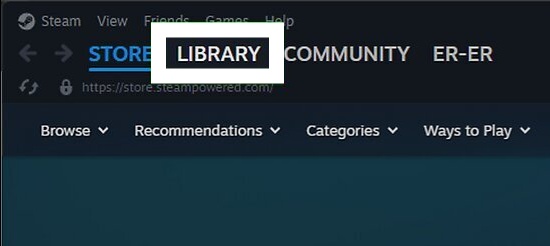
  • Open Steam and go to your Library. Right-click the affected game and select Properties.

  • Click the Local Files tab. Click "Verify integrity of game files."

    verify integrity of game files
  • Wait for the process to complete. Steam will automatically download any missing or corrupted files.

After that, relaunch the game or retry the update. And this solution can also be used to fix Half Sword fatal error.

Fix 4: Disable Riot Vanguard

Riot Vanguard is an aggressive anti-cheat system that runs at the kernel level and can lock game files across your entire system, not just Riot games. If you have Valorant or another Riot title installed, Vanguard may be causing the Steam content file locked error.

  • Look for the Vanguard icon in your system tray.

  • Right-click the Vanguard icon. Select "Exit Vanguard".

    exit vanguard
  • Restart Steam and attempt the download or update again.

✅ Extended Reading: How to Download Riot Vanguard: Step by Step

Fix 5: Clear Steam Cache and Re-sign In

Corrupted cache data in the Steam client can cause persistent download errors. Clearing it forces Steam to rebuild its cache from scratch, often resolving the steam download failed content file locked problem.

  • Open Steam and click Steam in the top menu bar. Select Settings from the dropdown menu.

  • Go to Downloads on the left sidebar. Click "Clear Download Cache". Confirm by clicking OK. Steam will log you out.

    clear steam download cache
  • Re-enter your Steam credentials and sign back in. Try your download or update again.

Fix 6: Uninstall and Reinstall Steam

If all else fails, a clean reinstall of the Steam client itself can be the last solution. Don't worry, your installed games won't be deleted as long as you keep the steamapps folder intact.

  • Before uninstalling, navigate to C:\Program Files (x86)\Steam. Back up the steamapps folder.

  • Press Windows + R, type appwiz.cpl, and press Enter to open Programs and Features.

  • Find Steam in the list, right-click it, and select Uninstall.

    uninstall steam
  • Download the latest Steam installer from official website and run it.

  • Once installed, move your backed-up steamapps folder back to the Steam directory. Launch Steam to check if the error has been solved.

⚡ Extra Tip: Recover a Deleted Partition Without Data Loss

While troubleshooting the content file locked Steam error, some users accidentally delete a partition or lose access to their drive. If that happens to you, 4DDiG Partition Manager's powerful partition recovery function can restore lost or deleted partitions quickly and safely — without overwriting your data.

Key Features of 4DDiG Partition Manager:


  • Partition Resize & Move: Easily extend your C: drive or reorganize disk space without formatting.
  • Clone Disk: Create a 1:1 sector-by-sector clone of your entire drive for safe backups or migrations.
  • OS Migration: Move your operating system to a new SSD without reinstalling Windows.
  • Unlock/ Remove BitLocker: It enables you to unlock or remove BitLocker. Also, it can help you bypass BitLocker recovery screen when you forgot the password.
  • Install and open 4DDiG Partition Manager. Then, go to “Partition Recovery” from the left panel, choose the disk that contains the lost partition, and click “Quick Scan” to begin. If you can't find the partition you're looking for, please try a deep scan.

    FREE DOWNLOAD

    Secure Download

    click quick scan
    Note:

    If you want to recover a partition from an external hard drive, connect the drive to your computer first.

  • Select the partition(s) you want to recover. Keep in mind that restoring partitions will overwrite existing ones, so make sure you want to continue. Then click “Sure”, followed by “Start Recovery”.

    click sure to proceed
  • After the partition has been successfully restored, click Finish to complete the process.

    restore partition successfully

Whether you're recovering from an accidental deletion or repartitioning your drive after a Steam reinstall, this tool can help you.

More FAQs About Steam Content File Locked

Q1: How to Fix Content File Locked on Steam iRacing?

The content file locked steam iRacing error follows the same root causes as other games. Start by launching Steam as Administrator, then run "Verify Integrity of Game Files" from iRacing's Properties menu. If the error persists, check whether any antivirus software is actively scanning your iRacing directory and add it to the exclusion list.

Q2: How Do I Unblock Content on Steam?

First identify what is blocking it. Run Steam as administrator to address permission issues. If the block is network-related, reset your Winsock settings using the command prompt method above. If a specific game's files are locked, use Steam's "Verify Integrity of Game Files" feature to detect and repair the problem.

Conclusion

The content file locked Steam error is frustrating, but it's almost always fixable. The six methods in this guide cover all the most common scenarios. Start with running Steam as Administrator and work your way through the list until your downloads and updates run smoothly again.

And if you ever run into disk or partition issues while troubleshooting, remember that 4DDiG Partition Manager is an excellent tool to have on hand. Its intuitive partition recovery function and suite of disk management features make it easy to safeguard your data and keep your system running at its best. With the right tools and the right steps, you'll be back in the game before you know it.

FREE DOWNLOAD

Secure Download

William Bollson (senior editor)

William Bollson, the editor-in-chief of 4DDiG, devotes to providing the best solutions for Windows and Mac related issues, including data recovery, repair, error fixes.

(Click to rate this post)

You rated 4.5 ( participated)