How to Fix Error Binkw32.dll Was Not Found

5 mins read

Updated on 2026-03-17 17:40:45 to Windows Fix

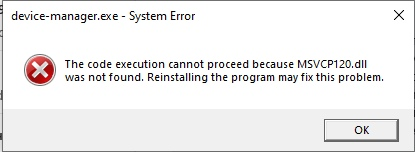
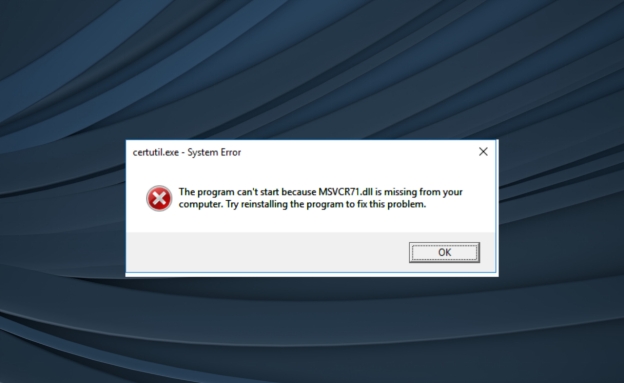
Have you encountered the error message “binkw32.dll was not found ” while playing a game? When this occurs, some of the components that are important to playing game videos/cutscenes don't load properly in the game program.

The good news is that this is usually an easy problem to fix. In this guide, you will know what binkw32.dll is, the cause of the binkw32.dll missing error, and the safest way to fix the binkw32.dll error on Windows.

1. What is Binkw32.dll?

Binkw32.dll, a dynamic link library for Bink Video Codec, which is a video compression technology commonly used in PC Games. Many games use this codec for the playback of in-game movies, cinematographic scenes, and intro videos.

Instead of placing humongous video data bits directly into the game engine pipeline itself, the developers use the 'Bink' codec to compress video content in an efficient way. The binkw32.dll file would be the connection between Windows being able to decode those video sequences and play them.

This usually happens when:

  • Game files are incomplete
  • The DLL file was deleted
  • Antivirus removed the file
  • A game installation failed
  • The video codec from Bink is not installed

Having a good understanding of what caused it makes it easier to implement the right solution.

2. How to Solve That Binkw32.dll Was Not Found?

When the binkw32.dll was not found message is shown in Windows, the problem is mostly related to a missing or corrupted file in the game directory. The following are some of the best solutions to solve it.

Fix 1: Copy Binkw32.dll to the Root Game Folder

Many games have their version of binkw32.dll that is placed within the installation directory. If the game does not find it, you can manually copy the DLL to the appropriate folder, and the problem may be fixed.

  • Go to the game installation folder. Look for a folder named Redist, System, and Support.

  • Locate the binkw32.dll file.

  • Copy the file.

  • Paste it in the main game folder (where the game executable is).

If the file is not there, then some people download the binkw32.dll online. Downloading DLL files from an unknown website is, however, risky. Instead, it is safer to reinstall the game or install the official codec.

Fix 2: Update the Game

Sometimes, the binkw32.dll is missing, while sometimes, the version of the game is not updated. It is common for the developers to make the updates with the missing libraries and fix the compatibility.

  • Start up your game launcher (Steam, Epic Games, or other game platforms software)

  • Go to the library and find the game.

    download bink video
  • Check for available updates and install the latest patch.

  • Restart the game again to check if the error has been solved.

After updating, the launcher is usually able to replace missing parts by itself. For many players, after updating the game, the failed to load binkw32 dll problem will be solved without any further troubleshooting.

Fix 3: Reinstall the Game

If updating does not work, installation files might be corrupted. This is to ensure that all the required files are present, including binkw32.dll, through the process of reinstalling the game.

  • Open Control Panel → Programs and Features.

  • Find the game that is causing the error. Select Uninstall.

    download bink video
  • Restart your computer. Then, reinstall the game using the original installer or game launcher

During the installation, useful components like binkw32.dll, etc., are copied automatically to the appropriate directory during the installation process. This often resolves the binkw32.dll was not found message.

Note:

It is important not to manually download random DLL files, as there is a possibility that they may be infected with malware or even incompatible versions.

Fix 4: Install Bink Video Codec

Since binkw32.dll is part of the Bink Video Codec, it is also possible for the codec package to resolve the problem.

  • Visit the official RAD Game Tools Web site.

  • Download the installation file for the Bink Video Codec.

    download bink video
  • Running the installer as an Administrator. Complete the installation procedure.

  • Restart your PC and play the game a second time.

Installing the codec will ensure that the Windows operating system will locate the correct binkw32.dll file as well as correctly load video assets. This technique is especially useful with the older games that use the codec.

Fix 5: Use Professional DLL Fixer

If the binkw32 dll missing error still occurs, it may be with your deep system issues, like corrupted DLL files or damaged registry entries. A professional DLL repair tool 4DDiG DLL Fixer is able to automatically detect and fix a missing DLL file in Windows.

  • To download the 4DDiG DLL Fixer to your Windows computer and install it Open the software and select the option for scanning missing or corrupted DLL files.

    do a full dll scan
  • Click on Repair button and let the software automatically scan the missing binkw32.dll file.

    scan missing file
  • This automatic technique is good if you don't know how to download the Binkw32.dll safely or where to put this file.

    complete repairing dll file

⚡ More FAQs About Binkw32.dll

1. Where to put binkw32.dll?

The binkw32.dll file should normally be found in the same folder as the game executable file. In some games, this is the main installation directory.

Some users also copy the file to the Windows system folder

  • C:\Windows\System32 (if that's the case of 64-bit systems)
  • C:\Windows\SysWOW64 (For programs that run on 32-bit versions of Windows)

However, the safest place is often in the root folder of the game.

2. How to Install binkw32.dll in Windows 10?

  • Install the Bink Video Codec package.
  • Restart the installation of the game that requires the file.
  • Use a trusted DLL repair tool to restore the missing files for you.

Do not download DLL files from a website you don't know. There are many sources for downloading binkw32.dll, which can be unsafe.

Conclusion

The binkw32.dll is not found error will be encountered usually when one of the required game libraries is missing or corrupted. Fortunately, there is almost no problem that is permanent. Copying the DLL to the appropriate folder, putting the game on a new system, uninstalling and reinstalling the game, and downloading and installing the Bink Video Codec. Usually, it will take just a short time to fix the problem.

FREE DOWNLOAD

Secure Download

William Bollson (senior editor)

William Bollson, the editor-in-chief of 4DDiG, devotes to providing the best solutions for Windows and Mac related issues, including data recovery, repair, error fixes.

(Click to rate this post)

You rated 4.5 ( participated)