How to Fix ACPI BIOS Error on Windows 11/10?

5 mins read

Updated on 2026-03-09 12:05:45 to Windows Fix

ACPI BIOS Error, which can stop Windows from loading properly. This error often occurs after hardware upgrades, incorrect BIOS configuration, corrupted system drivers, or Windows updates. Fortunately, this issue can usually be resolved through several reliable troubleshooting steps. This article explains the causes and provides the best solutions to fix ACPI BIOS errors in Windows 10/11.

1. What Does Stop Code ACPI_BIOS_ERROR Mean?

The stop code ACPI_BIOS_ERROR is a Blue Screen of Death (BSOD) error related to power management and hardware communication. ACPI stands for Advanced Configuration and Power Interface. It is a standard that allows Windows to communicate with your computer’s BIOS (Basic Input/Output System). When Windows detects that your BIOS is not fully compatible with ACPI requirements, it causes the ACPI_BIOS_ERROR to prevent further damage.

fix acpi bios error

Common Causes of ACPI BIOS Error Windows 10/11

The ACPI BIOS error can happen for several reasons. Here are the most common ones.

  • Outdated or Incompatible BIOS: Your computer's BIOS might be outdated or not compatible with the ACPI settings required by your operating system.
  • Hardware Conflicts: Incompatible or faulty hardware components connected to your system can cause ACPI BIOS errors.
  • Hibernation Complications: Hardware or memory modifications during hibernation can cause this error upon waking.
  • RAM Functionality Problems: Malfunctioning RAM modules, particularly if modified during sleep states, may cause ACPI BIOS errors.
  • ACPI Compliance Mismatch: Sometimes, the ACPI implementation in your operating system might not fully align with the ACPI in your BIOS.

2. How to Solve ACPI BIOS Error?

Resolving an ACPI BIOS error needs a methodical approach. Depending on the severity of the issue, each fix below targets a specific potential cause of the Windows ACPI BIOS error.

Fix 1: Check Hardware Connections

Loose internal hardware can cause the ACPI BIOS error during startup. If RAM sticks, storage drives, or motherboard cables are not properly connected, the BIOS may fail to detect hardware correctly. This can lead to boot crashes or restart loops.

  • Turn off your computer completely and unplug the power cable.

  • Open the computer case carefully. Check if the hard drive, RAM, and cables are properly connected.

  • Reattach any loose cables or components. Then, close the case and restart the PC.

Fix 2: Unplug Unnecessary Peripheral Devices

Sometimes, external devices like USB drives, printers, or hubs may conflict with BIOS power settings. This can cause the ACPI BIOS error loop during boot. Removing extra peripherals helps Windows start without hardware interference.

  • Shut down your computer.

  • Disconnect all external devices except the keyboard and mouse. Remove USB drives, external hard drives, printers, and other peripherals.

    remove usb
  • Restart your computer to check if the error persists.

Fix 3: Restore Default BIOS Settings

Incorrect BIOS settings can force your computer to crash with ACPI BIOS errors. Restoring default BIOS settings resets misconfigured power management or boot options. This is useful if the issue started after BIOS changes or hardware upgrades.

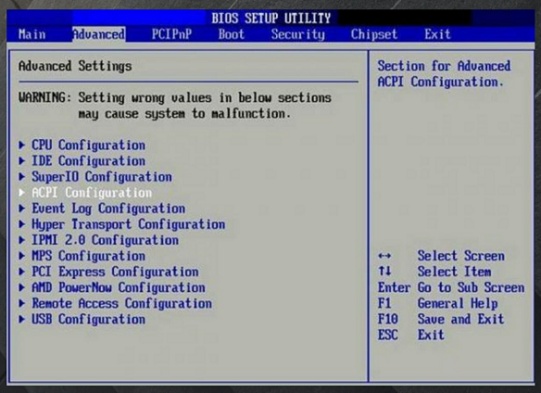
  • Restart your computer and keep pressing the BIOS key (usually F2 or DEL) while it boots.

  • Once you are in the BIOS screen, press F9 to choose "Load Default Options." Click "Yes" to confirm and restore the default BIOS settings.

    load default options
  • You may also find a reset option under the "Security" tab. Finally, select "Save" and then click "Exit" to restart your computer.

    exit saving changes

⚡ Tip: What to Do When an ACPI BIOS Error Prevents Windows from Starting?

If system still stuck in blue screen due to ACPI BIOS errors, creating a Windows Preinstallation Environment (WinPE) bootable USB can be a game-changer. WinPE is a lightweight version of Windows that runs from external media, allowing you to perform deep diagnostics, repair boot issues, and fix system files offline.

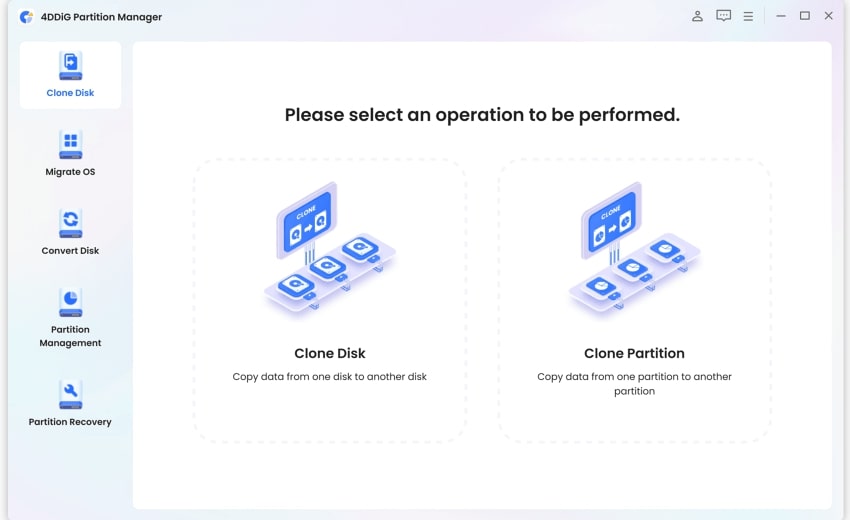
4DDiG Partition Manager is a reliable disk management tool. Its Create WinPE feature allows you to start a computer that cannot boot normally.

  • Install and open 4DDiG Partition Manager on your computer. Then, insert a USB flash drive. Open the software, click "Toolkit" on the left, then choose "Create WinPE."

    create winpe
  • Choose an ISO file if needed, or just use the default option. Then click the "Start" button to continue. The program will prepare the WinPE bootable media automatically.

    choose iso file
  • Select the connected USB drive as the target disk. Click "Continue", and confirm formatting by clicking “Sure.”

    select usb drive and proceed
  • The software will now create the WinPE bootable USB drive. This may take a few minutes. When the process is done, click "Finish."

    finsh creating winpe

Fix 4: Disable AHCI Mode

AHCI controls how storage drives communicate with the system. Sometimes AHCI compatibility issues can cause ACPI BIOS errors. Switching to an IDE or disabling AHCI may allow Windows to boot normally.

  • Restart your PC and enter BIOS settings (press F2 or DEL).

  • Go to the "Storage" or "Advanced" tab. Find the SATA Configuration option.

    locate sata mode selection
  • Change the mode from "AHCI" to "IDE" or Legacy. Save changes and exit BIOS. Then, restart your computer.

Fix 5: Update BIOS

An outdated BIOS may not support newer Windows updates or hardware, causing ACPI BIOS errors. Updating BIOS improves compatibility and fixes known bugs. Always follow the manufacturer’s instructions carefully to avoid system damage.

  • Open “System Information” on your PC and check your current BIOS version.

  • Visit your computer manufacturer’s website and search for your computer model and download the available update.

    bios update download
  • Extract the downloaded BIOS update file and copy it to a USB flash drive.

  • Restart your PC, enter BIOS, open "Tools," select "Instant Flash," choose the update file from the USB, and click "Update."

More FAQs about ACPI BIOS Error

1. How to enable ACPI in BIOS?

Enter BIOS after restarting your PC. Go to the “Power Management” section. Find the “ACPI Function” setting. Set it to “Enabled.” and then save and exit. This ensures that ACPI functionality is active and recognized by Windows.

2. Can RAM Cause ACPI Errors?

Yes. Faulty, mismatched, or improperly seated RAM can trigger ACPI BIOS errors, especially after a memory upgrade. Resetting or testing RAM sticks individually can help identify the issue.

3. What is ACPI in BIOS?

ACPI (Advanced Configuration and Power Interface) is a protocol that allows Windows to manage power usage and hardware states through the BIOS. It supports sleep mode, hibernation, and efficient power control.

Conclusion

The ACPI BIOS Error is a serious Blue Screen issue that affects both Windows 10 and Windows 11. It occurs when Windows cannot properly communicate with the BIOS for hardware and power management. Fortunately, most cases can be resolved. If Windows cannot boot, 4DDiG Partition Manager provides a safe and reliable solution. Its WinPE bootable feature helps access your drive and system, making recovery easier and more efficient.

FREE DOWNLOAD

Secure Download

William Bollson (senior editor)

William Bollson, the editor-in-chief of 4DDiG, devotes to providing the best solutions for Windows and Mac related issues, including data recovery, repair, error fixes.

(Click to rate this post)

You rated 4.5 ( participated)