How to Convert DNG to JPG without Losing Quality

5 mins read

Updated on 2026-10-14 11:41:48 to Photo Tips

DNG files keep the full detail from your camera’s sensor, but many people and apps can’t open them easily. That's why many users opt to convert DNG to JPG without losing quality for smooth viewing and sharing.

If you feel the same, then you've come to the right place. This guide explains how to convert DNG to JPG on Windows, Mac, iPhone, and Android using built-in tools, free online converters, and professional software. You’ll learn how to open DNG files directly, process multiple images efficiently, and choose the right method for privacy, speed, and overall image quality.

Part 1. How to Open DNG Files on Windows Directly and Easily

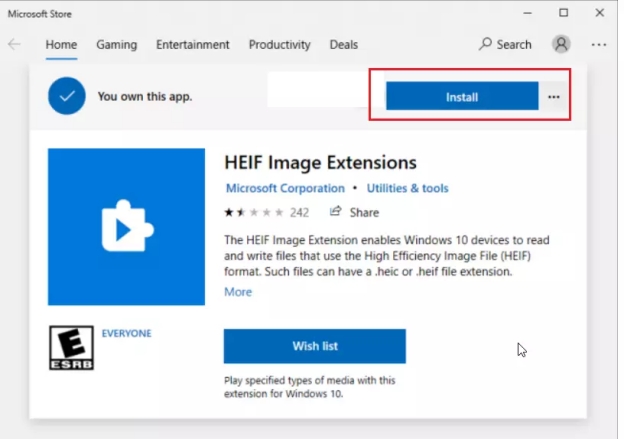
You don’t always need to convert a DNG right away. On Windows, a free Microsoft tool called RAW Image Extensions can help you add RAW-format support to File Explorer and thr Photos app. This way lets you view DNG files in the built-in Photos app without installing heavy software or converting those files to JPG.

  • Open the Microsoft Store from the Start menu and search for Raw Image Extension.

  • Click Get or Install and wait for it to finish.

    install raw image extensions to add raw support to windows
  • Open File Explorer and go to the folder with your DNG files. Thumbnails should appear after a short moment.

  • Double-click a DNG file to open it in the Photos app. You can view it, make basic adjustments, and even save a copy as JPG from there if needed.

This method works on Windows 10 (version 1903 or later) and Windows 11. It’s ideal when you only need to preview images quickly. However, if simply opening the file isn’t enough and you want a shareable JPG, free online tools make the process fast and straightforward.

Part 2. How to Convert DNG to JPG Free Online

If you only have a few images and do not want to install software, an online converter is usually the quickest option. A browser-based DNG to JPG converter is especially useful when you need a standard JPG for uploading, emailing, or sharing on a device that does not support RAW files.

2 Best Online DNG to JPG Converters (Free, Fast, No Ads)

1. CloudConvert DNG to JPG Converter

CloudConvert is a reliable dng to jpg converter that handles large files and lets you adjust quality, size, and other settings before converting. It’s popular because the interface is clear and the results are consistent. It is best for users who want adjustable JPG output settings.

cloudconvert dng to jpg converter online

2. Picflow DNG to JPG Converter

Picflow is a simpler alternative designed for quick image conversion. It’s free, has no ads, requires no registration, and supports batch conversion. The conversion is processed in the browser rather than uploading the images to its server. Privacy-focused users often prefer this online dng to jpg converter.

picflow dng to jpg converter online

How to Change DNG to JPG Online for Free (using CloudConvert)

Here is a quick way to convert DNG to JPG online withou installing a dedicated photo editor.

  • Go to the CloudConvert DNG converter to JPG page.

  • Click Select File or drag your DNG file into the upload area. You can also choose files from Google Drive or Dropbox.

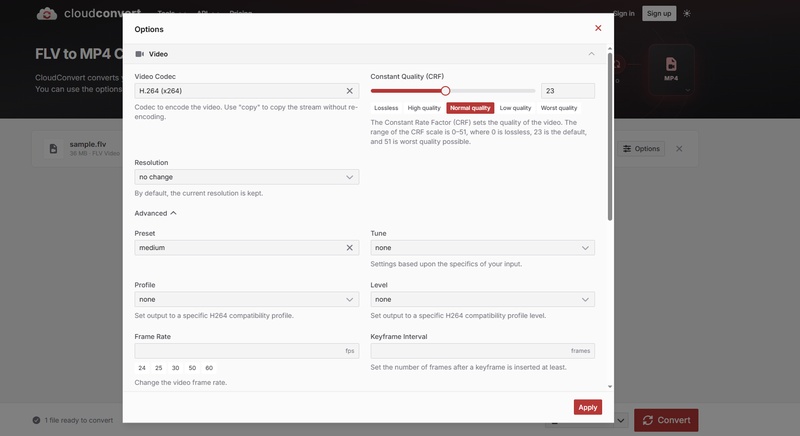
  • The output format is automatically set to JPG. If you want, click the Options tab to adjust quality or resize the image, and click Apply once done.

    cloudconvert dng to jpg conversion options
  • Click the Convert button and wait a few seconds.

  • Once finished, click Download to save the JPG to your computer or phone.

The process is the same on any device with a browser. For multiple files, CloudConvert supports batch conversion on its free tier (with some limits). Picflow works similarly: drag your DNG files onto the page, choose JPG, and download the results, often as a ZIP if you convert more than one.

These free online options are perfect for occasional use. For more advanced editing or offline batch work, desktop software is a better choice.

Part 3. How to Convert DNG to JPG on Windows & Mac

Desktop conversion makes more sense when you regularly work with RAW photos, need better control over image quality, or have many files to process. Here are reliable methods for both Windows and Mac. Photoshop provides the most editing flexibility, while macOS Finder and XnConvert offer faster workflows for straightforward conversion.

1. Convert DNG File to JPG in Photoshop for Windows & Mac

Photoshop opens DNG files through Adobe Camera Raw, giving you strong control over the final image before saving as JPG. The workflow is almost identical on macOS and Windows.

  • Open Adobe Photoshop. Then go to File > Open and select your DNG file. It will open in the Camera Raw window.

  • Make any basic adjustments you need (exposure, white balance, etc.), then click Open or Done.

    photoshop camera raw window
  • Once the image is in Photoshop, go to File > Save As.

  • Choose JPEG as the format, select your quality settings, and click Save.

    photoshop save dng as jpg
tips icon Tips

For multiple files, use File > Scripts > Image Processor. Select the folder of DNG files, choose JPEG as the output format, and let Photoshop handle the batch conversion.

photoshop image processor batch convert dng to jpeg

2. Using Finder Quick Actions (for Mac)

macOS includes a built-in way to convert images without opening extra apps. Finder includes a Convert Image Quick Action that can convert supported images directly from the right-click menu.

The tool can change an image to another format without opening a separate app. It also works with supported DNG images, making it one of the fastest options when you do not need RAW editing controls.

  • In Finder, locate your DNG file (or select several at once).

  • Right-click the files and choose Quick Actions > Convert Image.

    mac quick actions convert dng to jpg
  • In the dialog, select JPEG as the format. Choose “Actual Size” if you want to keep the original dimensions, and decide whether to keep metadata.

  • Click Convert. The new JPG appears in the same folder.

3. How to Convert Using XnConvert (for Windows)

If you have dozens or hundreds of DNG files, XnConvert provides a more efficient offline workflow. It supports more than 500 input formats, including camera RAW and DNG, and is designed for processing large groups of images in one operation.

That makes it particularly useful when you need a free tool for personal use to batch convert DNG to JPG without uploading your photos online.

  • Download and install XnConvert from the official site.

  • Open the program and go to the Input tab.

  • Click Add files or Add folder to load your DNG images.

    xnconvert add files for conversion
  • Switch to the Output tab. Set the format to JPG, choose a quality level (90–95 is a good balance), and pick a destination folder.

    xnconvert output images in jpg
  • Click Convert. The tool processes the files and shows progress.

Part 4. How to Convert DNG to JPG on iPhone/Android

Many modern phones can shoot or store DNG (including iPhone ProRAW). Adobe Lightroom Mobile is one of the most reliable free apps for converting these files to JPG on both iPhone and Android.

Steps to Turn DNG to JPG in Adobe Lightroom for Mobile:

  • Download Adobe Lightroom from the App Store or Google Play and sign in with a free Adobe account if needed.

  • Open the app and import your DNG files. Tap the add (+) button, choose From Files or Gallery, then select the DNG images.

  • Once imported, open a photo. You can make quick edits if you want, but it’s not required.

  • Tap the Share icon (usually at the top or bottom) and select Export as… or Export.

    lightroom mobile export as
  • Choose JPG as the file type. Set the quality (higher numbers keep more detail) and dimensions if you want to resize.

    lightroom mobile app export files as jpg
  • Confirm and save the file to your Camera Roll, Photos app, or Files folder.

You can select multiple photos at once for faster work. Lightroom Mobile keeps the process simple while still giving solid results. After exporting, the JPG is ready to share by message, email, or social media.

⚡ Bonus: How to Batch Repair DNG or JPG Files Corrupted During Conversion

Sometimes a conversion doesn’t go smoothly. A DNG or JPG may refuse to open, show gray areas, look pixelated, or display distorted colors. When that happens, a dedicated repair tool can save the files instead of forcing you to start over.

4DDiG Photo Repair (part of 4DDiG File Repair) is a practical solution for these problems. It uses AI to fix corrupted, damaged, blurry, or pixelated photos and supports a wide range of formats, including JPG, JPEG, PNG, HEIC, CR2, CR3, DNG, and other RAW types.

What makes it stand out includes fast repairs, batch processing of large numbers of images, previews before saving, high-quality preservation, and the ability to restore files that won’t open or are missing headers. It works on both Windows and Mac.

FREE DOWNLOAD

Secure Download

FREE DOWNLOAD

Secure Download

Steps to repair corrupted DNG and JPG files with 4DDiG File Repair

  • Download and install 4DDiG File Repair, then launch the program. Select Photo Repair from the left menu and click Add photos (or drag and drop) to load your damaged DNG or JPG files. You can add multiple files at once for batch repair.

    add corrupted dng jpg files to 4ddig
  • Click Repair All and wait for the process to finish.

    Advanced Tips:

    If a severely corrupted image cannot be restored through the normal process, use Advanced Repair when available. This mode is intended for more serious forms of photo corruption.

    start rapairing all dng jpg files
  • Preview the repaired images to check the results.

    preview repaired dng jpg files
  • Choose your preferred output format (JPG, PNG, or Original) and click Save or Save All to store the fixed files in a folder of your choice.

    save repaired images in suitable format
More Tips:

4DDiG File Repair for Windows features a built-in Image Format Converter, which can batch convert HEIC, PNG, BMP, and CR2 RAW iamges to JPG in high quality.

Conclusion

There is no single best way to convert DNG to JPG for every situation. Online tools work well for a few files, Finder and XnConvert are convenient for quick or batch conversion, while Photoshop and Lightroom offer better editing control.

If a DNG or JPG becomes damaged during the process, 4DDiG Photo Repair can help repair corrupted images before you continue editing, exporting, or sharing them.

FREE DOWNLOAD

Secure Download

FREE DOWNLOAD

Secure Download

William Bollson (senior editor)

William Bollson, the editor-in-chief of 4DDiG, devotes to providing the best solutions for Windows and Mac related issues, including data recovery, repair, error fixes.

(Click to rate this post)

You rated 4.5 ( participated)