How to Brighten Dark Halloween Photos (Free, Online & AI)

5 mins read

Updated on 2026-10-28 12:10:26 to Photo Tips

Halloween nights look magical, but the photos often come out too dark. Low light, costumes, and quick snaps hide faces and details. The good news? You can brighten dark Halloween photos easily with free AI tools on your phone, desktop, or online. No special skills needed. Just a few taps bring back the fun of the night so your memories look clear and shareable.

brighten dfark halloween photos

Part 1. Why Halloween Photos Often Turn Out Dark

Halloween is full of dramatic lighting, glowing pumpkins, and spooky decorations. While these create a great atmosphere, they can also make your photos too dark. Here are the most common reasons.

  • Low lighting: Halloween parties often take place indoors or at night. When there isn't enough light, your camera may struggle to capture clear details.
  • Fast-moving subjects: Kids trick-or-treating, people dancing, and friends posing in costumes can move before the camera captures enough light, resulting in dark or blurry shots.
  • Strong backlighting: Bright candles, flashlights, or decorations behind your subjects can cause faces to appear dark because the camera adjusts to the brighter background.
  • Harsh shadows: Directional lighting from candles or colored LEDs can leave parts of a face or costume hidden in shadow.
  • Incorrect camera settings: A low exposure setting or an unsuitable night mode can make a photo darker than it should be.
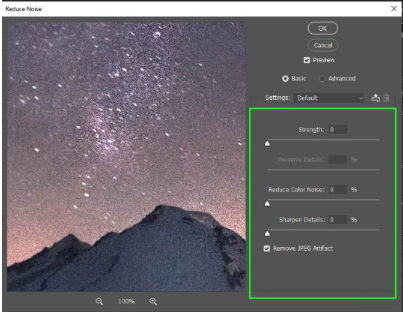
  • Noise in low-light photos: When a camera struggles in dim conditions, images may contain grain and lose fine details. Brightening them later can make this noise even more noticeable.

The good news is that you don't need to retake every photo. The right editing tool can lift shadows, balance exposure, and reveal hidden details. If you want a quick fix without learning complicated editing techniques, start with an AI photo-enhancement app on your phone.

Part 2. How to Brighten Dark Halloween Photos with AI on Your Phone (Step-by-Step)

The fastest way to fix those dark shots is right on your phone. Modern AI apps handle lighting, noise, and detail in seconds. Here are two strong options and clear steps you can follow.

2 Best Mobile App to Brighten Dark Photos

1. Remini

Remini is an AI-powered photo enhancement app designed to improve image clarity and restore details. It sharpens details, reduces noise from dark shots, boosts colors, and enhances faces with one tap. It works especially well for portraits and group photos taken in poor light. It's a good choice if your Halloween pictures feature people in costumes and you want to improve facial details. Some features may require a paid subscription.

remini photo enhancer

2. YouCam Enhance

YouCam Enhance focuses on AI-powered lighting and quality fixes. Its AI Lighting tool automatically balances brightness and contrast in underexposed photos, while the AI Enhance feature reduces grain and sharpens the image. It also supports batch editing. This app suits users who need reliable brightening for Halloween party photos and want clean results ready for social media.

youcam enhance ai light

How to Lighten Dark Halloween Photos on Mobile

Steps to Fix Dark Halloween Photos on Remini

  • Download and open the Remini app from the App Store or Google Play.

  • On the home screen, tap the Enhance button.

  • Select the dark Halloween photo from your gallery.

    remini enhance dark halloween photos
  • Tap the checkmark or Enhance to start processing. The AI will automatically brighten the image, reduce noise, and sharpen details.

  • Use the before-and-after slider to compare the results.

  • If you're happy with the look, save the photo to your device.

Steps to Fix Drak Halloween Photos on YouCam Enhance

  • Download and open the YouCam Enhance app from the App Store or Google Play.

  • Tap the AI Lighting feature (this is the tool designed specifically for dark photos).

    youcam enhance ai light feature
  • Upload the dark Halloween photo you want to fix.

  • Tap Lighten and let the AI automatically brighten the image and improve exposure.

  • Use the Intensity slider to fine-tune the brightness until it looks natural.

    youcam enhance ai light photos
  • Save the improved photo to your gallery.

Both methods are quick and beginner-friendly. Try each app on the same photo and keep the version you prefer. T his is one of the simplest ways to make Halloween photos brighter without needing any editing experience.

Part 3. How to Brighten Dark Halloween Photos Online for Free with AI Tools

If you don't want to install another app, online photo brighteners let you edit Halloween pictures directly in your browser. They are convenient for quick fixes, especially when you want to improve a few photos before sharing them online. Here are two tools worth trying.

2 Popular Free Image Brighteners Online

1. Fotor Image Brightener

Fotor Image Brightener is a free online tool that uses AI to automatically lift brightness and improve lighting in dark photos. It keeps original details intact, works without watermarks, and offers basic manual adjustments if needed. It's a practical option for users who want to brighten dark Halloween photos quickly in a browser. Check the current free usage limits before editing.

fotor free online image brightener

2. Evoto Free Image Brightener

Evoto Free Image Brightener is another solid online option focused on natural brightness correction. It lets you adjust exposure, shadows, and highlights with simple sliders while preserving realistic tones. Evoto works well for people who want a bit more control and clean results on Halloween party or portrait shots.

evoto free image brightener

How to Fix Dark Halloween Photos Online Free

Here's a clear walkthrough using Fotor, one of the most straightforward free tools:

  • Go to the Fotor Image Brightener page.

  • Upload and drag your dark Halloween photo into the browser.

  • Once uploaded, click the "Generate" button to let AI analyze the image and brightens the dark areas while trying to keep the overall look balanced.

  • Once you're happy with the result, download the brighter photo, no watermark is added on the free version.

    fotor free online image brightener light dark halloween photos

The whole process usually takes less than a minute. You can also try Evoto the same way if you want to compare results. Both tools give you an easy way to make Halloween photos brighter without leaving your browser.

Part 4. How to Brighten Dark Halloween Photos in Photoshop on Computer

Photoshop is a good choice if you want more control over the final result. Instead of brightening the entire image equally, you can adjust shadows and highlights separately to reveal dark details while preserving bright elements such as candles, pumpkins, and decorative lights.

Here's an easy beginner-friendly method:

  • Launch Adobe Photoshop and select File > Open to import your dark Halloween photo.

  • Go to Layer > New Adjustment Layer > Brightness/Contrast.

    photoshop brighten dark halloween photos
  • In the Properties panel, slowly drag the Brightness slider to the right until the photo looks better. Keep an eye on the brightest areas so they don't become washed out.

  • If the image still looks flat, slightly increase the Contrast slider.

  • For better control, try a Levels or Curves adjustment layer instead. In Levels, move the middle gray slider left to brighten midtones. In Curves, click the middle of the line and drag it upward.

    photoshop level curve feature
  • When the photo looks natural, go to File > Export > Export As (or Save As) and save a high-quality JPEG or PNG.

This method gives you precise control and works especially well when you want to brighten dark Halloween photos in Photoshop without losing important details. Once finished, you can further improve quality if the photo still looks a bit soft or noisy.

Bonus Tip: How to Improve Quality and Reduce Noise from Halloween Photos After Brightening

After you brighten dark Halloween photos, you may notice the image looks a bit soft, grainy, or noisy, especially if it was shot in very low light. Brightening often brings out existing noise or makes details look less sharp. That's where a dedicated quality tool comes in handy.

4DDiG AI Photo Enhancer (part of 4DDiG File Repair) is a strong choice for this final polish. It uses AI to upscale photos to 4K or even close to 8K, reduce noise and grain, sharpen details, and restore clarity while keeping the natural look.

Main related features of 4DDiG AI Photo Enhancer

  • Upscales image quality to 4K (and near 8K)
  • Removes noise and grain from low-light photos
  • Sharpens blurry or soft details
  • Offers specialized AI models (General, Face, Denoise)
  • Restores facial details and overall clarity
  • Supports batch processing for multiple photos
FREE DOWNLOAD

Secure Download

FREE DOWNLOAD

Secure Download

Steps to enhance Halloween Photos quality and reduce noise with 4DDiG Photo Enhancer

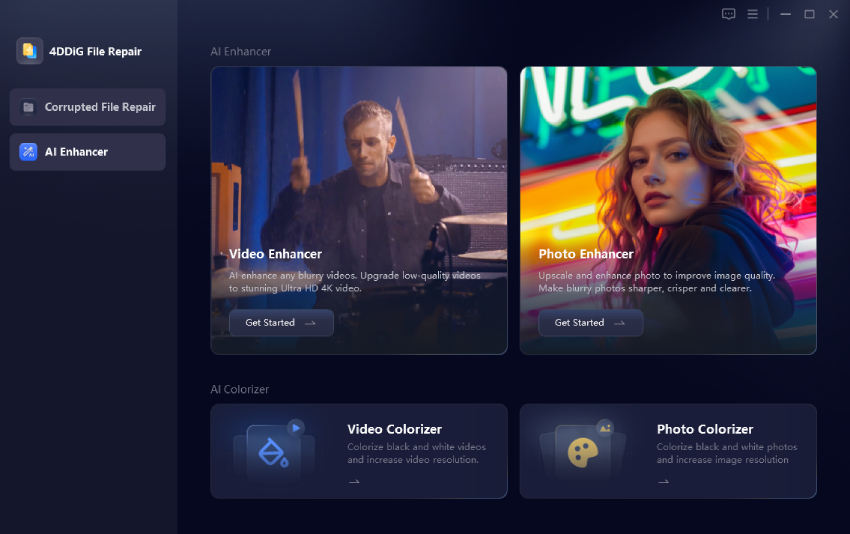
  • Download, install, and run the 4DDiG File Repair program. Go to the left AI Enhancer tab and choose Photo Enhancer.

    open 4ddig ai photo enhancer
  • Click "Add Photos" and upload the brightened Halloween image (or drag and drop it).

    add halloween photos to 4ddig
  • Choose the right AI model. Denoise works especially well for grainy night shots, while Face is ideal for portraits. Select your preferred output resolution (such as 2X or 4X) for 4K resolution.

    select ai model and resolution to enhance halloween photos
  • Click Enhance and wait a few moments for the AI to process the photo. Preview the result, then save the cleaner, sharper version to your computer.

    preview and save enhanced halloween photos

Conclusion

Dark Halloween photos don't have to stay hidden in your gallery. Knowing how to brighten dark Halloween photos can help you rescue memorable shots from spooky parties, nighttime trick-or-treating, and dimly lit celebrations. You can use mobile apps for quick edits, free online tools for convenient fixes, or Photoshop for more precise adjustments.

For the best final results, follow up with 4DDiG AI Photo Enhancer to reduce noise, sharpen details, and lift overall quality. With these simple steps, your Halloween memories can look clear, vibrant, and worth sharing.

FREE DOWNLOAD

Secure Download

FREE DOWNLOAD

Secure Download

Ehtsham Ahmed (senior editor)

Ehtsham Ahmed, the content writer for 4DDiG, is dedicated to offering workarounds for Windows Data Recovery, Windows Troubleshooting, iDevices System Repair, etc.

(Click to rate this post)

You rated 4.5 ( participated)