What Is an AVIF File? Definition, Uses, How to Open & Convert

5 mins read

Updated on 2026-10-28 18:05:51 to Photo Tips

Have you ever downloaded a photo in an unfamiliar AVIF file type and find that your device cannot open it? Many people wonder what is an AVIF file and why it is showing up more often. An AVIF file is a next-generation picture format that keeps quality high while shrinking file size. In the sections below we explain the AVIF meaning, how it works, where it is supported, and how it stacks up against older formats so you can decide when to use it.

what is avif file

Part 1. What Is an AVIF File?

1. What Is AVIF Standing For

AVIF stands for AV1 Image File Format. In simple terms, it is a new way to store pictures that was created to keep image quality high while making the file much smaller than older formats.

2. What Is an AVIF File Used For (Key Features)

The AVIF file type is mainly used to store and share digital images efficiently. It is particularly useful for websites, online stores, and applications that need high-quality visuals without slowing down page loading.

Here are its main features:

  • Smaller file sizes: AVIF can compress images efficiently, helping reduce storage requirements and website loading times.
  • High image quality: It preserves fine details and supports a wide range of colors, making it suitable for photographs and detailed graphics.
  • Transparency support: Like PNG, AVIF can store transparent backgrounds, which is useful for logos, icons, and web graphics.
  • HDR support: It can display a wider range of brightness and colors when the viewing device and software support HDR.
  • Animation support: AVIF can contain image sequences, allowing it to work as an alternative to animated formats such as GIF.

This makes pages load faster and saves storage space without noticeable quality loss.

3. How Does AVIF Work?

AVIF takes the powerful AV1 video codec and applies it to single frames. It analyzes the image, removes redundant data, and packs the rest into a tiny package. The result is a file that looks almost identical to the original yet takes up far less room than traditional formats.

4. AVIF Browser Support & Compatibility

AVIF browser support has grown quickly. Chrome, Firefox, Edge, and Opera all open AVIF files without extra software. Safari added full support in recent versions of macOS and iOS. Most modern Android phones also handle AVIF natively. Older Windows systems may need a free Microsoft extension, but overall compatibility is now strong enough for everyday use.

Part 2. AVIF vs JPEG, PNG, and WebP: Is AVIF Better Than Them

AVIF offers several advantages, but it is not necessarily the best choice for every situation. Choosing the right image format often comes down to a balance of quality, file size, and compatibility. To help you see the differences clearly, here is a side-by-side look at AVIF next to the formats most people already know.

Feature AVIF JPEG PNG WebP
Compression Lossy and lossless Lossy and lossless Lossy and lossless Lossy and lossless
File Size Smallest Medium Largest Small
Image Quality High at low bitrates Good, but artifacts may appear Excellent for lossless images High
Transparency Yes No Yes Yes
Animation Support Yes No Limited Yes
Browser Support Strong & growing Universal Universal Very good
HDR Support Yes No standard HDR image support Limited compared with AVIF Format and implementation dependent
Editing Compatibility Varies by software Excellent Excellent Varies by software
Best For Web & modern devices Photos Graphics with transparency Web use

In most everyday situations, AVIF offers a better balance of quality and size than JPEG, PNG, or even WebP. That is why more websites and devices are adopting the AVIF file type as the default choice.

Part 3. The Advantages and Disadvantages of AVIF File

AVIF offers an effective way to store high-quality images without using too much space. However, it also has a few limitations, especially when you need to open, edit, or share images across different devices. Understanding these pros and cons can help you decide whether AVIF is the right format for your needs.

👍 Advantages of AVIF File Format

  • Smaller file sizes: AVIF can deliver good image quality with less data than JPEG or PNG in many situations. This helps save storage space and improve website loading speeds.
  • High visual quality: It preserves image details and supports advanced color features, including HDR, making it suitable for photographs and rich visual content.
  • Transparency support: AVIF can store images with transparent backgrounds, making it useful for logos, icons, and web graphics.
  • Animation support: It can store animated image sequences, providing an alternative to formats such as GIF and animated WebP.
  • Efficient web delivery: Smaller images reduce the amount of data browsers need to download, which can benefit users on slower connections.

👎 Disadvantages of AVIF File Format

  • Limited support in older software: Some older image viewers, editing programs, and applications cannot open AVIF files directly.
  • Slower encoding in some workflows: Creating AVIF images may take longer than saving JPEG or WebP files, depending on the software and settings.
  • Conversion may be necessary: Some websites, document editors, and upload forms accept JPEG or PNG but reject AVIF.
  • Potential compatibility issues: Features such as transparency, animation, and HDR may not display as intended in every application.
  • Less convenient for sharing in certain situations: If the recipient uses an older device or unfamiliar software, you may need to provide a more widely supported format.

Overall the benefits outweigh the drawbacks for most web and everyday photo uses, especially as support continues to improve. AVIF is strong option for reducing image sizes while maintaining visual quality. However, compatibility may matter more than compression efficiency if you mainly need to view or share pictures.

Part 4. How to Open AVIF Files on Windows, Mac & Mobile

Many people search for how to open AVIF files because the format is still relatively new. The good news is that opening them is simple once you know the right steps for Windows, Mac, and mobile.

1. On Windows (install av1 video extension to get AVIF support on Windows)

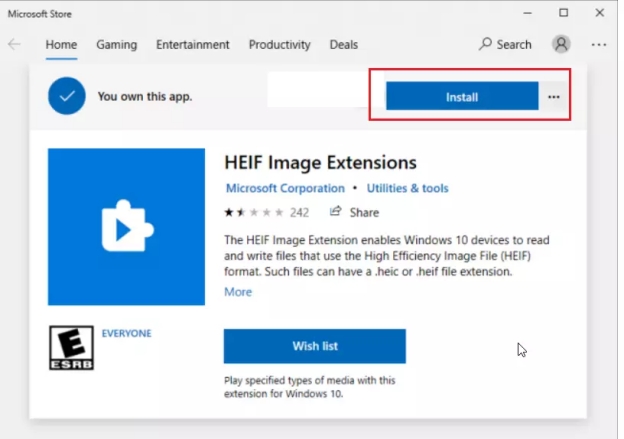
On Windows 10 or Windows 11, you can use the Microsoft Store's AV1 Video Extension to enable AVIF support in compatible Windows apps. If you only need to view an image quickly, you can also open it in a modern web browser.

Steps to open AVIF files on Windows:

  • Open the Microsoft Store and search for "AV1 Video Extension".

  • Click Get or Install to add AVIF support to your Windows PC.

    get microsoft av1 video extension to add avif support to windows
  • Restart your computer if prompted.

  • Double-click any AVIF file and it should now open in the Photos app.

    windows photos app open avif
Alternative

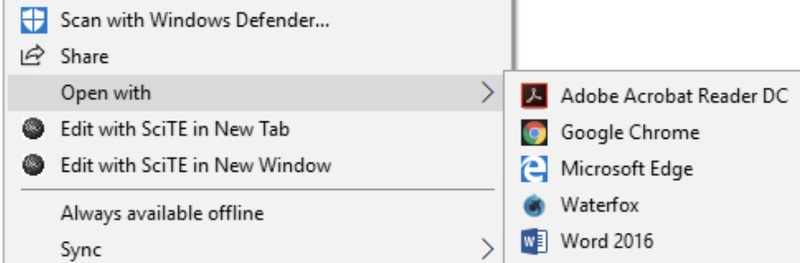
Right-click the AVIF file, select Open with, and choose Microsoft Edge, Google Chrome, or Firefox. This is a convenient option if you only need to view the image without changing your system settings.

2. Using Preview app on Mac

macOS Ventura (version 13) and later open AVIF files natively with the built-in Preview app. You do not need to install a separate image viewer for supported files.

  • Locate the AVIF file in Finder.

  • Double-click the file to open the .avif file in Preview. Alternatively, right-click the file and choose Open With > Preview.

  • The image opens right away. You can also drag the file onto the Preview icon in the Dock.

3. Open AVIF with Safari on iOS/Android

On iPhone or iPad running recent iOS versions, Safari and the Photos app handle AVIF files without extra software. On Android, most modern browsers and the Gallery app also work.

  • Save or download the AVIF image.

  • Tap the file and it opens automatically in Photos (iOS) or Gallery (Android).

  • If it does not open, try viewing it inside Safari or Chrome.

tips icon Tips

Also, if you want prefer to view, edit, and convert your AVIF files in one-stop solution, you can find a convenient AVIF viewer.

Part 5. How to Convert an AVIF File to JPG or PNG

If an AVIF image will not open in your favorite app, converting it to JPG or PNG with an online tool like CloudConvert can make it easier to view, edit, upload, or share.

  • Visit the CloudConvert AVIF converter page.

    cloudconvert avif converter
  • Upload your AVIF file by dragging it in or clicking the "Select File" button.

  • Choose JPG or PNG as the output format.

    cloudconvert convert avif to jpg
  • Optionally, tap on the Options icon to customize resolution, quality, and choose strip EXIF data or not. Once customized, click "Apply" to keep the changes.

    cloudconvert avif converter options
  • Click "Convert" and wait a few seconds.

  • Download the converted image to your device.

A Quick Tip: If your AVIF image has a transparent background, choose PNG rather than JPG. JPG does not support transparency, so transparent areas may become solid-colored.

Part 6. Why Are Images Saving as AVIF Files?

If images you download keep appearing with the .avif extension, it is usually because the website or application delivers images in AVIF format automatically.

Here are the most common reasons:

  • Websites optimize images: Many websites use AVIF to reduce image sizes and improve page loading speed.
  • Browsers support modern formats: Compatible browsers can display AVIF images directly, even when the original image was uploaded in another format.
  • Content delivery networks convert images: Some websites automatically serve AVIF versions of uploaded JPEG or PNG images based on browser compatibility.
  • Apps use AVIF for storage efficiency: Certain applications may save or export images in AVIF to reduce storage requirements.

In most cases, this behavior is normal and does not indicate a problem with your device. If you need a more widely compatible format, you can convert the AVIF image to PNG or JPG using the method described above.

Bonus: How to Fix AVIF Files Corrupted or Not Opening Issue

Occasionally an AVIF file may become corrupted and refuse to open. When that happens, a dedicated repair tool can often restore it. One reliable option is 4DDiG Photo Repair (part of 4DDiG File Repair). It excels in repairing AVIF, JPG, PNG, WebP, HEIC, and more photos in high success rates while preserving high quality.

Its main features include:

  • Repair of various corrupted or damaged photo files, including AVIF
  • Support for a wide range of image formats
  • Support batch repair and keep high quality
  • Handles various photo errors and suitable for any users
  • Simple interface suitable for non-technical users
  • Ability to preview results before saving
FREE DOWNLOAD

Secure Download

FREE DOWNLOAD

Secure Download

Steps to repair corrupted AVIF files with 4DDiG Photo Repair

  • Click the above Free Download button to get the 4DDiG File Repair software. Fire it up and head to the left Photo Repair tab, following by tapping "Add Photos" to import all corrupted AVIF images to 4DDiG.

    add corrupted avif files to 4ddig
  • Kick off the AVIF image repair process by touching on the "Repair All" button at the bottom right. It may take a few seconds or one minute.

    repair all avif files
  • Once finished, tap on "Preview" next to the file to check repaired AVIF photo result.

    preview repaired avif files
  • If you are content with the results, choose an output format (JPG, PNG, or the original AVIF) if you need and hit the "Save All" button to export the repaired AVIF files.

    save repaired avif files in preferred format

FAQs about AVIF File Type

Q1: How to create AVIF file?

You can create an AVIF file using free online converters, image editors that support the format, or command-line tools. Simply upload a JPG or PNG, choose AVIF as the output, and download the new file.

Q2: Can AVIF files have viruses?

AVIF files themselves are image containers and do not typically carry viruses. As with any file, only open images from trusted sources to stay safe.

Q3: How to open AVIF file in Photoshop?

Recent versions of Photoshop support AVIF natively. Just go to File > Open and select the AVIF image. If your version is older, convert the file to JPG or PNG first.

Q4: How to open AVIF file on iPhone?

On recent iOS versions, the Photos app and Safari open AVIF files automatically. Simply tap the file or download it, no extra app is usually needed.

Q5: Are AVIF files safe?

Yes, AVIF files are safe when they come from reliable websites or apps. They are a standard image format, not executable programs.

Conclusion

Now that you understand what is an AVIF file, you can see why this modern image format is becoming popular: it offers high image quality, efficient compression, and support for features such as transparency and HDR.

However, compatibility issues can still occur with older devices and applications. You can usually solve them by opening the image in a supported browser or converting it to JPG or PNG.

If an image is genuinely corrupted, 4DDiG Photo Repair may help repair supported image formats and improve photo quality. Check its current format compatibility before using it to repair AVIF files.

FREE DOWNLOAD

Secure Download

FREE DOWNLOAD

Secure Download

William Bollson (senior editor)

William Bollson, the editor-in-chief of 4DDiG, devotes to providing the best solutions for Windows and Mac related issues, including data recovery, repair, error fixes.

(Click to rate this post)

You rated 4.5 ( participated)