4 Top-Picked GoPro LRV to MP4 Converters in 2026

5 mins read

Updated on 2026-10-04 20:42:20 to Video Tips

GoPro LRV files are low-resolution video previews created alongside certain GoPro recordings. They can be useful for quick playback, but they are not ideal for editing or sharing. If you are looking for a portable LRV to MP4 converter, then never miss this guide.

Our guide covers 4 practical tools including renaming tool, online converter, FFmpeg, and VLC for GoPro LRV files to MP4 conversion. You will also learn how to improve converted LRV videos with an AI video enhancer.

Part 1. Top 4 LRV to MP4 Converters in 2026

1. Fastest Method: Rename LRV to MP4

The simplest way to change LRV to MP4 is renaming the file extension. GoPro LRV files use an MP4-based video container, so compatible players may recognize the renamed file. However, this does not increase its resolution or restore the original GoPro footage.

Steps to Rename LRV to MP4

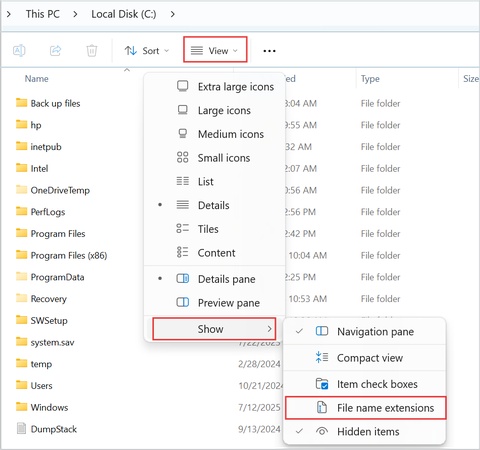
  • Locate the LRV file on your computer. Before changing the extension, make sure Windows displays file extensions.

  • Open File Explorer, select "View", choose "Show", and enable "File name extensions".

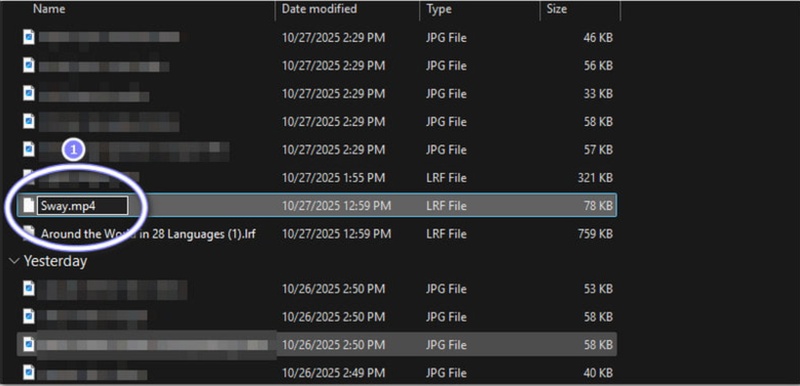
    windows rename lrv extension as mp4
  • Right-click the LRV file and select "Rename". Change the ending from .LRV to .MP4.

  • Double-click the renamed file and open it with a compatible media player. If the video plays correctly, the process is complete.

Renaming does not convert the LRV into the original full-resolution GoPro video. It only changes how the file is identified.

2. Online LRV to MP4 Converter (Such as Coolutils) -- No Signup

An online converter can be convenient when you do not want to install desktop software. You upload the LRV file, let the service process it, and download the resulting MP4. This method is better suited to smaller files and occasional conversions.

Steps to Convert LRV to MP4 Online Free

  • Open a reputable online video conversion service that supports LRV files, like Coolutils.

  • Click "Upload", or drag the files into the interface. Select the LRV video from your computer and wait for it to finish uploading.

  • Choose MP4 as the output format and start the process to convert LRV to MP4 online free.

    coolutils lrv to mp4 converter online free
  • Wait for the conversion to finish. Click "Download" after processing is complete. Save the MP4 file to your preferred folder and play it to verify the result.

Online conversion may not be suitable for private footage or very large LRV files because the video must be uploaded to a third-party server.

3. FFmpeg -- Convert Large LRV Files to MP4

FFmpeg is a powerful command-line tool for users who need more control over video conversion. It is particularly useful when you need to convert large LRV to MP4 without uploading the file. However, its command-line workflow requires more technical knowledge than the previous methods.

Steps to Convert LRV to MP4 with FFmpeg

  • Download and install FFmpeg on your computer. Make sure the FFmpeg executable is available through your system's command line.

  • Place the LRV file in an easy-to-access folder.

  • Open Command Prompt or Terminal and navigate to that folder.

    ffmpeg convert lrv to mp4
  • Use FFmpeg to remux or convert the LRV file into an MP4 container with the following command: "$ ffmpeg -i input.LRV -c copy output.mp4"

  • Open the resulting MP4 file with a media player and check the results.

This method is useful for technical users because FFmpeg provides extensive control over codecs, containers, bitrate, and other video parameters.

4. VLC Media Player

VLC Media Player can recognize and play many video formats without requiring a separate conversion process. If your main goal is watching the LRV footage, VLC may eliminate the need to create an MP4 copy. It is useful when other players cannot open the file directly.

Steps to Open LRV Files with VLC

  • Launch the VLC application and select "Media" from the top menu, then choose "Convert / Save" (or press Ctrl+R on Windows, Cmd+R on Mac).

    vlc convert or save option

    In the new dialogue, Click Add, select the .lrv file, then click Convert / Save.

    add lrv files to vlc
  • Choose a profile such as Video – H.264 + MP3 (MP4).

    vlc convert lrv to mp4
  • Click Browse, pick a folder, and type a full name ending in .mp4 (VLC does not add the extension for you).

  • Leave "Display the output" unchecked, then click Start.

  • Play the new MP4 when the progress bar finishes.

⚡ Bonus Tip: How to Enhance Low-Quality LRV/MP4 Videos to 4K After Converting to MP4?

GoPro LRV files are designed as low-resolution preview files, so converting them to MP4 does not restore the original GoPro recording. If the LRV is your only available copy, 4DDiG Video Enhancer can help improve its visible quality after conversion. Its AI enhancement tools can upscale low-resolution MP4 footage and improve details before you export the final video.

Stunning Features of 4DDiG AI Video Enhancer:

  • Upscale converted MP4 footage to 4K
  • Supports other more video formats: MKV, AVI, MOV, etc.
  • Recover clearer details from low-resolution clips
  • Reduce noise from GoPro preview footage
  • Improve blurry action-camera scenes
  • Enhance faces and moving subjects
  • Restore color in dull recordings
  • Clean compression artifacts after conversion
  • Preview enhanced MP4 results before saving
  • Can batch process and enhance multiple videos
FREE DOWNLOAD

Secure Download

FREE DOWNLOAD

Secure Download

Steps to Enhance Converted LRV Videos

  • Launch 4DDiG File Repair and select "AI Enhancer" from the main interface. Choose "Video Enhancer".

    open 4ddig ai video enhancer
  • Click "Add Videos" and select the low-resolution MP4 converted from your LRV file. You can also drag the converted video directly into the application.

    add low resolution mp4 videos to 4ddig
  • Select an AI model and desired resolution that matches your footage. Click "Enhance" to process the video.

    select ai mode and reset resolution level for lrv video enhancement
  • Preview the enhanced video when processing finishes. If the result looks good, click "Save" and select an output folder. Your enhanced MP4 can then be used for playback, editing, or sharing.

    preview and save enhanced videos

AI enhancement can improve visible details, but it cannot recreate the original information captured by the GoPro's full-resolution recording.

Other Information About GoPro LRV to MP4 You May Wanna Know

Q1: What Is an LRV File on a GoPro?

LRV stands for Low Resolution Video. GoPro cameras can create these smaller preview files alongside original recordings. They are designed for faster playback and sharing in certain GoPro workflows.

An LRV file contains a lower-resolution version of the video rather than the camera's original full-resolution recording.

Q2: How to Convert LRV to MP4 on Mac?

Mac users can try renaming the .LRV extension to .MP4 if the file is compatible with their media player. You can also use FFmpeg or a compatible video conversion application. If you only need playback, VLC can often be used to open compatible LRV files directly.

Q3: How to Convert LRV to MP4 Without Losing Quality?

You cannot recover the original GoPro recording quality from an LRV file through conversion alone. LRV files are already low-resolution versions of the footage.

Renaming or remuxing the file can avoid additional re-encoding loss, but it cannot restore details that were never stored in the LRV. If you only have an LRV copy, AI enhancement can improve its appearance but cannot recreate the original footage.

Q4: What Can Play an LRV File?

Compatible media players can sometimes play LRV files directly. VLC Media Player is one option to try. Renaming the extension to .MP4 may also allow compatible players to recognize the file.

If the file does not play, converting or remuxing it with FFmpeg can provide another option.

Conclusion

There are several LRV to MP4 converter options, depending on your needs. Renaming is the fastest option, online converters are convenient, FFmpeg handles larger files, and VLC can play compatible LRV footage directly.

However, conversion cannot restore the original GoPro recording quality. If you only have a low-resolution LRV file, 4DDiG Video Repair can enhance the converted MP4 and improve its visible quality.

FREE DOWNLOAD

Secure Download

FREE DOWNLOAD

Secure Download

Sawart Mashab (senior editor)

Sawart Mashab, the content writer for 4DDiG, is adept at creating informative and practical solutions related to Windows and macOS issues, data recovery, file repair, and RAID storage.

(Click to rate this post)

You rated 4.5 ( participated)