What Is an LRV File for GoPro? How to Open & Convert It

5 mins read

Updated on 2026-10-10 10:11:25 to Video Tips

GoPro cameras often create LRV files alongside their main MP4 recordings, which can confuse users who expect only one video file. So, what is an LRV file, and do you actually need it? An LRV is a low-resolution video used mainly for previews and faster playback. This guide explains the GoPro LRV file meaning, its purpose, differences from THM and MP4, safe deletion, playback, conversion, and how to repair corrupted original footage.

Part 1. What Is an LRV File for GoPro? What Is It Used For?

1. What Is GoPro LRV File (GoPro LRV File Meaning)

An LRV file is a low-resolution video file automatically created by GoPro cameras alongside the original high-quality video. “LRV” stands for Low-Resolution Video. An LRV file is therefore not your original recording and is not intended to replace the full-resolution MP4 file.

For example, when a GoPro records a video such as GX010001.MP4, it may also create a corresponding file such as GL010001.LRV. The LRV version contains the same basic video content but at a much lower resolution and bitrate, making it smaller and easier for the camera or GoPro app to process.

2. What Is an LRV File Used For?

The main purpose of an LRV is to provide a smaller version of the original footage for faster access. Common purposes include:

  • Faster video previews
  • Lower-bandwidth playback
  • Mobile video browsing
  • Remote camera preview
  • Faster thumbnail browsing
  • Reduced processing requirements
  • Easier wireless media access
  • Temporary editing previews

Instead of loading a large 4K or higher-resolution MP4, compatible GoPro software can use the smaller LRV file for quicker browsing and playback. For editing, uploading, archiving, or other situations where video quality matters, always use the original MP4 file rather than the LRV preview.

Part 2. Why Do GoPro and Insta360 Cameras Create LRV Files?

LRV files exist mainly to make video management more efficient. GoPro and Insta360 cameras often record high-resolution, high-bitrate video, especially when shooting in 4K, 5.3K, or higher resolutions. Playing or processing these large files directly can require significant computing power and may slow down previews, wireless transfers, or mobile editing.

To improve performance, the cameras automatically create LRV (Low-Resolution Video) files as lightweight proxy copies of the original footage and quickly display the recording without loading the complete original. These files are mainly created to:

  • Speed up video previews on the camera or mobile app.
  • Provide smoother playback on devices with limited processing power.
  • Reduce the amount of data needed when browsing footage wirelessly.
  • Improve editing performance by using lower-resolution proxy footage.
  • Generate quick previews without repeatedly loading the much larger original MP4 video.

The important thing to remember is that an LRV file is only a supporting file. Your full-quality footage is normally stored in the corresponding MP4 file.

LRV vs THM vs MP4: What’s the Difference?

LRV, THM, and MP4 files can appear together on an action-camera memory card, but they have very different purposes.

Aspect LRV THM MP4
Type Low-resolution video Thumbnail image Main video file
Quality Low Very low preview image Original recording quality
File size Small Very small Much larger
Main purpose Video preview Visual thumbnail Recording and editing
Final editing No No Yes
Can it be deleted? Usually yes Usually yes No, if footage is needed

In simple terms, MP4 is the actual video, while LRV and THM are helper files created to make browsing and previewing your recordings faster.

Deleting LRV or THM files normally does not affect the quality or content of the original MP4 recording. However, some camera apps may recreate these files or temporarily lose thumbnail and preview functionality.

Part 3. Can You Delete LRV Files?

Yes, you can usually delete Insta360 or GoPro LRV files safely if you still have the original MP4 videos. LRV files are low-resolution proxy copies rather than the original recordings, so deleting them will not delete or reduce the quality of the corresponding MP4 footage.

Before deleting LRV or THM files:

  • Confirm the original MP4 exists.
  • Open several MP4 recordings.
  • Create a backup first.
  • Check important footage manually.
  • Delete only unnecessary companion files.

Do not delete the MP4 simply because an LRV version exists. The LRV is not a backup of the original-quality video.

Note:

You can delete the LRV and THM files. However, after deleting LRV files, camera or mobile app previews may load more slowly or become temporarily unavailable. In some cases, the camera or app may automatically generate new proxy or preview files when needed.

Part 4. How to Open LRV Files on Windows and Mac?

You can often open an LRV file directly with a media player that supports its underlying video encoding. VLC Media Player is one of the most convenient options because it supports a wide range of video formats.

You may also find that some operating systems do not recognize .LRV automatically. In that situation, VLC can often open the file after you select it manually.

Open an LRV File Directly With VLC

  • Install and open VLC Media Player on Windows or Mac.

  • Select “Media” > “Open Files” on Windows. Or, select “File” > “Open File” on macOS. Select the .LRV file and open it.

    open lrv files with vlc
  • VLC should start playing the low-resolution video directly.

If VLC does not recognize the file because of its .LRV extension, rename the extension to .MP4 first and try opening it again. However, do not expect conversion to restore the quality of the original GoPro recording.

Part 5. How to Change an LRV File to MP4?

There are two common approaches for turning an LRV into a more widely recognized MP4 file. The first method changes the file extension without re-encoding the video. The second uses VLC to create a new MP4 file.

Method 1. Rename the LRV Extension to MP4

Some LRV files use a video structure that compatible media players can recognize after changing the extension. This does not actually convert or improve the video. It simply changes the filename extension so software may treat the file as an MP4.

Steps to rename an LRV file:

  • Locate the LRV file on your Windows or Mac computer and create a backup copy before making any changes.

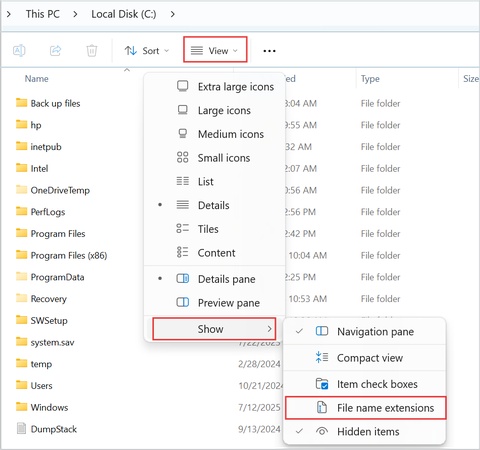
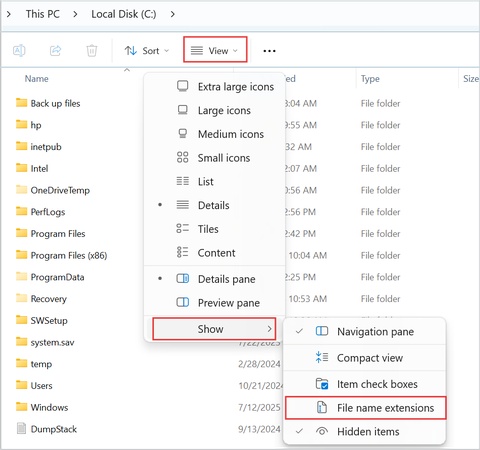
  • On Windows, enable file extensions through File Explorer if they are hidden. Right-click the file and select “Rename.”

    change video extension
  • Change .LRV at the end of the filename to .MP4 and confirm the extension change when Windows displays a warning.

  • Open the renamed file with VLC or another compatible media player.

Note:

If the file does not play correctly, do not assume that the footage is damaged. The LRV may simply require proper conversion or may use a structure that your player cannot interpret after renaming. Most importantly, renaming an LRV to MP4 does not restore the original GoPro quality. The resulting file is still based on the lower-resolution LRV source.

Method 2. Convert LRV to MP4 With VLC

If renaming does not work, VLC can be used to create an MP4 from the LRV file. This method is useful when you want a conventional MP4 file that is easier to manage or open in other applications.

Steps to change LRV file to MP4 with VLC

  • Open VLC Media Player and select "Media," followed by "Convert / Save."

  • Click “Add” and select the LRV file from your computer. Click “Convert / Save” to open the conversion settings.

    add lrv files to vlc
  • Under “Profile,” select an MP4-compatible profile, like “Video – H.264 + MP3 (MP4)”.

    vlc convert lrv to mp4
  • Choose a destination filename ending in .mp4. Check the selected video and audio codecs before starting. Avoid unnecessary changes to resolution or frame rate.

  • Click “Start” to begin the conversion. Open the resulting MP4 and check its playback.

The important limitation remains the source quality. If the LRV is a low-resolution preview, converting it to MP4 does not recreate the high-resolution original. If the original MP4 is available, always use it instead.

⚡ Part 6. What If the GoPro Original MP4 Video Is Corrupted?

If the original GoPro MP4 video is corrupted, renaming or converting the LRV file will not restore the lost full-quality footage. In this case, a dedicated video repair tool is usually a better option.

One solution is 4DDiG Video Repair, which is designed to repair damaged, corrupted, unplayable, or broken video files, including MP4 footage recorded by action cameras such as GoPro.

Key Features of 4DDiG Video Repair

  • Repairs corrupted MP4 videos that cannot open, play, or load properly.
  • Supports videos with various playback issues: freezing, stuttering, black screens, missing audio, video/audio desync, etc.
  • Supports multiple video formats, including MP4, MOV, MKV, AVI, M4V, and more.
  • Batch repairs multiple videos at once, which is useful if several GoPro clips are damaged.
  • Provides an Advanced Repair mode for more severely corrupted files.
  • Lets you preview repaired videos before saving them.
  • Works with footage from cameras, action cameras, drones, SD cards, and other storage devices.
FREE DOWNLOAD

Secure Download

FREE DOWNLOAD

Secure Download

Steps to Fix a Corrupted GoPro MP4 With 4DDiG

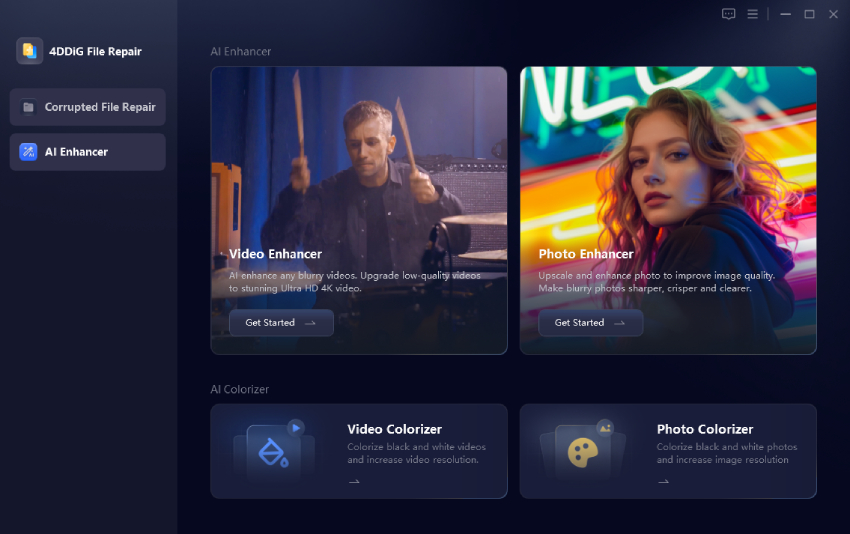
  • Open 4DDiG File Repair on your computer and select the “Video Repair” function. Add all corrupted GoPro original MP4 file by clicking “Add Videos”.

    add corrupted gopro original mp4 videos to 4ddig
  • Start the repair process by clicking “Repair All”.

    start repairing gorpro mp4 videos
  • Preview the repaired video before saving with the “Preview” button. Check the beginning, middle, and end of the footage to confirm that playback is stable.

    preview repaired mp4 videos
  • If you are satisfied with the repaired results, choose an output format (MP4, AVI, MKV, MOV, or the original) to your ideals. Then click “Save All” to download the repaired MP4 to a new location

    save repaired mp4 videos in suitable format

Conclusion

Understanding what is an LRV file makes GoPro file management much easier. LRV files are low-resolution companion videos designed mainly for previews, while MP4 files contain the original recording you should preserve.

You can usually delete LRV and THM files after backing up the MP4. If you need to open or convert an LRV, VLC provides a practical solution. For corrupted original MP4 footage, 4DDiG Video Repair offers dedicated recovery features.

FREE DOWNLOAD

Secure Download

FREE DOWNLOAD

Secure Download

William Bollson (senior editor)

William Bollson, the editor-in-chief of 4DDiG, devotes to providing the best solutions for Windows and Mac related issues, including data recovery, repair, error fixes.

(Click to rate this post)

You rated 4.5 ( participated)