How to Convert HEIC to JPG on Windows in 3 Best Ways

5 mins read

Updated on 2026-10-08 21:41:48 to Photo Tips

HEIC photos from iPhones may not open easily on Windows. JPG offers wider compatibility with apps, websites, and devices. If you need to convert HEIC to JPG on Windows, there are several simple options. This guide covers native HEIC support, Paint, free online conversion, and batch conversion. You will also learn how to convert HEIC files to JPG on Windows 11 and 10.

Part 1. Why Convert HEIC to JPG on Windows?

HEIC saves photos efficiently, but JPG works with more Windows apps and websites. Converting HEIC can make your photos easier to edit, share, upload, and organize. Common reasons to convert HEIC include:

  • Wider compatibility across Windows applications
  • Easier uploads to websites and platforms
  • Better support across older devices
  • Simpler editing in common photo apps
  • Easier sharing with non-Apple users
  • Better compatibility with office applications
  • More convenient printing and photo management

Part 2. How to Open HEIC Files on Windows Natively?

Windows may need additional extensions to display HEIC images correctly. Installing the required Microsoft extensions lets supported Windows apps recognize these files. The HEIF Image Extensions provide HEIF image support, while HEVC support may also be required for related media files.

Step 1: Open Microsoft Store

Open the Windows Start menu and search for "Microsoft Store". Select the Microsoft Store app from the results.

Step 2: Install HEIF Image Extensions

install heif image extensions

In the Microsoft Store, search for "HEIF Image Extensions". Select the Microsoft extension and click "Get" or "Install". Wait for Windows to finish the installation.

Step 3: Install HEVC Video Extensions

install hevc video extensions

Next, search the Microsoft Store for "HEVC Video Extensions". Select the appropriate Microsoft extension and install it. If your computer manufacturer provides the extension, then you can get it for free; otherwise, you may need to purchase it.

Step 4: Open Your HEIC Image

After installation, locate your HEIC photo in File Explorer. Double-click the file to open it with the Photos app. You can also right-click the image and choose "Open with".

⚡ Part 3. How to Convert HEIC to JPG on Windows 11/10 (3 Fast & Easy Ways)

Opening HEIC files is useful, but conversion creates a more widely supported copy. The right method depends on how many images you need to convert. Paint works well for individual photos, online tools avoid software installation, and batch converters handle multiple files together.

Method 1. Use the Built-in Windows Paint App

Paint provides a simple way to convert an individual HEIC photo after Windows can open the format. It is useful when you only need to convert HEIC to JPG on Windows 11 without installing a dedicated converter.

Steps to Save HEIC File to JPG on Windows

  • Locate your HEIC file in File Explorer.

  • Right-click the file > Open with > Paint.

    open heic image with windows paint
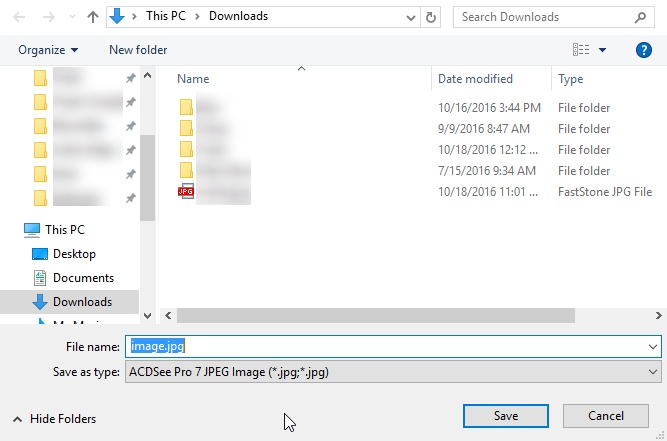
  • Once the image opens in Paint, click File > Save as. And choose JPEG picture.

    windows paint save heic as jpg
  • Select the destination folder, enter a file name, and click Save.

Method 2. Use Online Free HEIC to JPG Converter (No Software)

An online converter is useful when you do not want another Windows application. Tools such as iLoveIMG let you upload HEIC images and download JPG versions through your browser. This approach works well for occasional conversions and avoids installing software.

Steps to Change HEIC to JPG on Windows Free Online

  • Open your browser and visit an online HEIC-to-JPG conversion service such as iLoveIMG.

  • Click "Select images" or the equivalent upload button to upload the HEIC photos stored on your Windows computer.

    iloveimg heic to jpg online converter
  • Wait for the files to upload, then start the conversion using the available "Convert" button.

  • After processing finishes, download the converted JPG files to your computer. Open the downloaded files to confirm that the images look correct.

This method is convenient, but uploading private photos to an online service may not suit every user.

Method 3. Fastest & Easiest Way: Use Batch Image Format Converter

If you have many iPhone photos, converting them individually becomes inefficient. Using a Windows PC means that you need to go through different online tools or convert images manually. For bulk conversion, a dedicated local tool is far more efficient and keeps your files private (no cloud uploads).

4DDiG File Repair includes an Image Format Converter designed for this type of task. Its built-in converter can turn HEIC images into JPG files in bulk, and aims to preserve quality without compression loss. It also supports other formats and provides a preview before saving the converted images. Moreover, if your images get corrupted while copying, it can repair them too.

Key Features of 4DDiG Image Format Converter

  • Batch conversion for many HEIC files to JPG
  • Also supports converting PNG, BMP, and CR2 formats to JPG in one go
  • Preserve high quality output after conversion
  • Fully local processing for privacy on your computer, no upload to the cloud
  • Provides previews before saving results
  • Supports drag-and-drop image importing
  • Works alongside the tool's other photo repair and enhancement features
FREE DOWNLOAD

Secure Download

FREE DOWNLOAD

Secure Download

Steps to Bulk Convert Multiple HEIC Images to JPG on Windows

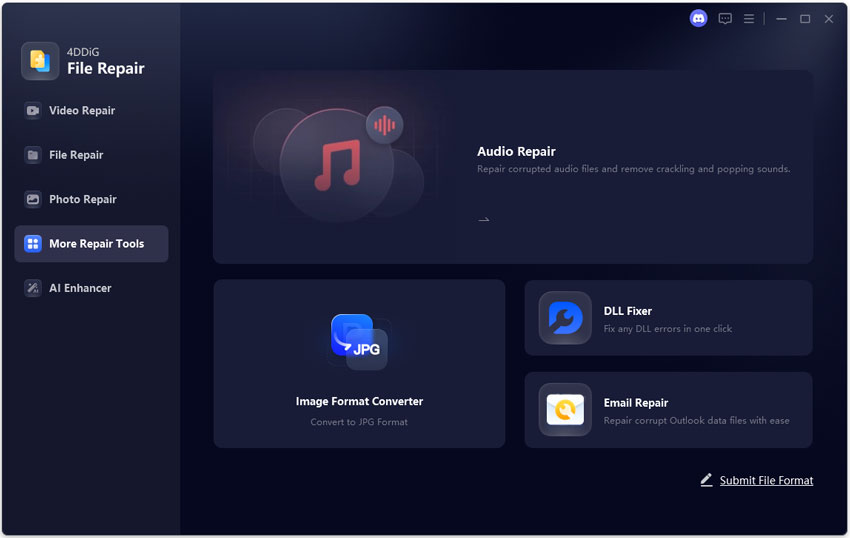
  • Launch 4DDiG File Repair on your Windows computer. From the main interface, select "More Repair Tools" and choose "Image Format Converter".

    open 4ddig image format converter
  • Click "Add Files" to select your HEIC images. You can add multiple files together instead of converting each photo separately. You can also drag and drop the images into the converter.

    add multiple heic images to 4ddig
  • After adding the files, choose JPG as the output format. Select the "Convert" option to start processing all selected HEIC images.

    convert all heic images to jpg
  • Wait for the conversion to finish. 4DDiG processes the selected images together, which is useful when you need to convert multiple HEIC to JPG. When processing finishes, click "Save" and choose the destination folder.

    preview and save converted jpg images

The converted JPG files will be saved together, making this approach practical when you need to convert HEIC to JPG all at once.

FAQs About Converting HEIC to JPG on Windows

Q1: What Is the Best Way to Convert HEIC to JPG on Windows?

The best method depends on how many files you need to convert. Paint is suitable for individual images. Online converters work well without software installation. For large collections, a batch converter such as 4DDiG can bulk convert HEIC to JPG together.

Q2: Why Can't I Save a HEIC File as a JPG?

Windows may not have the required HEIF support installed. Install the HEIF Image Extensions from the Microsoft Store first. Then open the HEIC image in a supported application such as Paint and use "Save as" to create a JPG copy. Simply changing the file extension from ".heic" to ".jpg" does not convert the image. Windows treats the extension as part of the filename, not as a format conversion.

Q3: How to Convert HEIC to JPG on Windows Without Software?

Use a browser-based Apple HEIC to JPG Windows converter. Upload your HEIC image, start the conversion, and download the resulting JPG file. This method avoids installing desktop software. However, consider privacy before uploading personal or sensitive photos to an online service.

Conclusion

Knowing how to convert HEIC to JPG on Windows makes Apple photos easier to use across different apps and devices. Paint works for individual files, while online converters provide a software-free option.

For large collections, 4DDiG's built-in Image Format Converter provides a faster way to convert HEIC to JPG on Windows in bulk. It supports multiple files, local processing, previews, and several image formats.

FREE DOWNLOAD

Secure Download

FREE DOWNLOAD

Secure Download

Sawart Mashab (senior editor)

Sawart Mashab, the content writer for 4DDiG, is adept at creating informative and practical solutions related to Windows and macOS issues, data recovery, file repair, and RAID storage.

(Click to rate this post)

You rated 4.5 ( participated)