Discover 4 Must-Try HEIC Converters for Windows 11/10

5 mins read

Updated on 2026-10-10 10:11:25 to Photo Tips

Received HEIC photos from an iPhone and now your Windows PC simply refuses to open them? It's a frustratingly common problem. The good news is that the right HEIC converter for Windows fixes this in minutes, no technical background needed.

This article explains why Windows has trouble with HEIC, the fastest native solution , four worthwhile converter applications, and the detailed overview of batch conversion.

Part 1. Why Windows Can't Open HEIC Files?

Windows doesn't ship with built-in HEIC support, at least not without some extra setup. Here's why the format causes problems out of the box:

  • This is Apple’s own format: HEIC stands for High Efficiency Image Container and was developed by Apple and made the default iPhone camera format when iOS 11 was released. Microsoft never added native support into Windows by default
  • Missing codec: Windows needs a specific codec called HEIF Image Extension to decode HEIC files. Without it, the Photos app and File Explorer simply don't know what to do with them
  • HEVC dependency: HEIC files require the HEVC Video Extension to be installed to display correctly on Windows, which is a paid add-on from the Microsoft Store on older systems
  • No universal adoption: HEIC is not adopted by all platforms in the same way that JPG or PNG are. Windows, by default, treats it like an unsupported file type.
  • Software compatibility gaps: Most of the third party Windows apps, photo editors, viewers, printing tools were built around JPG and PNG long before HEIC was even a twinkle in the eye

Part 2. Quickest Way to Open HEIC Images in Windows 10 & 11

But before you run to grab a converter, you should know that you can actually teach Windows to open HEIC files natively without any third-party software. Installing two free Microsoft Store extensions takes about two minutes and gives the Windows Photos app full HEIC support. Here's exactly how to do it:

  • Hit the Windows key and search for Microsoft Store and open it.

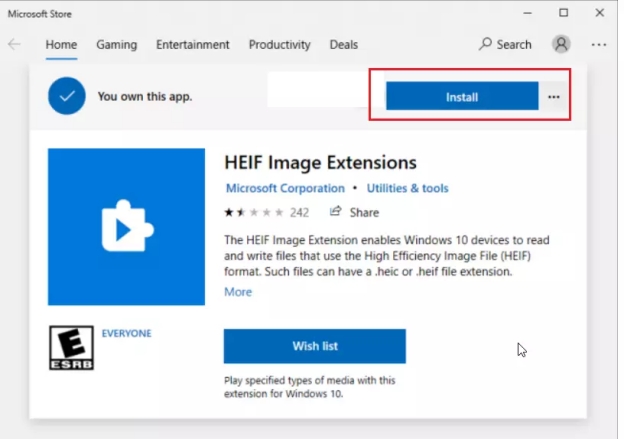
  • Search for "HEIF Image Extensions" in the Store search bar. Click the free extension by Microsoft and hit Get to install it.

    install heif image extensions to open heic on windows
  • Search for "HEVC Video Extensions" next. Note: this extension may show as a paid item ($0.99) on some Windows 10 systems. On Windows 11 it's typically available free. Install it.

    install hevc video extensions to open heic on windows
  • Close and reopen the Windows Photos app. Your HEIC files should now open directly without any conversion needed.

Note:

This method lets you view HEIC files on Windows and avoid the error message “The HEVC Video Extensions are required to display this file”. It doesn't convert them to JPG. If you need to share, edit, or print the photos, you'll still want a proper heic to jpg converter for windows from the options below.

Part 3. Catch the 4 Best HEIC Converters for Windows 11/10
1. 4DDiG File Repair — Image Format Converter (Most Recommended)

If you're dealing with more than a handful of HEIC files, this is the tool that actually handles the job properly. 4DDiG File Repair includes a built-in Image Format Converter that batch converts HEIC, BMP, PNG, CR2, and other formats to JPG in one go, without touching image quality in the process.

It's the most complete solution on this list, and the one most worth installing if you regularly work with photos across Apple and Windows devices.

4ddig file repair builtin image format converter

Outstanding Features:

  • True one-click batch conversion: Load and convert hundreds of HEIC files at once
  • Zero quality loss: Retains the original resolution and color accuracy
  • Wide format support: Convert HEIC, BMP, CR2, and PNG to JPG
  • All-in-one repair suite: Also support fixing corrupted photos, videos, audio files and documents
  • Absolutely offline: No files uploaded to any server, important for the privacy
  • Windows 10 & 11 Compatible: Functions like a charm on both OS versions with no compatibility issues
  • Easy 3-step workflow. Open files, choose output format, convert. No learning curve, no confused settings
  • Pros
  • Cons
    • Handles massive batch jobs that would take forever on phone apps or online tools
    • No file size limits
    • Offline processing keeps your photos private
    • Fast conversion speed even with large file volumes
    • Doubles as a file repair tool, strong overall value
    • Desktop software requires installation (not browser-based)
    • Free version has conversion limits; full batch features require a license

Best for: Anyone who values image quality, frequently has to convert significant amounts of HEIC files, and prefers a permanent desktop solution over an internet workaround.

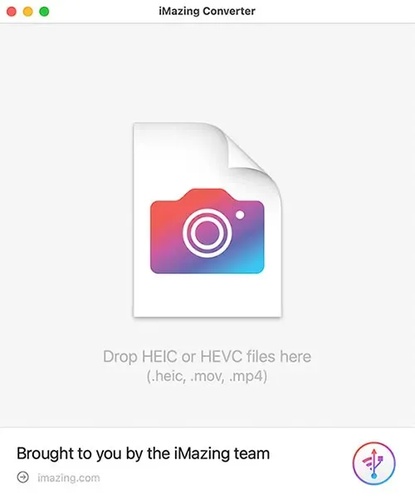
2. iMazing HEIC Converter for Windows

iMazing HEIC Converter is a free, light-weight desktop app designed specifically for HEIC conversion on Windows and Mac. It supports drag-and-drop conversion to JPG or PNG and keeps the EXIF metadata, something that online tools usually throw away. The interface is clean and the tool is completely free.

imazing heic converter for windows
  • Pros
  • Cons
    • Completely free, no hidden upgrades
    • Preserves EXIF metadata (date, location, camera info)
    • Drag and drop interface
    • Supports batch conversion
    • HEIC-only input, doesn't handle other format conversions
    • No built-in image repair or enhancement features
    • Less suitable for very large batch jobs

Best for: Those who want a free, dedicated desktop converter without committing to a full software suite but occasionally receive HEIC files.

3. CopyTrans HEIC for Windows

CopyTrans HEIC uses a different approach, integrating directly into Windows Explorer rather than being a standalone converter app. Once installed, you can right click any HEIC file and convert it to JPG, without opening a separate application. Automatically adds HEIC viewing support to Windows Photos.

copytrans heic for windows
  • Pros
  • Cons
    • Right-click conversion directly in File Explorer, very convenient
    • Adds HEIC viewing support to Windows Photos
    • Free for personal use
    • No separate app to open for basic conversions
    • Batch conversion is slower compared to dedicated tools
    • Interface options are limited for advanced users
    • Free version has a conversion limit on big batches

Best for: Windows users who want quick, occasional HEIC conversions without changing their existing workflow, best if you just want right-click access rather than a full app.

4. CloudConvert HEIC Converter

CloudConvert is a browser-based solution, no installation required. You upload your HEIC files, select JPG as the output, and download the converted files. It functions on any browser-equipped device and supports a large variety of formats. There is a daily cap on the amount of conversions that the free tier can manage.

cloudconvert heic converter online
  • Pros
  • Cons
    • No software installation needed
    • Works on any OS and browser
    • Supports a huge range of file formats beyond HEIC
    • Clean, straightforward interface
    • Files are uploaded to cloud servers, privacy concern for sensitive photos
    • Free tier has daily conversion limits
    • Requires internet connection, no offline use
    • Slower than desktop tools for large batches

Best for: Users who don't want to install software and only need a quick one-off conversion, or users on shared/work computers where installing apps isn't an option.

⚡ Part 4. How to Convert HEIC Files to JPG on Windows 11/10 (Step-by-Step)

When you're converting HEIC to JPG on PC in volume, doing it file by file through an online tool or right-click menu gets old fast. Here's how to batch convert hundreds of HEIC images at once using 4DDiG File Repair's Image Format Converter, the most efficient workflow for Windows users dealing with large photo libraries.

  • Install and open the 4DDiG File Repair program. In the left sidebar, click More Repair Tools. From the tools that appear, select Image Format Converter.

    FREE DOWNLOAD

    Secure Download

    FREE DOWNLOAD

    Secure Download

    open 4ddig image format converter
  • Click on the “Add Files” button or simply drag and drop your HEIC files to the converter window. For large batch jobs you can add a whole folder at once, without having to select individual files.

    add heic images to 4ddig
  • Choose Convert All to JPG from the left Convert Option. 4DDiG defaults to high quality output automatically.

    start converting heic to jpg
  • Hit Convert. 4DDiG processes all files simultaneously and saves the converted JPGs to your chosen output folder.

    preview and save converted jpg images

For additional guidance on specific features, the 4DDiG File Repair Guide covers the full conversion workflow in detail.

Conclusion

No more recurring HEIC compatibility headaches on Windows for you. Whether you are after a quick native fix or a proper HEIC converter for windows to get the job done in bulk, the options above cover every use case.

For most users dealing with more than a few files, 4DDiG File Repair's Image Format Converter is the standout choice, fast batch processing, zero quality loss, complete offline privacy, and a tool set that goes well beyond just HEIC to JPG converter software for Windows alone.

FREE DOWNLOAD

Secure Download

FREE DOWNLOAD

Secure Download

William Bollson (senior editor)

William Bollson, the editor-in-chief of 4DDiG, devotes to providing the best solutions for Windows and Mac related issues, including data recovery, repair, error fixes.

(Click to rate this post)

You rated 4.5 ( participated)